
Introduction
This user manual provides comprehensive instructions for the Xgody Android 11.0 Tablet. It covers setup, operation, maintenance, and troubleshooting to ensure optimal performance and user experience. Please read this manual thoroughly before using your device.

The Xgody Android 11.0 Tablet, showcasing its sleek design and rear camera module.
What's in the Box
Upon opening the package, please verify that all items listed below are present:
- 1 x Tablet
Ensure all components are accounted for before proceeding with setup.
Product Features
The Xgody Android 11.0 Tablet is designed for versatile use, offering a balance of performance and portability.
Performance and Storage
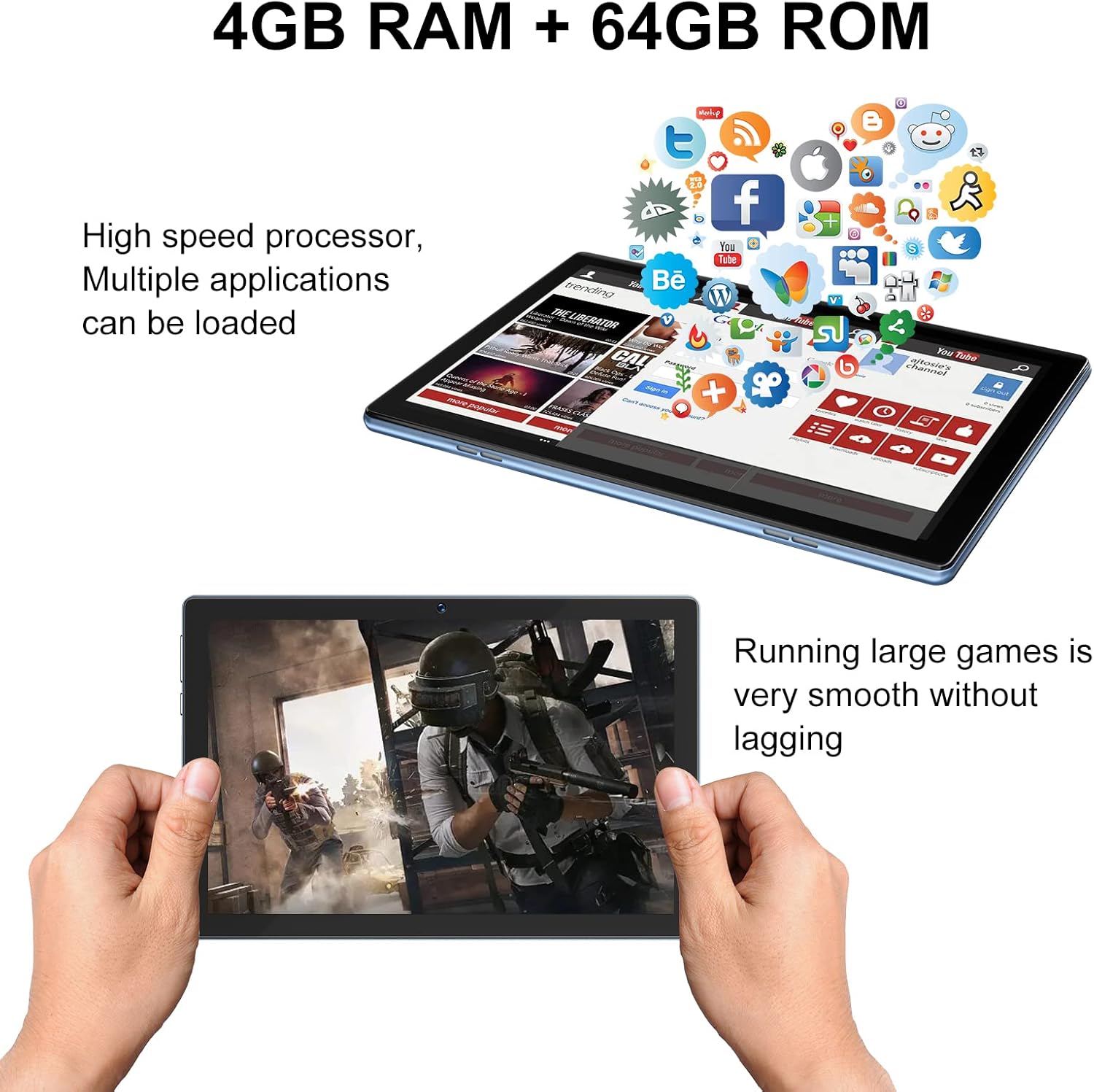
Equipped with 4GB RAM and 64GB ROM, the tablet supports high-speed processing and smooth operation for multiple applications and large games.

The 4GB RAM and 64GB ROM configuration ensures efficient multitasking and ample space for your files and applications.
The tablet features a Quad-Core Processor, providing sufficient power for daily tasks and entertainment. With 64GB of internal storage and expandability up to 256GB, you have ample space for apps, photos, and videos.
Operating System and Certification

Running on Android 11.0, the tablet offers a stable and powerful user experience, with GMS certification allowing access to a wide range of applications.

Google GMS Certification ensures full access to the Google Play Store, enabling users to download and install desired applications.

The 10-inch tablet runs on Android 11 with GMS certification, providing a stable and fast platform for various applications.
The Xgody tablet operates on the Android 11.0 system, which is known for its stability and compatibility. It is GMS (Google Mobile Services) certified, meaning you can access and download applications from the Google Play Store.
Display and Audio

The 1280x800 IPS HD screen offers true color reproduction and a clear viewing experience.

Experience vibrant visuals with the 1280x800 IPS HD resolution screen, providing a faster response speed than traditional IPS screens.

Dual speakers provide an immersive audio experience for music, videos, and games.
Enjoy clear and vibrant visuals on the 10-inch HD IPS screen with a maximum resolution of 1280x800. Dual box speakers deliver enhanced audio for an immersive experience.
Camera Capabilities

Capture moments with the 8.0MP rear camera and engage in video calls with the 2.0MP front camera.
The tablet is equipped with a 2.0MP front camera for video calls and selfies, and an 8.0MP rear camera for capturing photos and videos.
Battery Life

The 6000mAh battery allows for extended use, enabling you to watch videos, play games, and read ebooks without frequent recharging.

A powerful 6000mAh battery provides extended usage times, including up to 16 hours for music, 155 hours standby, 5 hours web browsing, 4 hours gaming, and 5 hours video playback.
The tablet is powered by a 6000 mAh Lithium Ion battery, providing long-lasting usage for various activities.
Versatile Usage Scenarios

The tablet is suitable for educational purposes, offering a range of apps for children.

Ideal for reading, browsing, and consuming digital content.

The tablet can be used for office tasks and collaborative work.

Facilitates virtual meetings and video conferencing.

The tablet is suitable for shared entertainment and collaborative viewing.
The Xgody tablet is versatile, supporting various activities from reading and office work to video calls and shared entertainment.
Official Product Video
Official product video showcasing the Xgody Android 11 Tablet 10 inch, highlighting its features and design. The video has a duration of 43 seconds.
Setup
Charging the Tablet
- Connect the charging cable to the tablet's charging port.
- Plug the other end of the cable into a compatible power adapter.
- Connect the power adapter to a wall outlet. The battery indicator on the screen will show charging status.
- For first use, it is recommended to fully charge the tablet.
Power On/Off
- To Power On: Press and hold the Power button located on the side of the tablet until the Xgody logo appears on the screen.
- To Power Off: Press and hold the Power button until a power-off menu appears. Select "Power off" and confirm.
- To Restart: From the power-off menu, select "Restart" and confirm.
Initial Setup
- After powering on for the first time, follow the on-screen prompts to select your language and region.
- Connect to a Wi-Fi network: Select your desired network from the list and enter the password if required.
- Sign in with your Google Account or create a new one. This is necessary to access the Google Play Store and other Google services.
- Review and accept the terms and conditions.
- Complete any additional setup steps, such as setting up a screen lock or restoring data from a previous device.
Operating the Tablet
Basic Navigation
- Touch: Tap an icon or option to select it.
- Touch and Hold: Press and hold an item to access more options or move it.
- Swipe: Drag your finger across the screen to scroll or navigate between screens.
- Pinch: Use two fingers to zoom in or out on images or web pages.
App Management
- Installing Apps: Open the Google Play Store app, search for the desired app, and tap "Install".
- Uninstalling Apps: Touch and hold the app icon on the home screen or app drawer, then drag it to "Uninstall" or select "App info" and choose "Uninstall".
- Closing Apps: Swipe up from the bottom of the screen (or tap the square navigation button) to view recent apps, then swipe an app card up to close it.
Camera Usage
- Open the Camera app from the home screen or app drawer.
- Switch between front and rear cameras using the camera switch icon.
- Tap the shutter button to take a photo or start/stop video recording.
- Access settings within the camera app to adjust modes, resolution, and other parameters.
Connectivity
- Wi-Fi: Go to Settings > Network & internet > Wi-Fi to connect to available networks.
- Bluetooth: Go to Settings > Connected devices > Bluetooth to pair with Bluetooth devices like headphones or speakers.
Storage Management
To check storage usage or free up space:
- Go to Settings > Storage.
- You can view how much space is used by different categories (apps, photos, videos, etc.).
- To expand storage, insert a microSD card into the designated slot.
Maintenance
Cleaning the Tablet
- Use a soft, lint-free cloth to clean the screen and body of the tablet.
- For stubborn smudges, slightly dampen the cloth with water or a screen cleaner designed for electronics.
- Avoid using harsh chemicals, abrasive materials, or excessive moisture.
Battery Care
- Avoid fully discharging the battery frequently.
- Do not expose the tablet to extreme temperatures (hot or cold), as this can affect battery life.
- Use only the provided charger or a certified compatible charger.
Software Updates
- Regularly check for system updates to ensure your tablet has the latest features and security patches.
- Go to Settings > System > System update to check for and install available updates.
- Ensure the tablet is sufficiently charged and connected to Wi-Fi before performing an update.
Troubleshooting
This section addresses common issues you might encounter with your Xgody Android 11.0 Tablet.
Tablet Does Not Turn On
- Ensure the battery is charged. Connect the charger and wait a few minutes before attempting to power on.
- Press and hold the Power button for at least 10-15 seconds to perform a forced restart.
Wi-Fi Connection Issues
- Check if Wi-Fi is enabled in Settings.
- Restart your Wi-Fi router and the tablet.
- Forget the network and reconnect by re-entering the password.
- Ensure you are within range of the Wi-Fi signal.
Slow Performance or Freezing
- Close unused applications running in the background.
- Clear cache data for frequently used apps (Settings > Apps > [App Name] > Storage & cache > Clear cache). Note: Clearing storage will delete app data.
- Ensure sufficient storage space is available. Delete unnecessary files or move them to external storage.
- Restart the tablet regularly.
Apps Crashing or Not Responding
- Force stop the app (Settings > Apps > [App Name] > Force stop).
- Clear the app's cache and data (Settings > Apps > [App Name] > Storage & cache > Clear storage / Clear cache). Note: Clearing storage will delete app data.
- Uninstall and reinstall the app.
- Ensure the app is updated to its latest version.
Specifications
| Feature | Detail |
|---|---|
| Product Dimensions | 9.7 x 6.5 x 0.47 inches |
| Item Model Number | 0d285819-92d8-4c0e-819b-cdc2770849bf |
| Batteries | 1 Lithium Ion battery required (included) |
| Standing Screen Display Size | 10 Inches |
| RAM Memory Installed Size | 4 GB |
| Aspect Ratio | 16:10 |
| Memory Storage Capacity | 64 GB (expandable to 256 GB) |
| Brand | Xgody |
| Model Name | Xgody Android 11.0 Tablet |
| Screen Size | 10 Inches |
| Display Resolution Maximum | 1280x800 |
| Operating System | Android 11.0 |
| Front Camera | 2.0MP |
| Rear Camera | 8.0MP |
| Connectivity | Bluetooth, Wi-Fi |
| Certification | GMS Certified |
Warranty and Support
Xgody products are designed for reliability and performance. For specific warranty details, please refer to the warranty card included with your product or visit the official Xgody website.
If you encounter any issues or require technical assistance, please contact Xgody customer support through the following channels:
- Online Support: Visit the Xgody official website for FAQs, troubleshooting guides, and contact forms.
- Email Support: Refer to your product documentation for the dedicated support email address.
- Phone Support: Check the Xgody website for regional phone support numbers.
Please have your product model number (0d285819-92d8-4c0e-819b-cdc2770849bf) and purchase information ready when contacting support.