1. Introduction
Thank you for choosing the Podofo 1 Din Android Car Stereo. This device integrates advanced features such as a 7-inch retractable touch screen, Android operating system, Bluetooth, GPS navigation, Wi-Fi connectivity, FM/RDS radio, Mirror Link, AUX-in, and support for a backup camera. This manual provides essential information for installation, operation, maintenance, and troubleshooting to ensure optimal performance and user experience.

Image 1.1: Podofo 1 Din Android Car Stereo with its main components and accessories.
2. Package Contents
Please check the package carefully to ensure all items are present:
- 1 x Single DIN Car Stereo Unit
- 1 x Backup Camera
- 1 x GPS Antenna
- 1 x Power Cable Harness
- 1 x Speaker Cable Harness
- 2 x Disassembly Keys
- 1 x User Manual
- 1 x Mounting Bracket Set

Image 2.1: Visual representation of the package contents.
3. Specifications
| System | Android 10.0 |
| Screen Size | 7-inch Retractable Touch Screen |
| Resolution | 1024 x 600 |
| Bluetooth Version | 4.2 |
| FM Radio Range | 87.5 ~ 108 MHz |
| Operating Temperature | -10℃ ~ +60℃ |
| USB Interface | USB 2.0 |
| Voltage | 12V |
| Output Power | 60W |
| Storage | 1GB RAM + 16GB ROM |
| Audio Formats | MP3 / WMA / WA / OGG / FLAC / APE |
| Video Formats | RM / RMVB / MP4 / FLV / MKV / 3GP / AVIASF / SWFMP1 |
| Image Format | JPG |
| Connectivity | Wi-Fi |
| Product Dimensions (L x W x H) | 18.8cm x 5.8cm x 16.5cm |
| Weight | 1660 Grams |

Image 3.1: Product details including dimensions and rear panel connections.
4. Setup and Installation
Before installation, ensure your vehicle's power is disconnected. Professional installation is recommended.
4.1 Wiring Connections
- Power Connection: Connect the power cable harness to your vehicle's power supply (ACC, B+, GND). Ensure correct polarity.
- Speaker Connection: Connect the speaker cable harness to your vehicle's speakers. Match positive and negative terminals.
- GPS Antenna: Connect the GPS antenna to the dedicated port on the back of the unit and mount it in a location with a clear view of the sky.
- Backup Camera: Connect the backup camera's video output to the 'CAMERA IN' port on the stereo. Connect the camera's power to your vehicle's reverse light circuit for automatic activation.
- AUX-in/USB: Connect external devices via the AUX-in port or USB ports as needed.
- Steering Wheel Control (SWC): If your vehicle supports SWC, connect the SWC wires (KEY1, KEY2) to the corresponding wires from your vehicle's harness. Configuration will be done in the settings menu.

Image 4.1: Backup camera wiring diagram.
4.2 Mounting the Unit
Insert the single DIN unit into your vehicle's dashboard opening. Secure it using the provided mounting brackets and screws. Ensure the retractable screen mechanism has enough clearance to operate freely.
5. Operating Instructions
5.1 Basic Operation
- Power On/Off: Press the power button (usually labeled SRC or PWR) to turn the unit on or off.
- Volume Control: Use the rotary knob or on-screen controls to adjust the volume.
- Screen Retraction: Manually adjust the screen's angle or retract it into the unit as desired.
5.2 Bluetooth Connectivity (Bluetooth 4.2)
Pair your mobile phone with the car stereo for hands-free calling and audio streaming.
- Go to the Bluetooth menu on the car stereo.
- Enable Bluetooth on your mobile phone and search for available devices.
- Select "MY PODOFO" or a similar name from the list on your phone.
- Confirm the pairing code if prompted.
- Once paired, you can make/receive calls and play music through the car stereo.

Image 5.1: Bluetooth connection and FM/RDS radio interface.
5.3 FM/RDS Radio
Access the Radio application to listen to FM broadcasts. The RDS function displays station names and program information where available.
- Open the "Radio" app from the main menu.
- Use the on-screen controls to scan for stations, manually tune, or select preset stations.
5.4 GPS Navigation
The unit supports both online and offline navigation. Ensure the GPS antenna is properly connected.
- Open the "Navigation" or "Maps" app.
- For offline maps, download them via Wi-Fi before driving.
- Enter your destination and follow the voice-guided directions.
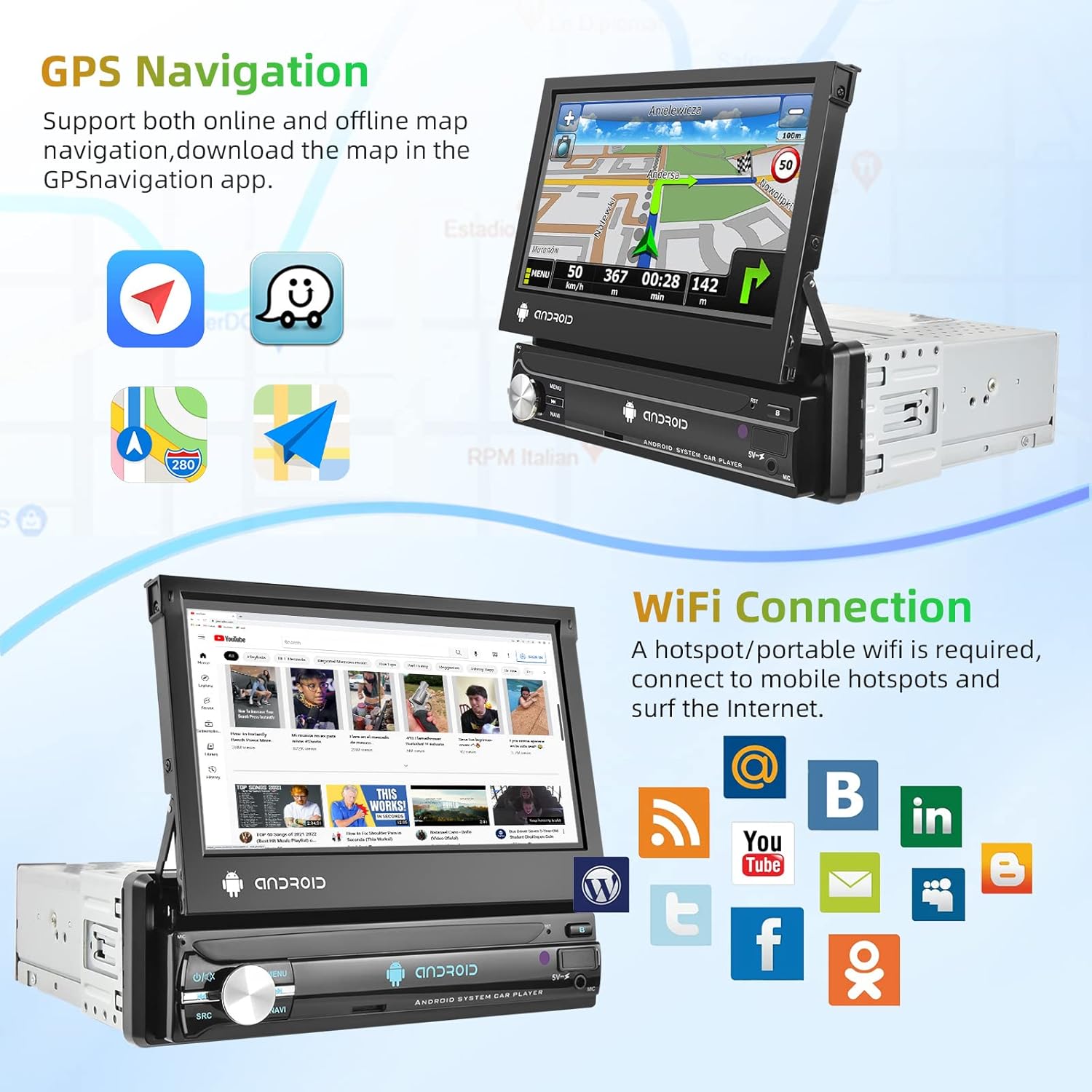
Image 5.2: GPS navigation and Wi-Fi connection features.
5.5 Wi-Fi Connection
Connect to a mobile hotspot or Wi-Fi network to access online features, download apps, and browse the internet.
- Go to "Settings" and select "Wi-Fi".
- Turn on Wi-Fi and select your desired network.
- Enter the password if required.
5.6 Mirror Link
Project your smartphone screen onto the car stereo display. Supports both Android and iOS devices via USB connection.
- Connect your smartphone to the car stereo via a USB cable.
- Follow the on-screen prompts on both your phone and the stereo to establish the connection.

Image 5.3: Split screen, EQ settings, Mirror Link, and Steering Wheel Control features.
5.7 Backup Camera Display
When the vehicle is shifted into reverse gear, the car stereo will automatically display the view from the connected backup camera.
5.8 Steering Wheel Control (SWC)
Configure your vehicle's steering wheel buttons to control the car stereo functions.
- Go to "Settings" and find the "Steering Wheel Control" or "SWC Learning" option.
- Follow the on-screen instructions to assign functions to each button.
5.9 EQ Setting
Adjust audio equalization for a personalized sound experience.
- Access the "EQ" or "Sound Settings" menu.
- Choose from preset equalizer modes or manually adjust frequency bands.
5.10 Split Screen
Run two applications simultaneously on the screen for enhanced multitasking.
- While an app is open, long-press the recent apps button or drag an app to one side of the screen (depending on Android version).
- Select another app to open on the other side.
6. Maintenance
- Screen Cleaning: Use a soft, lint-free cloth to gently wipe the touch screen. Avoid abrasive cleaners or solvents.
- General Cleaning: Keep the unit free from dust and debris. Use a dry cloth for the main body.
- Software Updates: Periodically check for software updates through the system settings to ensure optimal performance and access to new features.
7. Troubleshooting
| Problem | Possible Cause | Solution |
|---|---|---|
| Unit does not power on. | Incorrect wiring, blown fuse, no power supply. | Check power cable connections (ACC, B+, GND). Verify vehicle fuse. Ensure vehicle battery is charged. |
| No sound. | Speaker wires disconnected, volume too low, incorrect audio source. | Check speaker wiring. Increase volume. Select correct audio source (FM, Bluetooth, USB, AUX). |
| GPS signal lost or inaccurate. | GPS antenna improperly connected or obstructed. | Ensure GPS antenna is securely connected and mounted in a clear location (e.g., dashboard, not under metal). |
| Bluetooth not connecting. | Bluetooth off on either device, incorrect pairing process. | Ensure Bluetooth is enabled on both the stereo and phone. Delete previous pairings and try pairing again. |
| Backup camera not displaying. | Camera not powered, video cable disconnected, reverse trigger wire not connected. | Check camera power and video connections. Ensure the reverse trigger wire is correctly connected to the vehicle's reverse light. |
8. Warranty and Support
8.1 Warranty Information
This product comes with a 2-year manufacturer's warranty. Please retain your proof of purchase for warranty claims. The warranty covers defects in materials and workmanship under normal use.
8.2 Customer Support
For technical assistance, troubleshooting beyond this manual, or warranty inquiries, please contact Podofo customer support through the retailer where the product was purchased or visit the official Podofo website for contact information.