
Nideocion B500W
Portable Apple CarPlay Screen Dash Mount
Model: B500W | Brand: Nideocion
Introduction
Thank you for purchasing the Nideocion B500W Portable Apple CarPlay Screen. This device is designed to enhance your driving experience by integrating smartphone functionalities like navigation, music, and communication directly into your vehicle's dashboard. This manual provides detailed instructions for setup, operation, maintenance, and troubleshooting to ensure optimal performance and safety.
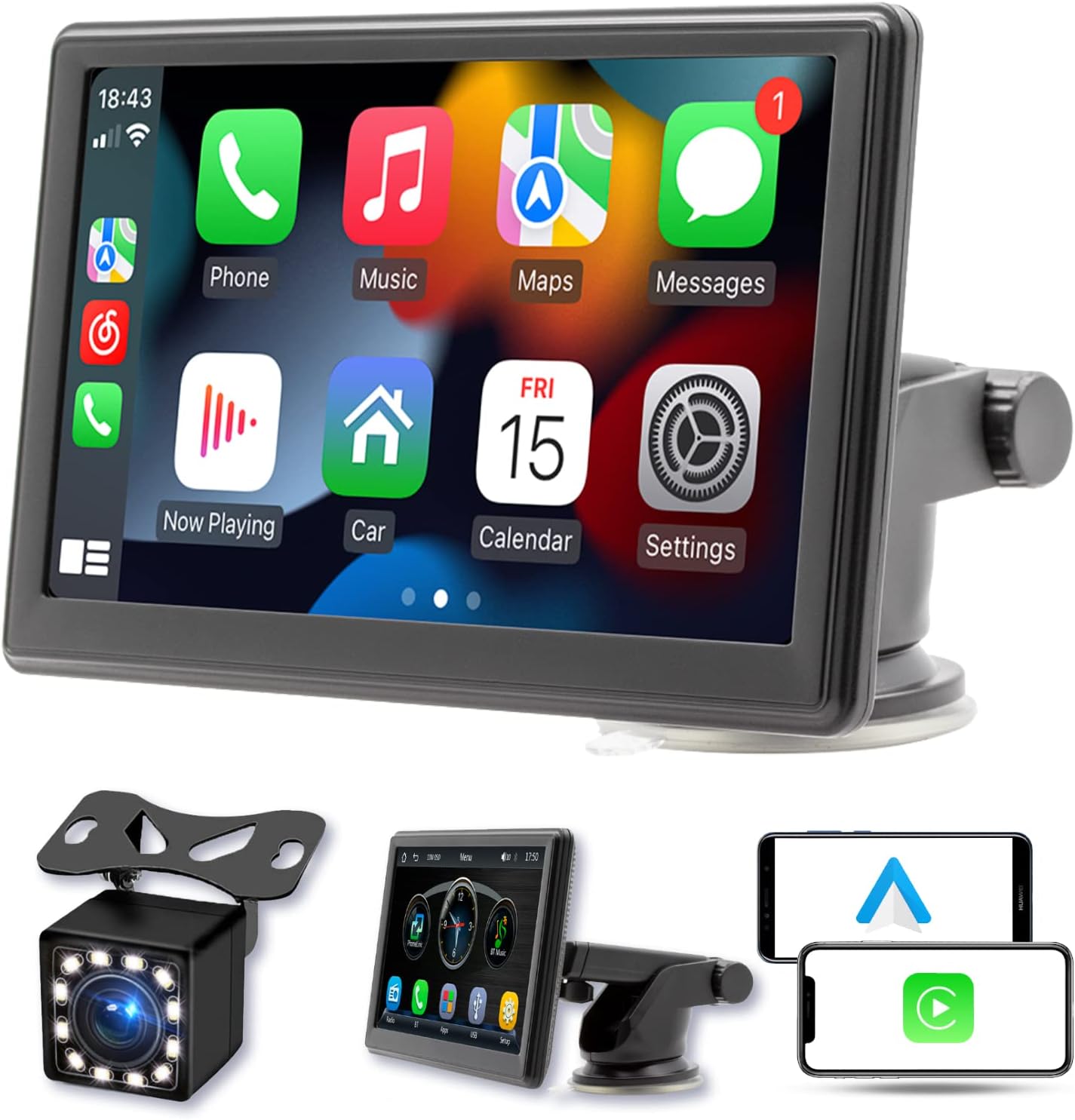
Image: The Nideocion B500W Portable Apple CarPlay Screen with its included reversing camera, showcasing the main unit and accessories.
Product Overview
Key Features
- Wireless and Wired Apple CarPlay: Seamless integration with your iPhone for navigation, music, and messaging.
- Wireless and Wired Android Auto: Connect your Android smartphone for access to apps and features.
- 7-inch Touch Screen Display: High-definition screen for clear visibility and easy interaction.
- Bluetooth 5.1: Stable wireless connection for hands-free calling and audio streaming.
- FM Transmitter: Broadcast audio to your car's FM radio for sound output through vehicle speakers.
- Night Vision Reversing Camera: Enhances safety during parking and reversing with clear rear view and customizable guidelines.
- USB & TF Video Input: Play multimedia content directly from external storage devices.
- Easy Installation: Portable design with an adjustable dash mount for flexible positioning.
Setup
1. Mounting the Device
The B500W comes with an adjustable dash mount. Choose a location on your dashboard that does not obstruct your view of the road or interfere with airbag deployment. Ensure the surface is clean and dry before attaching the suction cup.
- Clean the desired mounting area on your dashboard.
- Attach the suction cup mount firmly to the dashboard. Press down on the suction cup and engage the locking lever to secure it.
- Adjust the angle of the display using the multi-angle rotation and 270-degree adjustable arm for optimal viewing.

Image: Illustration of the adjustable dash mount, highlighting its multi-angle rotation and 270-degree adjustability for flexible positioning.
2. Connecting Power
Connect the provided power cable to the DC power jack on the side of the B500W unit and plug the other end into your vehicle's 12V power outlet (cigarette lighter socket).
3. Connecting Reversing Camera (Optional)
If you are installing the reversing camera, connect its video cable to the AV IN port on the B500W unit. Ensure the camera's power cable is correctly wired to your vehicle's reverse light circuit for automatic activation when shifting into reverse.
Operating Instructions
1. Apple CarPlay
The B500W supports both wireless and wired Apple CarPlay. This allows you to access navigation, make calls, send messages, and listen to music directly from your iPhone on the display.
- Wireless CarPlay: Enable Bluetooth and Wi-Fi on your iPhone. On the B500W, select the CarPlay icon. Follow the on-screen prompts to pair your iPhone via Bluetooth. Once paired, CarPlay will connect automatically via Wi-Fi.
- Wired CarPlay: Connect your iPhone to the USB port on the B500W using a compatible USB cable. CarPlay will launch automatically.

Image: The Apple CarPlay interface displayed on the portable screen, showing common applications like Phone, Music, Maps, and Messages, with a connected iPhone.
2. Android Auto
The B500W supports both wireless and wired Android Auto. This allows you to access navigation, make calls, send messages, and listen to music directly from your Android phone on the display.
- Wireless Android Auto: Enable Bluetooth and Wi-Fi on your Android phone. On the B500W, select the Android Auto icon. Follow the on-screen prompts to pair your phone via Bluetooth. Once paired, Android Auto will connect automatically via Wi-Fi.
- Wired Android Auto: Connect your Android phone to the USB port on the B500W using a compatible USB cable. Android Auto will launch automatically.

Image: The Android Auto interface displayed on the portable screen, showing navigation and media apps, with a connected Android phone.
3. Bluetooth 5.1
The integrated Bluetooth 5.1 module allows for stable and fast connection to your smartphone for hands-free calling and audio streaming.
- Pairing: On the B500W, navigate to the Bluetooth menu. Enable Bluetooth on your smartphone and search for available devices. Select 'B500W' (or similar name) from the list and confirm pairing.
- Hands-Free Calling: Once paired, you can make and receive calls directly through the B500W's display and built-in microphone/speaker.
- Audio Streaming: Play music from your smartphone via Bluetooth, with audio output through the B500W's speaker or via FM transmission to your car's speakers.
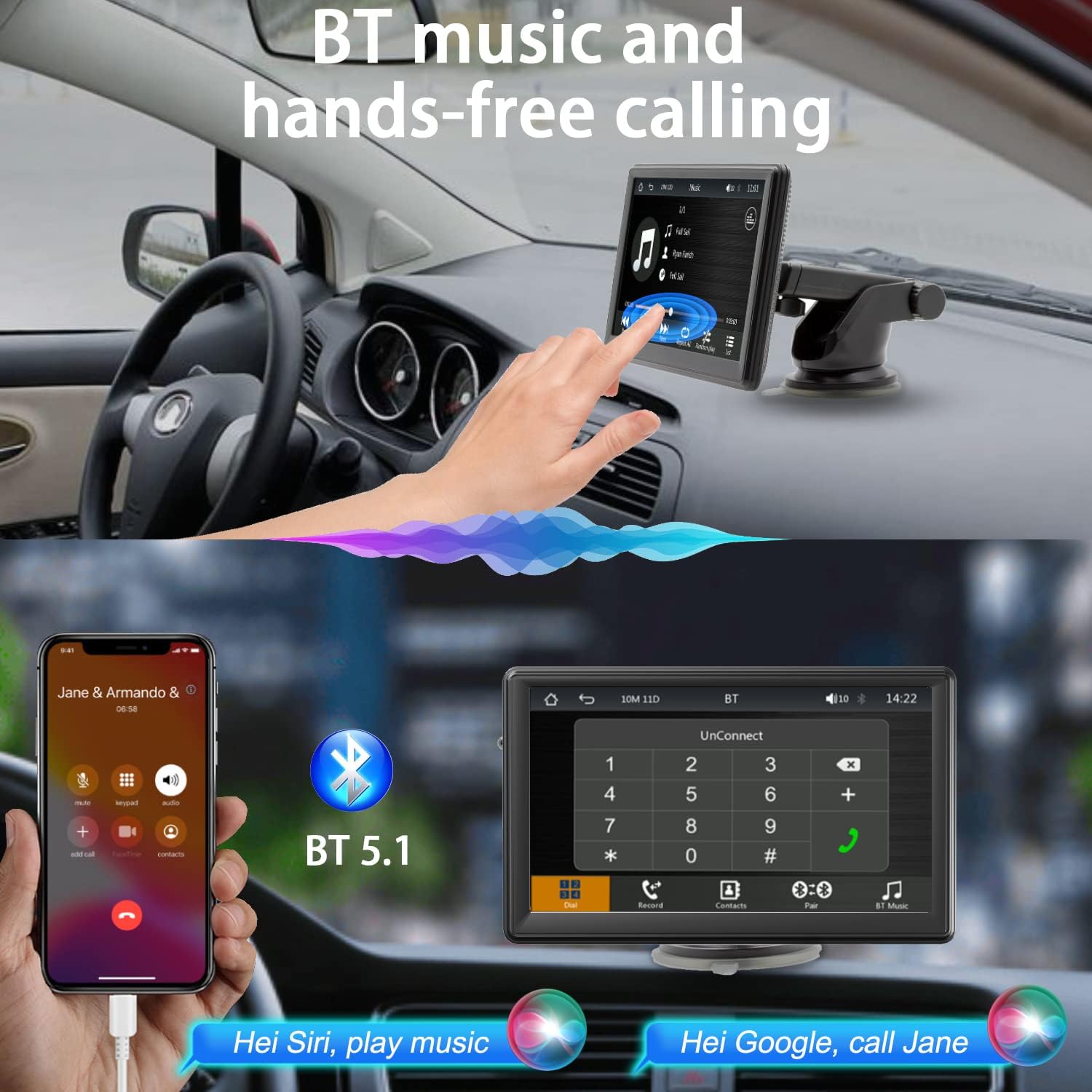
Image: A visual representation of Bluetooth 5.1 connectivity, showing a smartphone connected to the B500W for music playback and hands-free calling.
4. FM Radio Transmitter
The B500W can transmit its audio output to your vehicle's FM radio, allowing you to use your car's speakers for sound.
- On the B500W, select the FM Transmitter function.
- Choose an unused FM frequency (e.g., 87.5 MHz to 108.0 MHz) on the B500W.
- Tune your car's FM radio to the same frequency.
- Audio from the B500W (CarPlay, Android Auto, Bluetooth, multimedia) will now play through your car's speakers.

Image: The FM radio output screen on the B500W, showing frequency selection and preset options.
5. Multimedia Playback
The B500W supports playback of audio and video files from USB drives and TF (microSD) cards.
- Insert a USB drive into the USB port or a TF card into the TF card slot on the B500W.
- Navigate to the 'Multimedia' or 'Video/Music' section on the display.
- Browse and select your desired files for playback.

Image: The multimedia playback interface on the B500W, displaying options for music, video, and picture files from external storage.
6. Reversing Camera Function
The included reversing camera provides a wide-angle view of the area behind your vehicle, enhancing safety during reversing maneuvers.
- When the reversing camera is properly installed and connected, the display will automatically switch to the camera view when your vehicle is put into reverse.
- The camera features night vision capabilities for clear visibility in low-light conditions.
- Customizable guidelines are displayed on the screen to assist with parking.

Image: The wide-angle reversing camera view displayed on the screen, showing parking guidelines and indicating features like 175° wide angle, waterproof, night vision, and high definition.
Maintenance
To ensure the longevity and optimal performance of your B500W unit, follow these maintenance guidelines:
- Cleaning: Use a soft, dry cloth to clean the screen and exterior of the device. For stubborn smudges, slightly dampen the cloth with water or a screen-safe cleaner. Avoid abrasive materials or harsh chemicals.
- Temperature: Avoid exposing the device to extreme temperatures, both hot and cold, for extended periods.
- Storage: If storing the device for a long time, disconnect it from power and store it in a cool, dry place.
- Cables: Regularly check all cables for any signs of wear or damage. Replace damaged cables immediately to prevent malfunction.
Troubleshooting
If you encounter issues with your B500W, please refer to the common troubleshooting steps below. For more detailed solutions, you can also consult the official Troubleshooting Guide (PDF).
- Device does not power on: Ensure the power cable is securely connected to both the device and the vehicle's 12V outlet. Check if the vehicle's 12V outlet is functioning.
- No sound or poor sound quality: Verify that the FM transmitter is set to an unused frequency and your car's radio is tuned to the same frequency. Adjust volume levels on both the B500W and your car stereo.
- CarPlay/Android Auto not connecting: Ensure Bluetooth and Wi-Fi are enabled on your smartphone. Try forgetting the device in your phone's Bluetooth settings and re-pairing. For wired connections, ensure the USB cable is not damaged.
- Reversing camera not displaying: Check all camera cable connections. Ensure the camera's power is correctly wired to the reverse light circuit.
- Touch screen unresponsive: Try restarting the device by disconnecting and reconnecting power. Ensure the screen is clean and free of debris.
Specifications
| Feature | Specification |
|---|---|
| Brand | Nideocion |
| Model Number | B500W |
| Product Dimensions | 7 x 7 x 7 inches |
| Item Weight | 1.52 pounds |
| Connectivity Technology | Bluetooth, USB |
| Compatible Devices | Smartphone |
| Connector Type | USB |
| Audio Output Mode | Stereo |
| Control Method | Touch |
| Supported Internet Services | Maps |
Warranty and Support
For information regarding product warranty, returns, or technical support, please refer to the documentation provided with your purchase or contact the seller directly. Keep your proof of purchase for any warranty claims.
Related Documents - B500W
 |
How to Connect Your Phone's Bluetooth Audio to Your Car System Step-by-step guide on modifying car audio output via Bluetooth for single and dual device connections. Includes iPhone instructions and customer support information. |
 |
RLA-JBS1 Model Compatibility and Specifications Detailed list of supported models and port configurations for the RLA-JBS1 device, including patterns A, B, C, and D, and a table of newly supported models. |
 |
Shenzhen Guard Dragon Electronics Product Similarity Declaration for FS02W Vehicle Player Declaration by Shenzhen Guard Dragon Electronics Co., Ltd. confirming product similarity for the FS02W vehicle player and its associated models, detailing hardware and software design. |
 |
Shenzhen Guard Dragon Electronics Product Function Declaration - Vehicle Player Declaration from Shenzhen Guard Dragon Electronics Co., Ltd. confirming the deactivation of the WIFI2.4G function in their Vehicle Player models, including FCC ID 2A4S3-FS02W. |
Ask a question about this manual
Ask about setup, troubleshooting, compatibility, parts, safety, or missing instructions. Manuals+ will review the question and use this page’s manual context to help answer it.