
1. Introduction
The Soundcast MGX-2446 USB is a professional 24-channel audio mixer designed for a wide range of sound reinforcement applications, including live bands, DJs, public speaking, and presentations. This mixer integrates professional effects, USB connectivity, and Bluetooth functionality to provide versatile audio control.
Key features include 24 high-quality, low-noise XLR microphone inputs with independent +48V phantom power per channel, a 4-band equalizer on each channel, 7 auxiliary sends (including internal effects), and 4 groups. The MGX-2446 USB is equipped to meet diverse audio setup requirements.
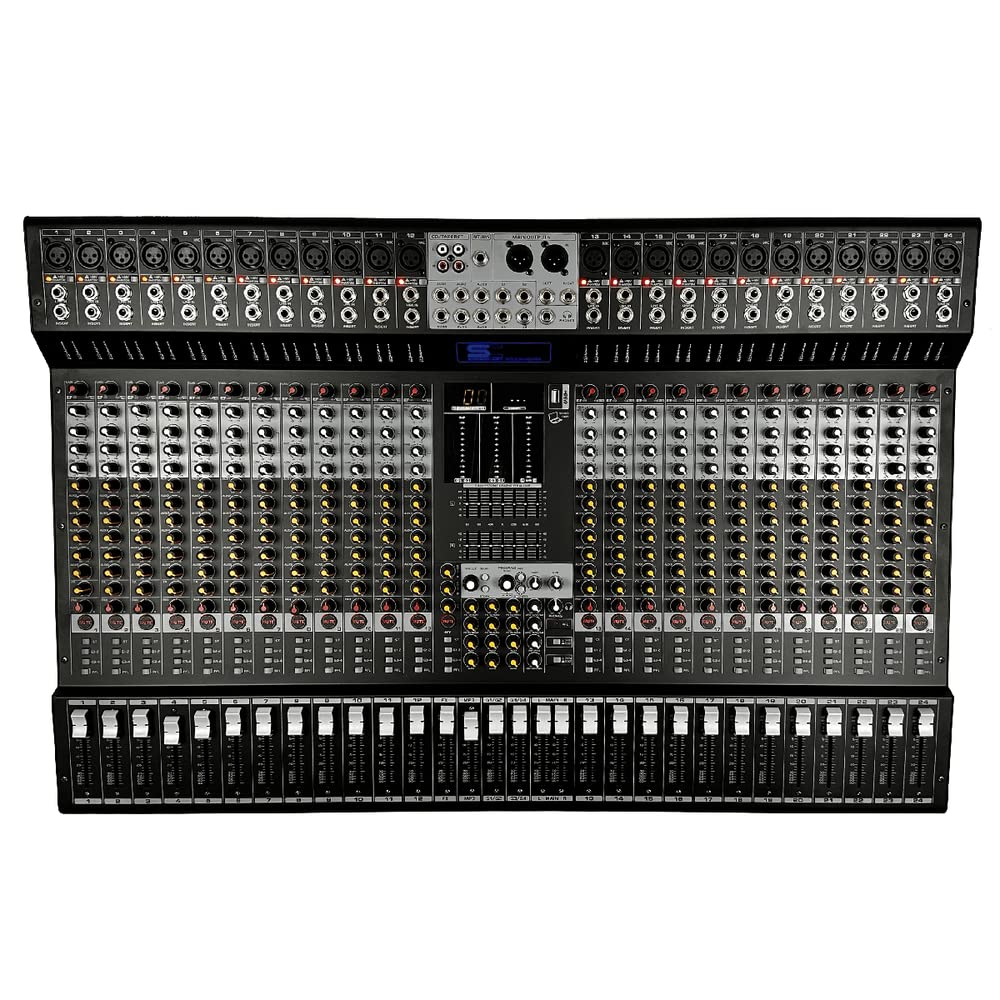
Figure 1.1: Overview of the Soundcast MGX-2446 USB 24-Channel Mixer.
2. Safety Instructions
Please read and follow these safety instructions carefully to prevent damage to the unit and ensure user safety.
- Power Source: Connect the unit only to the specified power supply (100-240V, 50/60 Hz). Ensure the power cord is not damaged or pinched.
- Grounding: Always ensure the unit is properly grounded to prevent electric shock.
- Moisture: Do not expose the unit to rain, moisture, or any liquids. Do not place objects filled with liquids on the unit.
- Ventilation: Ensure adequate ventilation around the unit. Do not block ventilation openings.
- Heat: Keep the unit away from heat sources such as radiators, heat registers, stoves, or other heat-producing appliances.
- Cleaning: Disconnect the power before cleaning. Use a dry cloth only.
- Servicing: Do not attempt to service this unit yourself. Refer all servicing to qualified service personnel.
- Placement: Place the unit on a stable, level surface to prevent it from falling.
3. Package Contents
Verify that all items are present in the package upon unboxing:
- Soundcast MGX-2446 USB 24-Channel Mixer
- Power Cable
- User Manual (this document)
If any items are missing or damaged, please contact your retailer immediately.
4. Product Features
The Soundcast MGX-2446 USB mixer offers a comprehensive set of features for professional audio mixing:
- 24 Microphone Inputs: XLR inputs with high-quality, low-noise preamplifiers.
- +48V Phantom Power: Independent phantom power for each microphone channel.
- 4-Band Equalizer: Per channel equalization for precise tone shaping.
- 7 Auxiliary Sends: Including internal effects sends for monitoring and external processing.
- 4 Groups: For flexible signal routing and sub-mixing.
- Integrated Multi-Effects Processor: 99 editable digital effects to enhance your mix.
- USB Connectivity: For direct audio recording and playback with a computer.
- Bluetooth Connection: For wireless audio streaming from compatible devices.
- Robust Construction: Durable design suitable for various environments.
5. Controls and Connectors
5.1 Rear Panel Connections
The rear panel houses essential power and output connections.

Figure 5.1: Rear panel of the MGX-2446 USB mixer, showing power input and main outputs.
- AC IN: Power input connector for the supplied power cable.
- MAIN OUTPUTS (XLR/TRS): Balanced XLR and 1/4" TRS connectors for the main stereo output.
- CONTROL ROOM OUTPUTS (TRS): 1/4" TRS outputs for connecting studio monitors.
- PHONES: 1/4" TRS stereo output for headphones.
- LINE IN (RCA): Stereo RCA inputs for connecting external playback devices.
- USB Port: For connecting to a computer for audio interface functions.
5.2 Channel Strip Controls
Each channel strip provides comprehensive control over individual input signals.

Figure 5.2: Close-up of individual channel controls, including gain, EQ, and auxiliary sends.
- XLR Input: Balanced input for microphones.
- LINE Input: 1/4" TRS input for line-level signals.
- GAIN Control: Adjusts the input sensitivity for the microphone or line input.
- 4-Band EQ: High, High-Mid, Low-Mid, and Low frequency controls for tone shaping.
- AUX Sends: Controls for sending signal to auxiliary outputs (e.g., monitors, effects).
- PAN Control: Adjusts the stereo position of the channel signal.
- MUTE Button: Mutes the channel output.
- PFL (Pre-Fader Listen) Button: Routes the channel signal to the headphones for monitoring before the fader.
- Channel Fader: Adjusts the output level of the individual channel.
5.3 Master Section and Effects
The master section provides overall control and access to the built-in effects processor.
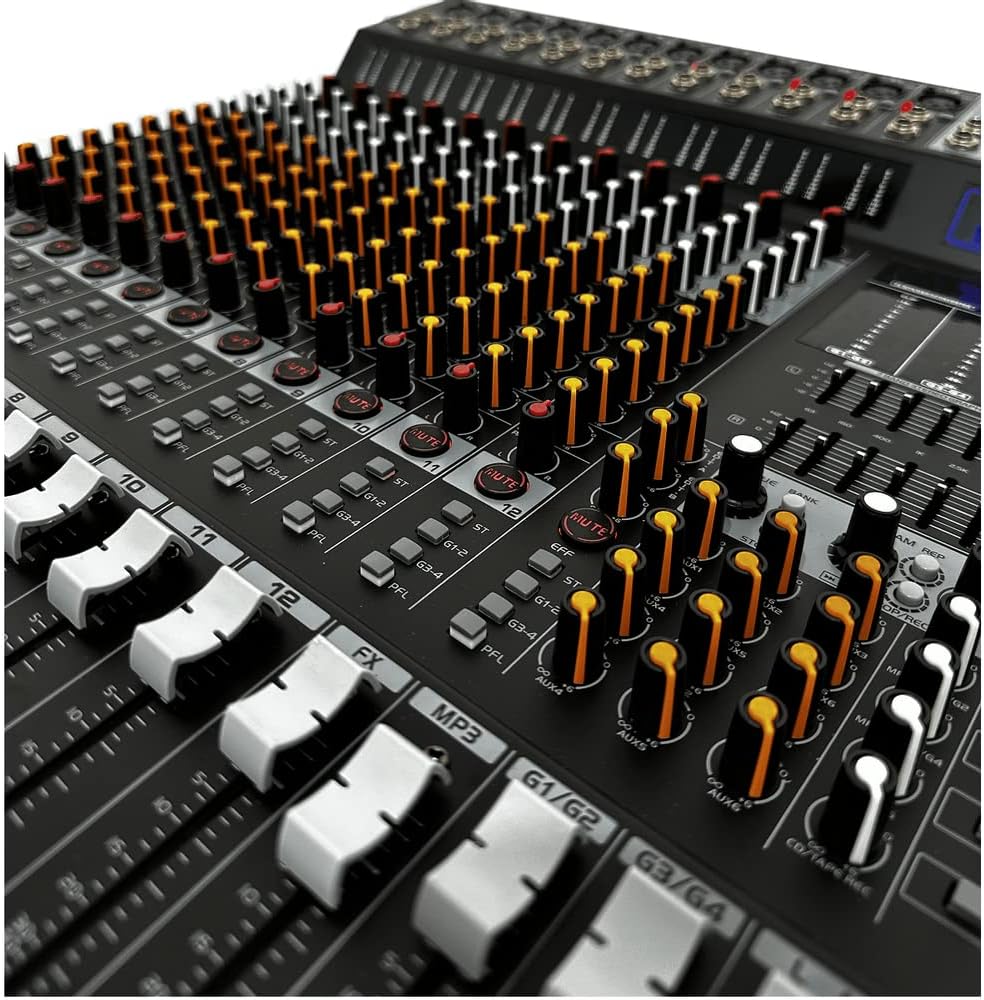
Figure 5.3: View of the master section, including main faders, effects controls, and USB/Bluetooth module.
- Main Mix Faders: Controls the overall output level of the main stereo mix.
- Group Faders: Controls the output level of the 4 sub-groups.
- Effects Section:
- PROGRAM/PARAMETER Control: Selects and adjusts the 99 built-in digital effects.
- FX SEND Control: Adjusts the amount of signal sent to the internal effects processor.
- FX RETURN Control: Adjusts the level of the returned effect signal into the main mix.
- USB/Bluetooth Module:
- Display: Shows current mode (USB/BT) and track information.
- Controls: Play/Pause, Skip, Mode selection for USB playback or Bluetooth pairing.
- Phantom Power Switch: Activates +48V phantom power for condenser microphones.
6. Setup
Follow these steps to set up your Soundcast MGX-2446 USB mixer:
- Unpack: Carefully remove the mixer from its packaging and place it on a stable, flat surface.
- Power Connection: Connect the supplied power cable to the AC IN port on the rear panel and then to a suitable power outlet. Do not power on the unit yet.
- Main Outputs: Connect your main speakers or power amplifier to the MAIN OUTPUTS (XLR or TRS) on the rear panel.
- Monitors/Headphones: Connect your studio monitors to the CONTROL ROOM OUTPUTS and your headphones to the PHONES jack.
- Input Devices:
- Microphones: Connect microphones to the XLR inputs. If using condenser microphones, ensure phantom power is off before connecting, then activate it.
- Line-Level Devices: Connect instruments, media players, or other line-level devices to the 1/4" TRS LINE inputs.
- External Playback: Connect devices like CD players or laptops to the RCA LINE IN inputs.
- USB Connection (Optional): If using the mixer as an audio interface, connect a USB cable from the mixer's USB port to your computer.
- Initial Settings: Ensure all channel faders, main mix faders, and gain controls are set to their minimum positions before powering on.
- Power On: Turn on your main speakers/amplifier first, then power on the MGX-2446 USB mixer.
7. Operating Instructions
7.1 Basic Mixing
- Set Gain: For each active input channel, speak or play into the microphone/instrument. Slowly increase the GAIN control until the PEAK LED flashes only occasionally.
- Adjust Channel Level: Slowly raise the channel fader to the desired level.
- Main Mix Level: Gradually raise the MAIN MIX faders to achieve the desired overall output volume.
- Equalization: Use the 4-band EQ controls on each channel to shape the tone of the input signal.
- Panning: Adjust the PAN control to position the sound within the stereo field.
7.2 Using the Effects Processor
- Select Effect: Use the PROGRAM/PARAMETER control to browse and select one of the 99 built-in effects. The display will show the effect number.
- Send to FX: On each channel you wish to apply effects to, increase the corresponding AUX SEND control (usually labeled FX or EFX) to send signal to the effects processor.
- Adjust FX Return: Use the FX RETURN control in the master section to blend the processed effect signal back into the main mix.
- Parameter Adjustment: Some effects allow for parameter adjustments (e.g., delay time, reverb decay). Refer to the display and PROGRAM/PARAMETER control for these adjustments.
7.3 Bluetooth Connectivity
- Activate Bluetooth: Press the MODE button on the USB/Bluetooth module until 'BT' or 'Bluetooth' appears on the display. The unit will enter pairing mode.
- Pair Device: On your Bluetooth-enabled device (smartphone, tablet), search for available Bluetooth devices and select 'MGX-2446 USB' (or similar).
- Play Audio: Once paired, play audio from your device. The audio will be routed through the mixer's USB/Bluetooth channel.
- Control Playback: Use the Play/Pause and Skip buttons on the mixer's module or your connected device to control playback.
7.4 USB Audio Interface
When connected to a computer via USB, the MGX-2446 USB can function as an audio interface for recording and playback.
- Driver Installation: Your computer may automatically install necessary drivers. If not, check the Soundcast website for specific driver downloads.
- DAW Setup: In your Digital Audio Workstation (DAW) software, select the MGX-2446 USB as your audio input and output device.
- Recording: The main stereo mix of the mixer will typically be sent to your computer for recording.
- Playback: Audio played from your computer can be routed back through the mixer's USB channel.
8. Specifications
| Feature | Specification |
|---|---|
| Manufacturer | SOUNDCAST |
| Model Number | MGX2446 USB |
| Number of Channels | 24 |
| Connectivity Technology | Bluetooth, USB |
| Power Source | Wired Electric (100-240V, 50/60 Hz) |
| Microphone Inputs (XLR) | 24, Electronically balanced, discrete input circuit |
| Microphone E.I.N. (20 Hz-20kHz) | @0 ohms source resistance: -134 dB / -135.7 dB A-weighted @50 ohms source resistance: -131 dB / -133.3 dB A-weighted @150 ohms source resistance: -129 dB / -130.5 dB A-weighted |
| Frequency Response (Mic to Main Out) | <10 Hz - 90 kHz (+0dB/-1 dB) <10 Hz - 160 kHz (+0dB/-3dB) |
| Gain Range (Mic Input) | +10 to +60 dB |
| Max Input Level (Mic) | +12 dBu @+10 dB Gain |
| Impedance (Mic Input) | Approx. 2.6 k ohms balanced |
| Signal-to-Noise Ratio | 110 dB / 112 dB A-weighted (0 dBu In@+22 dB gain) |
| THD+N | 0.005% / 0.004% A-weighted |
| Line Inputs (TRS) | 1/4" TRS, electronically balanced |
| Impedance (Line Input) | Approx. 20 k ohms balanced, 10 k ohms unbalanced |
| Max Input Level (Line) | +30 dBu |
| Stereo Inputs (TRS) | 1/4" TRS, electronically balanced |
| Impedance (Stereo Input) | Approx. 20 k ohms |
| Max Input Level (Stereo) | +22 dBu |
| Mono Channel EQ (Low) | 80 Hz / ±15 dB |
| Mono Channel EQ (Mid) | 100 Hz - 8 kHz / ±15 dB |
| Mono Channel EQ (High) | 12 kHz / ±15 dB |
| Stereo Channel EQ (Low) | 80 Hz / ±15 dB |
| Stereo Channel EQ (Low Mid) | 500 Hz / +15 dB |
| Stereo Channel EQ (High Mid) | 3 kHz / +15 dB |
| Stereo Channel EQ (High) | 12 kHz / ±15 dB |
| Aux Sends (TS) | 1/4" TS, unbalanced |
| Impedance (Aux Sends) | Approx. 120 ohms |
| Max Output Level (Aux Sends) | +22 dBu |
| Stereo Aux Returns (TRS) | 1/4" TRS, electronically balanced |
| Impedance (Stereo Aux Returns) | Approx. 20 k ohms balanced / 10 k ohms unbalanced |
| Max Input Level (Stereo Aux Returns) | +22 dBu |
| Main Outputs (XLR/TRS) | XLR electronically balanced, 1/4" TRS balanced |
| Impedance (Main Outputs) | Approx. 240 ohms balanced / 120 ohms unbalanced |
| Max Output Level (Main Outputs) | +28 dBu (XLR), +22 dBu (TRS) |
| Control Room Outputs (TS) | 1/4" TS, unbalanced |
| Impedance (Control Room Outputs) | Approx. 120 ohms |
| Max Output Level (Control Room Outputs) | +22 dBu |
| Headphone Output (TRS) | 1/4" TRS, unbalanced |
| Max Output Level (Headphone) | +19 dBu / 150 ohms (+25 dBm) |
| DSP Converter | 24-bit Sigma-Delta, 64/128 times oversampling |
| Sampling Rate (DSP) | 40 kHz |
| Dimensions (H x W x D) | 110 x 550 x 840 mm |
| Weight | 14 kg |
9. Troubleshooting
If you encounter issues with your MGX-2446 USB mixer, refer to the following common problems and solutions:
- No Power:
- Ensure the power cable is securely connected to both the mixer and a working power outlet.
- Check the power switch on the mixer.
- Verify the power outlet is functional by plugging in another device.
- No Sound Output:
- Check that the main mix faders are raised.
- Ensure individual channel faders are raised and not muted.
- Verify that your speakers/amplifier are powered on and connected correctly.
- Check all cable connections from the mixer to the output devices.
- Ensure the correct input source is selected on your amplifier/speakers.
- No Input Signal:
- Check the GAIN control for the specific channel; it might be too low.
- Ensure the microphone or instrument is working and connected properly.
- If using a condenser microphone, ensure +48V phantom power is activated for that channel.
- Check for faulty cables.
- Bluetooth Not Connecting:
- Ensure the mixer's Bluetooth module is in pairing mode.
- Make sure Bluetooth is enabled on your device and it's within range.
- Try unpairing and re-pairing the device.
- Ensure no other device is currently connected to the mixer via Bluetooth.
- Distorted Sound:
- Reduce the GAIN control on the input channel.
- Lower the channel fader or main mix faders.
- Check for impedance mismatches between devices.
10. Maintenance
Proper maintenance ensures the longevity and optimal performance of your Soundcast MGX-2446 USB mixer.
- Cleaning: Regularly wipe the surface of the mixer with a soft, dry, lint-free cloth. Do not use abrasive cleaners, solvents, or waxes.
- Dust Protection: When not in use, cover the mixer with a dust cover to prevent dust and debris from entering the controls and internal components.
- Storage: Store the mixer in a cool, dry place away from direct sunlight and extreme temperatures.
- Cable Management: Avoid bending or crimping cables excessively. Use proper cable management to prevent damage to connectors and cables.
- Fader and Knob Care: Avoid applying excessive force to faders and knobs. If they become stiff or noisy, professional servicing may be required.
11. Warranty and Support
For warranty information and technical support, please refer to the documentation provided at the time of purchase or contact your authorized Soundcast dealer. Keep your proof of purchase for any warranty claims.
For further assistance, visit the official Soundcast website or contact their customer service department.