
1. Introduction
This manual provides detailed instructions for the installation, setup, operation, and maintenance of your Generic AAHD2-HY PRO 3045 Desktop Motherboard. Please read this manual thoroughly before proceeding with any installation or configuration to ensure proper functionality and to prevent damage to the components.
2. Safety Information
Always observe the following safety precautions when handling computer components:
- Ensure your workspace is clean, dry, and well-lit.
- Disconnect the power supply from the wall outlet before installing or removing any components.
- Wear an anti-static wrist strap or frequently touch a grounded metal object to discharge static electricity, which can damage sensitive electronic components.
- Handle the motherboard by its edges to avoid touching sensitive components or circuits.
- Keep all components away from liquids and extreme temperatures.
- If you are unsure about any step, consult a qualified technician.
3. Package Contents
Verify that all items are present in your motherboard package:
- Generic AAHD2-HY PRO 3045 Desktop Motherboard
- I/O Shield (may be included)
- SATA Data Cables (may be included)
- User Manual (this document, or a quick start guide)
- Driver CD/DVD or USB drive (may be included, otherwise download from manufacturer's website)
Note: Actual package contents may vary.
4. Product Specifications
| Feature | Specification |
|---|---|
| Model Name | AAHD2-HY |
| CPU Socket | Socket FM1 |
| Compatible Processors | AMD A-series, AMD E-series |
| Chipset Type | AMD 760G |
| RAM Memory Technology | DDR2 |
| Memory Slots Available | 2 |
| Graphics Card Interface | PCI Express |
| Main Power Connector Type | 24-Pin |
| Compatible Devices | Personal Computer |
5. Component Identification
Familiarize yourself with the various components and connectors on your motherboard:

Figure 5.1: Top-down view of the AAHD2-HY motherboard, showing the CPU socket, RAM slots, PCI slots, and various connectors.

Figure 5.2: Angled view highlighting the CPU socket, DDR2 memory slots (blue), and various expansion slots.
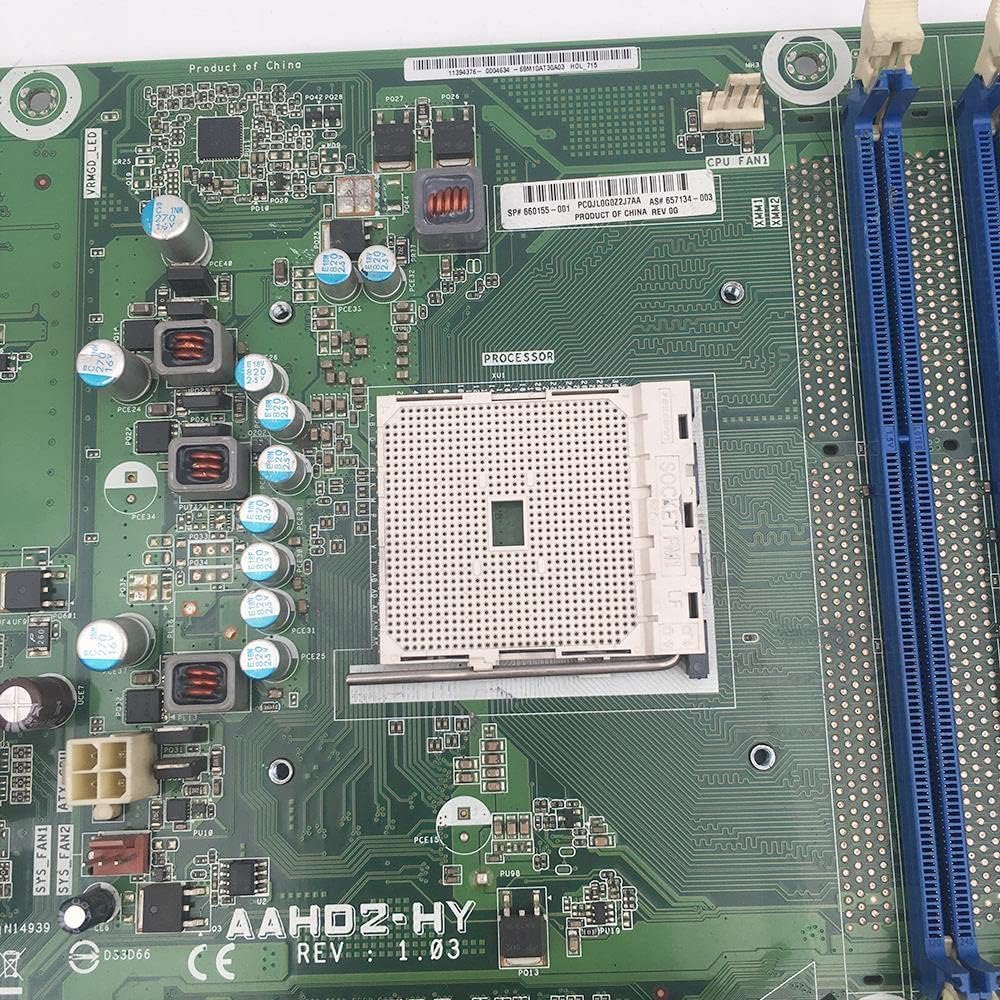
Figure 5.3: Close-up of the Socket FM1 CPU socket, where the AMD A-series or E-series processor will be installed.
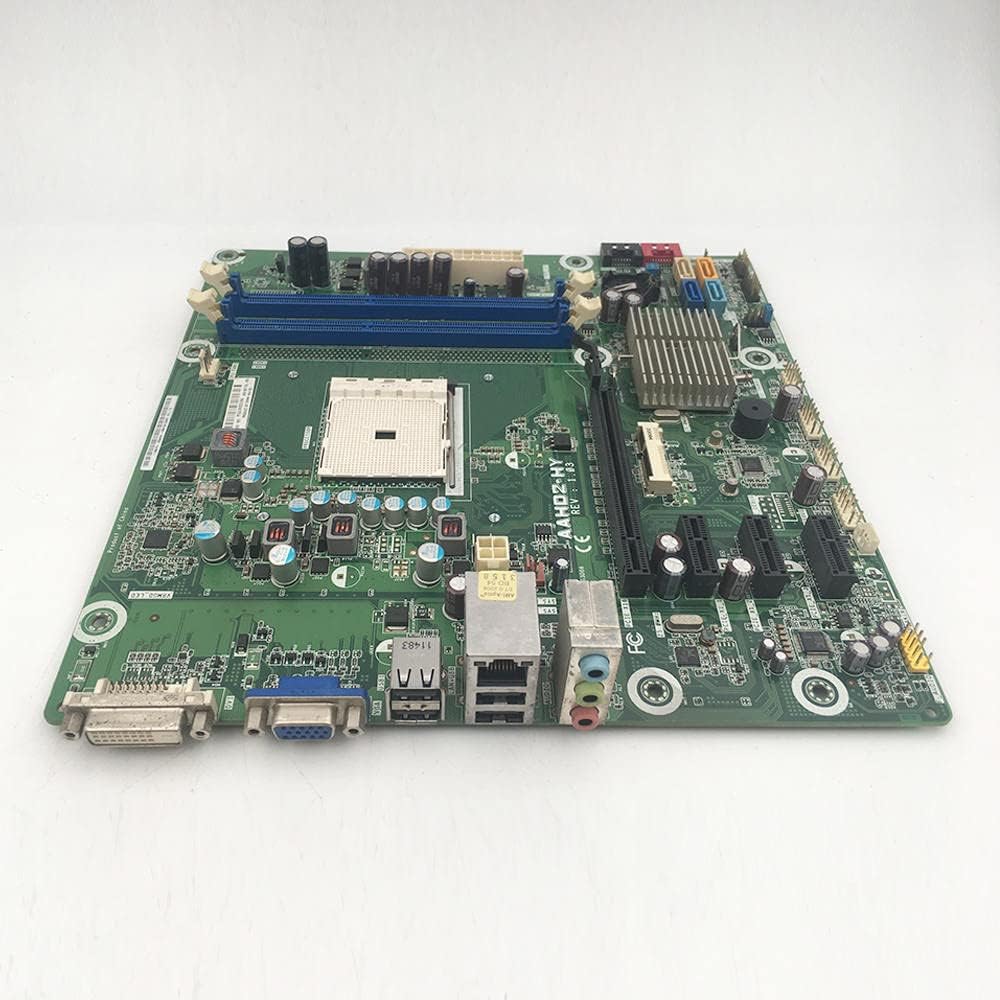
Figure 5.4: Side view showing the rear I/O panel with various ports (VGA, DVI, USB, Ethernet, Audio) and the general layout of the board.

Figure 5.5: Another angled view, illustrating the 24-pin main power connector, 4-pin CPU power connector, and SATA ports.

Figure 5.6: Rear view of the motherboard, showing the CPU cooler backplate mounting points.
6. Setup and Installation
Follow these steps to install your motherboard and essential components:
- Prepare the Case: Install the I/O shield into the rear opening of your computer case. Ensure all standoffs are correctly aligned with the motherboard's mounting holes.
- Install the CPU:
- Locate the Socket FM1 CPU socket. Lift the load lever.
- Carefully align the CPU with the socket, matching the golden triangle on the CPU to the triangle on the socket.
- Gently place the CPU into the socket without forcing it.
- Lower the load lever to secure the CPU.
- Install the CPU Cooler: Apply thermal paste (if not pre-applied) and install the CPU cooler according to its manufacturer's instructions. Ensure it is securely fastened and the fan is connected to the CPU_FAN header.
- Install RAM Modules:
- Open the clips on both ends of the DDR2 memory slots.
- Align the notch on the RAM module with the key in the slot.
- Press down firmly on both ends of the RAM module until the clips snap into place.
- Mount the Motherboard: Carefully place the motherboard into the case, aligning it with the standoffs and I/O shield. Secure it with screws.
- Connect Power Supply: Connect the 24-pin ATX main power connector and the 4-pin ATX 12V CPU power connector from your power supply to the motherboard.
- Connect Storage Devices: Connect your SATA hard drives or SSDs to the SATA ports on the motherboard using SATA data cables. Connect power from the power supply to these devices.
- Install Expansion Cards (Optional): If installing a dedicated graphics card or other PCI Express cards, insert them into the appropriate slots and secure them.
- Connect Front Panel Cables: Connect the front panel connectors (power button, reset button, HDD LED, power LED, USB ports, audio jacks) to the corresponding headers on the motherboard. Refer to the motherboard's silkscreen labels for correct pin assignments.
- Connect Peripherals: Connect your monitor, keyboard, mouse, and other peripherals to the rear I/O panel.
7. Operating Instructions
After completing the hardware installation, follow these steps for initial operation:
- Initial Boot: Connect the power cable to your power supply and turn on the system. The computer should power on and display the BIOS/UEFI splash screen.
- BIOS/UEFI Setup: Press the designated key (usually DEL, F2, or F10) during startup to enter the BIOS/UEFI setup utility. Here you can configure boot order, system time, and other hardware settings.
- Operating System Installation: Insert your operating system installation media (USB drive or DVD) and follow the on-screen instructions to install your preferred operating system.
- Driver Installation: After the OS is installed, install all necessary drivers for the motherboard chipset, audio, network, and any other integrated or discrete components. These can usually be found on the manufacturer's website.
8. Maintenance
Regular maintenance helps ensure the longevity and optimal performance of your motherboard:
- Dust Removal: Periodically clean dust from inside your computer case using compressed air. Pay special attention to CPU cooler fins and fan blades.
- BIOS/UEFI Updates: Check the manufacturer's website for BIOS/UEFI updates. Updates can improve stability, add support for new hardware, or fix bugs. Follow the update instructions carefully to avoid damaging the motherboard.
- Driver Updates: Keep your system drivers updated to ensure compatibility and performance.
- Cable Management: Ensure cables are neatly routed to improve airflow and prevent interference.
9. Troubleshooting
If you encounter issues, refer to the following common troubleshooting steps:
- No Power:
- Check all power connections (24-pin, 4-pin CPU, power supply to wall).
- Ensure the power supply switch is in the 'ON' position.
- Test the power supply with another system or a power supply tester.
- No Display:
- Ensure the monitor is connected to the correct video output (integrated or discrete graphics card).
- Reseat the RAM modules. Try booting with only one RAM module.
- Reseat the graphics card (if applicable).
- Clear the CMOS (refer to your motherboard's specific instructions for the CLR_CMOS jumper or battery removal).
- System Instability/Crashes:
- Check CPU and GPU temperatures. Ensure cooling is adequate.
- Run memory diagnostic tools to check for faulty RAM.
- Ensure all drivers are up to date.
- Check for loose connections or improperly seated components.
- Peripheral Not Detected:
- Ensure the peripheral is properly connected.
- Install the latest drivers for the peripheral.
- Test the peripheral on another port or another computer.
10. Warranty and Support
For warranty information and technical support, please refer to the documentation provided by your retailer or the manufacturer. Keep your proof of purchase for warranty claims. For further assistance, consult the manufacturer's official website for updated drivers, FAQs, and contact information.