
1. Introduction
This user manual provides comprehensive instructions for the setup, operation, maintenance, and troubleshooting of your Intel Mini PC LLN11CRv7. This compact and powerful computing device is designed for various applications, including education, gaming, and business, offering robust performance in a small form factor.
2. Product Overview
The Intel Mini PC LLN11CRv7 is equipped with an Intel Core i7-1185G7E vPro processor, Intel Iris Xe Graphics, 8GB DDR4 RAM, and a 256GB SSD. Its compact design makes it ideal for space-constrained environments while delivering strong performance for demanding tasks.
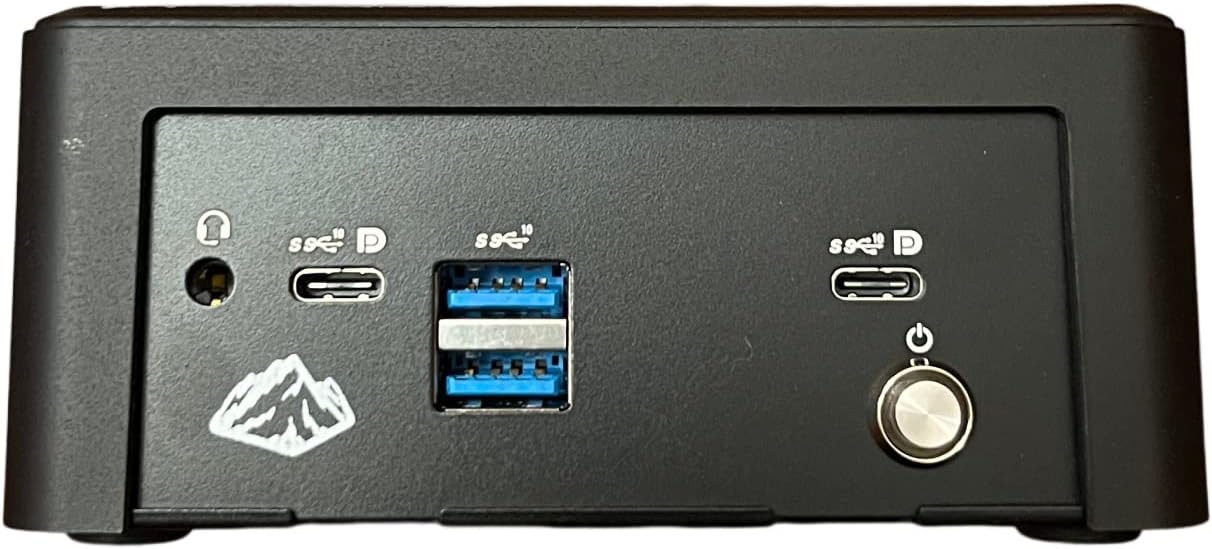
Figure 2.1: Rear view of the Intel Mini PC LLN11CRv7, highlighting the connectivity ports. From left to right: audio jack, two USB-C ports (one with DisplayPort support), two USB 3.0 ports, another USB-C port (with DisplayPort support), and the power button.

Figure 2.2: Angled view of the Intel Mini PC LLN11CRv7, showcasing its compact form factor and the arrangement of front-facing ports and power button.
3. Setup Guide
- Unpack the Mini PC: Carefully remove the Mini PC and all accessories from its packaging.
- Connect Peripherals:
- Connect your monitor(s) to the available video output ports (e.g., HDMI, DisplayPort via USB-C).
- Connect your keyboard and mouse to the USB 3.0 ports or USB-C ports.
- If using a wired network, connect an Ethernet cable to the LAN port (if available, not explicitly listed in specs but common).
- Connect Power: Plug the power adapter into the Mini PC's power input, then plug the power cord into a wall outlet.
- Power On: Press the power button located on the front/rear panel of the Mini PC.
- Initial Setup: Follow the on-screen instructions to complete the Windows 10 Pro operating system setup, including language, region, network connection, and user account creation.
4. Operating Instructions
The Intel Mini PC LLN11CRv7 comes pre-installed with Windows 10 Pro. Familiarize yourself with the standard Windows operating environment for daily use.
- Power On/Off: Press the power button to turn on. To shut down, click the Start button, then Power > Shut down.
- Restart: Click the Start button, then Power > Restart.
- Sleep Mode: Click the Start button, then Power > Sleep.
- Connecting to Network:
- Wi-Fi: Click the network icon in the taskbar, select your Wi-Fi network, enter the password, and connect.
- Ethernet: If an Ethernet cable is connected, the system should automatically establish a wired connection.
- USB Ports: Utilize the multiple USB 3.0 and USB-C ports for connecting external devices such as external hard drives, USB flash drives, printers, and other peripherals.
- Display Output: The Mini PC supports high-resolution displays up to 3840x2160 pixels via its video output ports. Ensure your monitor cables are securely connected.
5. Maintenance
Regular maintenance helps ensure the longevity and optimal performance of your Mini PC.
- Cleaning:
- Use a soft, dry cloth to clean the exterior of the Mini PC.
- For dust accumulation in vents, use compressed air. Ensure the device is powered off before cleaning.
- Avoid liquid cleaners directly on the device.
- Software Updates: Regularly check for and install operating system updates (Windows Update) and driver updates to ensure system stability and security.
- Data Backup: Periodically back up important data to an external drive or cloud storage to prevent data loss.
- Ventilation: Ensure the Mini PC is placed in a well-ventilated area to prevent overheating. Do not block the ventilation openings.
6. Troubleshooting
This section addresses common issues you might encounter with your Mini PC.
| Problem | Possible Cause | Solution |
|---|---|---|
| No Power | Power cable loose; Power adapter faulty; Power outlet issue. | Check power cable connections; Try a different power outlet; Ensure power adapter is working. |
| No Display | Monitor cable loose; Incorrect input source on monitor; Graphics driver issue. | Ensure monitor cable is securely connected to both Mini PC and monitor; Select correct input source on monitor; Try a different monitor or cable if possible. |
| Slow Performance | Too many applications running; Low disk space; Outdated drivers. | Close unnecessary applications; Free up disk space; Update drivers and Windows OS. |
| USB Devices Not Recognized | Faulty USB port; Driver issue; Device compatibility. | Try a different USB port; Restart the Mini PC; Update USB drivers; Test device on another computer. |
7. Specifications
| Feature | Detail |
|---|---|
| Brand | Generic |
| Model Name | LLN11CRv7 |
| Processor | 1.8 GHz Intel Core i7-1185G7E vPro (4 Cores, 8 Threads) |
| RAM | 8 GB DDR4 SDRAM |
| Hard Drive | 256 GB SSD (PCIE x 4 interface) |
| Graphics Coprocessor | Intel Iris Xe Graphics (Integrated, 4 GB RAM Size) |
| Operating System | Windows 10 Pro |
| Max Screen Resolution | 3840x2160 Pixels |
| Number of USB 3.0 Ports | 6 |
| Color | Black |
| Specific Uses | Education, Gaming, Business |
| Personal Computer Design Type | Mini PC |
8. Warranty and Support
For information regarding warranty coverage and technical support for your Intel Mini PC LLN11CRv7, please refer to the documentation provided with your purchase or visit the manufacturer's official website. Keep your proof of purchase for warranty claims.
For general inquiries or further assistance, you may also contact the retailer from whom the product was purchased.


