
ZTE MU5120
ZTE MU5120 5G Mobile WiFi Hotspot User Manual
Model: MU5120
1. Introduction
This user manual provides comprehensive instructions for the safe and efficient operation of your ZTE MU5120 5G Mobile WiFi Hotspot. Please read this manual thoroughly before using the device to ensure proper setup, usage, and maintenance. Keep this manual for future reference.
2. Product Overview
2.1 Key Features
- High-Speed Connectivity: Supports 5G NR and 4G LTE networks for fast and reliable internet access.
- Wi-Fi 6 (802.11ax) Support: Provides high-speed Wi-Fi with a peak rate of up to 3600Mbps for efficient data transfer.
- Large Battery Capacity: Equipped with a 10000mAh battery for extended usage, offering over 16 hours of battery life.
- Power Bank Functionality: Features 18W reverse charging to power other devices.
- Fast Charging: Supports 27W fast charging, allowing a full charge in approximately 150 minutes.
- Intuitive Touchscreen: A 2.4-inch touchscreen for easy device setup, monitoring, and management.
- NFC Quick Connection: Simplifies connecting devices with a single tap.
- Multi-Device Support: Connects up to 32 devices simultaneously.
- Unlocked SIM Slot: Compatible with most major 5G and 4G LTE network operators globally.
2.2 Package Contents
Ensure all items are present in the package:
- 1 x ZTE MU5120 5G Mobile WiFi Hotspot
- 1 x Charging Cable
- 1 x Quick Start Guide
2.3 Device Layout

Figure 2.3.1: Front, side, and back views of the ZTE MU5120, highlighting the power button and charging port.

Figure 2.3.2: The ZTE MU5120's 2.4-inch touchscreen interface, showing data usage, Wi-Fi status, and settings options.
3. Setup
3.1 Inserting the SIM Card
- Ensure the device is powered off.
- Locate the SIM card slot on the side of the device.
- Gently insert a Nano-SIM card into the slot with the gold contacts facing down and the notched corner aligned correctly. Push until it clicks into place.
- Close the SIM card slot cover (if applicable).
3.2 Initial Charging
Before first use, fully charge the device.
- Connect the provided charging cable to the device's USB-C port.
- Connect the other end of the cable to a compatible USB power adapter (not included) or a computer's USB port.
- The screen will indicate charging status. A full charge takes approximately 150 minutes with a 27W fast charger.
4. Operating Instructions
4.1 Powering On/Off
- To Power On: Press and hold the Power button on the side of the device until the screen lights up.
- To Power Off: Press and hold the Power button until the power-off options appear on the screen, then select 'Power Off'.
4.2 Connecting Devices via Wi-Fi
The ZTE MU5120 supports Wi-Fi 6 for high-speed connections.

Figure 4.2.1: The ZTE MU5120 supports high-speed Wi-Fi 6 with peak rates up to 3600Mbps.
- Ensure the MU5120 is powered on and has an active internet connection.
- On your device (smartphone, laptop, tablet), go to Wi-Fi settings.
- Select the Wi-Fi network name (SSID) displayed on the MU5120's screen.
- Enter the Wi-Fi password (Key) shown on the MU5120's screen.
- Your device should now be connected to the internet.
4.3 Connecting Devices via NFC
For compatible Android devices, NFC provides a quick connection method.
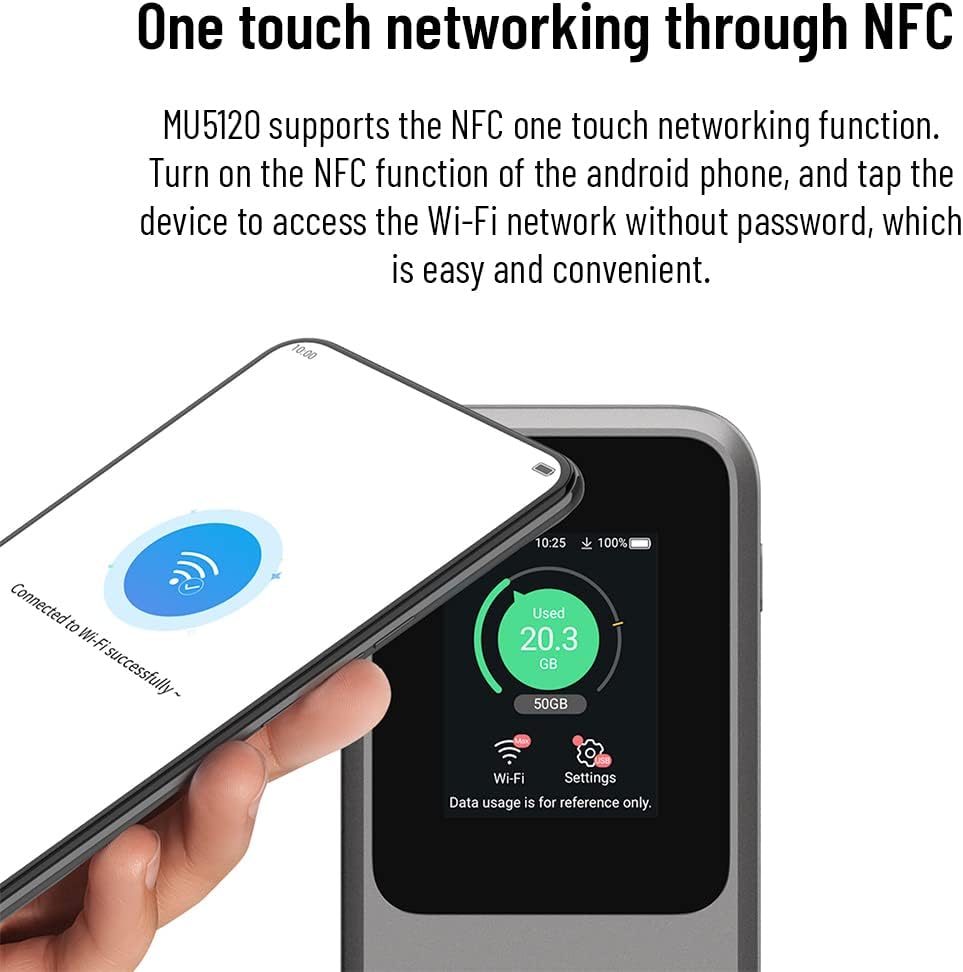
Figure 4.3.1: A smartphone being tapped against the ZTE MU5120 to establish a Wi-Fi connection via NFC.
- Ensure NFC is enabled on your Android phone and on the MU5120 (check device settings).
- Tap your Android phone against the NFC area on the MU5120.
- Your phone will automatically connect to the Wi-Fi network without needing to enter a password.
4.4 Using as a Power Bank
The MU5120 can charge other devices using its 18W reverse charging feature.

Figure 4.4.1: The ZTE MU5120 connected via cable to a smartphone, demonstrating its power bank capability.
- Connect your device (e.g., smartphone) to the MU5120's USB-C port using a compatible charging cable.
- The MU5120 will begin charging your connected device.
4.5 Managing Settings via Touchscreen
The 2.4-inch touchscreen allows for direct management of the device.
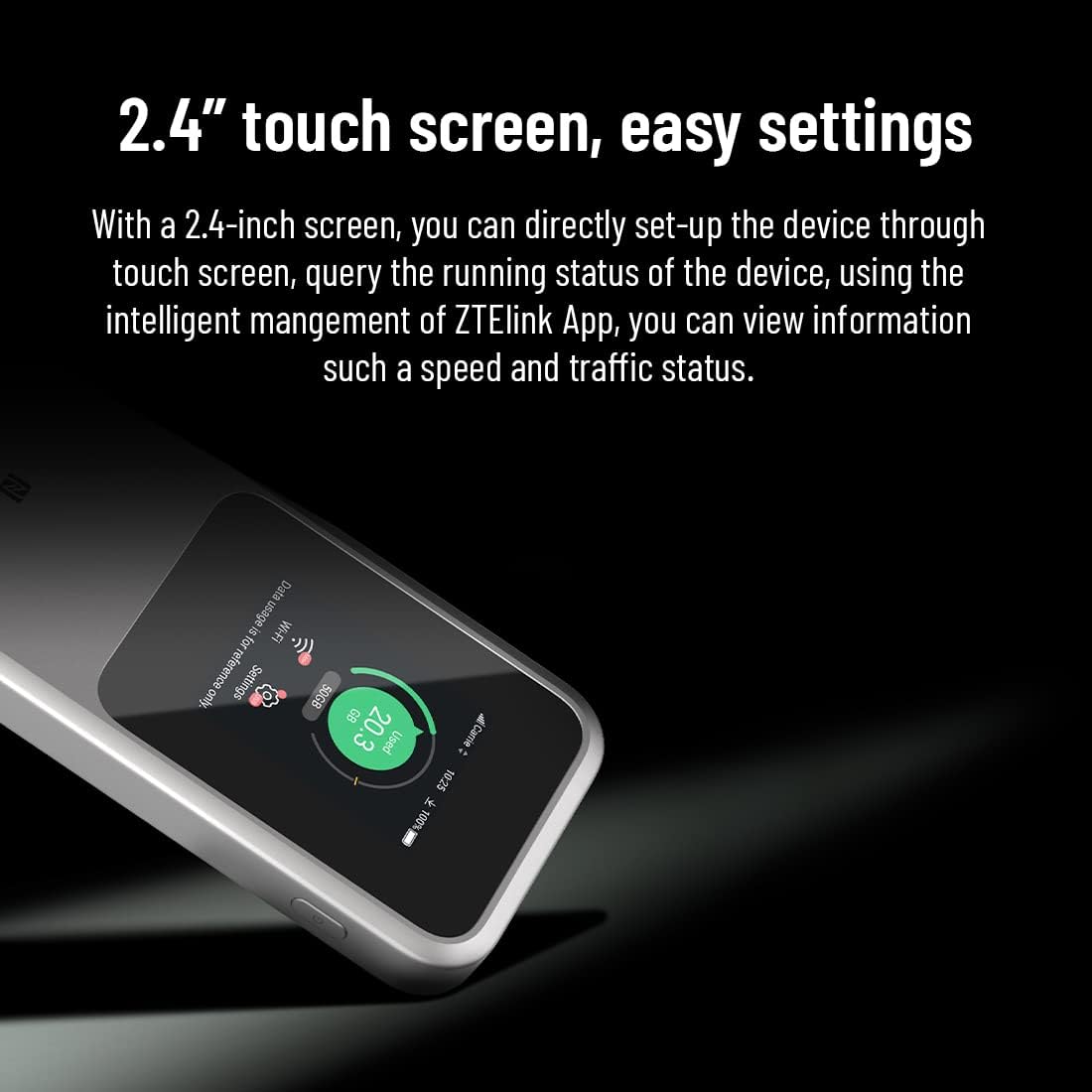
Figure 4.5.1: A close-up view of the 2.4-inch touchscreen, illustrating the ease of accessing settings and monitoring device status.
Navigate through the menus by swiping and tapping on the screen. You can view information such as speed, traffic status, connected devices, and adjust Wi-Fi settings directly from the device.
5. Maintenance
5.1 Cleaning the Device
- Use a soft, dry cloth to clean the exterior of the device.
- Do not use liquid cleaners or aerosol sprays.
5.2 Battery Care
- Avoid exposing the device to extreme temperatures (hot or cold).
- Do not puncture, disassemble, or short-circuit the battery.
- If the device will not be used for an extended period, charge it to about 50% before storing.
5.3 Software Updates
Periodically check for software updates through the device's settings or the ZTE Link App to ensure optimal performance and security.
6. Troubleshooting
6.1 Common Issues and Solutions
| Problem | Possible Cause | Solution |
|---|---|---|
| No internet connection | No SIM card, incorrect APN settings, no network signal, data limit reached. | Ensure SIM is inserted correctly. Check APN settings. Move to an area with better signal. Check data plan. |
| Cannot connect to Wi-Fi | Incorrect Wi-Fi password, device too far, Wi-Fi disabled. | Verify password. Move closer to the hotspot. Ensure Wi-Fi is enabled on the MU5120. |
| Slow internet speed | Weak signal, too many connected devices, network congestion. | Relocate the device for better signal. Disconnect unused devices. Try again during off-peak hours. |
| Device not charging | Faulty cable/adapter, dirty charging port. | Try a different cable and adapter. Clean the charging port gently. |
6.2 Resetting the Device
If issues persist, you may perform a factory reset. Warning: This will erase all custom settings and data on the device.
- Locate the reset pinhole on the device (often near the SIM slot or charging port).
- With the device powered on, use a paperclip or a SIM ejector tool to press and hold the reset button inside the pinhole for about 5-10 seconds until the device restarts.
7. Specifications
| Feature | Detail |
|---|---|
| Model Name | ZTE MU5120 (Internal Model: U10S PRO) |
| Dimensions (L x W x H) | 13.3 x 7.3 x 1.85 cm |
| Weight | 240 g |
| Color | Black |
| Battery Capacity | 10000mAh Lithium-Polymer |
| Charging | 27W Fast Charging (approx. 150 min for full charge) |
| Reverse Charging | 18W |
| Display | 2.4-inch Touchscreen |
| Network Support | 5G NR, 4G LTE |
| Wi-Fi Standards | 802.11a/b/g/n/ac/ax (Wi-Fi 6) |
| Max Wi-Fi Speed | 3600Mbps (Peak Rate) |
| Max Connected Devices | 32 |
| Special Features | NFC, Power Bank Function |
| Chipset | Snapdragon X62/65 + WCN6856 |
| Operating System | RouterOS (firmware) |
| Included Components | ZTE MU5120, Charging Cable, Quick Start Guide |
8. Warranty and Support
8.1 Product Warranty
The ZTE MU5120 comes with a 2-year warranty from the date of purchase. This warranty covers manufacturing defects and malfunctions under normal use. Please retain your proof of purchase for warranty claims.
8.2 Technical Support
For any technical assistance or inquiries, a 24/7 technical support team is available to help you. Please refer to the contact information provided in your Quick Start Guide or on the official ZTE website for support channels.
Related documentsMU5120


Ask a question about this manual
Ask about setup, troubleshooting, compatibility, parts, safety, or missing instructions. Manuals+ will review the question and use this page’s manual context to help answer it.