
1. Product Overview
The DwyenSlo WiFi Caregiver Pager System is designed to provide timely assistance for elderly individuals, patients, seniors, and disabled persons. It consists of a wireless call button and a receiver, integrated with the Tuya app for remote alerts and control. This system ensures that caregivers receive immediate notifications when help is needed, whether they are nearby or away.

Image 1.1: Overview of the DwyenSlo WiFi Caregiver Pager System, showing the receiver, call button, and mobile application interface.
2. Package Contents
- 1 x WiFi Receiver
- 1 x SOS Call Button
- 1 x Lanyard for Call Button
- 1 x USB Data Cable for Receiver Power
- 1 x Screw Pack for Receiver Installation
- User Manual (this document)
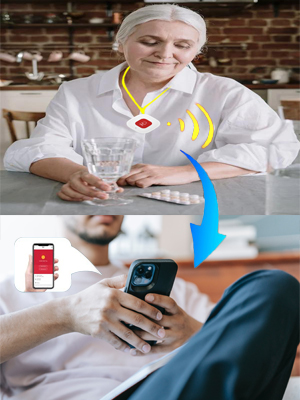
Image 2.1: Contents of the DwyenSlo WiFi Caregiver Pager System package.
3. Setup Instructions
3.1 Powering the Receiver
The receiver is powered via the included USB data cable. Connect the USB cable to the receiver and a suitable USB power adapter (not included) or a USB port. The receiver can be installed anywhere using the provided screw pack or placed on a flat surface.
3.2 Call Button Battery Installation
The SOS Call Button requires 1 CR2032 battery (included). Ensure the battery is correctly inserted with the positive (+) side facing up. If the button does not respond, check the battery contact.
3.3 Connecting the Receiver to the Tuya App
The call button and receiver are pre-paired. To enable smartphone alerts and advanced features, connect the receiver to the Tuya app. The system supports 2.4GHz WiFi networks only.
- Prepare your phone: Ensure your mobile phone is connected to a 2.4GHz WiFi network and Bluetooth is enabled.
- Operate the receiver: Use an ejection pin to press and hold the RESET button on the receiver for approximately 6 seconds until the LED light starts flashing, indicating it's in distribution network mode.
- Open the Tuya App: Launch the Tuya Smart app on your smartphone.
- Add Device: In the app, click "Add Device". The app should automatically discover the new device. If not, manually search for "Emergency Pager" or a similar device type.
- Confirm WiFi: Confirm your WiFi network name and enter the password. Click "Next".
- Wait for Connection: The app will attempt to connect the receiver to your WiFi network. This may take a few moments.
- Connection Successful: Once connected, click "Done" in the app.
- Access Receiver Page: The receiver's control page will now be accessible within the Tuya app.
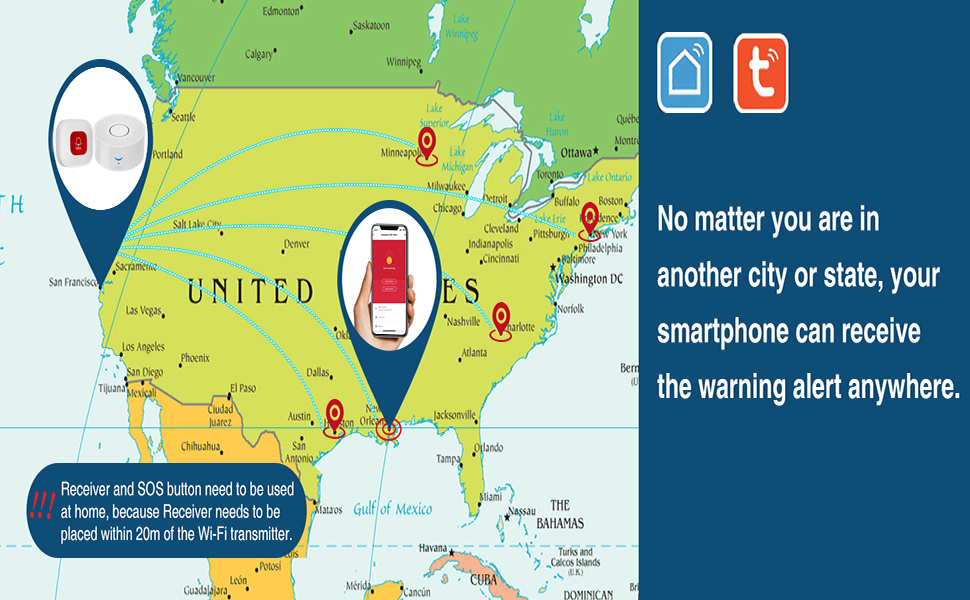
Image 3.1: Visual guide for connecting the receiver to the Tuya app.
Important Note:
- For stable signal reception, ensure the receiver is not too far from your 2.4GHz WiFi signal source.
- The receiver and SOS button must be within the same Wi-Fi network environment for the app alerts to function correctly.
4. Operating Instructions
4.1 Initiating an Alert
When assistance is required, the user simply presses the SOS Call Button. This action triggers an alarm on the receiver unit and simultaneously sends an alert message to your smartphone via the Tuya app, regardless of your location.

Image 4.1: Example of an emergency alert scenario.
4.2 Receiver Functions
- Alarm Sound: The receiver emits an audible alarm when the call button is pressed.
- Volume Control: The receiver has an adjustable volume, with a maximum output of 115dB.
- Ringtone Selection: Choose from 7 different music options for the alarm sound.
- Mute Function: The receiver includes a mute function for silent alerts (app notifications will still be sent).
4.3 Tuya App Control
The Tuya app provides comprehensive control and monitoring features:
- Disarm Alarm: Remotely disarm the alarm from your smartphone.
- Ringtone Management: Change the receiver's ringtone.
- Alarm Duration: Set the duration of the alarm sound.
- Alarm Volume: Adjust the receiver's alarm volume.
- Device Management: Add or delete additional call buttons or receivers to expand your system.
- Share Function: Share access to the system with other family members or caregivers. When the panic button is pressed, all shared users will receive the alert message.

Image 4.2: The system provides alerts for indoor, global, and outdoor use via the app.
4.4 Usage Scenarios
The DwyenSlo WiFi Caregiver Pager System is suitable for various environments:
- Home: For independent living seniors or patients.
- Nursing Homes: To assist staff in responding to resident needs.
- Hospitals/Clinics: As an additional call system for patients.
- Schools: For individuals with special needs requiring immediate assistance.

Image 4.3: The system is versatile for use in hospitals, nursing homes, schools, and private residences.
5. Maintenance
5.1 Cleaning
Wipe the receiver and call button with a soft, dry cloth. Do not use abrasive cleaners or immerse the devices in water.
5.2 Battery Replacement (Call Button)
The call button is powered by a CR2032 battery. If the button's indicator light does not illuminate or the receiver does not respond when pressed, replace the battery. Ensure the new battery is inserted correctly, observing polarity.
6. Troubleshooting
- Receiver not alarming or app not receiving alerts:
- Ensure the receiver is powered on and connected to a 2.4GHz WiFi network.
- Verify your smartphone has an active internet connection and the Tuya app has notification permissions enabled.
- Check the distance between the receiver and your WiFi router. Maintain a stable signal.
- Confirm the call button battery is functional and correctly installed.
- Call button not triggering receiver:
- Replace the CR2032 battery in the call button. Ensure proper contact.
- Ensure the call button and receiver are within operational range (up to 320ft/120m wireless range in open areas). Walls and obstacles can reduce this range.
- If the devices were previously paired and stopped working, try re-pairing them according to the Tuya app instructions (if applicable for button pairing, otherwise reset receiver and re-add to app).
- Unable to connect receiver to Tuya app:
- Confirm your WiFi network is 2.4GHz. The system does not support 5GHz WiFi.
- Ensure your phone's Bluetooth is on during the pairing process.
- Double-check the WiFi password entered in the app.
- Reset the receiver by holding the RESET button for 6 seconds until the LED flashes, then attempt the connection process again.
7. Specifications
| Brand | DwyenSlo |
| Model | B0C34CZ13B |
| Control Method | App (Tuya) |
| Wireless Range | Up to 320ft / 120m (open area) |
| WiFi Support | 2.4GHz Only |
| Receiver Power Source | USB Powered |
| Call Button Battery | 1 x CR2032 (included) |
| Receiver Noise Level | Max 115dB |
| Item Weight | 6.7 ounces |
| Package Dimensions | 4.41 x 4.37 x 3.43 inches |

Image 7.1: Wireless range capabilities of the system.
8. Warranty Information
This DwyenSlo product comes with a 1-year limited warranty from the date of purchase. This warranty covers manufacturing defects. Please retain your proof of purchase for warranty claims. For specific warranty details and conditions, refer to the product packaging or contact customer support.
9. Customer Support
For technical assistance, troubleshooting, or warranty inquiries, please refer to the contact information provided on the product packaging or visit the DwyenSlo brand store on Amazon. You can also check the Tuya Smart app for in-app support options.