
1. Introduction
This manual provides detailed instructions for the setup, operation, and maintenance of your ZUONU SC-AI08 VR Smart Glasses. Please read this manual thoroughly before using the device to ensure proper functionality and safety.
The SC-AI08 VR Smart Glasses are designed to provide an immersive visual experience, simulating a large screen private cinema. Key features include an ultra-thin and lightweight design, adjustable pupil distance, and compatibility with smartphones for content streaming.
2. Package Contents
Verify that all items listed below are present in your package. If any items are missing or damaged, please contact customer support.
- ZUONU SC-AI08 VR Smart Glasses
- External Power/Control Unit
- USB Charging Cable
- Face Mask/Eye Cushion
- User Manual (this document)
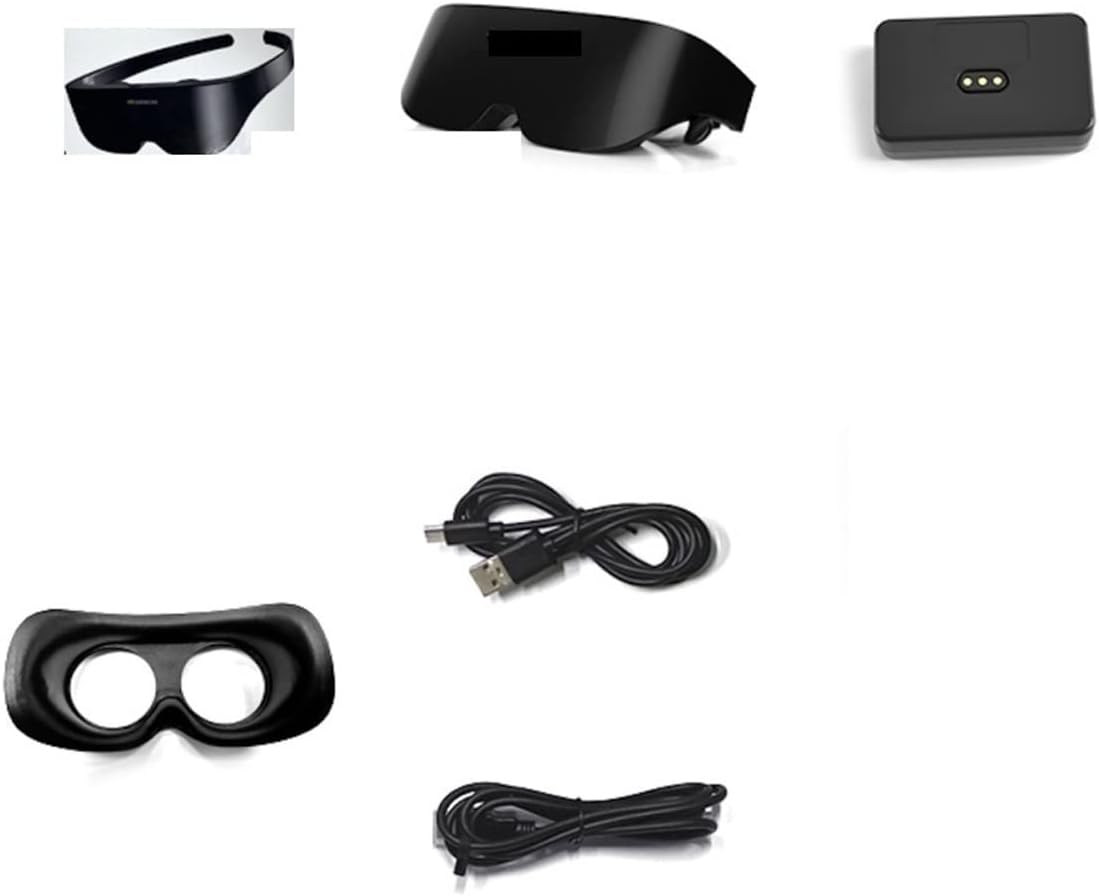
Image: Contents of the ZUONU SC-AI08 VR Smart Glasses package, including the glasses, external control unit, charging cable, and face mask.
3. Setup
3.1 Charging the Device
Before first use, ensure the external power/control unit is fully charged. Connect the provided USB charging cable to the unit and a compatible USB power adapter (not included). The indicator lights on the unit will show charging status.
3.2 Connecting the Glasses to the Control Unit
Connect the cable from the SC-AI08 VR Smart Glasses to the designated port on the external power/control unit. Ensure the connection is secure.

Image: The ZUONU SC-AI08 VR Smart Glasses shown connected to its compact external power and control unit.
3.3 Wearing the Glasses
Gently place the glasses on your head, ensuring a comfortable fit. The lightweight design (approximately 122g) and thin profile (25mm thickness) are intended for extended wear. Adjust the head strap if present (not explicitly shown but implied for VR glasses) for a snug fit.
4. Operating Instructions
4.1 Connecting to a Smartphone
The SC-AI08 glasses connect to your mobile phone via a "same screen device" function and Wi-Fi. This allows any content displayed on your smartphone to be mirrored directly onto the glasses' display.
- Ensure your smartphone's Wi-Fi is enabled.
- Follow the instructions provided with your "same screen device" (if separate) or the glasses' control unit to establish a Wi-Fi connection between the glasses and your smartphone.
- Once connected, content from your phone will be displayed on the glasses.
4.2 Adjusting Pupil Distance and Focus
The SC-AI08 features self-adaptive pupil distance adjustment and focus, accommodating users with myopia up to 700 degrees. This allows most users to wear the glasses comfortably without needing their prescription glasses.
- The system automatically adjusts the pupil distance (PD) within a range of 55-71mm.
- The focus is also automatically adjusted to provide clear vision for users with varying degrees of myopia (0-700 degrees).
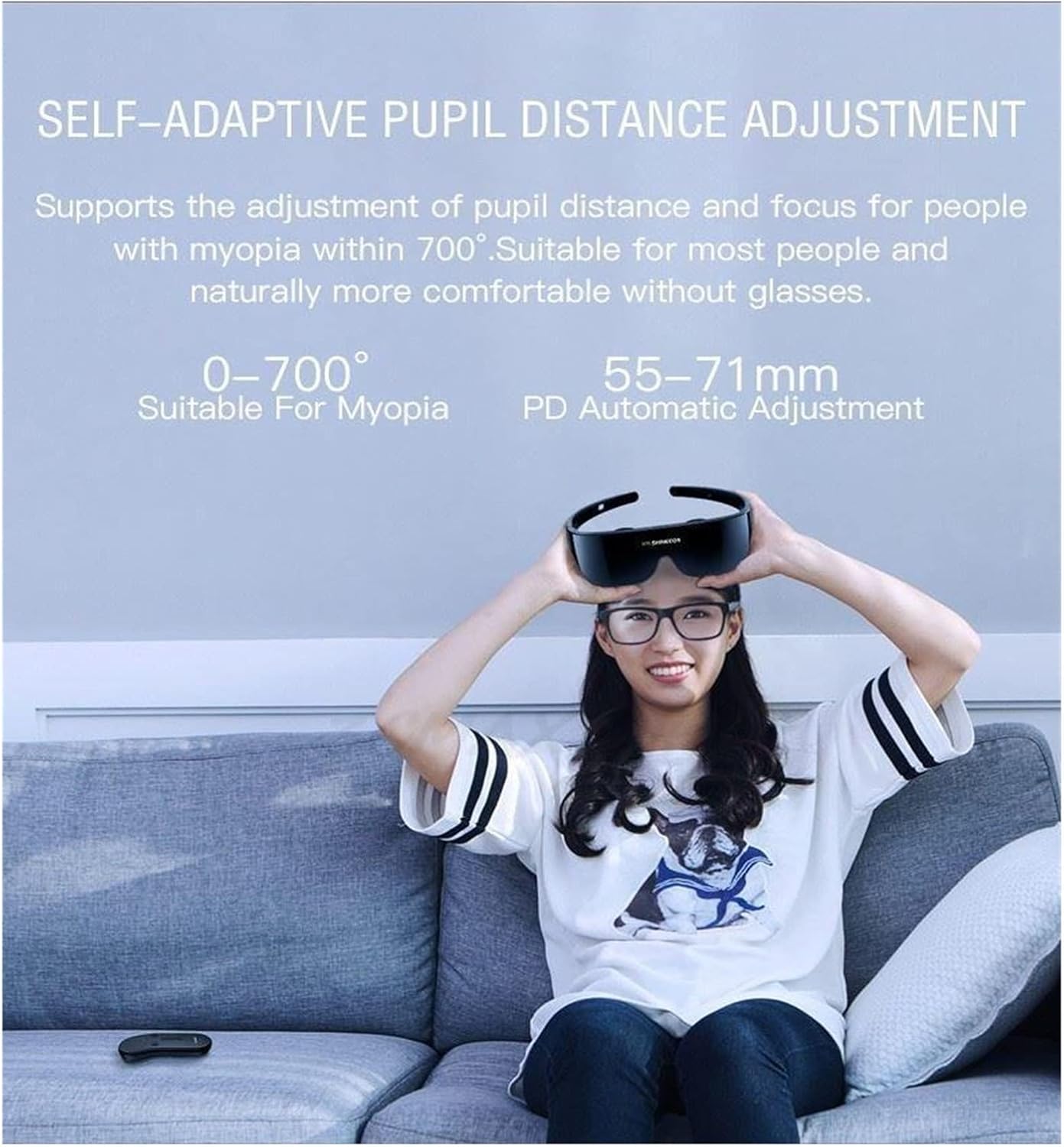
Image: A user demonstrating the self-adaptive pupil distance adjustment feature, highlighting its suitability for myopia up to 700 degrees and automatic PD adjustment (55-71mm).
4.3 Immersive Viewing Experience
The SC-AI08 glasses are designed to simulate an IMAX-level cinema experience with a 100-inch high-definition screen viewed from 20 meters, offering a 75° field of view.
Anti-Distortion Technology
The glasses incorporate anti-distortion technology to ensure that the displayed image maintains its true aspect ratio and quality, even when simulating a large screen.

Image: Illustration demonstrating the anti-distortion technology, ensuring frames do not deform and the true ratio is restored for an accurate viewing experience.
Clear Edges and Resolution
Precise optical components are used to ensure a clear picture across the entire display, even when the virtual screen is enlarged, maintaining high resolution without blur at the edges.

Image: A side-by-side comparison showing the clear edges and lack of blur in the AI08 glasses compared to an ordinary headset, even with an enlarged screen.
Large Screen Simulation
The SC-AI08 simulates a 1023-inch screen viewed from 20 meters, providing a large and comfortable viewing experience that is closer to the natural perspective of the human eye.

Image: An illustration comparing the simulated screen size of the AI08 (1023 inches) to other headsets, emphasizing a larger and more comfortable viewing experience.
Simulated Cinema Environment
The glasses can simulate the feeling of sitting in a real cinema, allowing you to experience content as if you are in the front, middle, or back rows.

Image: A visual representation of the simulated cinema scene, showing a large screen within a virtual theater environment, allowing the user to choose their preferred seating perspective.
5. Maintenance
5.1 Cleaning the Lenses
Use a soft, dry microfiber cloth specifically designed for optical lenses to clean the glasses. Do not use abrasive materials, alcohol, or chemical cleaners, as these can damage the lens coatings.
5.2 Cleaning the Body
Wipe the exterior of the glasses and the control unit with a soft, slightly damp cloth. Ensure no liquid enters the device openings.
5.3 Storage
Store the SC-AI08 VR Smart Glasses in a cool, dry place away from direct sunlight and extreme temperatures. When not in use, it is recommended to store them in a protective case to prevent scratches and damage.
6. Troubleshooting
| Problem | Possible Cause | Solution |
|---|---|---|
| No image displayed | Device not powered on; Loose cable connection; Smartphone not connected via Wi-Fi. | Ensure the control unit is charged and powered on. Check all cable connections. Verify Wi-Fi connection between glasses and smartphone. |
| Image is blurry or out of focus | Lenses are dirty; Pupil distance needs adjustment; Myopia beyond supported range. | Clean the lenses with a microfiber cloth. Re-adjust the glasses on your face to allow automatic PD adjustment. If myopia is severe, consult an eye care professional. |
| No sound | Smartphone volume too low; External audio device not connected. | Increase smartphone volume. Ensure any connected headphones or speakers are properly connected and functioning. |
| Device not charging | Faulty cable or adapter; Charging port obstruction. | Try a different USB cable and power adapter. Check the charging port for debris. |
7. Specifications
| Feature | Detail |
|---|---|
| Model | SC-AI08 |
| Brand | ZUONU |
| Simulated Screen Size | 100-1023 Inches (at 20m viewing distance) |
| Field of View (FOV) | 75 Degrees |
| Weight | Approx. 122g (glasses only) |
| Glasses Thickness | 25mm |
| Pupil Distance (PD) Adjustment | Self-adaptive, 55-71mm |
| Myopia Support | 0-700 Degrees (without prescription glasses) |
| Connectivity | Wi-Fi (for smartphone mirroring), Bluetooth (for wireless standard, though not explicitly used for mirroring in description) |
| Compatible Devices | Smartphone |
8. Warranty and Support
For warranty information and technical support, please refer to the documentation provided with your purchase or contact ZUONU customer service. Keep your proof of purchase for warranty claims.
For further assistance, please visit the official ZUONU website or contact their support channels.