
1. Introduction
Thank you for purchasing the Sharp QT-CD290 Portable CD MP3 Cassette Boombox. This device offers versatile audio playback options including CD, MP3 CD, cassette tapes, AM/FM radio, and an auxiliary input for external devices. This manual provides essential information for the safe and efficient operation of your new boombox. Please read these instructions thoroughly before use and retain them for future reference.
2. Safety Information
To ensure safe operation and prevent damage, please observe the following precautions:
- Do not expose the unit to rain, moisture, or extreme temperatures.
- Avoid placing the unit near heat sources such as radiators, heat registers, stoves, or other apparatus (including amplifiers) that produce heat.
- Do not block any ventilation openings. Ensure adequate space around the unit for proper airflow.
- Use only the specified batteries (6 x UM-2/C size). Ensure correct polarity when inserting batteries.
- Do not mix old and new batteries, or different types of batteries.
- Remove batteries if the unit will not be used for a long period.
- Clean the unit only with a dry cloth. Do not use liquid cleaners or aerosol cleaners.
- Do not attempt to service this product yourself. Refer all servicing to qualified service personnel.
- Keep the unit away from strong magnetic fields.
3. Product Overview
Familiarize yourself with the components of your Sharp QT-CD290 boombox.

Figure 1: Front view of the Sharp QT-CD290 Portable CD MP3 Cassette Boombox with the telescopic antenna extended. This image shows the main control panel, CD compartment, cassette deck, and stereo speakers.
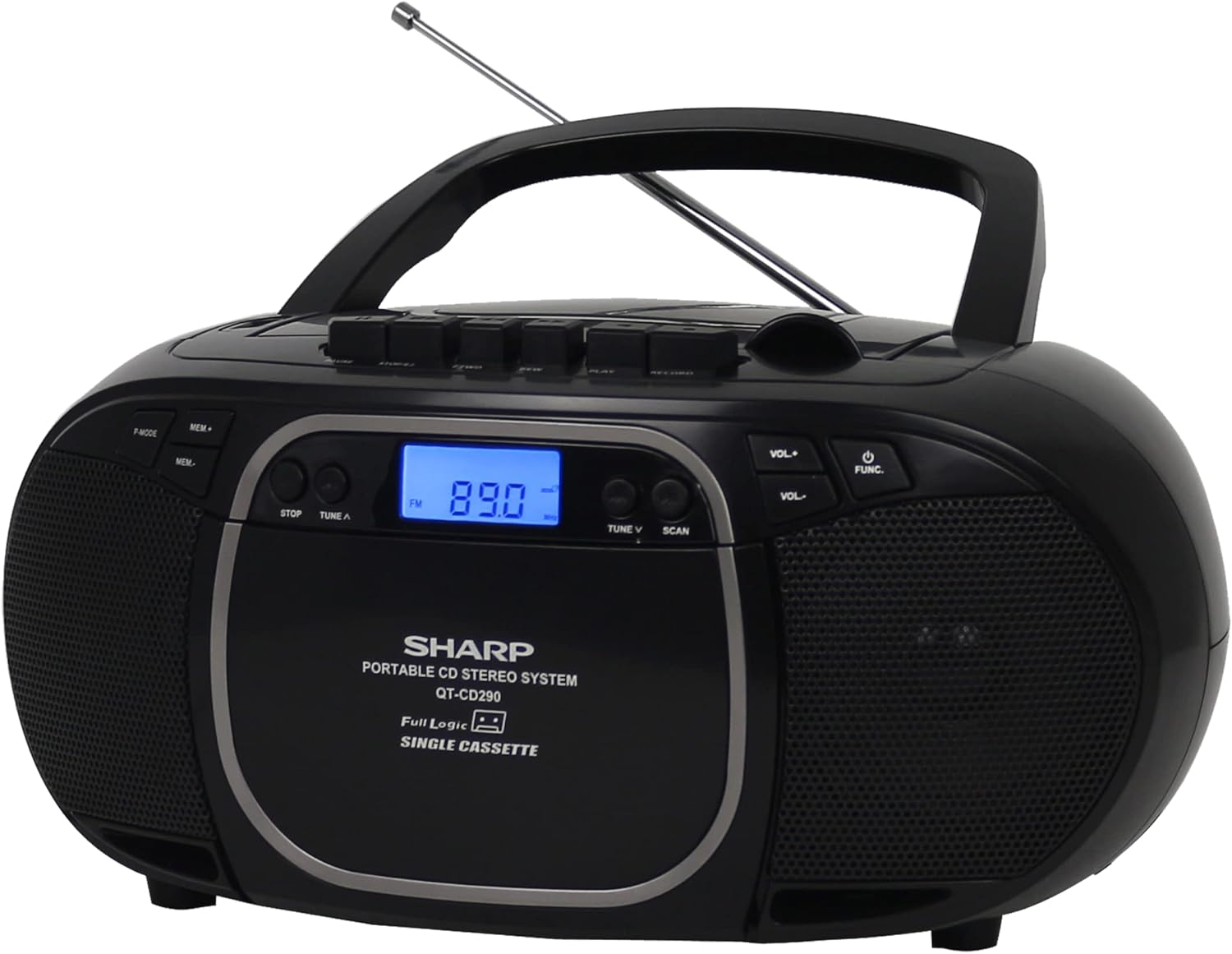
Figure 2: Front view of the Sharp QT-CD290 Portable CD MP3 Cassette Boombox with the telescopic antenna retracted. This view highlights the compact design when not using the radio function.
Key Components:
- Top-Loading CD Compartment: For playing audio CDs and MP3 CDs.
- Cassette Deck: For playing and recording cassette tapes.
- AM/FM Tuner: Built-in radio for receiving AM and FM broadcasts.
- Telescopic FM Antenna: Extendable antenna for improved FM reception.
- Auxiliary Input (AUX IN): 3.5mm jack for connecting external audio devices.
- LCD Display: Shows current function, track number, radio frequency, etc.
- Control Buttons: Power, Function, Volume, Play/Pause, Stop, Skip/Search, Record, etc.
- Stereo Speakers: Integrated speakers for audio output.
4. Setup
4.1 Powering the Unit
The Sharp QT-CD290 boombox is designed for portable use and operates solely on batteries. It does not include an AC power adapter and cannot be powered directly from a wall outlet.
- Locate the battery compartment on the underside or rear of the unit.
- Open the battery compartment cover.
- Insert six (6) UM-2/C size batteries, ensuring the correct polarity (+/-) as indicated inside the compartment.
- Close the battery compartment cover securely.
Note: For optimal performance and to prevent battery leakage, use high-quality alkaline batteries and replace all batteries at the same time.
5. Operating Instructions
5.1 General Controls
Familiarize yourself with the main control buttons:
- POWER/FUNC: Press to turn the unit ON/OFF. Press repeatedly to cycle through functions (CD/MP3, TAPE, AM, FM, AUX).
- VOL+ / VOL-: Adjusts the volume level.
- STOP: Stops playback for CD/MP3 or Cassette.
- PLAY/PAUSE: Starts or pauses CD/MP3 playback.
- SKIP/SEARCH (◀◀ / ▶▶): Skips tracks on CD/MP3. Fast forwards/rewinds on cassette.
- TUNE ▲ / ▼: Tunes radio frequency up or down.
- SCAN: Automatically scans for radio stations.
- MEM: Stores or recalls radio presets.
- P-MODE: Programs CD/MP3 playback order.
- RECORD: Initiates cassette recording (from CD, Radio, or AUX).
5.2 CD/MP3 Playback
- Press the POWER/FUNC button repeatedly until 'CD' or 'MP3' appears on the display.
- Open the top-loading CD compartment cover.
- Place a CD or MP3 CD onto the spindle with the label side facing up.
- Close the CD compartment cover securely.
- Press the PLAY/PAUSE button to start playback.
- Use SKIP/SEARCH (◀◀ / ▶▶) to navigate between tracks. Hold to fast forward or rewind within a track.
- Press STOP to end playback.
5.3 Cassette Playback and Recording
Playback:
- Press the POWER/FUNC button repeatedly until 'TAPE' appears on the display.
- Open the cassette deck door.
- Insert a cassette tape with the open edge facing upwards.
- Close the cassette deck door.
- Press the PLAY button on the cassette controls to start playback.
- Use SKIP/SEARCH (◀◀ / ▶▶) for fast forward or rewind.
- Press STOP to end playback.
Recording:
- Insert a blank or recordable cassette tape into the cassette deck.
- Select the desired source (CD, AM/FM Radio, or AUX) using the POWER/FUNC button.
- Start playback on the source (e.g., play a CD, tune to a radio station).
- Press the RECORD button on the cassette controls. The PLAY button will also engage.
- To stop recording, press the STOP button on the cassette controls.
5.4 AM/FM Radio Operation
- Press the POWER/FUNC button repeatedly until 'AM' or 'FM' appears on the display.
- For FM reception, extend the telescopic antenna fully and adjust its position for best reception. For AM reception, rotate the entire unit for best signal.
- Use the TUNE ▲ / ▼ buttons to manually tune to a desired station.
- Alternatively, press the SCAN button to automatically search for and stop at the next available station.
- To save a station as a preset, tune to the station, then press the MEM button. Use TUNE ▲ / ▼ to select a preset number, then press MEM again to confirm.
- To recall a preset, press MEM and then use TUNE ▲ / ▼ to select the desired preset number.
5.5 Using the Aux Input
- Press the POWER/FUNC button repeatedly until 'AUX' appears on the display.
- Connect one end of a 3.5mm audio cable (not included) to the AUX IN jack on the boombox.
- Connect the other end of the audio cable to the headphone jack or audio output of your external device (e.g., smartphone, MP3 player).
- Start playback on your external device. The audio will be routed through the boombox speakers.
- Adjust the volume using the VOL+ / VOL- buttons on the boombox and/or the volume control on your external device.
6. Maintenance
Proper care and maintenance will ensure the longevity of your boombox.
- Cleaning the Unit: Wipe the exterior with a soft, dry cloth. Do not use abrasive cleaners, waxes, or solvents.
- Cleaning the CD Lens: If CD playback issues occur, use a commercially available CD lens cleaner disc.
- Cleaning the Cassette Head: Periodically clean the cassette head, pinch roller, and capstan with a cotton swab lightly dampened with isopropyl alcohol.
- Battery Care: Remove batteries if the unit is not used for extended periods to prevent leakage.
- Storage: Store the unit in a cool, dry place away from direct sunlight and dust.
7. Troubleshooting
If you experience problems with your boombox, refer to the following table for possible solutions.
| Problem | Possible Cause | Solution |
|---|---|---|
| No power | Batteries are depleted or incorrectly inserted. | Replace with new UM-2/C size batteries, ensuring correct polarity. |
| CD/MP3 skips or does not play | CD is dirty, scratched, or inserted incorrectly. CD lens is dirty. | Clean the CD with a soft cloth. Try another CD. Clean the CD lens with a cleaner disc. Ensure CD is inserted label-side up. |
| Poor radio reception | Antenna not extended/adjusted. Weak signal. Interference. | For FM, fully extend and adjust the telescopic antenna. For AM, rotate the unit. Move the unit away from other electronic devices. |
| Cassette playback distorted or muffled | Cassette head is dirty or demagnetized. Tape is old or damaged. | Clean the cassette head, pinch roller, and capstan. Try a different tape. |
| No sound from Aux Input | Incorrect function selected. Cable not connected properly. External device volume too low. | Ensure 'AUX' function is selected. Check cable connections. Increase volume on both the boombox and the external device. |
8. Specifications
Technical specifications for the Sharp QT-CD290 Portable CD MP3 Cassette Boombox:
| Feature | Detail |
|---|---|
| Brand | Sharp |
| Model | QT-CD290 |
| Compatible Media Types | CD, MP3 CD, Cassette |
| Tuner Technology | AM/FM Stereo |
| Audio Output Mode | Stereo |
| Output Power | 2.4 watts (1.2 W x 2 RMS) |
| Power Source | Battery Powered (6 x UM-2/C size batteries, not included) |
| Connector Type | Auxiliary (3.5mm input) |
| Compatible Devices (Aux) | Speaker, Headphone, Smartphone, Laptop, Tablet, MP3 Players, TV |
| Product Dimensions (L x W x H) | 23.88 x 12.45 x 22.35 cm (9.4 x 4.9 x 8.8 inches) |
| Item Weight | 1.36 kg (3 lbs) |
| Bluetooth Support | No |
9. Warranty and Support
For warranty information or technical support regarding your Sharp QT-CD290 boombox, please refer to the warranty card included with your purchase or visit the official Sharp Electronics website for your region. You may also contact Sharp customer service directly for assistance.


