
Introduction
Thank you for choosing the RSHTECH 4-Port Powered USB 3.0/USB C Hub. This device is designed to expand your computer's USB connectivity, offering high-speed data transfer and stable power delivery for multiple peripherals. This manual provides essential information for proper setup, operation, and maintenance to ensure optimal performance and longevity of your hub.

Image: The RSHTECH 4-Port Powered USB 3.0/USB C Hub in a typical usage scenario, connected to a laptop and a power source, with a smartphone charging from one of its ports.
Package Contents
Please verify that all items listed below are included in your package:
- RSHTECH 4-Port Powered USB 3.0 Hub x1
- 3.3 ft Detachable 2-in-1 USB Cable (USB-A and USB-C compatible) x1
- DC 5V Power Adapter x1
- User Manual x1

Image: A visual representation of the package contents, showing the USB hub, the 2-in-1 USB cable, the DC 5V power adapter, and the user manual.
Features
- 4-Port USB Expansion: Instantly adds four USB ports to your PC or laptop for device charging and data management. It is a plug-and-play device, requiring no driver installation.
- Versatile 2-in-1 Cable: Includes a 3.3 ft (1 meter) detachable USB-A/USB-C cable, allowing flexible connection to various host devices. This dual adapter design supports USB-A, USB-C, and Thunderbolt 3 devices, including OTG functionality.
- High-Speed Data Transfer & Stable Power: Supports data transfer speeds up to 5Gbps, which is 10 times faster than USB 2.0. The included DC 5V power adapter provides additional power, ensuring stable operation for multiple connected USB devices simultaneously.
- Portable Design with Individual Switches: Constructed from aluminum and ABS with a high-gloss finish, the hub is lightweight and compact, optimizing desktop space. Each USB port features an independent on/off switch with a blue LED indicator to show its power status.
- Wide Compatibility: Compatible with Windows 11, 10, 8.1, 8, 7, Mac OS X (10.x or above), and Linux operating systems. Supports various USB devices including keyboards, mice, flash drives, hard drives, printers, and more.
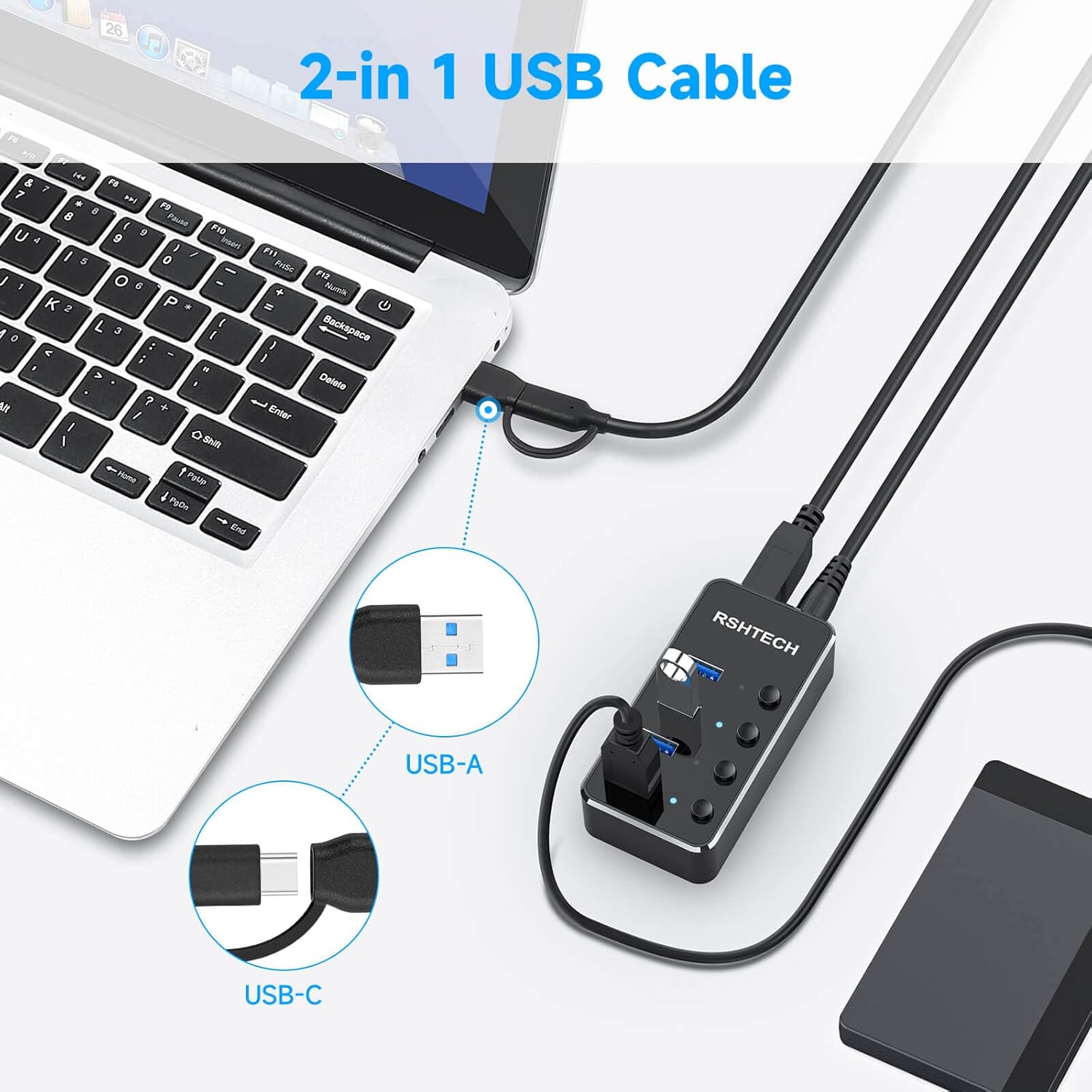
Image: A detailed view of the innovative 2-in-1 USB cable, highlighting its USB-A and USB-C connector options for broad compatibility.
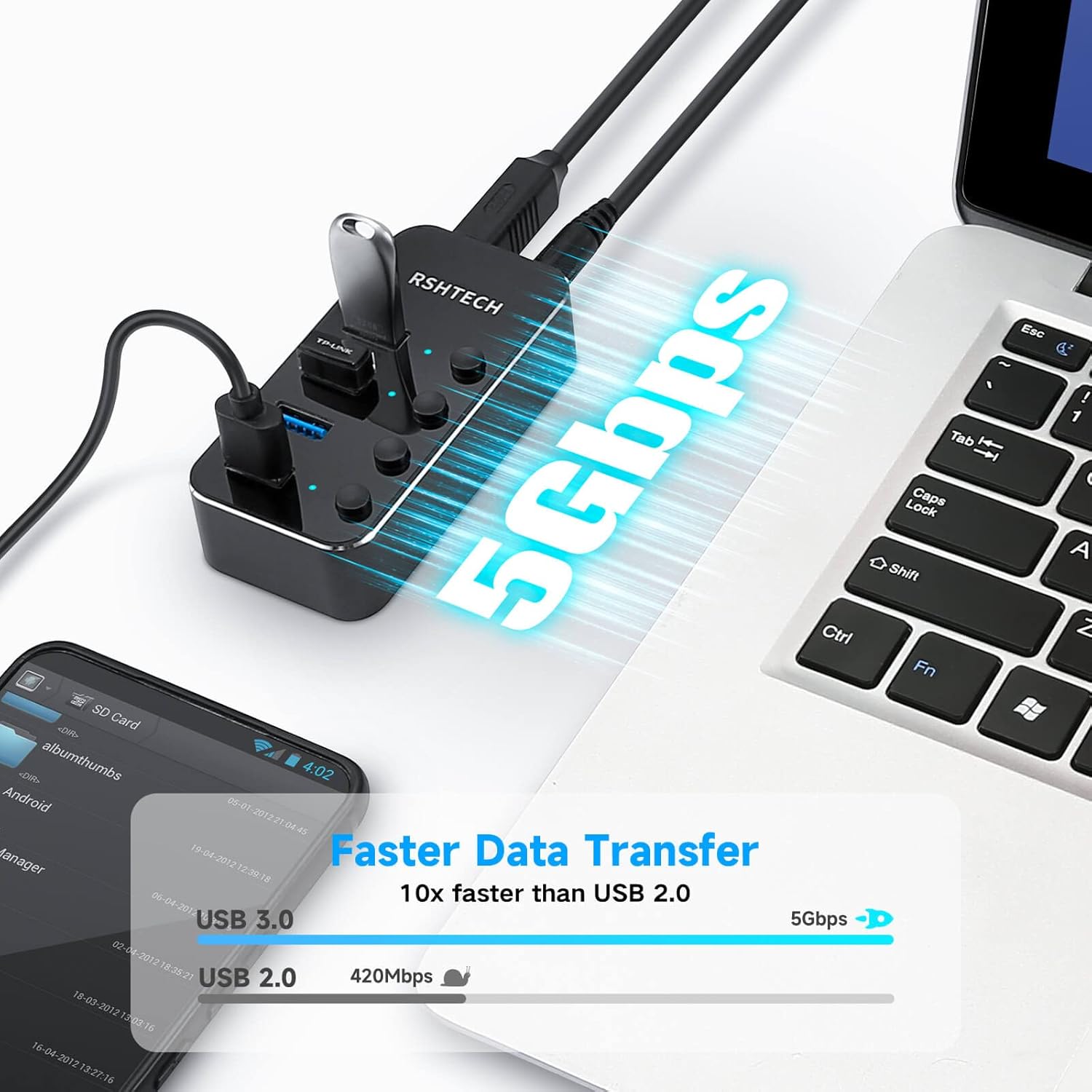
Image: A visual comparison demonstrating the 5Gbps data transfer speed of USB 3.0, significantly faster than USB 2.0.

Image: The DC 5V power input port on the hub, showing the connection of the external power adapter for enhanced stability.
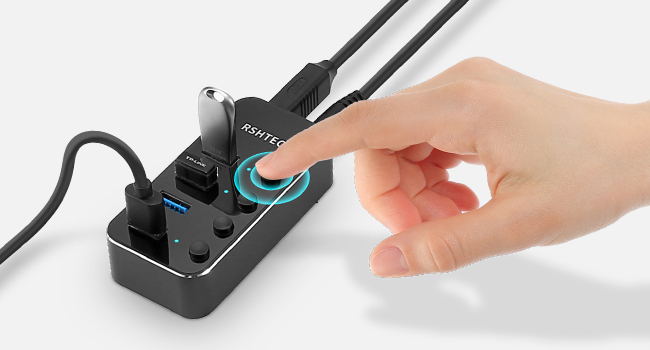
Image: A close-up of the hub demonstrating the individual on/off switches for each USB port, indicated by blue LED lights.

Image: An illustration detailing the broad compatibility of the hub with different peripheral devices and major operating systems.
Setup Instructions
- Connect Power Adapter: Insert the DC 5V power adapter into the 'DC 5V' port on the RSHTECH hub, then plug the adapter into a wall outlet. This ensures stable power for all connected devices, especially high-power consumption peripherals.
- Connect to Host Device: Use the provided 2-in-1 USB cable. Connect the appropriate end (USB-A or USB-C) to your computer's available USB port. Connect the other end (USB-B) to the 'USB 3.0' port on the hub.
- Connect USB Devices: Plug your USB devices (e.g., flash drives, external hard drives, keyboards, mice) into the available USB 3.0 ports on the hub.
- Activate Ports: Press the individual on/off switch above each port you wish to use. The blue LED indicator will light up when the port is active.
- Plug and Play: The hub is plug-and-play, meaning your operating system should automatically detect and configure it without requiring additional drivers.
Operating Instructions
- Individual Port Control: Each USB port can be independently turned on or off using its dedicated switch. This allows you to manage power to specific devices without unplugging them. The blue LED indicates an active port.
- Data Transfer: Connect USB 3.0 compatible devices to achieve data transfer speeds up to 5Gbps. For optimal performance, ensure both the connected device and your computer's USB port support USB 3.0.
- Device Charging: The hub can charge connected devices. With the DC 5V power adapter connected, the hub can provide power even when your computer is off, making it suitable for charging smartphones, headphones, and other USB-powered accessories.
- Compatibility: The hub is compatible with a wide range of operating systems and USB devices. If a device is not recognized, ensure it is properly connected and the port is activated.
Maintenance
- Cleaning: Use a soft, dry cloth to clean the hub. Avoid liquid cleaners or abrasive materials that could damage the surface.
- Storage: Store the hub in a cool, dry place away from direct sunlight and extreme temperatures.
- Handling: Avoid dropping the hub or subjecting it to strong impacts. Do not attempt to disassemble the device, as this will void the warranty.
Troubleshooting
- Device Not Recognized:
- Ensure the hub is properly connected to your computer and the power adapter is plugged in.
- Verify that the individual switch for the specific port is turned on (blue LED should be lit).
- Try connecting the device directly to your computer's USB port to confirm the device itself is functional.
- Test with a different USB cable or port on the hub.
- Restart your computer.
- Slow Data Transfer Speed:
- Ensure both the connected device and your computer's USB port support USB 3.0 for optimal speeds.
- Confirm the DC 5V power adapter is connected and providing power to the hub. Insufficient power can affect performance.
- Avoid connecting multiple high-bandwidth devices simultaneously if experiencing slowdowns.
- Power Issues (e.g., devices not charging):
- Check that the DC 5V power adapter is securely connected to both the hub and a working power outlet.
- Ensure the individual port switch is on.
- Some devices may require more power than the hub can provide if multiple high-power devices are connected. Try connecting fewer devices or a different power source.
Specifications
| Feature | Detail |
|---|---|
| Model | RSH-ST04 |
| Product Dimensions | 3.39 x 1.7 x 0.8 inches (8.6 x 4.3 x 2.0 cm) |
| Item Weight | 9.1 ounces (258 grams) |
| Hardware Interface | USB 3.0, USB Type C, Thunderbolt |
| Data Transfer Speed | Up to 5Gbps (USB 3.0) |
| Power Input | DC 5V Power Adapter |
| Special Features | 2-in-1 USB cable, Fast Data Transfer, Lightweight, Portable, Individual Switches |
| Compatible Devices | Desktops, Laptops, Macbooks, Digital Cameras, Printers, USB Peripherals |
| Compatible OS | Windows 11/10/8.1/8/7, Mac OS X (10.x or above), Linux |
Warranty and Support
RSHTECH products are designed for reliability and performance. This product comes with a standard warranty. For specific warranty details, including duration and terms, please refer to the product packaging or the official RSHTECH website.
For technical support, troubleshooting assistance, or warranty claims, please contact RSHTECH customer service through the contact information provided on our official website or your purchase platform. We are committed to providing excellent support for our products.


