
ba3e1ef7-22a7-4a96-8cc1-22b2b3ecda7c
CP-AA Video All-in-One Wireless CarPlay and Android Auto Solution User Manual
Model: ba3e1ef7-22a7-4a96-8cc1-22b2b3ecda7c
1. Introduction
The CP-AA Video is an all-in-one solution designed to enhance your in-car entertainment and connectivity. This device integrates wireless CarPlay and Android Auto functionalities, along with built-in access to popular streaming applications like YouTube and Netflix. It provides a seamless and smooth user experience, allowing for easy switching between different operating systems and multimedia playback options, all while utilizing your vehicle's existing factory controls.
2. Key Features
- All-in-One Solution: Combines multiple entertainment and connectivity features into a single device for in-car use.
- Built-in Streaming Apps: Access YouTube and Netflix directly for video-watching needs.
- Wireless CarPlay & Android Auto: Enjoy seamless wireless connectivity for both Apple and Android smartphones.
- System Switching: Effortlessly switch between the Android system, wireless CarPlay, and wireless Android Auto at any time.
- USB Multimedia Playback: Supports playback of various media files via USB.
- High Performance: Equipped with dual-band Wi-Fi and a dual-core processor for smooth, real-time connections.
- Factory Control Integration: Fully compatible with your car's existing factory controls for intuitive operation.
3. Compatibility
The CP-AA Video is designed for broad compatibility with a wide range of vehicle models that support wired CarPlay. It is perfectly paired with your car's factory controls. Compatible car brands include, but are not limited to:
- Audi
- Volvo
- Mercedes-Benz
- Porsche
- Lincoln
- Jeep
- Nissan
- Buick
- Cadillac
- Land Rover
- Peugeot
- Chevrolet
- Skoda
- And more.
The device is compatible with both Android and Apple phones for wireless CarPlay and Android Auto functionalities.
4. Setup Guide
Follow these general steps to set up your CP-AA Video device:
- Connect to Car: Plug the CP-AA Video device into your car's USB port that supports wired CarPlay. Ensure your car's infotainment system is turned on.
- Initial Boot-up: The device will automatically boot up and display its interface on your car's screen.
- Connect to Wi-Fi: Navigate to the device's settings menu and connect to an available Wi-Fi network (e.g., your phone's hotspot or car's built-in Wi-Fi) to enable streaming apps.
- Pair with Phone (Wireless CarPlay/Android Auto):
- On your phone, enable Bluetooth and Wi-Fi.
- On the CP-AA Video device, select the CarPlay or Android Auto icon.
- Search for the device's Bluetooth name on your phone and pair. Follow any on-screen prompts on both your phone and the car's display to complete the connection.
- Access Apps: Once connected, you can access the Android system, launch YouTube, Netflix, or switch to wireless CarPlay/Android Auto from the main interface.
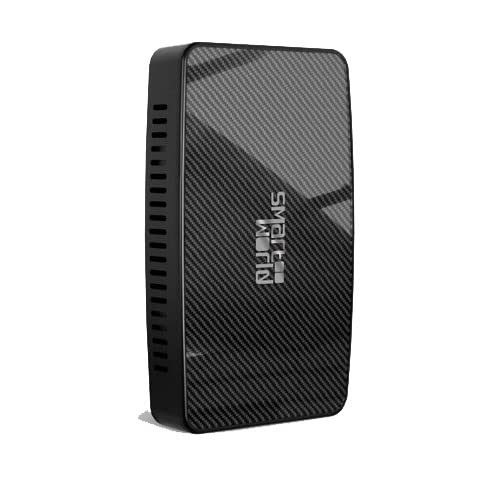
Image of the CP-AA Video device, a compact black rectangular unit with a textured carbon-fiber-like finish and the 'Smart World' logo on its front surface. Vents are visible on one side.
5. Operating Instructions
5.1. Navigating the Interface
The CP-AA Video interface can be navigated using your car's factory controls (e.g., touchscreen, rotary knob, steering wheel buttons) as if it were the native system. The main screen provides access to different modes and applications.
5.2. Using Wireless CarPlay / Android Auto
- After initial pairing, CarPlay or Android Auto should connect automatically when your phone is in range and Bluetooth/Wi-Fi are enabled.
- Select the respective icon on the device's main screen to switch to the CarPlay or Android Auto interface.
- Use your car's controls to interact with navigation, music, calls, and messages through your phone's interface.
5.3. Accessing Streaming Apps (YouTube, Netflix)
- Ensure the device is connected to a stable Wi-Fi network.
- From the main interface, select the YouTube or Netflix application icon.
- Log in with your account credentials if prompted.
- Note: For safety, video playback may be restricted while the vehicle is in motion, depending on your car's system and local regulations.
5.4. USB Multimedia Playback
- Insert a USB drive containing media files (e.g., videos, music) into the designated USB port on the CP-AA Video device.
- Navigate to the "USB Playback" or "Media Player" application on the device's interface.
- Browse and select your desired media files for playback.
6. Maintenance
- Cleaning: Use a soft, dry cloth to clean the device. Avoid using liquid cleaners or abrasive materials.
- Temperature: Do not expose the device to extreme temperatures (hot or cold) or direct sunlight for prolonged periods.
- Storage: If storing the device for an extended period, disconnect it from the car and store it in a cool, dry place.
- Firmware Updates: Periodically check the manufacturer's website or contact support for potential firmware updates to ensure optimal performance and compatibility.
7. Troubleshooting
- Device Not Powering On:
- Ensure the USB cable is securely connected to both the device and the car's USB port.
- Verify that the car's USB port is active and providing power.
- No Display on Car Screen:
- Confirm your car's infotainment system is set to the correct input (e.g., CarPlay, USB).
- Try restarting both the car's system and the CP-AA Video device.
- Wireless CarPlay/Android Auto Not Connecting:
- Ensure Bluetooth and Wi-Fi are enabled on your phone.
- Forget the device from your phone's Bluetooth settings and re-pair.
- Check for any software updates for your phone's operating system.
- Streaming Apps Not Loading/Buffering:
- Verify the device has a strong and stable Wi-Fi connection.
- Check your internet data plan if using a mobile hotspot.
- Log out and log back into the streaming app.
- Factory Controls Not Responding:
- Ensure the device is fully booted and recognized by your car's system.
- Restart the device and your car's infotainment system.
8. Specifications
| Attribute | Detail |
|---|---|
| Model Number | ba3e1ef7-22a7-4a96-8cc1-22b2b3ecda7c |
| Brand | Generic |
| Manufacturer | Smart World Company |
| Connectivity Technology | USB, Wi-Fi |
| Controller Type | Android |
| Special Feature | Touchscreen (Note: Refers to car's touchscreen compatibility) |
| Compatible Devices | Smartphone, Speaker |
| Total HDMI Ports | 1 |
| Connector Type | USB 1.0 |
| Audio Output Mode | Surround |
| Surround Sound Channel Configuration | 5.1 |
| Video Encoding | RM |
| Item Weight | 5.3 ounces |
| Package Dimensions | 3.94 x 3.94 x 1.57 inches |
9. Warranty and Support
For warranty information, technical support, or service inquiries, please refer to the documentation provided with your purchase or contact the seller/manufacturer directly. Keep your proof of purchase for warranty claims.
Manufacturer: Smart World Company
For the most up-to-date information and support resources, please visit the official product support page or contact the seller where you purchased the device.
Ask a question about this manual
Ask about setup, troubleshooting, compatibility, parts, safety, or missing instructions. Manuals+ will review the question and use this page’s manual context to help answer it.