
Introduction
Thank you for choosing the GOWENIC 2.4GHz Wireless Keyboard with Touchpad. This manual provides detailed instructions for setting up, operating, and maintaining your device. Please read this manual carefully before use to ensure optimal performance and longevity of your keyboard.
Package Contents
- 1 x GOWENIC 2.4GHz Wireless Keyboard with Touchpad
- 1 x USB Receiver
- 1 x USB Cable (for charging, if applicable, or for wired connection if supported)
- 1 x User Manual
Product Overview
The GOWENIC 2.4GHz Wireless Keyboard is a compact and versatile input device designed for various computing environments. It features a QWERTY layout, an integrated touchpad, and operates via a 2.4GHz wireless USB receiver.

Figure 1: Top view of the GOWENIC 2.4GHz Wireless Keyboard with integrated touchpad.

Figure 2: The keyboard's mini and portable design, highlighting its compact form factor.

Figure 3: The keyboard is universally compatible with Android, iOS, and Windows operating systems.
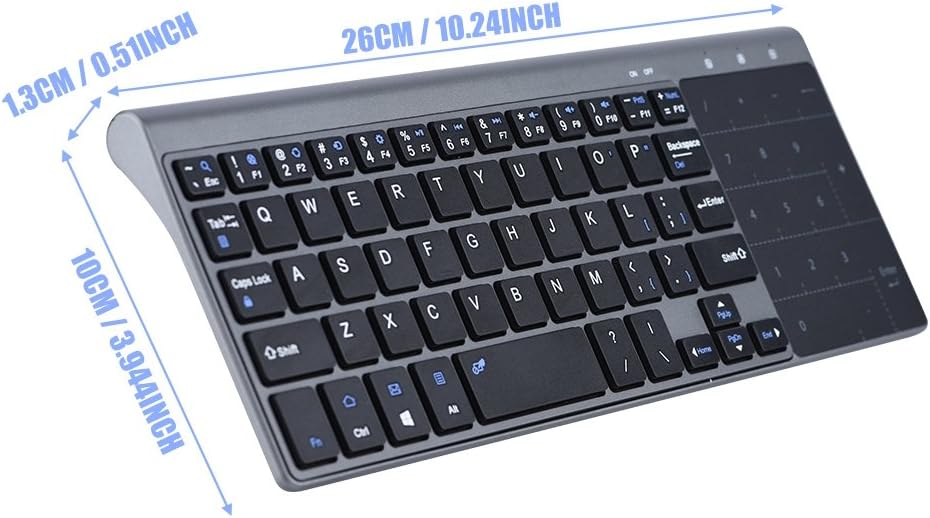
Figure 4: Product dimensions showing approximate length of 10.24 inches, width of 3.94 inches, and height of 0.51 inches.
Setup
1. Powering the Keyboard
The keyboard requires two AAA batteries (not included). Locate the battery compartment on the underside of the keyboard, open it, insert the batteries according to the polarity markings, and close the compartment.
2. Connecting the USB Receiver
- Locate the USB receiver, typically stored within the keyboard's battery compartment or a dedicated slot.
- Plug the USB receiver into an available USB port on your computer, laptop, TV box, or other compatible device.
- The device should automatically detect and install the necessary drivers. No additional software installation is required.

Figure 5: The GOWENIC keyboard shown alongside its 2.4GHz USB receiver.

Figure 6: A detailed view of the compact USB receiver.
3. Turning On the Keyboard
Slide the power switch, usually located on the side or top edge of the keyboard, to the 'ON' position. An indicator light may illuminate briefly to confirm power.
Video 1: Demonstration of handling the GOWENIC keyboard, including locating the power switch and USB receiver compartment.
Operating Instructions
Keyboard Functions
The keyboard features a standard QWERTY layout with 59 keys, including function keys (F1-F12) accessible via the 'Fn' key.
Touchpad Operation
The integrated touchpad supports multi-gesture input for navigation and control. It can also function as a numeric keypad.
- Basic Touchpad Use: Use single-finger gestures for cursor movement, tapping for clicks, and two-finger scrolling.
- Switching between Touchpad and Numeric Keys: Press the Fn + F12 keys simultaneously to toggle between touchpad mode and numeric keypad mode. When in numeric keypad mode, the touchpad area will function as a 10-key numeric pad.

Figure 7: Close-up of the touchpad area, illustrating its dual functionality as a sensitive touchpad and a numeric keypad.
Maintenance
Cleaning
To clean the keyboard, gently wipe the surface with a soft, damp cloth. Avoid using harsh chemicals or abrasive materials. Ensure no liquid enters the keyboard's internal components.
Battery Replacement
When the keyboard's performance degrades or it stops responding, it may be time to replace the AAA batteries. Follow the instructions in the 'Powering the Keyboard' section under Setup to replace them.
Troubleshooting
- Keyboard not responding:
1. Ensure the keyboard is turned on.
2. Check if the batteries are correctly installed and have sufficient charge. Replace if necessary.
3. Verify the USB receiver is securely plugged into a working USB port.
4. Try plugging the USB receiver into a different USB port or a different device to rule out port issues. - Touchpad not working or erratic:
1. Ensure you are in touchpad mode (not numeric keypad mode). Press Fn + F12 to toggle.
2. Clean the touchpad surface to remove any dirt or debris.
3. Restart the connected device. - Connection issues:
1. Ensure the keyboard and receiver are within the effective operating range (typically up to 10 meters).
2. Avoid strong electromagnetic interference from other wireless devices.
Specifications
| Brand | GOWENIC |
| Model Number | GOWENIC92vz50e86f |
| Connectivity Technology | 2.4GHz Wireless (USB Receiver) |
| Keyboard Layout | QWERTY |
| Number of Keys | 59 |
| Special Feature | Integrated Touchpad, Travel-friendly |
| Compatible Devices | Laptop, PC, TV Box (Android, iOS, Windows systems) |
| Power Source | 2 x AAA Batteries |
| Material | Plastic |
| Product Dimensions (L x W x H) | 10.24" x 3.94" x 0.51" (26cm x 10cm x 1.3cm) |
Warranty and Support
GOWENIC products are designed for reliability and performance. For warranty information, technical support, or service inquiries, please refer to the contact details provided with your purchase documentation or visit the official GOWENIC website. Please retain your proof of purchase for warranty claims.