1. Introduction
The ORIGBELIE External USB 3.0 DVD CD Drive, Model BT669, is a versatile and portable peripheral designed to expand the optical drive capabilities of your laptop or desktop computer. This device functions as both an external DVD/CD reader and writer, and integrates an 8-in-1 USB hub, providing additional connectivity options including USB ports and card slots. This manual provides comprehensive instructions for the proper setup, operation, maintenance, and troubleshooting of your new device.
2. Product Overview
2.1 Key Features
- High-Speed USB 3.0 Transfer: Offers data transfer speeds up to 5 Gbps, backward compatible with USB 2.0 and USB 1.1.
- Wide Compatibility: Supports Windows 11/10/8/7/XP, Vista 7/8, Linux, and Mac OS 10.6 or later.
- Plug & Play: No external drivers or additional power supply required; simply connect via USB.
- Multifunctionality: Capable of reading and writing various disc formats (CD±R/RW, CD-ROM, DVD±R/RW, DVD-ROM, DVD-RAM, DVD+R DL, DVD-R DL, VCD, SVCD). Ideal for music playback, movie watching, data backup, file burning, and software/game installation.
- 8-in-1 USB Hub: Includes 1 USB 3.0 port, 3 USB 2.0 ports, 1 TF slot, 1 SD card slot, and 1 USB C port.
- Portable Design: Slim, lightweight, and equipped with an integrated data cable and anti-slip rubber pads for convenience and stability.
2.2 Components
The ORIGBELIE External DVD CD Drive includes the main unit with an integrated USB-A/USB-C data cable, and a protective pouch.
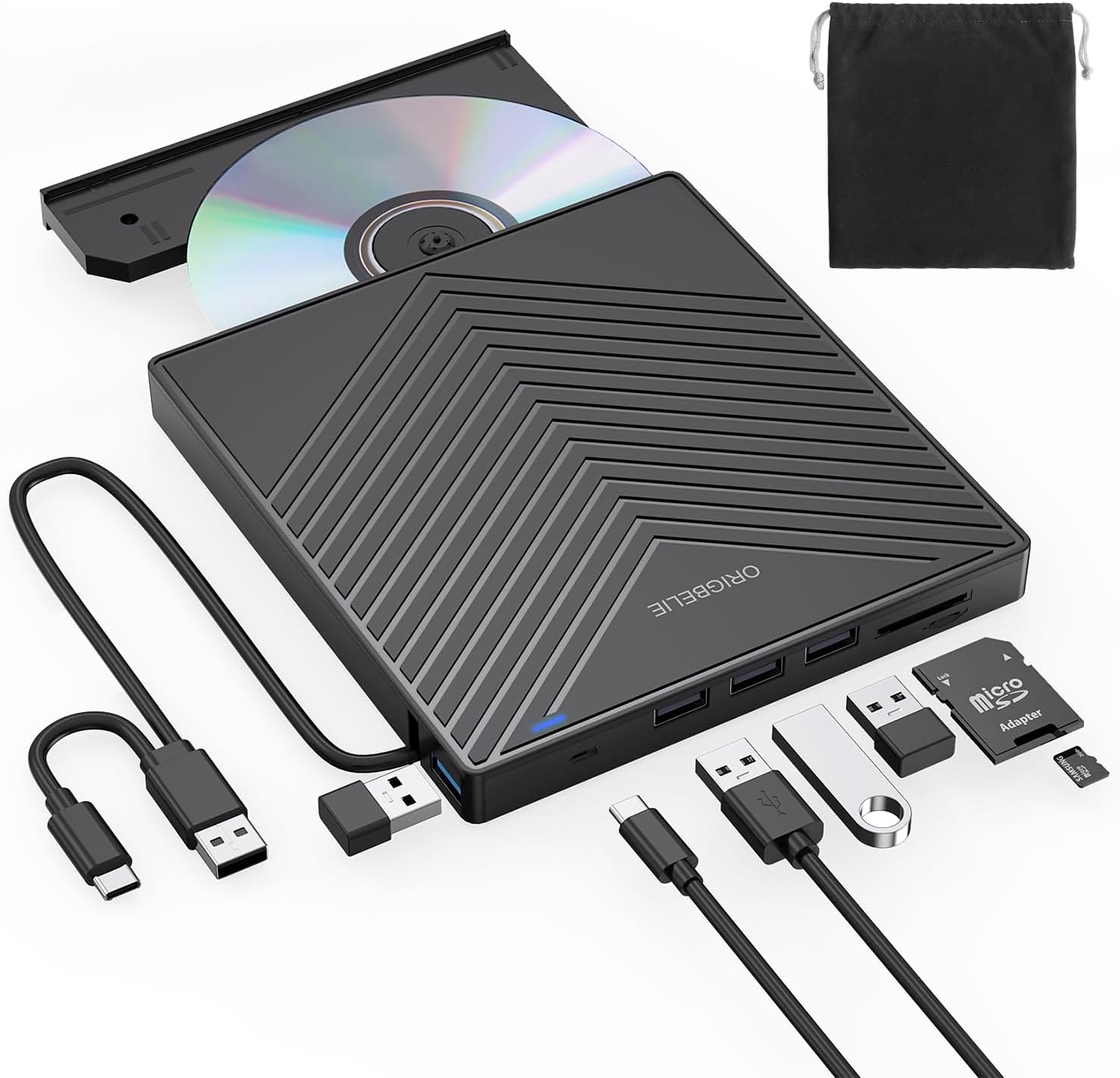
Figure 2.1: Overview of the ORIGBELIE External DVD CD Drive and its included accessories, such as the integrated USB cable, various USB ports, card slots, and a protective pouch.

Figure 2.2: Detailed diagram illustrating the dimensions (14.3 x 15.3 x 1.9 cm) and port layout of the drive, including USB-A, USB-C, TF, and SD slots, indicator light, and the forced ejection button.
3. Setup
The ORIGBELIE External DVD CD Drive is designed for simple Plug & Play operation.
3.1 Connecting the Drive
- Locate an available USB-A or USB-C port on your computer (laptop or desktop).
- Connect the integrated USB data cable from the external drive to the chosen USB port on your computer.
- The drive will be automatically detected by your operating system. No additional drivers are typically required.

Figure 3.1: The external drive connected to a laptop, demonstrating its wide compatibility with various operating systems including Windows, Mac OS, and Linux.
3.2 Important Notes for Setup
- Mac OS Users: The device icon may not appear on your Mac OS desktop until a disc is inserted and successfully read.
- Power Supply: The drive is USB-powered. Ensure your computer's USB port provides sufficient power. If experiencing issues, try connecting to a different USB port or using a powered USB hub. Power banks and adapters are not included.
- Incompatible Devices: This drive is not compatible with cars, TVs, tablets, phones, projectors, Chromebooks, Surface devices, or Blu-ray discs.

Figure 3.2: Visual representation of devices incompatible with the drive and a warning regarding insufficient current supply, showing the drive connected to a desktop and a laptop.
4. Operating Instructions
4.1 Using the DVD/CD Function
- Gently press the pop-up button on the front of the drive to open the disc tray.
- Place your CD or DVD disc onto the tray, ensuring it is centered on the spindle.
- Gently push the tray back into the drive until it clicks shut.
- Your computer's operating system should recognize the disc. You can then access its contents, play media, or begin burning operations using appropriate software.
- To eject the disc, press the pop-up button again. If the tray does not open, use the forced ejection pinhole (refer to Figure 2.2) with a straightened paperclip.

Figure 4.1: The drive in use, showing a disc being inserted into the tray, illustrating its Plug and Play functionality for various media tasks.
4.2 Using the USB Hub and Card Reader
The integrated 8-in-1 hub allows you to connect multiple USB devices and access data from SD and TF cards simultaneously with the optical drive function.
- USB Ports: Connect USB flash drives, external hard drives, keyboards, mice, or other USB peripherals to the available USB 3.0 or USB 2.0 ports.
- Card Slots: Insert your TF (Micro SD) or SD card into the corresponding slot to access data.
- Important Note: The SD card slot and TF card slot cannot be used simultaneously. Only one card can be read at a time.

Figure 4.2: The drive showcasing its 8-in-1 USB hub capabilities, with various USB devices and memory cards connected to its multiple ports.
4.3 DVD Region Code Information
DVDs are often region-coded. The drive's region code must match the disc's region code for playback. The region code of the drive can typically be changed a limited number of times (usually 4 times) through your computer's operating system settings.

Figure 4.3: Explanation of DVD region codes, indicating that a disc can only be played if the drive's region code matches the disc's. Note that region code changes are limited.
5. Maintenance
5.1 Cleaning
- To clean the exterior of the drive, use a soft, dry, lint-free cloth.
- Do not use liquid cleaners, aerosols, or abrasive solvents, as these may damage the surface.
- Avoid introducing foreign objects into the disc tray or ports.
5.2 Storage
- When not in use, store the drive in a cool, dry place, away from direct sunlight and extreme temperatures.
- Utilize the provided protective pouch to prevent scratches and dust accumulation during storage or travel.
- The drive features anti-slip rubber pads on the bottom for stable placement during use.

Figure 5.1: The underside of the drive, highlighting its anti-slip rubber pads designed to provide stability during operation.
6. Troubleshooting
If you encounter issues with your ORIGBELIE External DVD CD Drive, please refer to the following common problems and solutions:
| Problem | Possible Cause / Solution |
|---|---|
| Drive not recognized by computer. | Ensure the USB cable is securely connected to both the drive and the computer. Try a different USB port or a powered USB hub to ensure sufficient power supply. Restart your computer. |
| Disc not reading or writing. | Check if the disc is clean and free of scratches. Ensure the disc is placed correctly on the tray. Verify that the disc format is supported (e.g., not Blu-ray). For DVDs, check region code compatibility. |
| Mac OS does not show device icon. | This is normal behavior for Mac OS. The icon will appear once a disc is inserted and successfully read. |
| SD and TF cards cannot be used simultaneously. | This is a design limitation. Only one card slot (SD or TF) can be active at a time. Remove one card before inserting the other. |
| Disc tray stuck or won't open. | Gently press the eject button. If it remains stuck, use a straightened paperclip to insert into the small forced ejection pinhole on the front of the drive. |
7. Specifications
| Brand | ORIGBELIE |
| Model Number | BT669-Black |
| Color | Black |
| Operating System Compatibility | Vista 7/8, Windows XP/7/8/10/11, Linux, MAC OS |
| Hardware Platform | PC, Laptop |
| CD Write Speed | 24x |
| DVD Write Speed | 8x |
| Optical Storage Read Speed | Up to 625 MB/s (USB 3.0) |
| Interface | USB 3.0 Type A, USB 3.0, USB 3.0 Type C |
| Connector Type | USB |
| Device Compatibility | Laptop, Desktop computer |
| Dimensions (L x W x H) | 14.3 x 15.3 x 1.9 cm |
| Product Weight | 410 Grams |
| Special Features | Lightscribe, Backward compatible, Error correction, Noise reduction technology, Plug & play |
| Material | Acrylonitrile Butadiene Styrene (ABS) |
| Cache Size | 2 MB |
8. Warranty and Support
For warranty information or technical support, please refer to the product packaging or contact ORIGBELIE customer service directly. Keep your purchase receipt as proof of purchase for any warranty claims.


