
1. Introduction
The BOSS Gigcaster 8 is an all-in-one audio command center designed for live streaming musicians, content creators, and anyone producing audio and video content. This desktop interface provides comprehensive tools for professional sound, offering quick access to live controls via faders, knobs, eight assignable pads, and a color touchscreen. It integrates guitar/bass amplification and effects, vocal processing, and versatile audio mixing capabilities.

Figure 1.1: Front view of the BOSS Gigcaster 8, showcasing its faders, pads, and touchscreen display.
2. Setup
2.1 Unpacking and Initial Inspection
Carefully remove the Gigcaster 8 from its packaging. Verify that all components are present and undamaged. The box should contain:
- BOSS Gigcaster 8 unit
- AC Adaptor (PSD Series)
- Owner's Manual (this document)
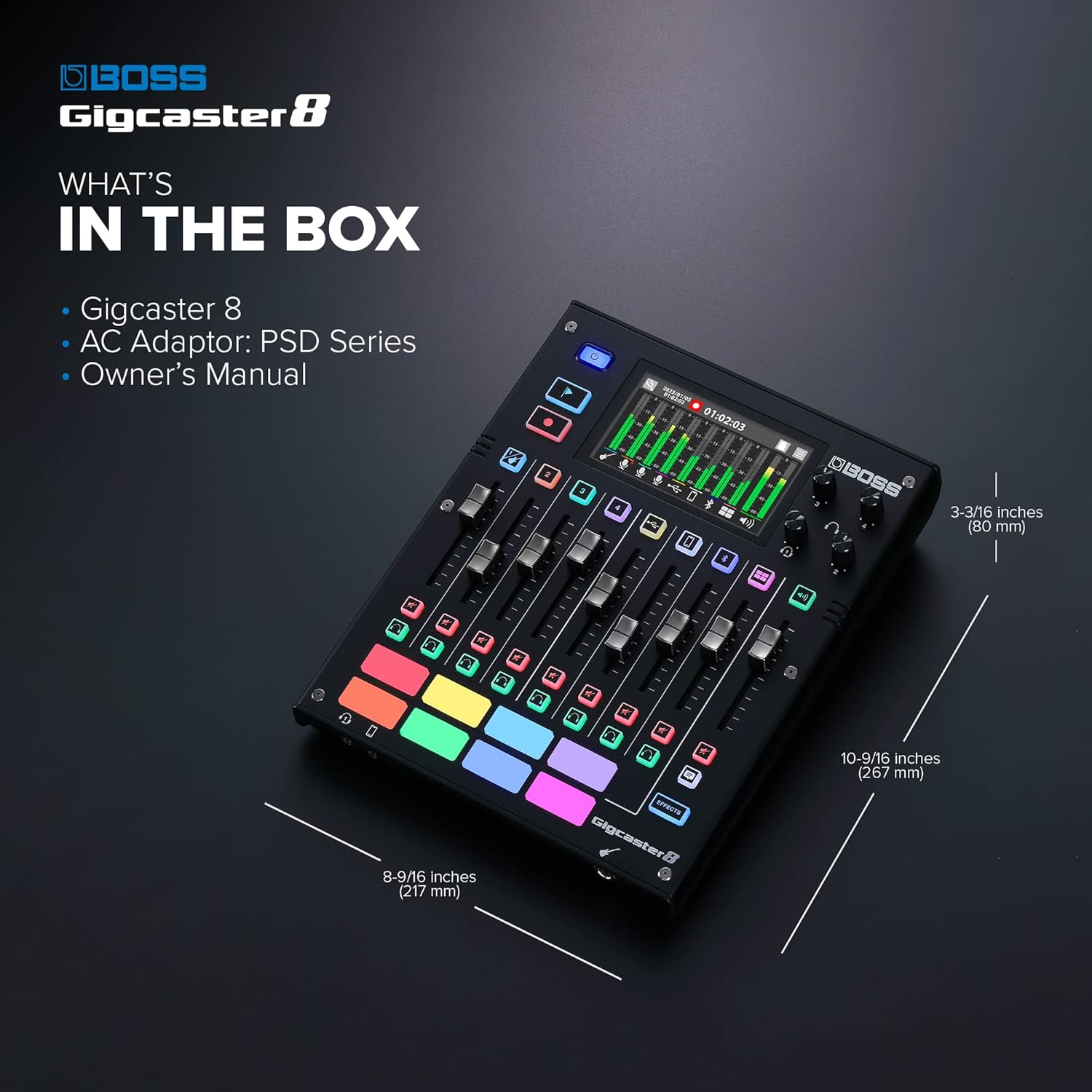
Figure 2.1: Illustration of the items included in the BOSS Gigcaster 8 product box.
2.2 Power Connection
- Connect the supplied AC adaptor to the DC IN jack on the rear panel of the Gigcaster 8.
- Plug the AC adaptor into a standard electrical outlet.
- Press the power button located on the top left of the unit to turn it on.
Important: Use only the specified Roland/BOSS PSD series AC adaptor. Using other adaptors may cause malfunction or damage.
2.3 Connecting Audio Devices
The Gigcaster 8 offers various input options for instruments and microphones.
- Guitar/Bass Input: Connect your guitar or bass directly to the high-impedance input jack. This input is optimized for instrument signals and allows access to the GT-1000 derived amplifiers and effects.
- Microphone/Instrument Inputs: Four XLR/TRS combo jacks are available for connecting microphones or other electronic instruments. These inputs feature high-quality preamplifiers with low noise and a wide gain range (+70 dB). Phantom power is available for condenser microphones.
- Built-in Stereo Microphone: The unit includes a built-in stereo microphone for capturing ambient sound or direct voice input without external microphones.
- USB Audio Interface: Connect the Gigcaster 8 to your computer via USB for multi-channel audio recording and playback.
- Bluetooth Connectivity: The Gigcaster 8 supports Bluetooth for wireless audio input from mobile devices.

Figure 2.2: Rear panel of the Gigcaster 8, showing DC IN, USB, Micro SD slot, headphone outputs, FOOT SW, and XLR/TRS combo inputs.
3. Operation
3.1 Overview of Controls
The Gigcaster 8 features a user-friendly interface with physical controls and a touchscreen for intuitive operation.
- Faders: Control the volume levels of individual audio channels.
- Knobs: Adjust various parameters suchs as headphone volume, input gain, and effects.
- Touchscreen Display: Provides visual feedback for levels, settings, and allows for detailed parameter adjustments and navigation.
- Assignable Pads (SFX): Eight customizable pads for triggering sound effects, samples, or other functions during live streams.

Figure 3.1: The Gigcaster 8's color touchscreen displaying audio levels and settings.

Figure 3.2: The eight assignable SFX pads on the Gigcaster 8.
3.2 Audio Mixing and Effects
The 8-channel audio mixer allows for precise control over multiple audio sources.
- Guitar/Bass Effects: Access premium amplifiers and effects derived from the BOSS GT-1000. These can be applied directly to your guitar or bass input.
- Vocal Effects: Utilize dedicated vocal effects, harmony functions, and voice transformer capabilities, originating from VE vocal processors, to enhance your vocal performance.
- Routing: Configure audio routing for various streaming and recording scenarios using the touchscreen interface.

Figure 3.3: A musician utilizing the Gigcaster 8 for live performance or streaming with a guitar and microphone.
4. Maintenance
4.1 Cleaning
To maintain the appearance and functionality of your Gigcaster 8:
- Wipe the unit with a soft, dry cloth.
- For stubborn dirt, use a slightly damp cloth and then wipe dry.
- Avoid using abrasive cleaners, waxes, or solvents, as these can damage the finish.
4.2 Storage
When not in use for extended periods, store the Gigcaster 8 in a cool, dry place away from direct sunlight and extreme temperatures.
5. Troubleshooting
If you encounter issues with your Gigcaster 8, refer to the following common solutions.
| Problem | Possible Cause / Solution |
|---|---|
| No power | Ensure the AC adaptor is securely connected to both the unit and a working power outlet. Verify that the power button is pressed. |
| No audio output | Check all cable connections. Verify fader levels and master volume. Ensure correct input/output routing on the touchscreen. Check headphone connections and volume. |
| Distorted audio | Reduce input gain levels to prevent clipping. Check for damaged cables. Ensure impedance matching for instruments. |
| USB connection issues | Ensure the USB cable is firmly connected. Try disconnecting and reconnecting the USB cable. Verify that the correct drivers are installed on your computer. Restart both the Gigcaster 8 and your computer. |
| SFX pads not responding | Check if the pads are assigned to functions or samples. Ensure the unit is not in a locked mode. |
For further assistance, please refer to the official BOSS support website or contact customer service.
6. Specifications
| Feature | Detail |
|---|---|
| Model Number | GCS-8 |
| Dimensions (W x D x H) | 33.8 cm x 13.8 cm x 33.3 cm (13.3 in x 5.4 in x 13.1 in) |
| Weight | 2 kg (4.4 lbs) |
| Audio Channels | 8 |
| Input Connectors | 4 x XLR/TRS Combo jacks, High-impedance guitar/bass input |
| Output Connectors | XLR and 1/4 inch TRS |
| Headphone Outputs | Multiple |
| Built-in Microphone | Stereo |
| Interface | USB Audio Interface |
| Connectivity | USB, Bluetooth |
| Sample Rate | 48 KHz |
| Power Source | AC Adaptor (PSD Series) |
| Phantom Power | Available on microphone inputs |
| Preamplifier Gain Range | +70 dB |
Note: Specifications are subject to change without notice.
7. Warranty and Support
7.1 Product Warranty
For detailed information regarding the warranty coverage for your BOSS Gigcaster 8, please refer to the warranty card included with your product or visit the official BOSS website. Warranty terms and conditions may vary by region.
7.2 Customer Support
Should you require technical assistance, have questions about product operation, or need to report a service issue, please contact BOSS customer support. Support contact information can typically be found on the official BOSS website or in the documentation provided with your product.
Visit the official BOSS Support website for the latest information, FAQs, and contact details.


