
Introduction
Thank you for purchasing the Hikity 2 Din Bluetooth Car Stereo. This manual provides detailed instructions for installation, operation, and maintenance to ensure optimal performance and longevity of your device. Please read this manual thoroughly before use and keep it for future reference.
What's in the Box
Carefully unpack the box and ensure all items are present. If any items are missing or damaged, please contact your retailer.
- Hikity 2 Din Car Stereo
- Rear View Camera
- External Microphone
- Power Cable
- Horn Cable
- Remote Control
- Frame
- User Manual (this document)
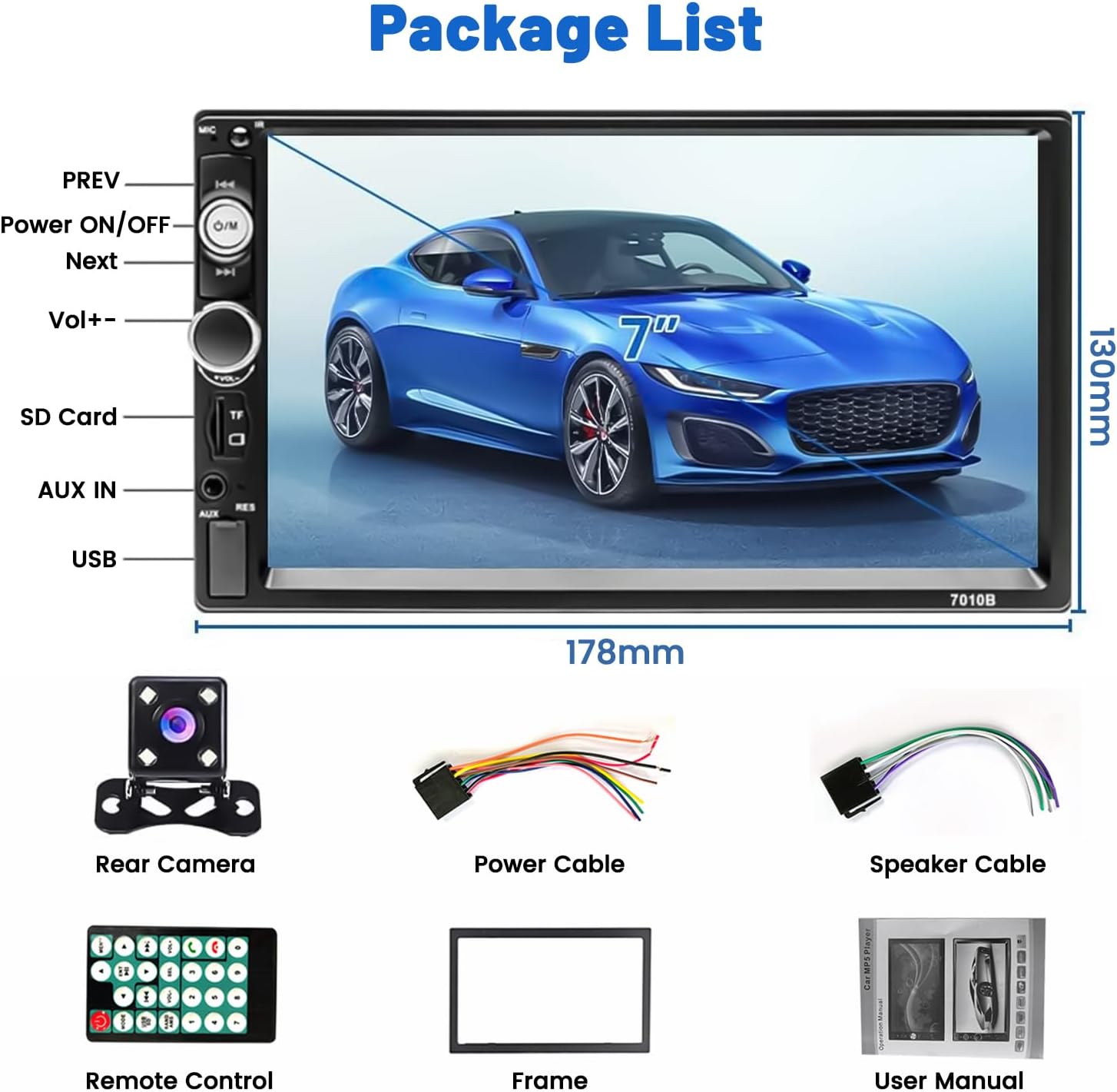
Image: Package contents and dimensions of the Hikity 2 Din Car Stereo.
Product Overview
Key Features
- 7-inch Capacitive Touchscreen
- Built-in Bluetooth for hands-free calling and music streaming
- FM Radio Receiver with 18 preset stations
- Mirror Link function for iOS and Android phones
- Rear Camera Input with automatic display
- USB, AUX, and SD Card slots for multimedia playback
- Steering Wheel Control (SWC) support
- 7-color LED backlight options
- EQ customization and audio output

Image: Front view of the Hikity 2 Din Car Stereo.
Front Panel Controls and Ports

Image: Detailed view of the front panel, including the 7-inch touchscreen, physical buttons, and input slots.
- PREV/NEXT: Track skip/station tuning
- Power ON/OFF/M: Power button, also functions as Mode selector
- Vol+/-: Volume control knob
- SD Card Slot: For TF/SD memory cards
- AUX IN: 3.5mm auxiliary input
- USB Port: For USB drives and phone charging
- RES: Reset button (small pinhole)
Setup and Installation
Proper installation is crucial for the performance and safety of your car stereo. It is recommended to have this unit installed by a professional.
Wiring Diagram
Refer to the following diagram for correct wiring connections. Incorrect wiring can cause damage to the unit or your vehicle's electrical system.

Image: Comprehensive wiring diagram for the car stereo, including power, speaker, and video connections.
- Power Cable (A): Connect ACC (Red), GND (Black), B+ (Yellow), ANT (Blue), ILL (Orange).
- Speaker Cable (B): Connect Front Left (White/White-Black), Front Right (Gray/Gray-Black), Rear Left (Green/Green-Black), Rear Right (Purple/Purple-Black).
- Reverse Camera Input: Connect the red wire from the camera power to the reversing lamp positive, and the black wire to ground. Connect the video output cable to the unit's 'REVERSE CAMERA INPUT' (usually a yellow RCA jack).
- Steering Wheel Control (KEY1/KEY2): Connect to your vehicle's SWC wires.
General Installation Steps
- Disconnect the vehicle's negative battery terminal.
- Remove the existing car stereo or dashboard panel.
- Connect the wiring harness from the new stereo to the vehicle's wiring, following the diagram.
- If installing a rear camera, route the camera cable and connect it as per the diagram.
- Mount the new stereo securely into the dashboard.
- Reconnect the vehicle's negative battery terminal and test the unit.
Operating Instructions
Touchscreen Operation
The unit features a responsive 7-inch capacitive touchscreen. Navigate through menus and control functions by tapping, swiping, and dragging on the screen.

Image: Examples of touchscreen gestures for operating the unit.
Bluetooth Connection
Pair your mobile phone with the car stereo for hands-free calling and wireless audio streaming.
- Turn on Bluetooth on your mobile phone.
- On the car stereo, go to the Bluetooth menu.
- Search for available devices on your phone. The stereo's name will typically appear as "Hikity" or similar.
- Select the stereo from your phone's list and confirm pairing.
- Once paired, you can make/receive calls and play music wirelessly.

Image: Bluetooth connection interface and FM radio display.
FM Radio Operation
Access and tune into your favorite FM radio stations.
- Select the FM Radio mode from the main menu.
- Use the on-screen controls to scan for stations (AS/PS for auto scan/preset scan) or manually tune using the frequency display.
- You can save up to 18 stations as presets for quick access.
Mirror Link Function
Display your smartphone's screen directly on the car stereo's display.
- Connect your smartphone to the car stereo's USB port using an original USB cable.
- Select the "Mirror Link" or "PhoneLink" option on the car stereo.
- Follow the on-screen prompts on both your phone and the stereo to establish the connection.
- Once connected, your phone's screen will be mirrored, allowing you to view navigation, videos, and other apps.

Image: Phone screen mirroring for both iOS and Android devices.
Rear Camera Display
The unit automatically displays the rear camera feed when the vehicle is put into reverse gear.
- Ensure the rear camera is correctly installed and wired to the reverse light power source.
- When shifting into reverse, the stereo will automatically switch to the camera view.
- The camera provides a 170-degree wide-angle view with night vision capabilities for enhanced safety.

Image: Rear view camera display and parking assistance features.
Multimedia Player
Play audio and video files from various sources.
- USB: Insert a USB drive into the USB port.
- SD Card: Insert a TF/SD card into the SD card slot.
- AUX: Connect an external audio device via the 3.5mm AUX input.
- Navigate through your files using the touchscreen interface.

Image: Multimedia playback options including SD card, AUX, and USB inputs.
Steering Wheel Control (SWC)
Control basic functions of the stereo using your vehicle's existing steering wheel buttons.
- Ensure the SWC wires (KEY1/KEY2) are correctly connected during installation.
- Access the SWC settings menu on the car stereo.
- Follow the on-screen instructions to program the steering wheel buttons to the desired functions (e.g., volume up/down, track skip, mode).
Image: Steering Wheel Control (SWC) setup interface.
Maintenance
- Cleaning: Use a soft, dry cloth to clean the screen and unit. Do not use abrasive cleaners or solvents.
- Temperature: Avoid exposing the unit to extreme temperatures or direct sunlight for prolonged periods.
- Moisture: Keep the unit dry. Do not expose it to water or other liquids.
- Software Updates: Check the Hikity official website periodically for any available firmware updates.
Troubleshooting
If you encounter issues, refer to the following common problems and solutions:
| Problem | Possible Cause | Solution |
|---|---|---|
| No power | Incorrect wiring; Blown fuse | Check power cable connections (ACC, B+, GND). Verify vehicle's fuse and the unit's fuse. |
| No sound | Incorrect speaker wiring; Volume too low; Mute activated | Check speaker connections. Increase volume. Ensure mute is off. |
| Bluetooth not connecting | Bluetooth off on phone/stereo; Device not discoverable | Ensure Bluetooth is enabled on both devices. Make sure the stereo is in pairing mode. Try restarting both devices. |
| Mirror Link not working | Incorrect USB cable; App not installed/updated | Use an original USB cable. Ensure the required app (if any) is installed and updated on your phone. Check phone settings for USB debugging/file transfer mode. |
| Rear camera not displaying | Incorrect camera wiring; Reverse trigger not connected | Verify camera power and video signal connections. Ensure the reverse trigger wire (REVERSE) is connected to the vehicle's reverse light positive. |
| Unit freezes or is unresponsive | Temporary software glitch | Press the RESET button (small pinhole on the front panel) with a thin object. |
Specifications
| Feature | Detail |
|---|---|
| Brand | Hikity |
| Model Number | 544e7620-8aa7-4010-8628-b58fa734ad5e |
| Screen Size | 7 inches |
| Screen Type | Capacitive Touchscreen |
| Connectivity Technology | AUX, Bluetooth, USB, Wi-Fi |
| Special Features | Built-in Bluetooth, Touchscreen, Rear Camera Input, SD Card Input, AUX Input, Mirror Link |
| Compatible Devices | Amplifier, Smartphone |
| Audio Output Mode | Mono |
| Surround Sound Channel Configuration | 5.1 |
| Video Encoding | AVI/MP4/FLV/RM/RMVB/MP1/MP |
| Color | Black |
| Product Dimensions (DxWxH) | 6.3 x 17.8 x 10.3 cm |
| Output Power | 60 Watts |
| Number of Channels | 4 |
| Internet Applications | YouTube, Browser, Netflix |
| Control Method | App, Remote, Touch, Voice |
| Audio Output Type | AUX, Speakers, Bluetooth |
| Supported Formats | AVI, WAV, WMA |
| Item Weight | 700 Grams |
Warranty and Support
Product Warranty
This Hikity product comes with a 2-year warranty from the date of purchase. This warranty covers manufacturing defects and malfunctions under normal use. It does not cover damage caused by improper installation, misuse, accidents, or unauthorized modifications.
Customer Support
For technical assistance, troubleshooting, or warranty claims, please contact Hikity customer support through the retailer where you purchased the product or visit the official Hikity store page:
Visit the Hikity Store on Amazon
Please have your model number (544e7620-8aa7-4010-8628-b58fa734ad5e) and proof of purchase ready when contacting support.


