
Samsung HW-Q990C
SAMSUNG HW-Q990C 11.1.4ch Soundbar System User Manual
Model: HW-Q990C
1. Introduction
This manual provides comprehensive instructions for the setup, operation, and maintenance of your SAMSUNG HW-Q990C 11.1.4ch Soundbar System. Please read this manual thoroughly before using the product to ensure safe and optimal performance.
Package Contents
- Soundbar (HW-Q990C)
- Wireless Subwoofer
- Wireless Rear Speakers (2 units)
- Remote Control with Batteries
- HDMI Cable
- Power Cords (for Soundbar, Subwoofer, and Rear Speakers)
- Wall Mount Kit (optional)
- User Manual (this document)

Figure 1.1: Overview of the SAMSUNG HW-Q990C Soundbar System components.
2. Safety Information
Always follow these basic safety precautions when using your soundbar system to reduce the risk of electric shock, fire, or injury:
- Do not expose this apparatus to rain or moisture.
- Do not block any ventilation openings. Install in accordance with the manufacturer's instructions.
- Do not install near any heat sources such as radiators, heat registers, stoves, or other apparatus (including amplifiers) that produce heat.
- Protect the power cord from being walked on or pinched, particularly at plugs, convenience receptacles, and the point where they exit from the apparatus.
- Only use attachments/accessories specified by the manufacturer.
- Refer all servicing to qualified service personnel. Servicing is required when the apparatus has been damaged in any way.
3. Setup
3.1 Placement
Proper placement of your soundbar, subwoofer, and rear speakers is crucial for optimal sound performance.
- Soundbar: Place the soundbar centrally below your TV. Ensure there are no obstructions in front of the soundbar.
- Wireless Subwoofer: Position the subwoofer on the same side of the room as the soundbar, preferably near a wall or corner for enhanced bass. Avoid placing it directly in a corner if the bass becomes too boomy.
- Wireless Rear Speakers: Place the rear speakers behind your main listening position, ideally at ear level when seated. Ensure they are equidistant from the listening position for balanced surround sound.

Figure 3.1: Recommended placement of soundbar components.
3.2 Connections
Connect your soundbar system to your TV and power source.
- Connect the HDMI cable from the soundbar's HDMI OUT (TV-ARC/eARC) port to your TV's HDMI IN (ARC/eARC) port.
- Alternatively, use an Optical cable to connect the soundbar's DIGITAL AUDIO IN (OPTICAL) port to your TV's Optical Digital Audio Out port.
- Connect the power cords to the soundbar, subwoofer, and each rear speaker, then plug them into a wall outlet.
Note: For the best audio experience, especially with Dolby Atmos, HDMI eARC connection is recommended.
3.3 Wireless Setup (Subwoofer and Rear Speakers)
The wireless subwoofer and rear speakers should automatically connect to the soundbar upon powering on. If connection is not established:
- Ensure the soundbar and wireless components are powered on.
- On the back of the subwoofer and each rear speaker, locate the ID SET button.
- Press and hold the ID SET button on the subwoofer and rear speakers for 5 seconds until the LED indicator blinks blue.
- With the soundbar off, press and hold the Up button on the soundbar's remote control for 5 seconds. The soundbar display will show "ID SET".
- Once connected, the LED indicators on the subwoofer and rear speakers will turn solid blue.
4. Operation
4.1 Basic Controls
Use the included remote control or the buttons on the soundbar to manage basic functions.

Figure 4.1: Soundbar top panel controls.
- Power: Press to turn the soundbar on or off.
- Volume: Use the Volume Up/Down buttons to adjust the master volume.
- Input: Press the Source button to cycle through available input sources (HDMI, Optical, Bluetooth, Wi-Fi).
- Mute: Press to mute or unmute the sound.
4.2 Sound Modes and Dolby Atmos
The HW-Q990C offers various sound modes to optimize your audio experience, including immersive Dolby Atmos.
- Standard: Delivers original sound without processing.
- Surround: Expands the sound to create a wider, more enveloping soundstage.
- Game Pro: Optimizes sound for gaming, enhancing directional audio.
- Adaptive Sound: Analyzes content and automatically optimizes sound settings for clarity.
- Dolby Atmos: Provides multi-dimensional sound that moves around you, including overhead effects. The 11.1.4ch configuration utilizes 11 front-facing speakers, 1 subwoofer, and 4 up-firing channels for a true Dolby Atmos experience.

Figure 4.2: 11.1.4ch True Dolby Atmos Sound representation.
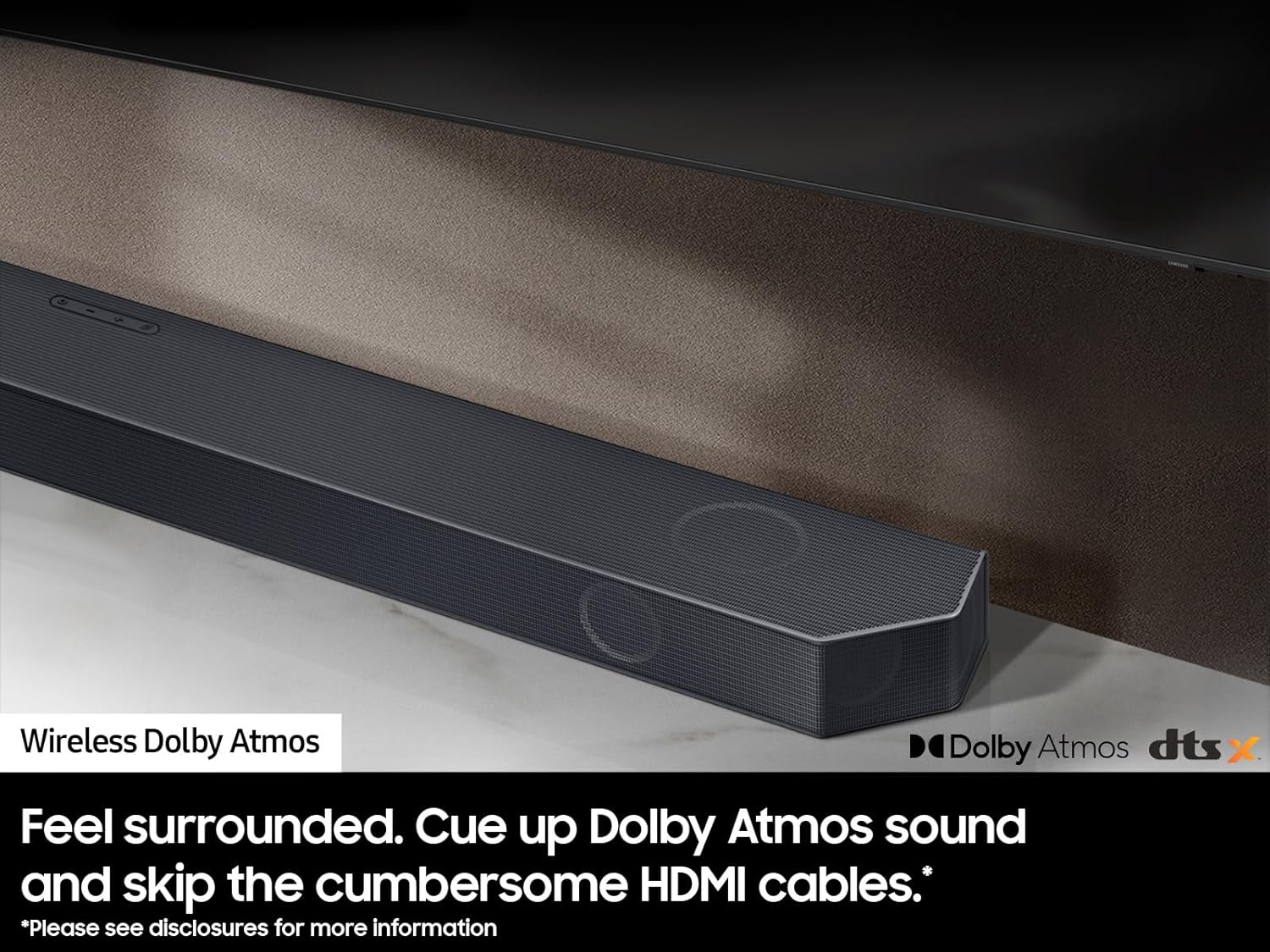
Figure 4.3: Wireless Dolby Atmos capability.
4.3 Q-Symphony
Q-Symphony allows your Samsung Soundbar to synchronize with compatible Samsung QLED TVs, utilizing both the TV's speakers and the soundbar's speakers simultaneously for a richer, more expansive sound experience.

Figure 4.4: Q-Symphony in action.
4.4 Voice Assistant Integration
The soundbar features built-in voice assistant capabilities, allowing you to control your soundbar and other smart home devices using voice commands.
- Works with Amazon Alexa.
- Works with Google Assistant.
- Supports Apple AirPlay 2 for audio streaming.
- Chromecast built-in for audio streaming.

Figure 4.5: Voice assistant and streaming service compatibility.
4.5 Bluetooth and Wi-Fi Connectivity
Connect your mobile devices wirelessly to the soundbar for audio streaming.
- Bluetooth: Select Bluetooth mode on the soundbar. On your device, search for "SAMSUNG HW-Q990C" and pair.
- Wi-Fi: Use the Samsung SmartThings app to connect the soundbar to your home Wi-Fi network for access to streaming services and multi-room audio.
5. Maintenance
Cleaning
To maintain the appearance and performance of your soundbar system:
- Wipe the exterior surfaces with a soft, dry cloth.
- Do not use liquid cleaners, abrasive cleaners, or spray cleaners directly on the unit.
- Ensure the unit is unplugged before cleaning.
6. Troubleshooting
If you encounter issues with your soundbar system, refer to the table below for common problems and solutions.
| Problem | Possible Cause | Solution |
|---|---|---|
| No Sound | Power not connected, incorrect input source, muted. | Check power connections, select correct input, unmute. |
| Subwoofer/Rear Speakers not connecting | Interference, out of range, pairing issue. | Ensure components are within range, re-perform ID SET pairing process. |
| Sound distorted | Volume too high, poor source quality. | Lower volume, try a different audio source. |
| Remote control not working | Dead batteries, obstruction, incorrect mode. | Replace batteries, remove obstructions, ensure soundbar is selected. |
7. Specifications
| Feature | Detail |
|---|---|
| Model Name | HW-Q990C |
| Channels | 11.1.4ch |
| Connectivity | Bluetooth, Wi-Fi, Optical, HDMI (eARC) |
| Audio Output Mode | Dolby Atmos, DTS:X |
| Speaker Maximum Output Power | 360 Watts |
| Subwoofer Woofer Diameter | 8.7 Inches |
| Product Dimensions (Soundbar) | 5.4 x 48.5 x 2.7 inches |
| Item Weight | 50.2 pounds (total system) |
| Voice Assistants | Built-in Alexa, Google Assistant, AirPlay 2, Chromecast |
8. Product Video Overview
Video 8.1: Official product video showcasing the features and capabilities of the Samsung Q Series Soundbar 11.1.4ch system, including its immersive audio and smart integrations.
9. Warranty and Support
This product comes with a standard manufacturer's warranty. For specific warranty details, please refer to the warranty card included in your package or visit the official Samsung support website.
For technical support, troubleshooting assistance, or service requests, please contact Samsung Customer Service. You can find contact information on the official Samsung website or through the SmartThings app.
Online resources and FAQs are also available at the Samsung Support Website.
Ask a question about this manual
Ask about setup, troubleshooting, compatibility, parts, safety, or missing instructions. Manuals+ will review the question and use this page’s manual context to help answer it.