1. Introduction
This manual provides comprehensive instructions for the setup, operation, and maintenance of your TONGVEO Conference Room PTZ Camera System. This system is designed to deliver high-quality video and audio for various applications, including video conferencing, live streaming for religious services, tele-education, and telemedicine. Please read this manual thoroughly before use to ensure optimal performance and longevity of your device.
2. What's in the Box
Upon unpacking, please verify that all the following items are included:
- 1 * PTZ Camera
- 1 * IR remote control
- 1 * 9.8ft USB 2.0 cable
- 1 * DC 12V/2A power adaptor
- 1 * wall bracket with screws
- 1 * manual

Image: The package contents, including the PTZ camera, remote control, USB cable, power adapter, wall bracket, and user manual.
3. Setup
The TONGVEO PTZ Camera System offers flexible installation options to suit various environments. Ensure the camera is placed on a stable surface or securely mounted before connecting.
3.1 Power Connection
Connect the DC 12V/2A power adapter to the camera's power input port. Plug the power adapter into a suitable power outlet.
3.2 USB Connection
Connect the provided 9.8ft USB 2.0 cable from the camera's USB port to your PC, Mac, or laptop. The camera is designed for plug-and-play functionality with most operating systems.
3.3 Mounting Options
The camera supports multiple mounting methods:
- Desk Mount: Place the camera on a flat, stable surface.
- Monitor Mount: Utilize the included bracket to mount the camera on top of a monitor.
- Wall Mount: Use the provided wall bracket and screws to secure the camera to a wall.
- Tripod Mount: The camera base includes a standard 1/4-20 tripod thread for tripod compatibility.
- Ceiling Mount: For inverted ceiling installations, the camera image can be flipped via the remote control settings.

Image: Rear view of the camera with various connectivity options, including HDMI, USB, and control ports.

Image: Visual representation of different installation methods for the camera, such as wall, ceiling, and tripod mounting.
4. Operating Instructions
The TONGVEO PTZ Camera System is designed for intuitive operation, primarily through the included IR remote control.
4.1 Camera Control
Use the directional buttons on the remote control to pan (horizontal movement) and tilt (vertical movement) the camera. The 20X optical zoom lens allows for detailed close-ups or wide-angle views. The camera features 350° pan and 180° tilt movement for comprehensive coverage.

Image: Illustration of the camera's pan and tilt range, highlighting its silent and smooth movement.
4.2 Preset Positions
The remote control allows you to set and recall up to 10 preset positions. This feature is ideal for quickly switching between different areas of focus, such as a speaker, a stage, or a specific group of participants. When a preset is recalled, the camera will automatically adjust its pan, tilt, and zoom to the saved position.
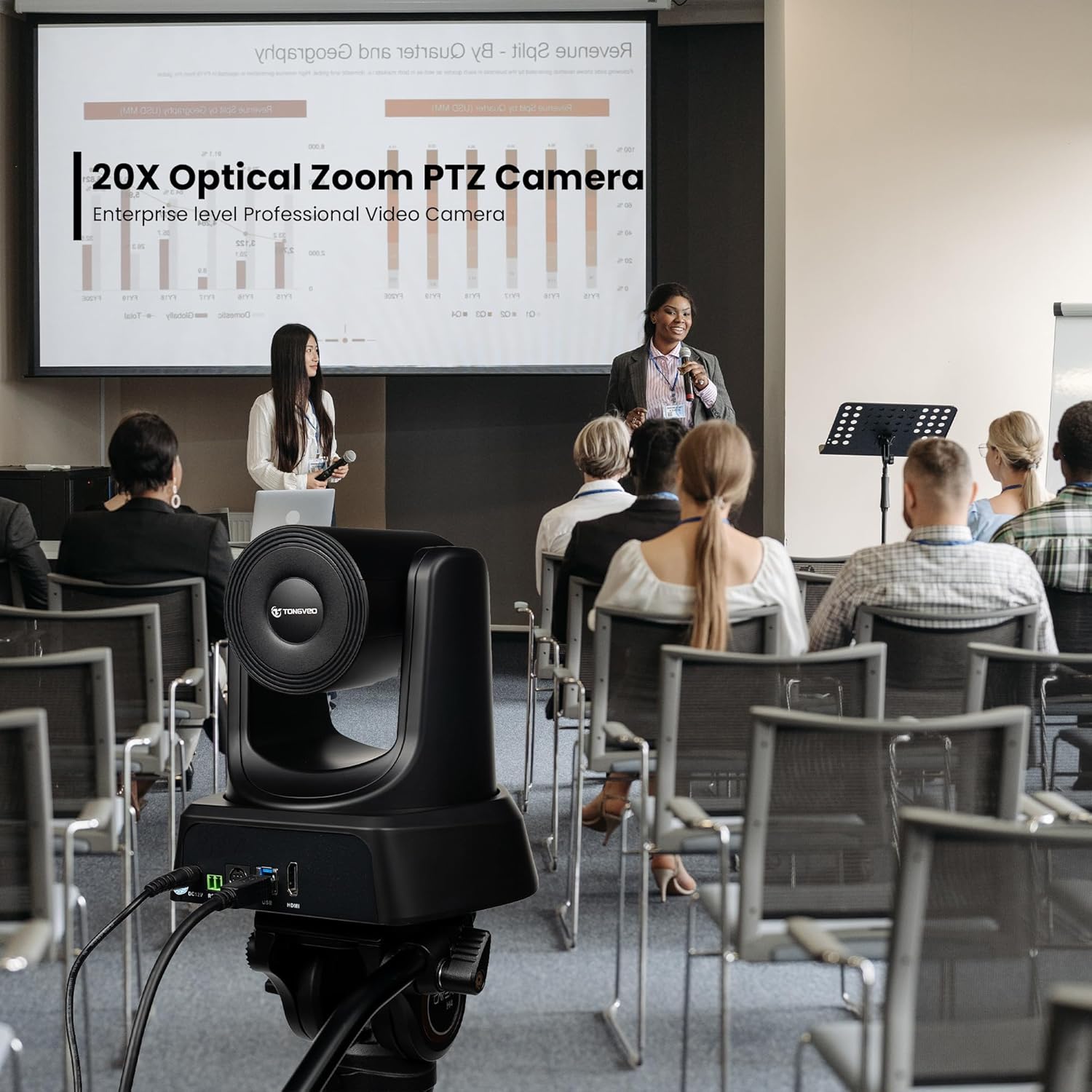
Image: The remote control with labeled buttons for various camera functions, including setting and recalling presets.
4.3 Microphone/Speakerphone Usage
The system includes a Bluetooth speakerphone for clear audio capture and playback. Ensure the speakerphone is charged (approximately 3 hours for full charge) and paired with your computer or device. It features volume control and mute functions directly on the unit.
4.4 Software Compatibility
The TONGVEO PTZ Camera is highly compatible with popular video conferencing and streaming applications, including Zoom, WebEx, GoToMeeting, BlueJeans, OBS, and more. It supports Windows XP, Vista, 7, 8, 8.1, 10, and 11, as well as Mac OS 10.4 or higher. Simply connect the camera via USB, and it should be recognized as a webcam.

Image: The camera's superior compatibility with various devices and conferencing platforms.
5. Maintenance
To ensure the longevity and optimal performance of your TONGVEO PTZ Camera System, follow these maintenance guidelines:
- Cleaning: Use a soft, dry cloth to clean the camera body. For the lens, use a lens cleaning cloth and specialized lens cleaning solution. Avoid abrasive cleaners or solvents.
- Storage: When not in use, store the camera in a cool, dry place away from direct sunlight and extreme temperatures.
- Cable Management: Ensure cables are not kinked or strained to prevent damage.
6. Troubleshooting
If you encounter any issues with your TONGVEO PTZ Camera System, please refer to the detailed troubleshooting section in the full user manual (PDF) available for download. Common issues and their solutions include:
- No Image/Video Output: Check all cable connections (USB, HDMI, power). Ensure the camera is powered on. Verify software settings on your computer.
- Remote Control Not Responding: Check battery levels in the remote. Ensure there are no obstructions between the remote and the camera's IR receiver.
- Audio Issues: Verify the speakerphone is powered on and paired correctly via Bluetooth. Check volume levels on both the speakerphone and your computer.
- Camera Freezing/Lag: Ensure your computer meets the system requirements for video processing. Try a different USB port or cable.
For more complex issues or technical support, please refer to the official TONGVEO support channels mentioned in the product documentation.
7. Specifications
| Feature | Specification |
|---|---|
| Product Dimensions | 7.09 x 7.09 x 6.69 inches |
| Item Weight | 6.03 pounds |
| ASIN | B0C2Q2HV8Q |
| Date First Available | April 17, 2023 |
| Manufacturer | Tongveo |
| Brand | TONGVEO |
| Photo Sensor Technology | CMOS |
| Video Capture Resolution | 1080p |
| Maximum Focal Length | 42 Millimeters |
| Maximum Aperture | 3.5 Millimeters |
| Flash Memory Type | Memory Stick |
| Video Capture Format | MP4 |
| Screen Size | 5 Centimeters |
| Connectivity Technology | HDMI, Infrared, USB |
| Color | Black |
8. Warranty and Support
TONGVEO is committed to providing high-quality products and excellent customer service. For detailed warranty information, please refer to the warranty card included with your product packaging or visit the official TONGVEO website.
For technical support, troubleshooting assistance, or any inquiries, please contact the TONGVEO support team through the contact information provided in your product manual or on the official TONGVEO website.
You can also find the full User Manual in PDF format here.


