
Introduction
Thank you for choosing the Chieftec PPS-850FC-A3 850W ATX 3.0 Power Supply Unit. This manual provides essential information for the safe and efficient installation, operation, and maintenance of your new power supply. Please read this manual thoroughly before installation and retain it for future reference.
Safety Instructions
- Always disconnect the AC power cord from the wall outlet before installing or removing the power supply.
- Do not open the power supply unit casing. High voltages are present inside, and there are no user-serviceable parts. Opening the casing will void the warranty.
- Ensure the power supply is installed in a well-ventilated area, free from excessive heat, humidity, or dust.
- Use only the modular cables provided with this power supply. Using incompatible cables may cause damage to the PSU or connected components.
- Ensure all connectors are securely attached before powering on the system.
- This product is designed for use in personal computer systems. Do not use it for any other purpose.
Package Contents
Please check the contents of your package. If any items are missing or damaged, contact your retailer.
- Chieftec PPS-850FC-A3 850W ATX 3.0 Power Supply Unit
- Modular Cable Set (including PCIe Gen 5 connector)
- AC Power Cord
- Mounting Screws
- User Manual (this document)
Setup and Installation
Follow these steps to properly install your Chieftec PPS-850FC-A3 power supply unit.
1. Pre-Installation Check
- Ensure your computer case supports ATX form factor power supplies.
- Verify that your motherboard and other components are compatible with an 850W power supply and ATX 3.0 standard.
2. Physical Installation
- Mounting the PSU: Carefully slide the power supply into the designated PSU bay in your computer case. Ensure the fan is oriented correctly for optimal airflow (typically facing down if there's a bottom vent, or facing inside the case). Secure the PSU with the provided mounting screws.
- Connecting Modular Cables: Identify the necessary modular cables for your system components (motherboard, CPU, GPU, storage drives). Connect them to the appropriate ports on the power supply.

Image: Chieftec PPS-850FC-A3 power supply shown with its retail packaging, highlighting the unit itself and a detailed view of the PCIe Gen 5 connector, which is essential for modern high-performance graphics cards.
- Connecting to Motherboard: Connect the 24-pin ATX main power connector to your motherboard.
- Connecting to CPU: Connect the 4+4-pin or 8-pin EPS/CPU power connector(s) to your motherboard.
- Connecting to GPU: For graphics cards, use the appropriate PCIe power connectors. For modern GPUs, utilize the dedicated 12VHPWR (PCIe Gen 5) connector if your GPU supports it.
- Connecting to Peripherals: Connect SATA power cables to SSDs/HDDs and Molex connectors to other peripherals as needed.
- AC Power Connection: Once all internal connections are secure, connect the AC power cord to the power supply and then to a wall outlet.
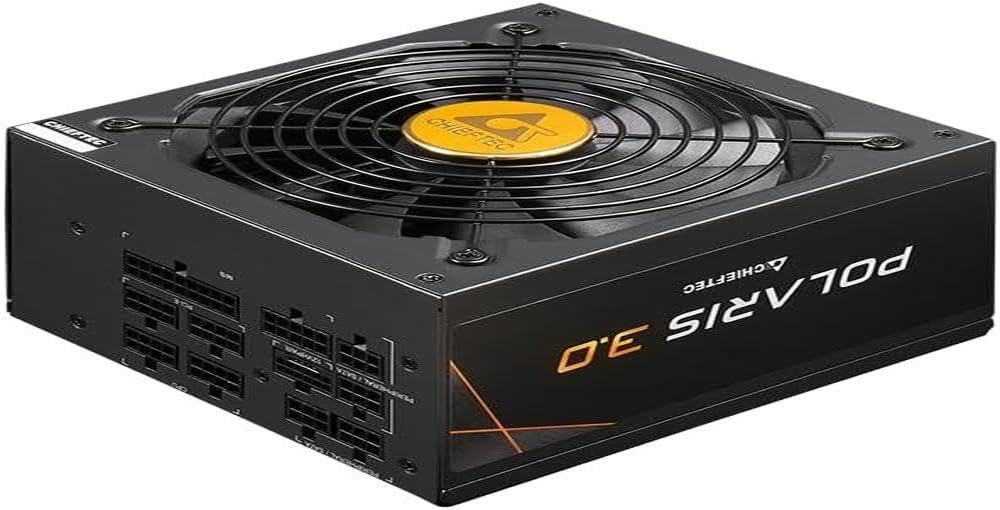
Image: A direct front view of the Chieftec PPS-850FC-A3 power supply, showcasing its large cooling fan and the protective grille. The Chieftec logo is visible in the center of the fan.
Operating Instructions
After successful installation, ensure the power switch on the back of the PSU is in the 'ON' position (usually marked 'I'). You can then power on your computer system using the case's power button. The power supply will automatically manage power delivery to your components.
Maintenance
- Cleaning: Periodically clean the exterior of the power supply and its fan grille to prevent dust buildup, which can impede airflow and cooling performance. Use compressed air to gently remove dust. Ensure the system is powered off and unplugged before cleaning.
- Ventilation: Ensure that the computer case has adequate ventilation and that the power supply's fan intake and exhaust are not obstructed.
- Cable Management: Proper cable management can improve airflow within your case, contributing to better cooling for all components, including the PSU.
Troubleshooting
If you encounter issues with your power supply, refer to the following common troubleshooting steps:
- No Power:
- Check if the AC power cord is securely connected to both the PSU and the wall outlet.
- Ensure the power switch on the PSU is in the 'ON' position ('I').
- Verify that the wall outlet is functional by plugging in another device.
- Confirm all internal power cables (24-pin ATX, CPU, GPU) are correctly and firmly seated.
- System Instability/Random Shutdowns:
- This could indicate insufficient power or a faulty component. Ensure your system's power requirements do not exceed the PSU's 850W capacity.
- Check for overheating of components.
- Ensure the PSU fan is spinning freely and not obstructed.
- Unusual Noises:
- A rattling or grinding noise may indicate a fan issue. If the noise is persistent and loud, contact support.
- Coil whine (a high-pitched electronic noise) can occur under certain loads but is generally harmless.
If these steps do not resolve your issue, please contact Chieftec customer support or your retailer for further assistance.
Specifications
| Feature | Specification |
|---|---|
| Model Name | PPS-850FC-A3 |
| Brand | Chieftec |
| Compatible Devices | Personal Computer |
| Connector Type | ATX |
| Output Wattage | 850 Watts |
| Form Factor | ATX |
| Cooling Method | Air |
| Fan Size | 120 Millimeters |
| Maximum Input Voltage | 230 Volts |
| Connector Type Used on Cable | ATX |
| System Bus Connector Type | 4 Pin |
| UPC | 753263078131 |
Warranty and Support
This Chieftec PPS-850FC-A3 power supply unit comes with a manufacturer's warranty. Please refer to the warranty card included in your package or visit the official Chieftec website for detailed warranty terms and conditions.
For technical support, product inquiries, or warranty claims, please contact Chieftec customer service through their official website or the contact information provided with your purchase.


