
T03
T03 4K LCD Projector User Manual
Model: T03 | Brand: Generic
This manual provides detailed instructions for the setup, operation, and maintenance of your T03 4K LCD Projector.
Introduction
The T03 4K LCD Projector is a portable, high-brightness device designed for versatile entertainment and presentation needs. Featuring a native 1920x1080P resolution with 4K support, 150 ANSI lumens brightness, and a built-in Android operating system, it offers a comprehensive viewing experience. Its compact design and extensive connectivity options make it suitable for home cinema, outdoor use, business presentations, and educational purposes.
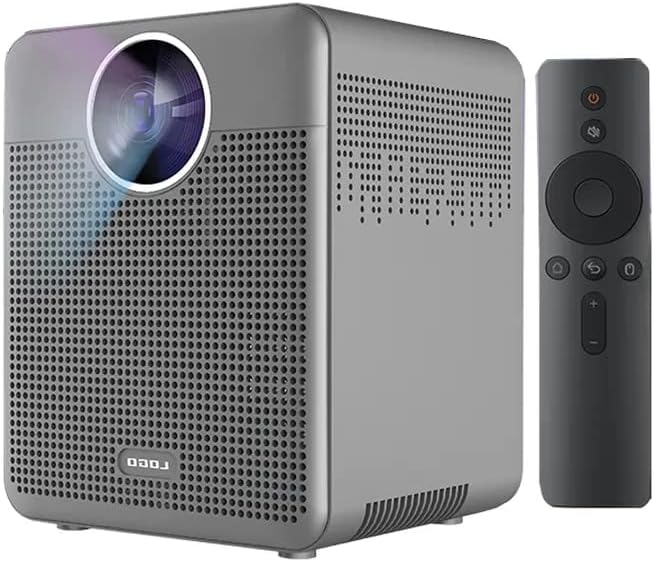
Image: The T03 4K LCD Projector in grey, shown alongside its remote control. The projector features a square design with a large lens on the front and ventilation grilles on the sides.
What's in the Box
Upon unboxing, please ensure all the following components are present:
- T03 4K LCD Projector
- Remote Control
- Power Adapter
- User Manual
- HDMI Cable (Possible)
- USB Cable (Possible)
- Carrying Case (Possible)

Image: The T03 projector, its retail box, remote control, power adapter, and user manual laid out, indicating the contents of the package.
Setup Guide
- Placement: Place the projector on a stable, flat surface. Ensure there is adequate ventilation around the device. For optimal viewing, position the projector directly in front of the projection surface (wall or screen).
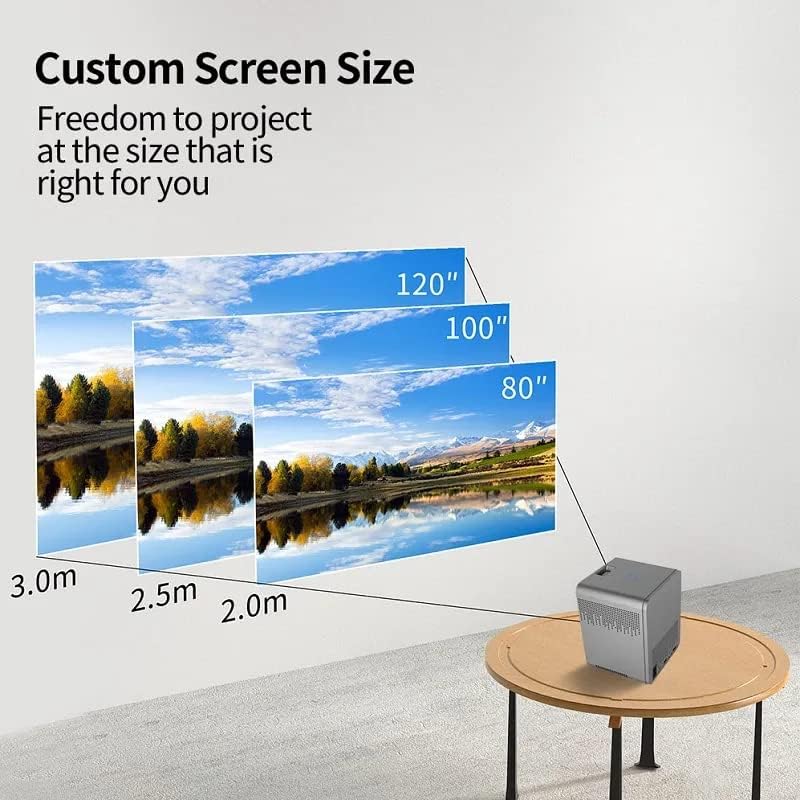
Image: An illustration demonstrating how projection distance affects screen size, showing 80", 100", and 120" screens at 2.0m, 2.5m, and 3.0m distances respectively.
- Power Connection: Connect the power adapter to the projector's power input port, then plug the adapter into a power outlet.
- Initial Power On: Press the power button on the projector or the remote control to turn on the device.
- Focus Adjustment: Once powered on, adjust the focus ring on the projector lens until the projected image is clear and sharp.
- Keystone Correction: If the projected image appears trapezoidal, use the electronic keystone correction feature to adjust the image shape. This projector supports four-corner keystone correction for flexible placement.

Image: A diagram illustrating how four-corner keystone correction can adjust a distorted image to a perfect rectangle, even when the projector is placed at an angle, such as beside a couch.
- Network Connection: For smart features and app access, connect the projector to your Wi-Fi network via the settings menu.
Operating Instructions
Input Source Selection
Use the remote control to navigate to the input source menu. Select from HDMI, USB, or other available inputs depending on your connected device.

Image: A circular diagram illustrating various devices that can connect to the projector, including phones/tablets/laptops, USB drives, gaming consoles, Bluetooth mice/keyboards, audio systems, and Fire TV Sticks.
Android Operating System
The T03 projector features a built-in Android OS, allowing direct access to streaming apps like Netflix, Hulu, and YouTube. Navigate the interface using the remote control to browse and launch applications.
Screen Mirroring
Connect your iPhone/Android smartphone or tablet to the projector via Wi-Fi for convenient screen mirroring. This allows you to display content from your mobile device directly onto the projection screen.

Image: A hand holding a smartphone displaying a game, with the image simultaneously projected onto a wall by the T03 projector, demonstrating the screen mirroring feature.
Audio Output
The projector includes a built-in 5W subwoofer speaker with DSP sound for integrated audio. For external audio, connect speakers or headphones to the projector's audio output port.
Eye Care Feature
The T03 projector utilizes diffuse imaging technology, which avoids direct exposure to light and helps protect your vision during extended viewing sessions.

Image: An illustration showing the difference between direct light exposure (harmful) and diffuse imaging (beneficial for eye health) as provided by the projector.
Application Scenarios
The T03 projector is versatile and can be used in various settings:
- Home Cinema: Enjoy movies and TV shows on a large screen.
- Outdoor Entertainment: Perfect for backyard movie nights.
- Business Presentations: Project slides and documents clearly.
- Education: Ideal for classroom or online learning environments.
- Gaming: Experience immersive gaming on a big display.

Image: A collage showing the projector being used in different scenarios: a family watching a movie, a business meeting, a fitness session, and an online class, highlighting its versatility.
Maintenance
- Cleaning the Lens: Use a soft, lint-free cloth specifically designed for optical lenses to gently wipe the projector lens. Do not use abrasive cleaners or excessive force.
- Cleaning the Casing: Wipe the projector's exterior casing with a soft, dry cloth. For stubborn dirt, a slightly damp cloth can be used, but ensure no liquid enters the device.
- Ventilation: Ensure the ventilation openings are clear of dust and obstructions to prevent overheating. Do not block the air vents during operation.
- Storage: When not in use for extended periods, store the projector in a cool, dry place, away from direct sunlight and extreme temperatures. It is recommended to use the original packaging or a protective case.
Troubleshooting
| Problem | Possible Cause | Solution |
|---|---|---|
| No image projected |
|
|
| Image is blurry |
|
|
| Image is trapezoidal/distorted |
|
|
| No sound |
|
|
Specifications
| Feature | Detail |
|---|---|
| Model No. | T03 |
| Native Resolution | 1920x1080P |
| Supported Resolution | Up to 4K |
| Brightness | 150 ANSI lumens (5000 Lumens stated) |
| Projection Distance | 1-4 meters |
| Projection Size | 60-400 inches |
| Speaker | 5W Subwoofer Speaker (DSP sound) |
| Adjustment Mode | Electronic Keystone Correction (Four-corner) |
| Operating System | Android |
| RAM | 2GB |
| ROM (Internal Storage) | 16GB |
| Connectivity | HDMI, USB, Wi-Fi, Bluetooth |
| Item Weight | 1.32 pounds |
| Package Dimensions | 8.66 x 8.58 x 6.81 inches |
| Color | Grey |
| Special Features | Built-in Speaker, Portable, Auto Focus |

Image: An overview of the T03 Smart Projector's key features, including Full HD 1080P, Keystone correction, 150 ANSI lumens, Auto focus, low noise (<35db), and a strong sound field.
Warranty and Support
For warranty information and technical support, please refer to the contact details provided by your retailer or the manufacturer's official website. Keep your purchase receipt as proof of purchase for any warranty claims.
Protection plans are available for extended coverage. Please check with your retailer for details on 2-Year and 3-Year protection plans.
Ask a question about this manual
Ask about setup, troubleshooting, compatibility, parts, safety, or missing instructions. Manuals+ will review the question and use this page’s manual context to help answer it.