
Introduction
The ORICO DD28U3-C Dual Bay Hard Drive Docking Station is a versatile solution for managing your 2.5-inch and 3.5-inch SATA HDDs and SSDs. It offers high-speed data transfer via USB 3.0, supports UASP and Trim protocols, and features an independent offline clone function, allowing you to duplicate drives without a computer. Its tool-free design ensures easy installation and hot-swapping of drives, making it ideal for data backup, disk imaging, and storage expansion across various devices and operating systems.
Product Features
- Full Compatibility: Supports up to 44TB (2x22TB) capacity, compatible with 2.5"/3.5" SATA I/II/III HDDs and SSDs.
- Offline Clone Function: Duplicate data from one hard drive to another without connecting to a computer. The target disk must be larger than the source disk.
- Independent Power Supply: Equipped with a highly efficient 36W (12V/3A) power supply for stable transmission. Features an automatic sleep mode after 10 minutes of inactivity to save energy.
- Wide Device Connectivity: Works with PCs, laptops, smart TVs, smart routers, and PS4. Supports Windows, Mac, Linux, iPad OS (Thunderbolt), and Android operating systems.
- High-Speed Protocol: USB 3.0 with UASP & Trim protocol for transfer speeds up to 5Gbps.
- Tool-Free Design: Facilitates quick drive hot-swapping for instant access to SATA drives.
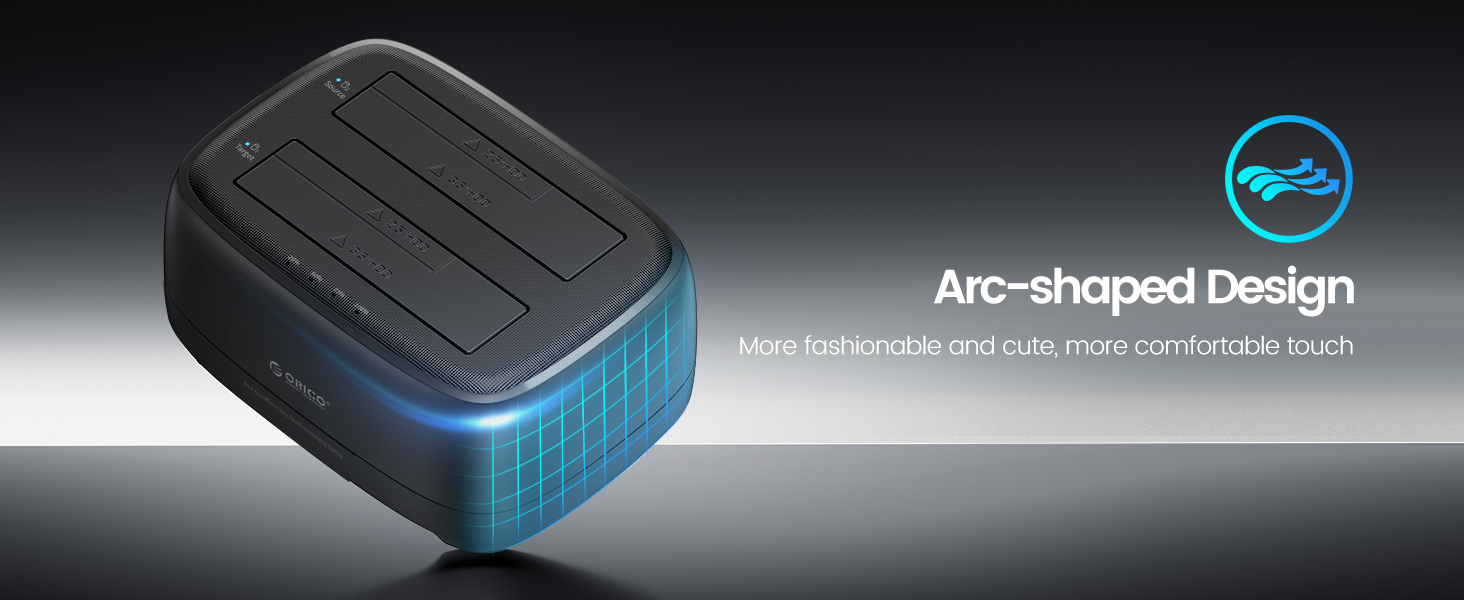
- Enhanced Design: Unique dust-proof cover plate, silicone anti-skid pad for stability, and LED cloner status indicators (Blue for reading, Red for transfer).
Package Contents
- 1x ORICO Dual Bay Hard Drive Docking Station with Offline Clone
- 1x 12V Power Adapter
- 1x 1M USB 3.0 to Type-A Cable
- 1x User Manual
Unboxing Video
Official ORICO unboxing video demonstrating the contents of the package and initial look at the docking station.
Setup
Connecting the Docking Station
1. Connect the provided 12V Power Adapter to the DC IN port on the back of the docking station and plug it into a power outlet.
2. Connect the USB 3.0 to Type-A cable from the USB 3.0 port on the docking station to an available USB 3.0 port on your computer.
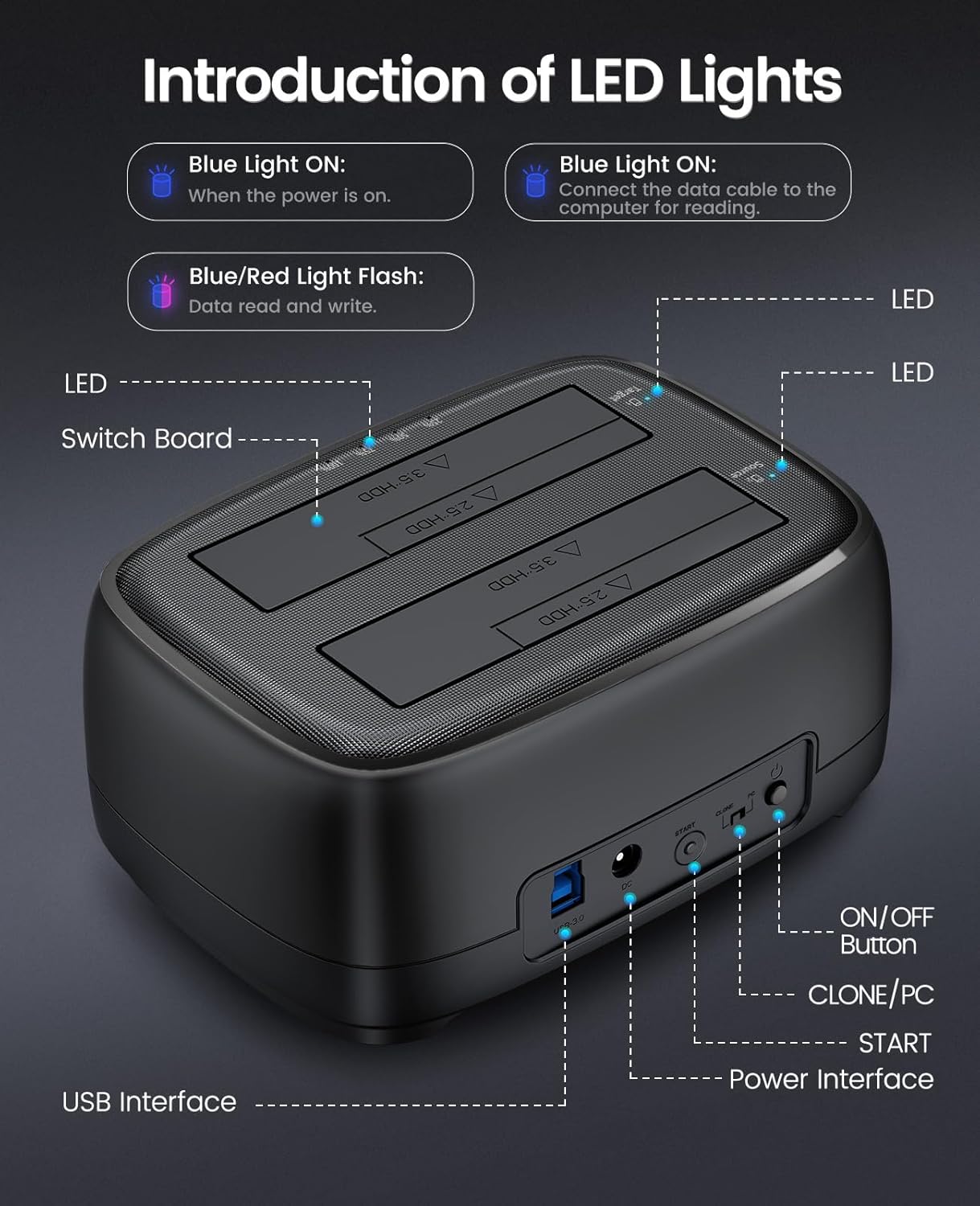
Rear view of the docking station with labeled ports.

Connecting the 12V power adapter and USB cable to the docking station.
Inserting Hard Drives
The docking station supports both 2.5-inch and 3.5-inch SATA HDDs/SSDs. Simply open the dust-proof cover and insert your drives into the bays. Ensure the SATA connectors on the drive align with the connectors inside the bay.

Illustration of 2.5-inch SSD and 3.5-inch HDD inserted into the docking station bays.
Operating
Data Transfer Mode (PC Mode)
1. Ensure the docking station is connected to your computer via the USB 3.0 cable.
2. Set the CLONE/PC switch on the back of the unit to the 'PC' position.
3. Insert your 2.5-inch or 3.5-inch SATA HDD/SSD into the appropriate bay(s).
4. Power on the docking station using the power switch.
5. Your computer should detect the drive(s) as external storage. You can now transfer files, backup data, or perform disk imaging.
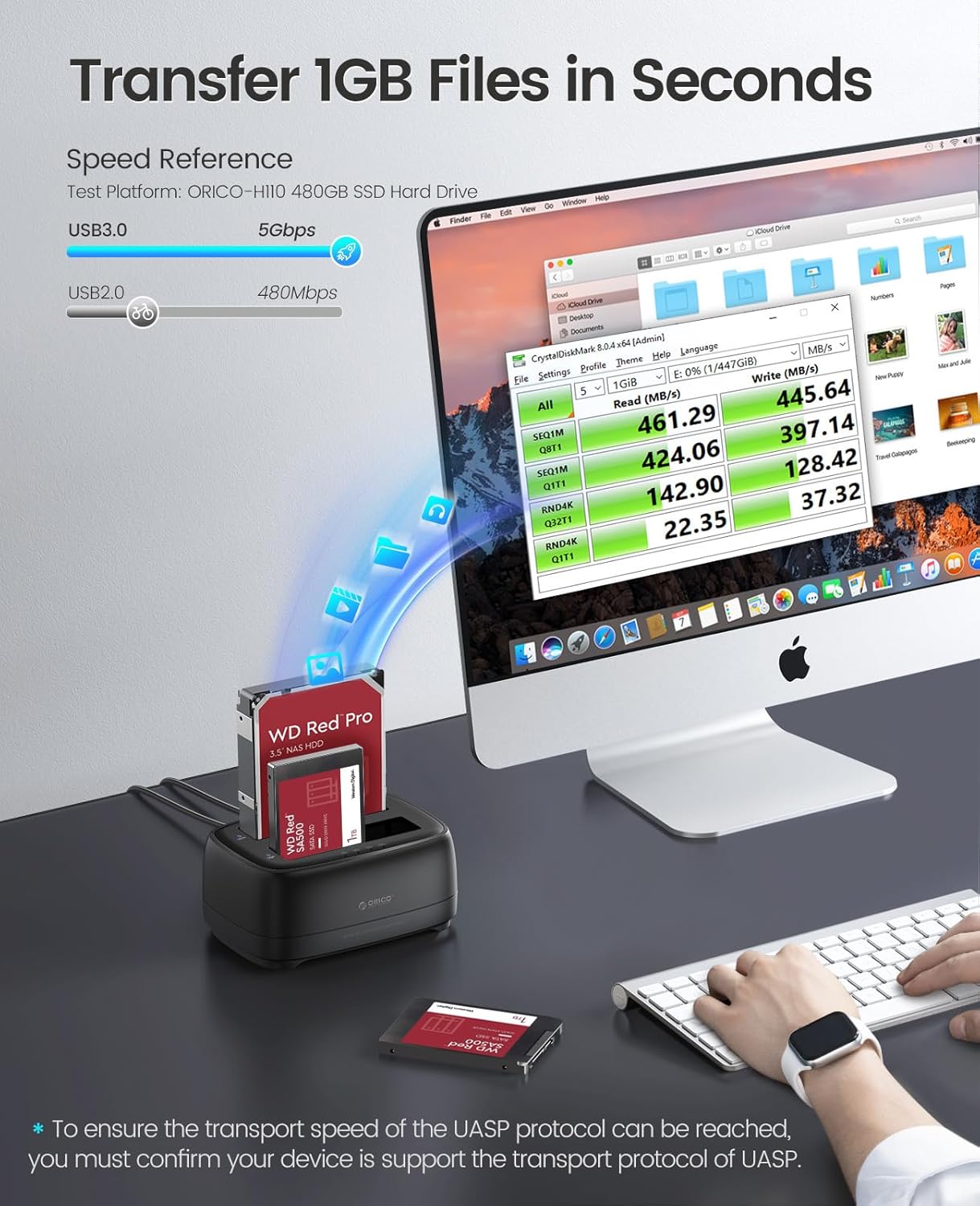
High-speed data transfer capabilities of the docking station.

The docking station offers broad compatibility with devices and operating systems.
Offline Clone Function
The offline clone function allows you to duplicate a source drive to a target drive without needing a computer. Ensure the target disk has a larger or equal capacity than the source disk.
Step-by-step guide for performing an offline clone.
- Preparation: Disconnect the docking station from your PC. Insert the source drive (Disk A) into the SOURCE bay and the target drive (Disk B) into the TARGET bay. Ensure Disk B's capacity is equal to or larger than Disk A's. Plug in the power supply.
- Initiate Clone: Slide the CLONE/PC switch to the 'CLONE' position. Press and hold the 'START' button for approximately 3 seconds until all indicator lights turn on. This signifies the cloning process has begun.
- Monitor Progress: The progress indicator LEDs (25%, 50%, 75%, 100%) will light up sequentially as the cloning progresses.
- Completion: Once the cloning is complete, you will hear three long beeps, and all indicator lights will remain solid.
- Finalize: Disconnect the power supply. You can now connect the target drive to a PC to set it online via disk management if needed.
Offline Clone Demonstration Video
Official ORICO video demonstrating the one-step offline cloning function without a computer.
LED Indicators
Explanation of LED light behavior.
- Blue Light ON: Indicates the power is on.
- Blue Light ON (connected): Indicates the data cable is connected to the computer for reading.
- Blue/Red Light Flash: Indicates data is being read from or written to the drive.
Auto Sleep Mode
The ORICO docking station is designed to automatically enter sleep mode after 10 minutes of inactivity. This feature helps conserve energy and prolong the lifespan of your hard drives.
Maintenance
- Keep the docking station clean and free from dust. Use a soft, dry cloth for cleaning.
- Avoid exposing the device to extreme temperatures, humidity, or direct sunlight.
- Do not attempt to disassemble or repair the device yourself. Refer to qualified personnel for service.
- Always safely eject drives from your operating system before removing them from the docking station to prevent data corruption.
Troubleshooting
- Drive Not Detected:
- Ensure the power adapter is securely connected and the docking station is powered on.
- Verify the USB cable is properly connected to both the docking station and the computer.
- Try a different USB port on your computer.
- Check if the drive is properly seated in the bay.
- For new drives, they might need to be initialized and formatted in Disk Management (Windows) or Disk Utility (Mac) before use.
- Slow Transfer Speeds:
- Ensure you are connected to a USB 3.0 port on your computer. USB 2.0 ports will result in significantly slower speeds.
- Verify your computer's USB 3.0 drivers are up to date.
- The performance of the hard drive itself can affect transfer speeds.
- Offline Clone Failure:
- Ensure the target disk's capacity is equal to or larger than the source disk's capacity.
- Make sure both drives are properly inserted into their respective bays (Source and Target).
- Ensure the CLONE/PC switch is in the 'CLONE' position before pressing the START button.
- Do not connect the docking station to a computer during the offline clone process.
Specifications
| Feature | Specification |
|---|---|
| Model Number | DD28U3-C |
| Brand | ORICO |
| Compatible Drive Types | 2.5"/3.5" SATA I/II/III HDD/SSD |
| Maximum Capacity Supported | 44 TB (2 x 22 TB) |
| Data Transfer Rate | Up to 5 Gbps (USB 3.0) |
| Hardware Interface | USB 3.0 Type B, USB 3.0 Type A |
| Power Supply | 12V/3A (36W) Independent Power Adapter |
| Material | Composite |
| Color | Black |
| Product Dimensions | 6.38 x 4.65 x 2.83 inches |
| Item Weight | 0.55 Kilograms (1.21 pounds) |
| Manufacturer | ORICO Technologies Co.,Ltd |
Warranty and Support
ORICO products typically come with a standard manufacturer's warranty. Please refer to the warranty card included in your package or visit the official ORICO website for detailed warranty terms and conditions. For technical support or inquiries, please contact ORICO customer service through their official channels.


