
1. Introduction
The isheep K30945 is a versatile 5-bay docking station designed for 2.5-inch and 3.5-inch SATA HDDs and SSDs. It offers high-speed data transfer via USB 3.0 and features a standalone offline clone function, allowing you to duplicate drives without connecting to a computer. This manual provides detailed instructions for setup, operation, and maintenance of your docking station.
2. Product Features
- 5-Bay Design: Supports up to five 2.5"/3.5" SATA HDDs/SSDs simultaneously.
- Offline Clone Function: Duplicate drives without a computer connection.
- USB 3.0 High-Speed Transmission: Fast data transfer rates when connected to a PC.
- Tool-Free Installation: Easy insertion and removal of drives.
- Wide Compatibility: Supports Windows, macOS, and Linux operating systems.
- Efficient Heat Dissipation: Features a vertical cooling design, aluminum alloy heat dissipation plate, and non-slip silicone pads for stability and cooling.
- Mute Function: Button to silence operational sounds.
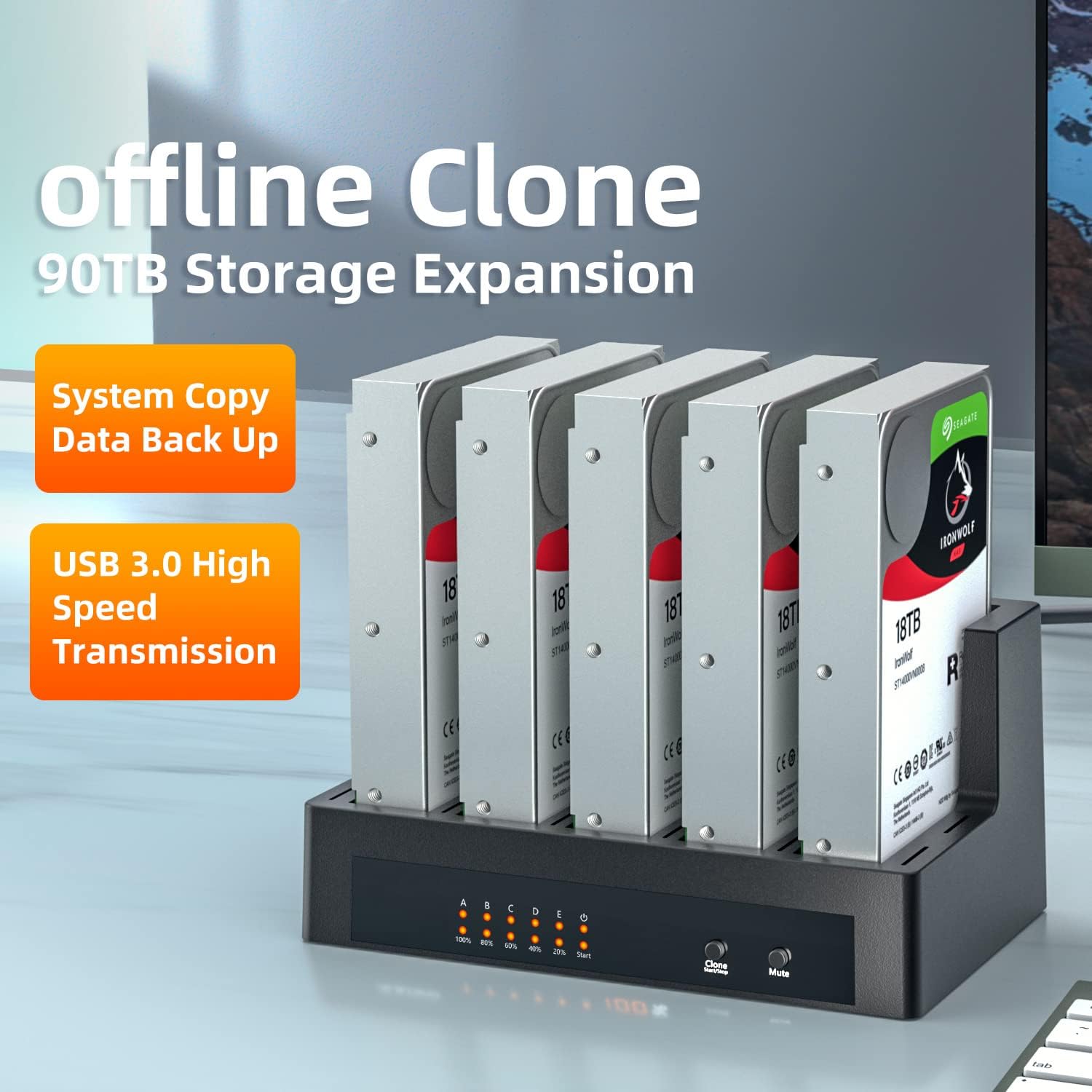
Image: The isheep 5-Bay Docking Station with five hard drives inserted, highlighting its offline clone capability and 90TB storage expansion potential, along with USB 3.0 high-speed transmission.

Image: Visual representation of the docking station's broad compatibility with various operating systems (Windows, Mac, Linux) and devices (laptops, computers, TVs, PS4, HD players), noting that connected devices must support large-capacity external storage.
3. Setup
Follow these steps to set up your docking station:
- Connect Power: Connect the provided 12V/6.5A power adapter to the DC IN port on the back of the docking station and then plug it into a power outlet.
- Insert Drives: Gently slide your 2.5-inch or 3.5-inch SATA HDDs or SSDs into the drive bays (labeled A, B, C, D, E). Ensure they are firmly seated.
- Connect to Computer (Optional): If you intend to use the docking station for data transfer with a computer, connect the USB 3.0 cable from the docking station to an available USB port on your computer.
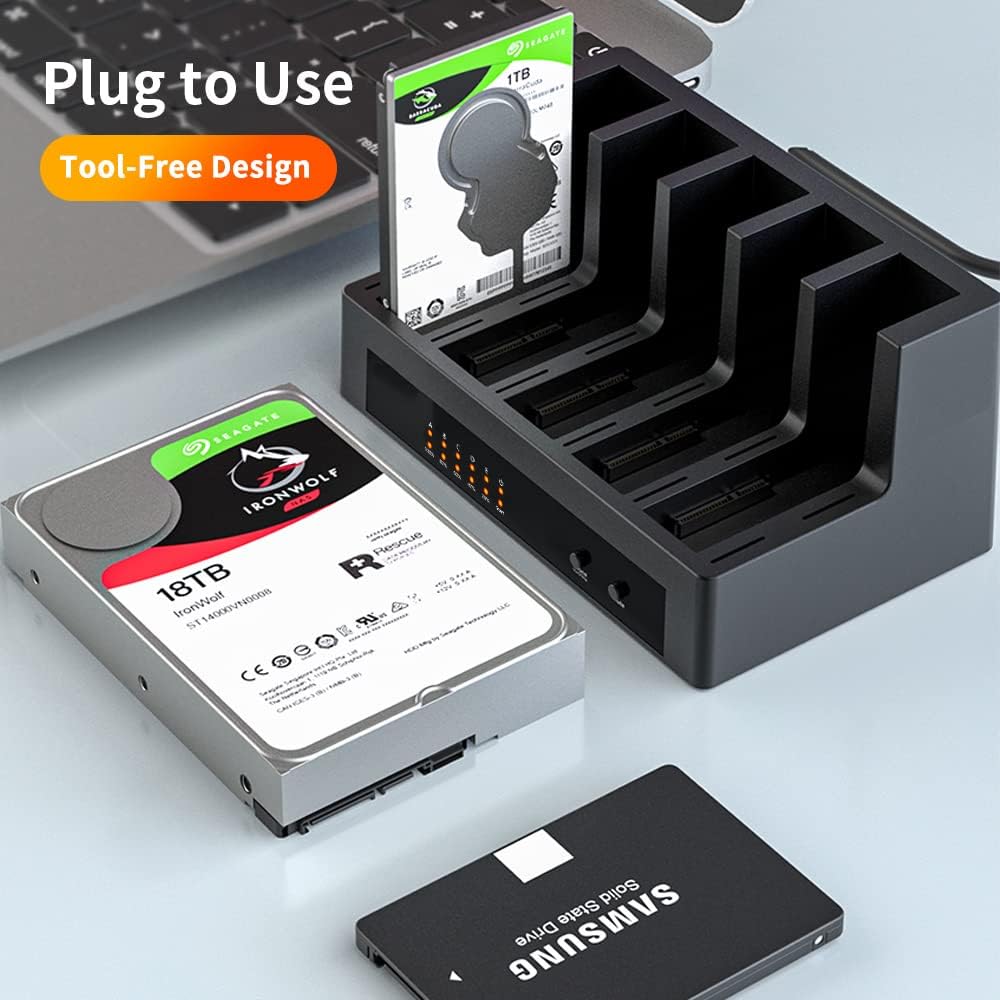
Image: The docking station demonstrating its tool-free design, with a 2.5-inch SSD being inserted into a bay and a 3.5-inch HDD shown alongside, ready for insertion.
4. Operating Instructions
4.1. Data Transfer (PC Mode)
When connected to a computer, the docking station functions as an external drive enclosure, allowing you to read and write data to the inserted drives.
- Ensure the docking station is powered on and connected to your computer via the USB 3.0 cable.
- Insert the desired SATA HDDs/SSDs into the bays.
- Your computer should detect the drives. You can then access them through File Explorer (Windows) or Finder (macOS) to transfer files.
4.2. Offline Clone Function
The offline clone function allows you to duplicate data from a source drive to one or more target drives without a computer connection. The source drive must be in Bay A, and target drives in Bays B, C, D, E.

Image: A visual guide illustrating the three simple steps for initiating an offline clone: connecting to power, pressing the clone switch, and starting the cloning process.
- Prepare Drives: Insert the source drive (the drive you want to copy from) into Bay A. Insert the target drive(s) (the drive(s) you want to copy to) into Bays B, C, D, E. Ensure target drives have equal or larger capacity than the source drive.
- Disconnect from PC: Ensure the USB cable is disconnected from your computer. The docking station must be in standalone mode for offline cloning.
- Power On: Ensure the docking station is powered on.
- Initiate Clone: Press and hold the 'Clone' button for approximately 3-5 seconds until the progress indicator lights (20%, 40%, 60%, 80%, 100%) begin to flash.
- Confirm Clone: Briefly press the 'Clone' button again to confirm and start the cloning process. The progress indicator lights will illuminate sequentially, indicating the cloning progress.
- Completion: The cloning process is complete when all progress indicator lights (100%) are solid.
Important Notes for Cloning:
- The capacity of the target drive(s) must be equal to or greater than the source drive.
- All data on the target drive(s) will be erased during the cloning process. Back up any important data before proceeding.
- Do not disconnect power or drives during the cloning process.
4.3. Mute Function
Press the 'Mute' button on the front panel to silence any operational sounds or beeps from the docking station.

Image: A close-up view of the 'Mute' button located on the front panel of the docking station, used to silence operational sounds.
5. Maintenance
- Cleaning: Use a soft, dry cloth to clean the exterior of the docking station. Do not use liquid cleaners or aerosols.
- Ventilation: Ensure the docking station is placed in a well-ventilated area to allow for proper heat dissipation. Do not block the ventilation holes.
- Storage: When not in use, store the docking station in a cool, dry place away from direct sunlight and extreme temperatures.

Image: An exploded view illustrating the internal components for heat management, including the non-slip silicone pad and the aluminum alloy heat dissipation plate, which contribute to the device's stability and cooling efficiency.

Image: A diagram highlighting the vertical cooling design of the docking station, showing air flowing downwards through the drive bays and exiting through 2CM heat emission holes at the bottom, ensuring effective cooling during long operation.
6. Troubleshooting
| Problem | Possible Cause | Solution |
|---|---|---|
| Drives not recognized by computer. | Loose USB connection, drive not properly seated, drive not initialized/formatted. | Ensure USB cable is securely connected. Re-insert drives firmly. Check Disk Management (Windows) or Disk Utility (macOS) to initialize/format new drives. |
| Offline clone fails or does not start. | USB cable connected, source/target drive capacity mismatch, drives not properly seated, clone button not held long enough. | Disconnect USB cable from computer. Ensure target drive capacity is equal to or greater than source. Re-insert drives. Hold 'Clone' button for 3-5 seconds until lights flash, then press again to confirm. |
| Slow data transfer speeds. | Connected to USB 2.0 port, drive issues, system performance. | Ensure connected to a USB 3.0 port on your computer. Check drive health. Close other demanding applications. |
| Docking station not powering on. | Power adapter not connected, power outlet issue. | Ensure power adapter is securely connected to both the docking station and a working power outlet. Try a different outlet. |
7. Specifications
- Model: K30945
- Brand: isheep
- Product Dimensions: 14.17 x 10.24 x 7.28 inches (36 x 26 x 18.5 cm)
- Item Weight: 3.3 pounds (1.5 kg)
- Supported Drive Types: 2.5"/3.5" SATA HDD & SSD
- Number of Bays: 5
- Max Single Drive Capacity: Up to 18TB
- Total Max Capacity: Up to 90TB (5 x 18TB)
- Interface: USB 3.0
- Power Supply: 12V/6.5A
- Compatible Operating Systems: Windows, macOS, Linux

Image: An illustration confirming the docking station's compatibility with all SATA HDDs/SSDs, its support for single disks up to 18TB, and the inclusion of a 12V/6.5A power supply.
8. Warranty and Support
For warranty information or technical support, please contact isheep customer service through the retailer's platform or the official isheep website. Please have your product model number (K30945) and purchase details ready when contacting support.