
1. Introduction
The Nums Smart Numeric Keyboard transforms your MacBook Air's trackpad into a versatile 2-in-1 input device. It functions as both a multi-touch trackpad and a dedicated numeric keypad, enhancing efficiency for data entry and calculations. This manual provides detailed instructions for installation, operation, and maintenance of your Nums Smart Numeric Keyboard.
2. Compatibility
This Nums Smart Numeric Keyboard is specifically designed for the following MacBook Air 13-inch models:
- MacBook Air 13-inch (Model A1369)
- MacBook Air 13-inch (Model A1466)
It is also compatible with other MacBook Air and MacBook Pro models, offering a versatile solution for enhancing your laptop experience.
3. What's in the Box
Upon opening your Nums Smart Numeric Keyboard package, you should find the following items:
- Nums Smart Numeric Keyboard overlay
- USB Cable
4. Setup and Installation
Follow these steps to correctly install your Nums Smart Numeric Keyboard:
- Clean the Trackpad: Ensure your MacBook Air's trackpad surface is clean and free of dust or debris. Use a soft, lint-free cloth.
- Align the Overlay: Carefully align the Nums Smart Numeric Keyboard overlay with your MacBook Air's trackpad. The overlay is designed to fit precisely over the existing trackpad.
- Apply Gently: Once aligned, gently press down on the overlay, starting from one edge and moving across, to ensure it adheres smoothly without air bubbles.
- Connect (if applicable): While the Nums overlay is primarily a surface, some models may require a USB connection for full functionality or initial setup. Connect the provided USB cable to your MacBook Air if instructed by the accompanying software or quick start guide.
- Software Installation: If prompted, download and install any necessary Nums software or drivers from the official Nums website to enable all smart features and customization options.
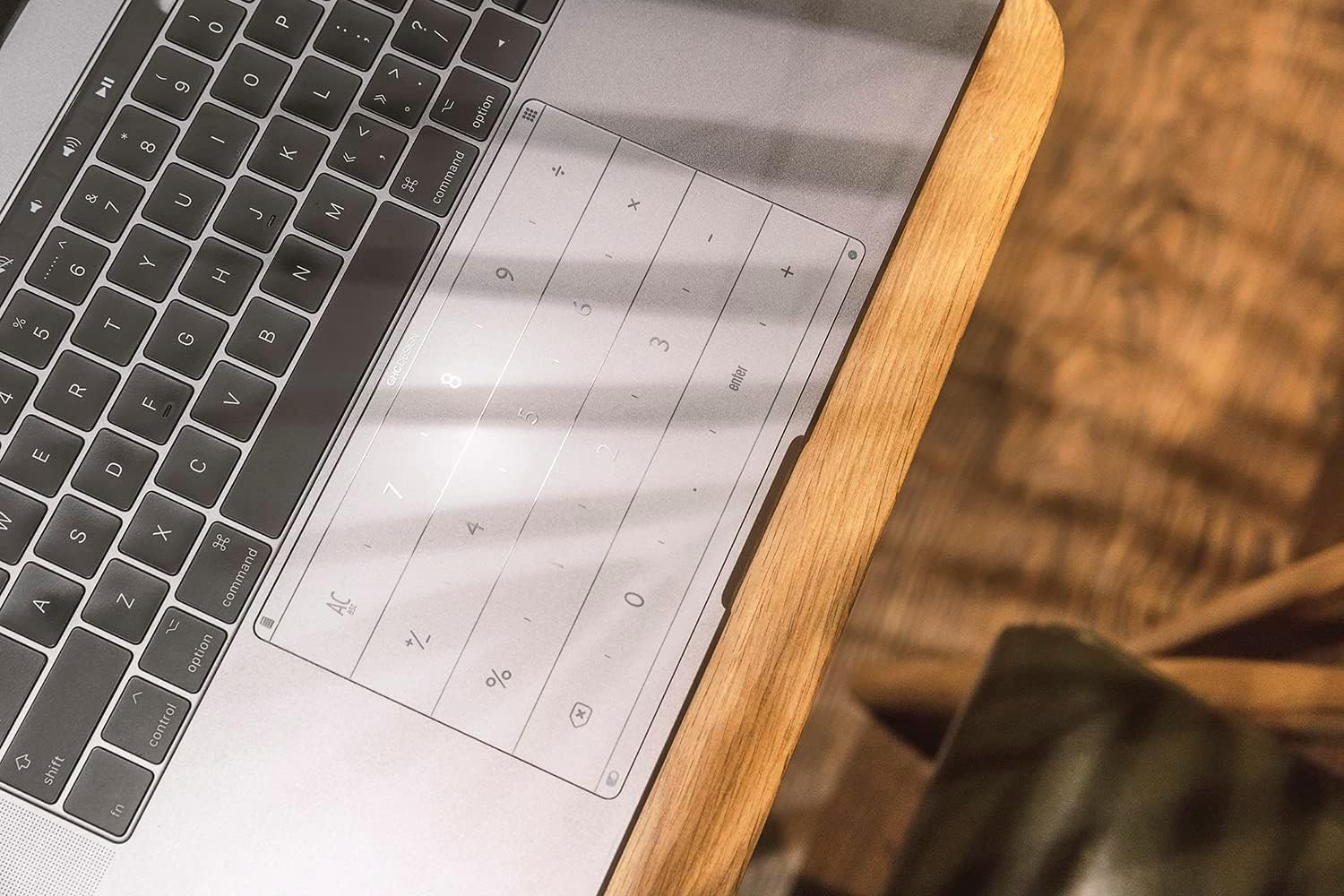
5. Operating Instructions
The Nums Smart Numeric Keyboard offers two primary modes of operation: multi-touch trackpad and numeric keypad.
5.1 Switching Between Modes
You can easily switch between the multi-touch trackpad mode and the numeric keypad mode with a single swipe gesture. Refer to the software interface for specific gesture configurations.

5.2 Multi-Touch Trackpad Mode
In this mode, the Nums overlay functions as a standard MacBook trackpad, supporting all native multi-touch gestures for navigation, scrolling, zooming, and more.
- Clicking: Press down on the trackpad.
- Scrolling: Use two fingers to swipe up or down.
- Zooming: Pinch with two fingers.
- Dragging: Click and hold, then drag your finger.
5.3 Numeric Keypad Mode
When switched to numeric keypad mode, the overlay displays a numeric layout, allowing for efficient data entry.

- Number Input: Tap the corresponding number on the overlay.
- Arithmetic Operations: Tap the symbols for addition, subtraction, multiplication, and division.
- Enter: Tap the 'enter' key.
5.4 Quick Start Functions
The Nums Smart Numeric Keyboard includes quick start functions activated by specific corner swipes:
- Start Calculator: Finger slide from the top left corner. Repeating the action can close the calculator.
- Switch to Digital Input: Finger slide from the top right corner. Repeating the action can close the digital input.
- Enable Quick Start Function: Finger slide parallelly from the left. The program starts when the finger is released to a specified grid area.
- Setting of Quick Start Function: Finger slide from the bottom left corner. Drag frequently used web pages, apps, or files into any grid. Click any grid to set a shortcut key combination.
- Full Screen: Finger slide from the bottom right corner to activate full screen for the current window.


6. Maintenance and Care
To ensure the longevity and optimal performance of your Nums Smart Numeric Keyboard, follow these maintenance guidelines:
- Cleaning: The overlay is made from high-quality tempered glass. To clean, gently wipe the surface with a soft, lint-free cloth. For stubborn smudges, slightly dampen the cloth with water or a mild, non-abrasive screen cleaner. Avoid harsh chemicals.
- Protection: The tempered glass also serves as a protective layer for your laptop's trackpad, guarding against scratches and wear.
- Avoid Extreme Conditions: Do not expose the device to extreme temperatures, direct sunlight for prolonged periods, or excessive moisture.
7. Troubleshooting
If you encounter issues with your Nums Smart Numeric Keyboard, refer to the following common solutions:
- Device Not Responding:
- Ensure the overlay is correctly applied and free of air bubbles.
- If a USB connection is required, verify the cable is securely connected to both the Nums device and your MacBook Air.
- Restart your MacBook Air.
- Incorrect Input/Gestures:
- Check if the Nums software/drivers are installed and up to date.
- Recalibrate the device through the Nums software settings, if available.
- Ensure you are performing the correct gestures for the desired mode (trackpad or numeric keypad).
- Difficulty Switching Modes:
- Practice the single swipe gesture as described in the operating instructions.
- Verify that the Nums software is running in the background.
For further assistance, please refer to the official Nums support resources or contact customer service.
8. Specifications
| Feature | Detail |
|---|---|
| Brand | Nums |
| Compatible Devices | Laptop (MacBook Air 13-inch A1369, A1466, and other MacBook Air/Pro models) |
| Connectivity Technology | USB |
| Keyboard Description | Numeric |
| Special Feature | Trackpad, Numeric Keypad |
| Material | Tempered Glass |
| Item Weight | 5.3 ounces |
| Package Dimensions | 7.08 x 4.72 x 0.78 inches |
| Included Components | USB Cable |
9. Warranty and Support
For information regarding product warranty, returns, or technical support, please refer to the documentation included with your purchase or visit the official Nums website. You may also contact Nums customer service directly for assistance with any product-related inquiries.
Manufacturer: Beijing Luckey Technology Co., Ltd