
1. Introduction
Thank you for choosing the KADYBE D118C Android 13 Tablet. This manual provides essential information for setting up, operating, maintaining, and troubleshooting your device. Please read it carefully to ensure optimal performance and longevity of your tablet.
The KADYBE D118C is a versatile 10-inch Android 13 tablet featuring a powerful Octa-Core processor, 4GB RAM, 64GB internal storage (expandable up to 512GB), and a vibrant 1280x800 IPS display. It supports 4G LTE Dual SIM connectivity, Wi-Fi, GPS, Bluetooth, and OTG. The tablet comes with a keyboard, mouse, stylus, and a protective case, transforming it into a portable workstation.
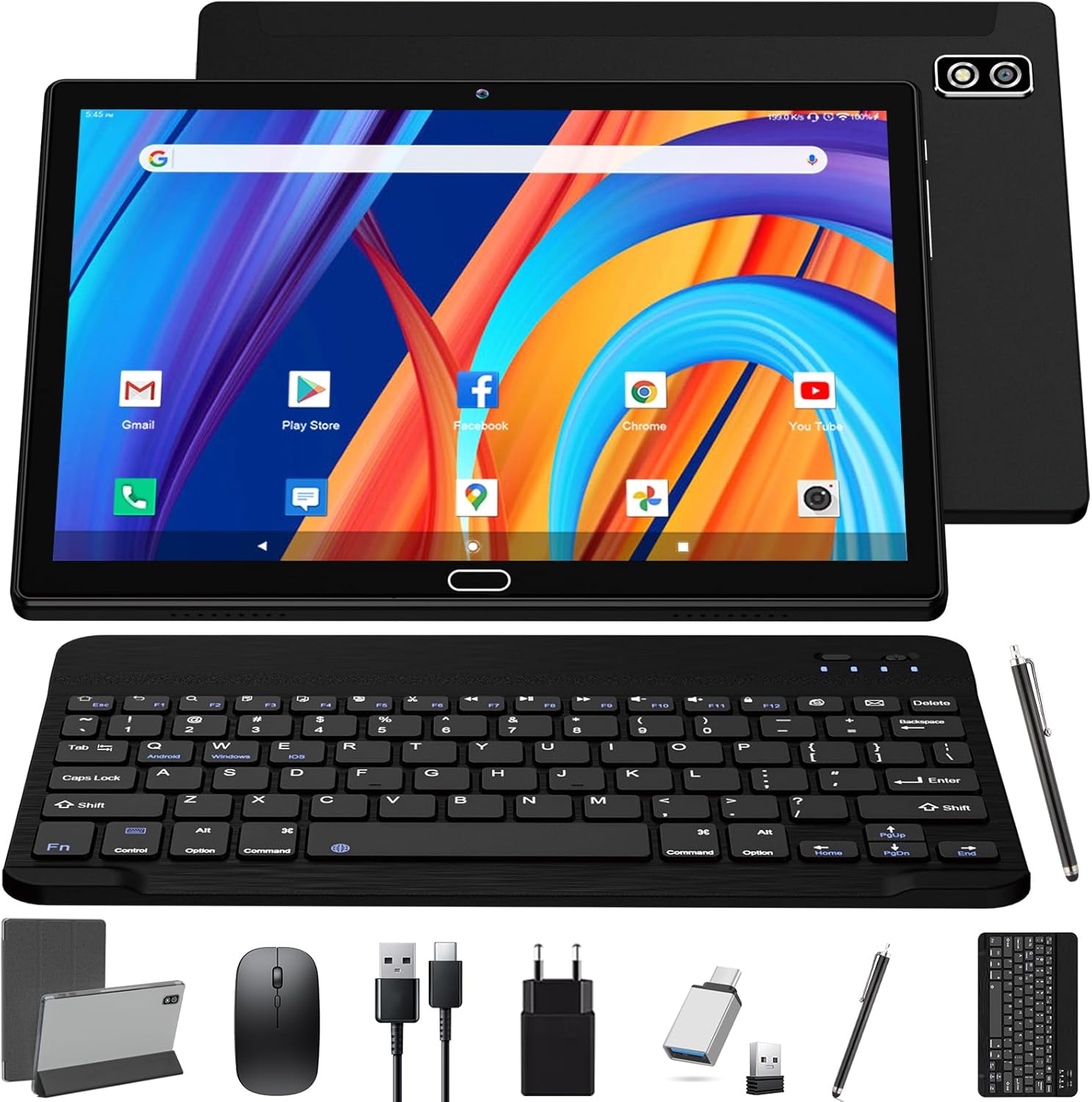
2. Package Contents
Please check the package for the following items:
- KADYBE D118C Android 13 Tablet
- Bluetooth Keyboard
- Wireless Mouse
- Stylus Pen
- Protective Case
- USB-C Charging Cable
- Power Adapter
- OTG Adapter
- User Manual (this document)
3. Device Layout
Familiarize yourself with the physical components of your tablet:
- Front Camera: Located at the top center of the screen when held vertically. (5MP)
- Rear Camera: Located on the back panel, typically in a corner. (13MP)
- Power Button: Usually on the side, used to turn the tablet on/off or wake/sleep the screen.
- Volume Buttons: Adjacent to the power button, for adjusting audio levels.
- USB-C Port: For charging and data transfer.
- 3.5mm Headphone Jack: For connecting wired headphones.
- SIM/SD Card Slot: A tray on the side for inserting Nano SIM cards and a microSD card for expandable storage.
- Speakers: Dual speakers for stereo audio output.
4. Setup
4.1. Charging the Tablet
Before first use, fully charge your tablet. Connect the USB-C cable to the tablet's USB-C port and the power adapter. Plug the adapter into a wall outlet. The battery indicator on the screen will show charging status.

4.2. Inserting SIM and SD Cards
- Locate the SIM/SD card tray on the side of the tablet.
- Use the provided SIM ejector tool (if included) or a thin pin to gently press into the small hole on the tray to eject it.
- Place your Nano SIM card(s) and/or microSD card into the designated slots on the tray, ensuring correct orientation.
- Carefully reinsert the tray into the tablet until it clicks into place.
4.3. Initial Power On and Android Setup
- Press and hold the Power button until the KADYBE logo appears.
- Follow the on-screen prompts to select your language, connect to a Wi-Fi network, set up your Google account, and configure other initial settings.
4.4. Connecting Accessories (Keyboard & Mouse)
The included keyboard and mouse connect wirelessly via Bluetooth.
- Keyboard: Turn on the keyboard. On your tablet, go to Settings > Connected devices > Bluetooth. Turn on Bluetooth and search for available devices. Select the keyboard from the list and pair it.
- Mouse: The wireless mouse typically uses a USB dongle. Plug the dongle into the tablet's USB-C port using the OTG adapter. The tablet should automatically detect the mouse.
5. Operating Your Tablet
5.1. Basic Navigation
Your tablet uses touch gestures for navigation:
- Tap: Select an item or open an app.
- Swipe: Scroll through screens or lists.
- Pinch: Zoom in or out on images and web pages.
- Long Press: Access contextual menus or move icons.
5.2. Connecting to Wi-Fi
- Go to Settings > Network & internet > Wi-Fi.
- Toggle Wi-Fi on.
- Select your desired network from the list and enter the password if prompted.
5.3. Using 4G LTE
If you have inserted a valid SIM card and have an active data plan, your tablet can connect to 4G LTE networks for internet access and calls.
- Go to Settings > Network & internet > Mobile network.
- Ensure Mobile data is enabled.
- You can configure preferred network types (2G/3G/4G) and APN settings if necessary.
5.4. Google Play Store
The tablet is Google GMS certified, allowing full access to the Google Play Store. Tap the Play Store icon on your home screen to browse and download apps, games, movies, and books.

5.5. Camera Usage
Your tablet is equipped with a 5MP front camera and a 13MP rear camera.
- Open the Camera app.
- Tap the shutter button to take photos.
- Switch between front and rear cameras using the camera toggle icon.
- Select video mode to record videos.
5.6. Multimedia and Display
Enjoy movies, music, and games on the 10.1-inch HD IPS display. The tablet features dual speakers for an enhanced audio experience.

The tablet also includes eye protection technology to reduce blue light emission and prevent eye strain, making it suitable for extended use and for children.
6. Maintenance
6.1. Battery Care
- Avoid extreme temperatures, which can degrade battery life.
- Do not let the battery completely drain frequently.
- Use only the provided charger or a certified compatible charger.
6.2. Cleaning
Use a soft, lint-free cloth to clean the screen and body of the tablet. Avoid using harsh chemicals or abrasive materials.
6.3. Software Updates
Periodically check for system updates to ensure your tablet has the latest features and security patches. Go to Settings > System > System update.
6.4. Storage Management
Regularly clear unnecessary files and apps to maintain optimal performance. You can expand storage up to 512GB using a microSD card.

7. Troubleshooting
Here are solutions to common issues:
| Problem | Solution |
|---|---|
| Tablet won't turn on | Ensure the battery is charged. Press and hold the power button for 10-15 seconds to force a restart. |
| Apps are slow or crashing | Close background apps. Clear app cache (Settings > Apps > [App Name] > Storage > Clear cache). Restart the tablet. |
| Cannot connect to Wi-Fi | Ensure Wi-Fi is enabled. Restart your router. Forget the network and reconnect. |
| SIM card not detected | Ensure the SIM card is correctly inserted. Restart the tablet. Check if the SIM card is active with your carrier. |
| Keyboard/Mouse not connecting | Ensure Bluetooth is on for the keyboard. For the mouse, ensure the USB dongle is properly connected via OTG adapter. Recharge or replace batteries in accessories if applicable. |
8. Specifications
| Feature | Detail |
|---|---|
| Brand | KADYBE |
| Model Number | D118C |
| Operating System | Android 13 |
| Processor | Octa-Core (1.6 GHz) |
| RAM | 4 GB |
| Internal Storage | 64 GB |
| Expandable Storage | Up to 512 GB (microSD) |
| Screen Size | 10.1 inches |
| Display Resolution | 1280 x 800 Pixels (IPS) |
| Front Camera | 5 MP |
| Rear Camera | 13 MP |
| Battery Capacity | 6000 mAh (Lithium-ion/Lithium-polymer) |
| Estimated Battery Life | 8 hours |
| Connectivity | Wi-Fi (2.4 GHz), 4G LTE (Dual SIM), Bluetooth, GPS, OTG, USB-C |
| Special Features | Google GMS Certified, Eye Protection Technology, Dual Speakers |
9. Warranty and Support
Your KADYBE D118C tablet comes with a 1 + 1 year VIP service, which includes lifetime technical support. If you encounter any issues or have questions regarding your product, please do not hesitate to contact KADYBE customer service. We are committed to providing a satisfactory response within 24 hours.
For support, please refer to the contact information provided with your purchase or visit the official KADYBE website.