1. Introduction
This manual provides comprehensive instructions for the ERYUE X7 4.3-inch Handheld Game Console. It covers essential information regarding product features, initial setup, detailed operating procedures, routine maintenance, troubleshooting common issues, and complete technical specifications. Please read this manual thoroughly to ensure proper use and maximize your enjoyment of the device.
2. Package Contents
Upon opening the package, please verify that all the following items are included:
- 1 x ERYUE X7 Game Console
- 1 x Charging Cable
- 1 x Headset
- 1 x User Manual
3. Product Overview
The ERYUE X7 is a versatile handheld game console designed for portable entertainment. Below are diagrams illustrating the console's main features and port locations.

Figure 3.1: Front view of the ERYUE X7 Handheld Game Console, showcasing its 4.3-inch screen and dual rocker controls.
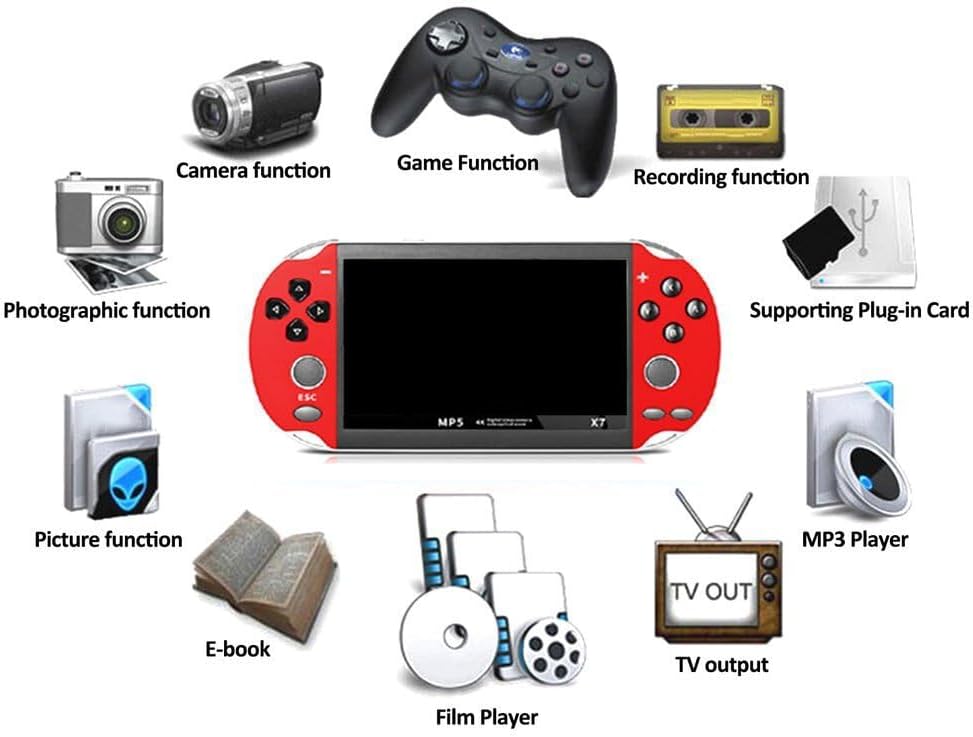
Figure 3.2: Functional overview of the ERYUE X7, highlighting its capabilities such as game function, camera, photographic function, recording function, supporting plug-in card, picture function, E-book, film player, and TV output.

Figure 3.3: Detailed view of the console's ports and buttons, including the charging interface, headphone jack, TV-OUT interface, reset key, and TF chuck.
4. Setup
4.1 Initial Charging
Before first use, fully charge the ERYUE X7 console. Connect the provided charging cable to the console's charging interface and plug the other end into a compatible USB power source (e.g., computer USB port, USB wall adapter). The charging indicator will typically illuminate during charging and turn off or change color when fully charged. Avoid using fast chargers not specified for this device.
4.2 Power On/Off
- To Power On: Locate the power button (refer to Figure 3.3 for location) and press and hold it for a few seconds until the screen illuminates.
- To Power Off: Press and hold the power button again until the device powers down.
4.3 Inserting a TF Card (Optional)
The console supports TF card expansion up to 32GB for additional storage. To insert a TF card, locate the TF chuck (refer to Figure 3.3). Gently push the TF card into the slot until it clicks into place. To remove, push the card in again until it springs out.
Video 4.1: This video demonstrates the unboxing, initial power-on, menu navigation, and gameplay of a generic handheld game console, providing a visual guide to basic setup and operation.
5. Operating Instructions
5.1 Menu Navigation
Use the directional pad (D-pad) or the dual rockers to navigate through the main menu and game selection screens. Press the 'A' button (or equivalent action button) to confirm selections and the 'B' button (or equivalent back button) to return to the previous screen.
5.2 Playing Games
The ERYUE X7 comes with over 1000 built-in games. From the main menu, select 'Games' or browse through categories like Puzzle, Action, Education, Table, Sport, and Relax. Choose a game and press the 'A' button to start playing. Controls will vary by game, but generally involve the D-pad/rockers for movement and the action buttons (A, B, X, Y) for in-game actions.
5.3 Multimedia Functions
In addition to gaming, the console supports various multimedia functions:
- Video Playing: Supports RM, RMVB, AVI, MP4, 3GP formats.
- Music Playing: Supports MP3, WMA, OGG, WAV, AAC, APE formats.
- E-book: Read electronic books.
- Camera/Photographic Function: Capture photos and videos.
5.4 TV Output
The console supports AV interface video output. Connect the console to a TV or other display using a compatible AV cable (not included) to enjoy games and multimedia on a larger screen.
6. Maintenance
- Cleaning: Use a soft, dry cloth to clean the console's exterior. Avoid using liquid cleaners or abrasive materials.
- Storage: Store the console in a cool, dry place away from direct sunlight, extreme temperatures, and humidity.
- Battery Care: To prolong battery life, avoid fully discharging the battery frequently. Charge the device regularly, even if not in use for extended periods.
7. Troubleshooting
- Console does not power on: Ensure the battery is charged. Connect the charging cable and attempt to power on again.
- Screen is unresponsive or frozen: Try pressing the 'Reset' button (refer to Figure 3.3) with a thin object like a paperclip.
- No sound: Check the volume level. Ensure headphones are properly connected if in use.
- Games not loading: Ensure the game files are not corrupted. If using a TF card, ensure it is properly inserted and formatted.
8. Specifications
| Feature | Detail |
|---|---|
| Model | X7 |
| Type | Game Console |
| Material | Acrylonitrile Butadiene Styrene (ABS) |
| Screen Size | 4.3 inches |
| Display Type | LCD |
| Built-in Games | 1000+ |
| Memory | 8GB |
| Maximum Memory Expansion | 32GB TF card (Not included) |
| Battery Capacity | 1000mAh |
| Battery Type | Lithium |
| Video Format Support | RM, RMVB, AVI, MP4, 3GP |
| Music Format Support | MP3, WMA, OGG, WAV, AAC, APE |
| AV Output Support | Yes |
| Controller Type | Button Control, Double Rocker |
| Product Dimensions | 19 x 10 x 6 inches |
| Item Weight | 8.8 ounces (0.25 Kilograms) |
9. Warranty and Support
For warranty information, technical support, or customer service inquiries, please refer to the contact information provided by your retailer or on the product packaging. Keep your purchase receipt as proof of purchase.