1. Introduction
Thank you for choosing the SHURIKEY GEAR 65% Mechanical Gaming Keyboard. This manual provides detailed instructions for setting up, operating, and maintaining your new keyboard. Please read this manual thoroughly before use to ensure optimal performance and longevity of your device.

Image 1.1: SHURIKEY GEAR 65% Mechanical Gaming Keyboard
This keyboard features a compact 65% layout, Varmilo EC V2 Sakura switches, and offers versatile connectivity options including Bluetooth 5.0 and USB-C. It supports connection with up to four devices and includes a 4400mAh battery for extended wireless use.
2. Package Contents
Please verify that all items are present in your package:
- SHURIKEY GEAR 65% Mechanical Keyboard
- USB-C to USB-A Cable
- Keycap Puller
- Extra Keycaps (e.g., arrow keys, Enter key, spacebar)
- User Manual

Image 2.1: Package Contents Overview
3. Key Features
The SHURIKEY GEAR 65% Mechanical Gaming Keyboard is designed with several features to enhance your typing and gaming experience:
- 65% Layout: Compact design with essential keys.
- Varmilo EC Sakura V2 Switches: Electro-capacitive mechanical switches for a smooth typing feel.
- Bluetooth 5.0 & USB-C Connectivity: Dual-mode operation for wired or wireless use.
- Multi-Device Support: Connect and switch between up to 4 devices.
- 4400mAh Battery: Provides up to 180 hours of usage on a single charge.
- Lubed Stabilizers: Factory-lubricated stabilizers for consistent keypresses.
- Noise Suppression System: Designed to reduce typing sound.
- Ultra-low Latency: Optimized for responsive input.
- Detachable Design: Allows for easy customization and maintenance.
- Multimedia Knobs: Dedicated knobs for backlight control and volume adjustment.
- 6 LED Light Effects: Customizable backlight patterns.
- N-Key Rollover: Ensures all keypresses are registered accurately.
- Reversible Metal Kickstand: Adjustable typing angles (3° and 7°).

Image 3.1: Keyboard Features Overview

Image 3.2: Reversible Metal Kickstand
4. Setup
4.1 Initial Charging
Before first use, it is recommended to fully charge the keyboard. Connect the provided USB-C cable to the keyboard's port and the other end to a USB power source (e.g., computer USB port, wall adapter). The keyboard has a 4400mAh battery, providing approximately 180 hours of use after a 15-hour charge.

Image 4.1: Battery Specifications
4.2 Wired Connection (USB-C)
To use the keyboard in wired mode:
- Connect the USB-C end of the cable to the keyboard.
- Connect the USB-A end of the cable to your computer's USB port.
- Press Fn + Delete to switch to wired mode. The keyboard will be recognized automatically by your operating system.
4.3 Wireless Connection (Bluetooth 5.0)
The keyboard supports connection to up to 3 Bluetooth devices. To connect via Bluetooth:
- Ensure the keyboard is charged.
- Press Fn + Delete to switch to Bluetooth mode.
- Press and hold Fn + Q, Fn + W, or Fn + E for 3-5 seconds to enter pairing mode for Channel 1, 2, or 3 respectively. The indicator light will flash rapidly.
- On your device (computer, tablet, smartphone), enable Bluetooth and search for available devices.
- Select "SHURIKEY GEAR Keyboard" (or similar name) from the list to pair.
- Once paired, the indicator light will stop flashing.
To switch between connected Bluetooth devices, simply press Fn + Q, Fn + W, or Fn + E corresponding to the desired channel.

Image 4.2: Wired and Wireless Connectivity

Image 4.3: 4 Devices Storable & Switchable
5. Operating Instructions
5.1 Basic Key Functions
The keyboard features a 65% layout. Many functions are accessed via the Fn key combined with other keys.
- Fn + Delete: Toggle between wired and Bluetooth modes.
- Fn + Q/W/E: Switch between Bluetooth devices connected to Channels 1, 2, or 3.
- Fn + Backspace: Switch to Game Mode for lower latency.
- Fn + Right Alt: Check charging status (indicated by the Esc key light).
- Fn + Enter: Toggle between F1-F12 keys and number keys functionality.
- Space bar (in Sleep Mode): Press to wake up the keyboard.
5.2 Multimedia Knobs
The keyboard is equipped with two rotary knobs:
- Left Knob: Controls the LED backlight brightness and effects.
- Right Knob: Controls system volume.

Image 5.1: Multimedia Knobs
5.3 LED Backlight Control
The keyboard features 6 distinct LED backlight effects. Use the following combinations to adjust the lighting:
- Left Knob: Rotate to adjust backlight brightness. Press to cycle through effects.
- Fn + Left Arrow / Right Arrow: Adjust the speed of the light effect.
- Fn + Up Arrow / Down Arrow: Cycle through previous or next light effects.

Image 5.2: Six LED Light Effects
6. Maintenance
6.1 Cleaning
To clean your keyboard:
- Disconnect the keyboard from all power sources.
- Use a soft, lint-free cloth dampened with a small amount of water or a mild cleaning solution to wipe the keycaps and chassis.
- For dust and debris between keys, use compressed air.
- Avoid using harsh chemicals or abrasive materials.
6.2 Keycap and Switch Replacement
The keyboard features ABS double-shot keycaps and Varmilo EC Sakura V2 switches, which are designed for durability and ease of maintenance.
- Use the provided keycap puller to carefully remove keycaps. Gently pull upwards to avoid damaging the switch.
- The switches are not hot-swappable. Do not attempt to remove the switches without proper tools and knowledge, as this may damage the PCB.
- When replacing keycaps, align them correctly and press down gently until they click into place.
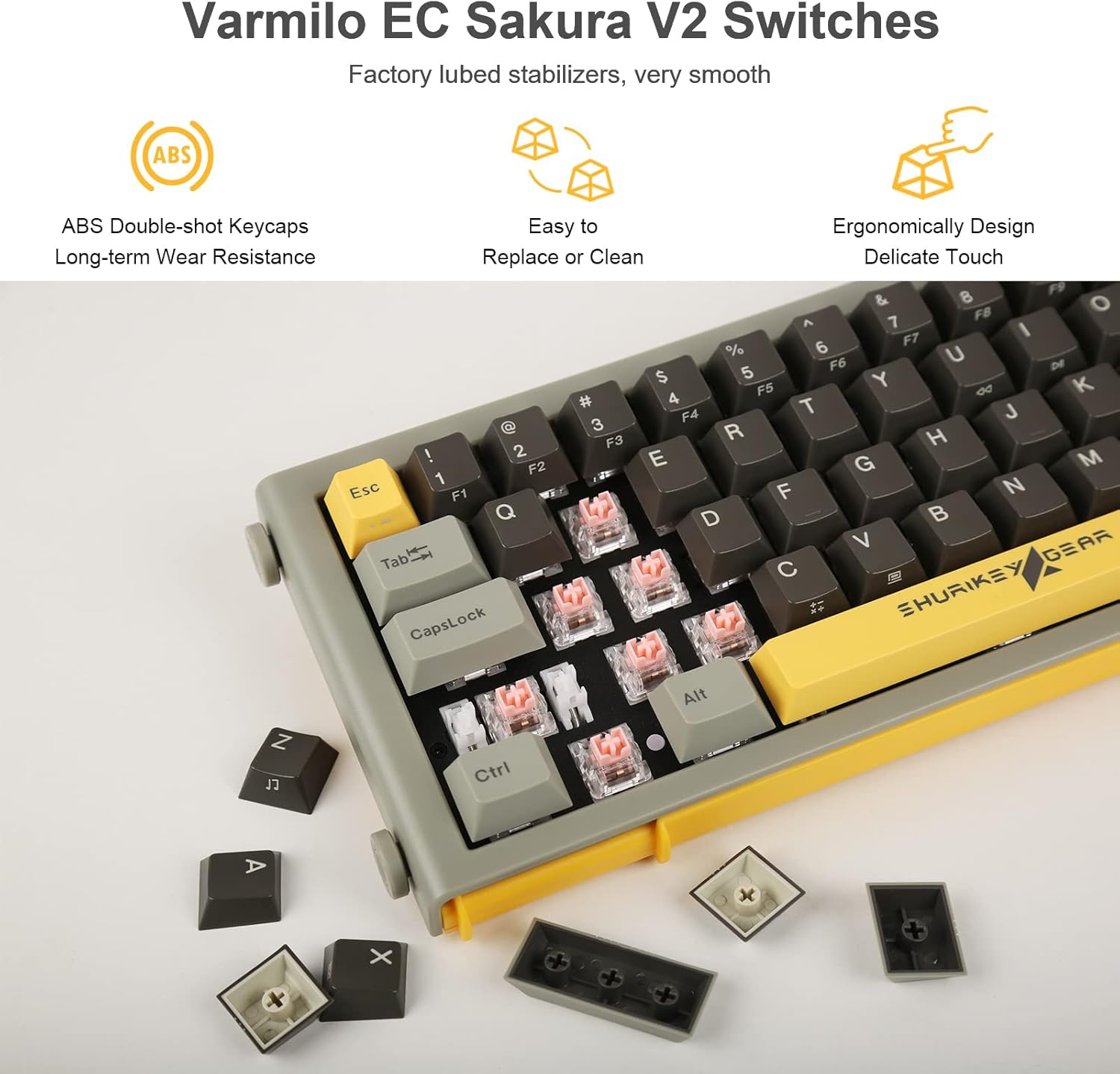
Image 6.1: Varmilo EC Sakura V2 Switches and Keycaps

Image 6.2: Lubed Stabilizers
6.3 Detachable Design
The keyboard features a detachable design, allowing for easier access to internal components for advanced customization or repair. This process typically involves unscrewing the side nobles and carefully separating the case components. It is recommended to consult professional guides or contact customer support before attempting to disassemble the keyboard.

Image 6.3: Detachable Design
7. Troubleshooting
If you encounter issues with your keyboard, please refer to the following common problems and solutions:
| Problem | Solution |
|---|---|
| Keyboard not responding in wireless mode. | Ensure the keyboard is charged. Press Fn + Delete to confirm it's in Bluetooth mode. Re-pair the device if necessary by holding Fn + Q/W/E. |
| Keyboard not responding in wired mode. | Ensure the USB-C cable is securely connected to both the keyboard and the computer. Press Fn + Delete to confirm it's in wired mode. Try a different USB port or cable. |
| Bluetooth connection is unstable or drops frequently. | Ensure the keyboard is within range of your device. Minimize interference from other wireless devices. Re-pair the keyboard. |
| Backlight is not working or is dim. | Check the battery level. Adjust brightness using the left multimedia knob. Cycle through light effects using Fn + Up Arrow / Down Arrow. |
| Specific keys are not registering. | Ensure the keycap is properly seated. If the issue persists, the switch may be faulty. Contact customer support for assistance. |
| Cannot switch between F-keys and number keys. | Press Fn + Enter to toggle this functionality. |
8. Specifications
| Feature | Detail |
|---|---|
| Model | 001 65 Keys Sakura |
| Layout | 65% (65 Keys) |
| Switch Type | Varmilo EC V2 Sakura Mechanical Switches |
| Connectivity | Bluetooth 5.0, USB-C (Wired) |
| Battery Capacity | 4400mAh |
| Battery Life | Up to 180 hours (wireless) |
| Charging Time | Approx. 15 hours |
| Compatible Devices | Gaming Console, Laptop, PC, Smartphone, Tablet |
| Compatible OS | Windows, Mac OS, Android, iOS |
| Product Dimensions | 14.24"L x 5.17"W x 1.52"H (36.17 x 13.13 x 3.86 cm) |
| Item Weight | 3.5 pounds (1.59 kg) |
| Keyboard Layout | QWERTY |
| Backlight | White LED, 6 effects |
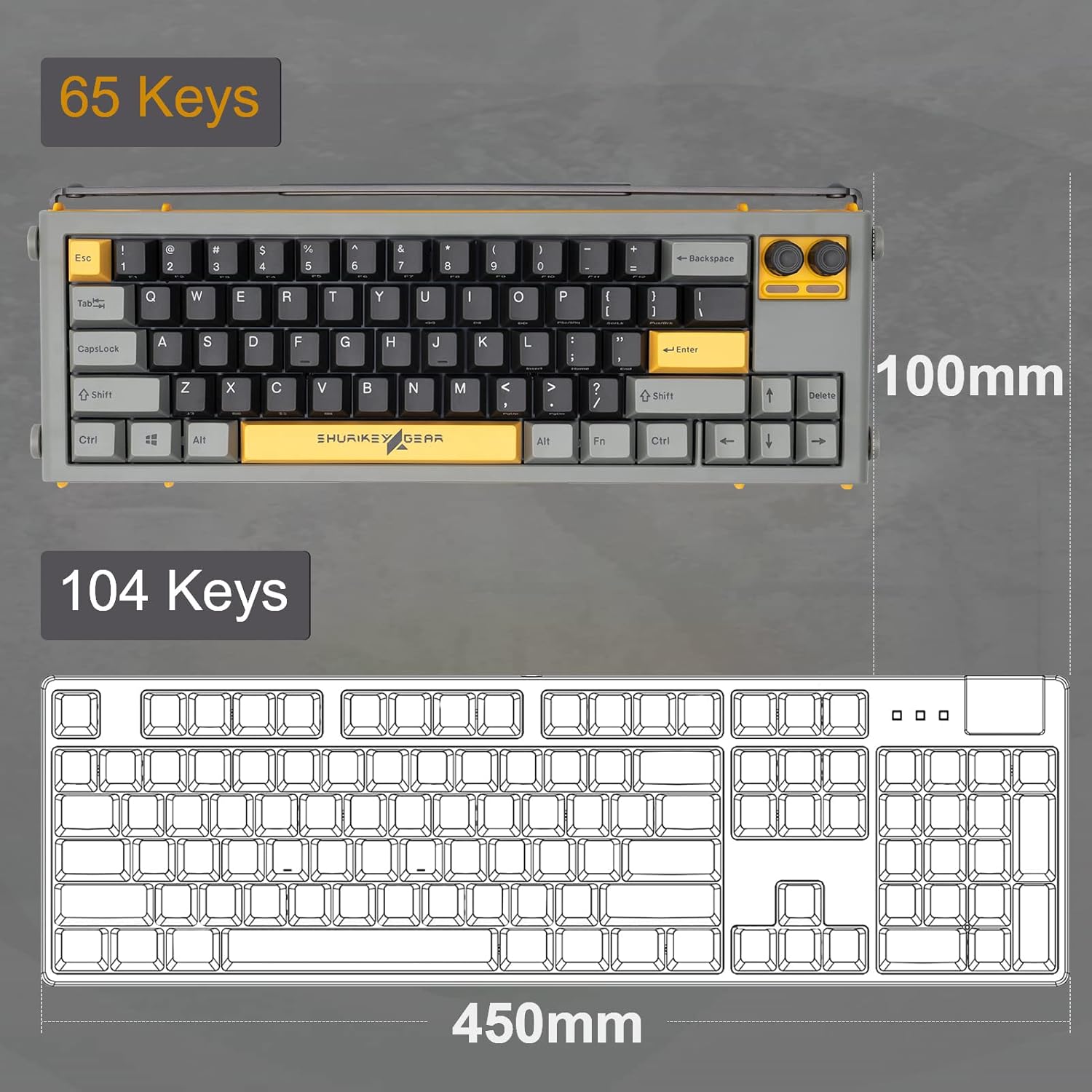
Image 8.1: 65 Keys vs. 104 Keys Layout Comparison
9. Warranty and Support
For warranty information or technical support, please refer to the product packaging or contact SHURIKEY GEAR customer service through the retailer where the product was purchased. Please retain your proof of purchase for warranty claims.


