1. Introduction
This manual provides detailed instructions for the installation, operation, maintenance, and troubleshooting of your ORICO External Hard Drive Enclosure. This enclosure is designed to house 3.5-inch and 2.5-inch SATA SSDs and HDDs, offering high-speed data transmission and broad compatibility. Please read this manual thoroughly before use to ensure proper functionality and longevity of your device.
2. Package Contents
Verify that all items listed below are present in your package:
- 1 x Hard Drive Enclosure
- 1 x USB Cable
- 1 x 12V/2A Power Adapter
- 1 x Instruction Manual

Image: Contents of the ORICO External Hard Drive Enclosure package, including the enclosure, USB cable, and power adapter.
3. Product Overview
The ORICO External Hard Drive Enclosure is designed for easy and secure storage expansion. It features a robust design and intelligent chip protection for stable data transmission.
Key Features:
- Dual Compatibility: Supports both 3.5-inch and 2.5-inch SATA SSD/HDD.
- High Capacity: Supports hard drives up to 20TB.
- Fast Transmission: USB 3.2 Gen 1 (5Gbps) with UASP and TRIM support for optimized speed.
- Tool-Free Installation: Simple and quick setup.
- Smart Protection: Built-in chip provides over-voltage, short-circuit, over-current, and over-temperature protection.
- Auto-Sleep Mode: Prolongs hard drive lifespan by entering sleep mode after 10 minutes of inactivity.
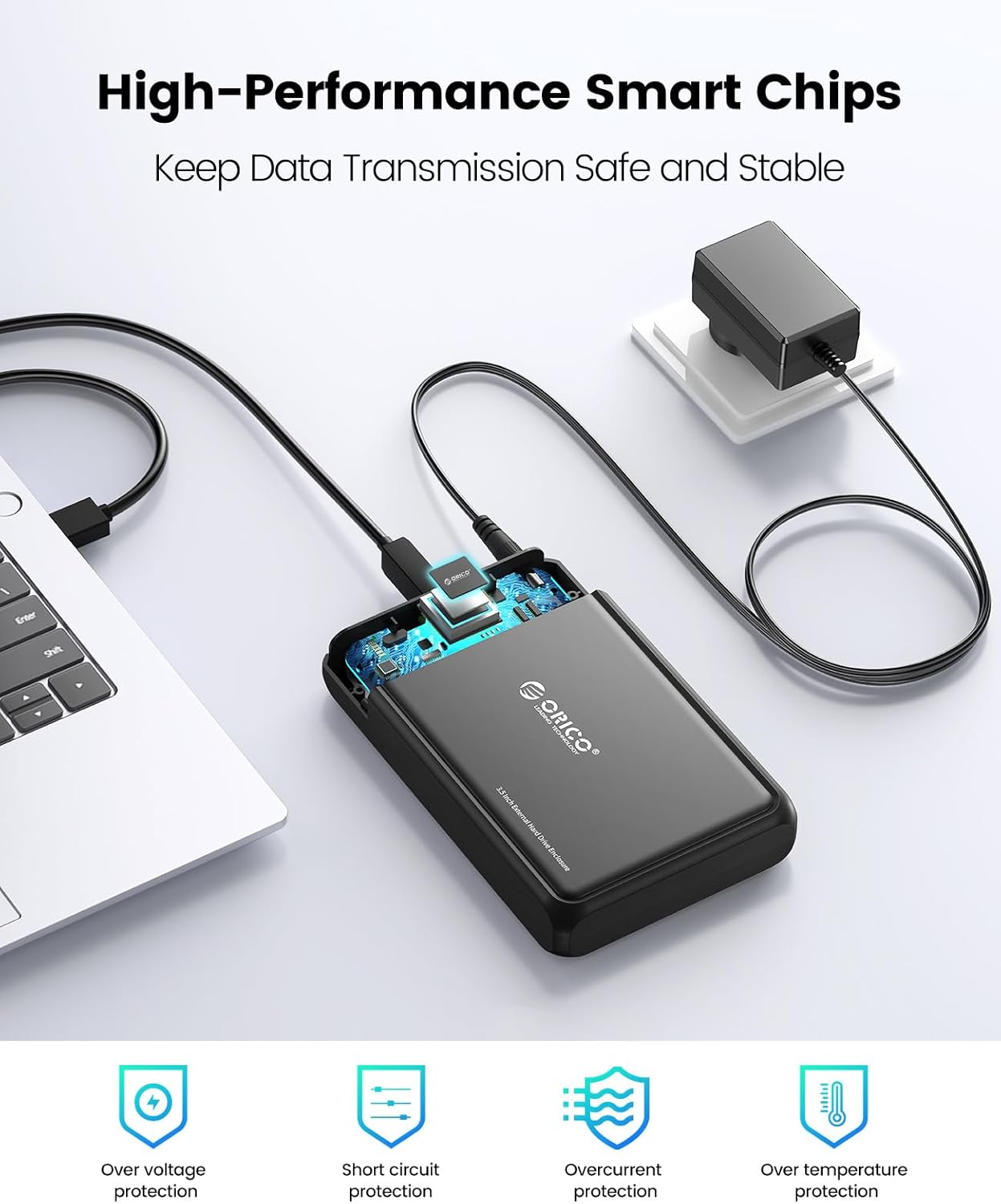
Image: Diagram illustrating the high-performance smart chips within the ORICO enclosure, providing over voltage, short circuit, overcurrent, and over temperature protection.

Image: A close-up view of the ORICO enclosure's front panel, showing the LED indicator and the power ON/OFF button for user-friendly operation.
4. Setup Instructions
4.1. Installing a Hard Drive
The ORICO enclosure features a tool-free design for easy hard drive installation.
- Gently slide open the enclosure cover.
- Align your 2.5-inch or 3.5-inch SATA SSD/HDD with the SATA connector inside the enclosure.
- Carefully push the hard drive into the connector until it is firmly seated.
- Slide the enclosure cover back into place until it clicks securely.
4.2. Connecting to a Device
Follow these steps to connect the enclosure to your computer or other compatible device:
- Connect one end of the provided USB cable to the USB 3.2 Gen 1 Type-B port on the enclosure.
- Connect the other end of the USB cable to an available USB port on your computer, laptop, or other compatible device.
- Connect the 12V/2A power adapter to the DC input port on the enclosure.
- Plug the power adapter into a wall outlet.
- Press the power button on the enclosure to turn it on. The LED indicator will illuminate.

Image: The ORICO hard drive enclosure connected to a laptop via USB, demonstrating a typical setup for data access.

Image: The ORICO enclosure connected to its 12V/2A power adapter, ensuring stable power supply for reliable operation.
5. Operating Instructions
5.1. Powering On/Off
To power on the enclosure, press the power button located on the back. The LED indicator will light up. To power off, press the button again.
5.2. Data Transfer
Once connected and powered on, your operating system should recognize the hard drive. You can then access, transfer, and manage files as you would with any other external storage device. The enclosure supports USB 3.2 Gen 1 speeds (up to 5Gbps) and features UASP (USB Attached SCSI Protocol) and TRIM for enhanced performance and efficiency, especially with SSDs.

Image: Visual representation of the enclosure's super fast transmission capabilities, highlighting 5Gbps speed with UASP and TRIM support.
5.3. LED Indicator Status
The LED indicator on the enclosure provides information about its status:
- Solid Blue: Power on, idle.
- Flashing Blue: Data transfer in progress.
5.4. Auto-Sleep Mode
To conserve power and prolong the lifespan of your hard drive, the enclosure will automatically enter sleep mode after approximately 10 minutes of inactivity. The hard drive will spin down, and the LED indicator may change or turn off. It will automatically wake up when data access is requested.

Image: The ORICO enclosure illustrating its auto-sleep mode feature, which activates after 10 minutes of inactivity to prolong hard drive lifespan.
6. Compatibility
The ORICO External Hard Drive Enclosure offers wide compatibility with various operating systems and devices:
- Operating Systems: Windows, macOS, Linux.
- Devices: PC, Laptops, Smart TVs, Smart Routers, PS4/PS5, and other devices with a USB port.
- Hard Drives: Compatible with Western Digital, Toshiba, Samsung, Seagate, Crucial, SanDisk, and more SATA 2.5-inch and 3.5-inch hard drives.
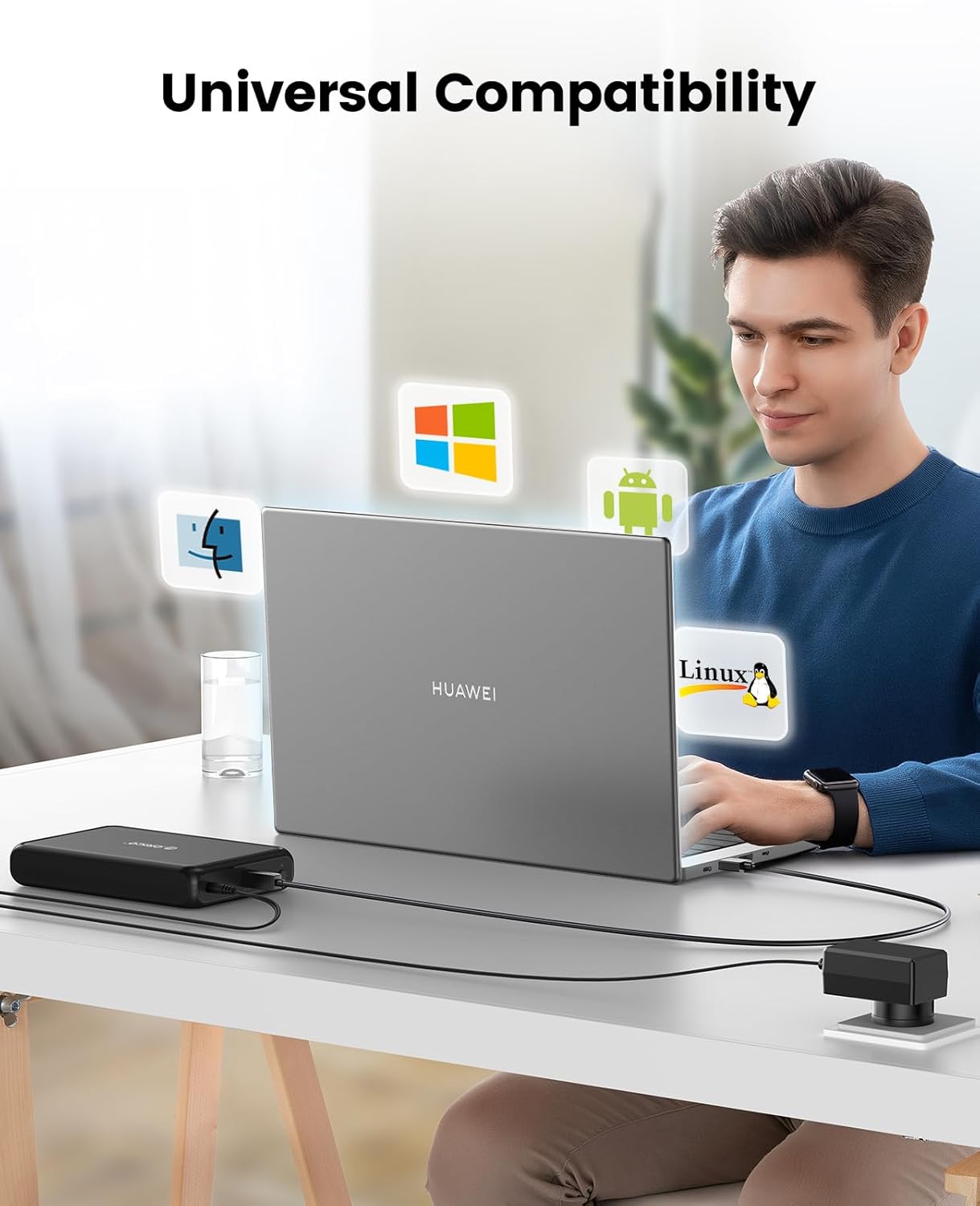
Image: A user working on a laptop with the ORICO enclosure connected, surrounded by icons representing Windows, macOS, Android, and Linux, demonstrating universal compatibility.

Image: An array of devices including a Macbook, PlayStation console, router, and tablet, illustrating the wide compatibility of the ORICO enclosure.
7. Maintenance
To ensure optimal performance and longevity of your ORICO External Hard Drive Enclosure, follow these maintenance guidelines:
- Cleaning: Use a soft, dry cloth to clean the exterior of the enclosure. Avoid using liquid cleaners or solvents.
- Ventilation: Ensure the enclosure is placed in a well-ventilated area to prevent overheating, especially during prolonged data transfers. Do not block any ventilation openings.
- Storage: When not in use, store the enclosure in a cool, dry place away from direct sunlight and extreme temperatures.
- Handling: Handle the enclosure with care. Avoid dropping it or subjecting it to strong impacts, as this can damage the internal hard drive and the enclosure itself.
8. Troubleshooting
If you encounter issues with your ORICO External Hard Drive Enclosure, refer to the following common problems and solutions:
- Enclosure not recognized by computer:
- Ensure the USB cable is securely connected to both the enclosure and the computer.
- Verify the power adapter is correctly connected and plugged into a working outlet, and the enclosure is powered on.
- Try connecting to a different USB port on your computer.
- Test with a different USB cable if available.
- Check Disk Management (Windows) or Disk Utility (macOS) to see if the drive is detected but uninitialized or unformatted.
- Slow data transfer speeds:
- Ensure you are connected to a USB 3.0/3.1/3.2 port on your computer. Connecting to a USB 2.0 port will result in slower speeds.
- Verify that your operating system and drivers are up to date.
- The actual speed may vary depending on the hard drive's performance and the system's configuration.
- Hard drive overheating:
- Ensure the enclosure is placed in an area with adequate airflow. Avoid placing it in enclosed spaces or on soft surfaces that can block ventilation.
- Reduce prolonged heavy data transfers if overheating persists.
- Consider using the enclosure in a cooler environment.
- LED indicator not lighting up:
- Check if the power adapter is properly connected and the power button on the enclosure is pressed.
- Ensure the power outlet is functional.
9. Specifications
| Feature | Detail |
|---|---|
| Model Number | USB 3.2 Gen 1 Type-B |
| Compatible Drive Types | 3.5 Inch / 2.5 Inch SATA SSD/HDD |
| Max Capacity Supported | 20 TB |
| Data Transfer Rate | 5 Gigabits Per Second (USB 3.2 Gen 1) |
| Hardware Interface | USB 3.0, USB 3.0 Type B, USB 3.1 Type B, USB 3.2 Gen 1 |
| Material | Acrylonitrile Butadiene Styrene (ABS), Aluminum |
| Color | Black |
| Power Adapter | 12V/2A |
| Compatible Devices | Laptop, PC, PS4/5, Router |
| Item Weight | 1.08 pounds |
| Package Dimensions | 8.15 x 5.04 x 3.62 inches |
| Manufacturer | SHENZHEN ORICO TECHNOLOGIES CO.,LTD |
10. Safety Information
Please observe the following safety precautions to prevent damage to the device or injury to yourself:
- Do not expose the enclosure to water, moisture, or extreme temperatures.
- Avoid dropping or subjecting the device to severe impacts.
- Do not attempt to disassemble or modify the enclosure. This will void the warranty and may cause damage.
- Use only the provided power adapter. Using an incorrect adapter may damage the device.
- Keep the device away from strong magnetic fields.
- Unplug the power adapter during lightning storms or when unused for long periods.
11. Warranty and Support
ORICO products typically come with a standard manufacturer's warranty. For specific warranty terms, technical support, or service inquiries, please refer to the warranty card included in your package or visit the official ORICO website or their Amazon Brand Store.
ORICO Brand Store: Visit ORICO Store on Amazon


