
1. Introduction
Thank you for choosing the Caixun 22-inch IPS FHD 75Hz Monitor (Model: CM22X3). This monitor is designed to provide a high-quality visual experience for both work and entertainment, featuring a vibrant IPS panel, Full HD resolution, and a smooth 75Hz refresh rate. This manual will guide you through the setup, operation, and maintenance of your new monitor to ensure optimal performance and longevity.
2. Safety Information
Please read all safety instructions carefully before using this product. Keep this manual for future reference.
- Do not expose the monitor to rain, moisture, or extreme temperatures.
- Ensure the monitor is placed on a stable, flat surface to prevent accidental falls.
- Use only the power adapter supplied with the monitor.
- Do not block ventilation openings. Allow adequate space around the monitor for proper airflow.
- Avoid placing heavy objects on the power cord or monitor cables.
- Disconnect the power plug from the outlet if the monitor will not be used for an extended period.
- Do not attempt to service the monitor yourself. Refer all servicing to qualified personnel.
3. Package Contents
Carefully unpack the box and ensure all items listed below are present and in good condition.
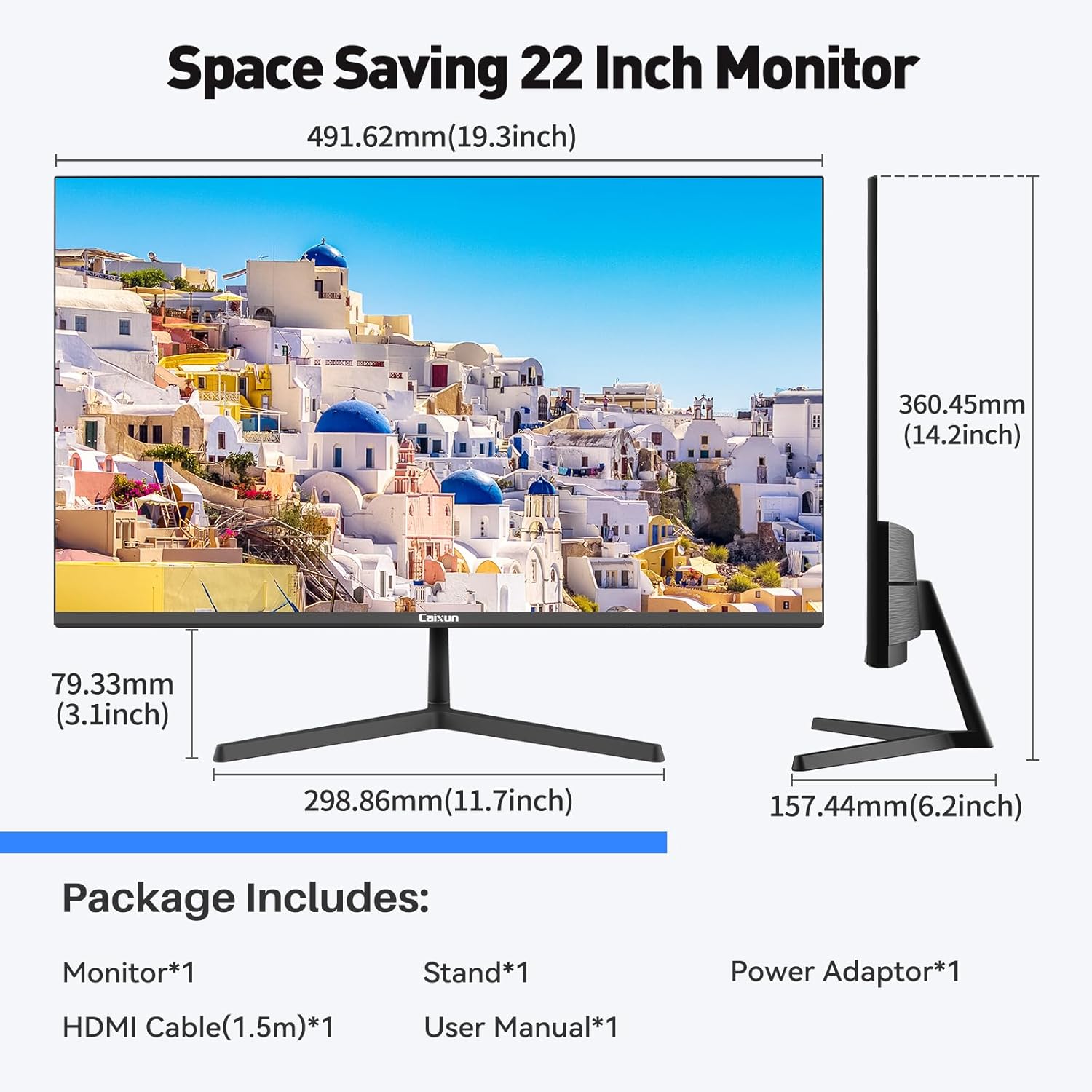
Figure 3.1: Monitor dimensions and included accessories.
- Caixun 22-inch Monitor (x1)
- Monitor Stand (x1)
- HDMI Cable (1.5m) (x1)
- Power Adapter (x1)
- User Manual (x1)
4. Setup
4.1. Stand Assembly
Follow these steps to attach the stand to your monitor:
- Insert the stand base into the stand neck until it clicks securely.
- Align the assembled stand with the mounting slot on the back of the monitor.
- Gently push the stand into the slot until it locks into place.
- Ensure the stand is firmly attached before placing the monitor upright.

Figure 4.1: Monitor stand assembly instructions.
4.2. Connecting Cables
Connect the necessary cables to your monitor and computer:
- Power Connection: Connect the power adapter to the DC input port on the monitor, then plug the other end into a power outlet.
- Video Connection: Choose either HDMI or VGA to connect your monitor to your computer.
- HDMI: Connect one end of the HDMI cable to the HDMI port on the monitor and the other end to the HDMI port on your computer.
- VGA: Connect one end of the VGA cable to the VGA port on the monitor and the other end to the VGA port on your computer.

Figure 4.2: Available input ports on the monitor.
4.3. VESA Mounting
The monitor supports VESA mounting (75x75 mm) for alternative mounting solutions (e.g., wall mount, monitor arm). Ensure to use VESA-compatible screws and mounting hardware (not included) and follow the instructions provided with your VESA mount.
5. Operating Instructions
5.1. Power On/Off
Press the power button, usually located on the bottom right side of the monitor, to turn the monitor on or off. The power indicator light will illuminate when the monitor is on.
5.2. Input Source Selection
If you have multiple devices connected, use the monitor's OSD (On-Screen Display) menu or a dedicated input button to switch between HDMI and VGA inputs.
5.3. Display Features
Your Caixun monitor comes equipped with several features to enhance your viewing experience:
- IPS Panel with 75Hz Refresh Rate: Enjoy consistent, accurate colors and smooth motion thanks to the IPS panel technology and a 75Hz refresh rate, providing a responsive visual experience.

Figure 5.1: IPS Panel and 75Hz Refresh Rate benefits.
- Full HD 1080P Resolution: Experience crisp and clear images with a native resolution of 1920 x 1080 pixels.
- Built-in FreeSync Technology: This technology synchronizes the monitor's refresh rate with your graphics card's frame rate, eliminating screen tearing and stuttering for smoother visuals, especially during fast-paced content.
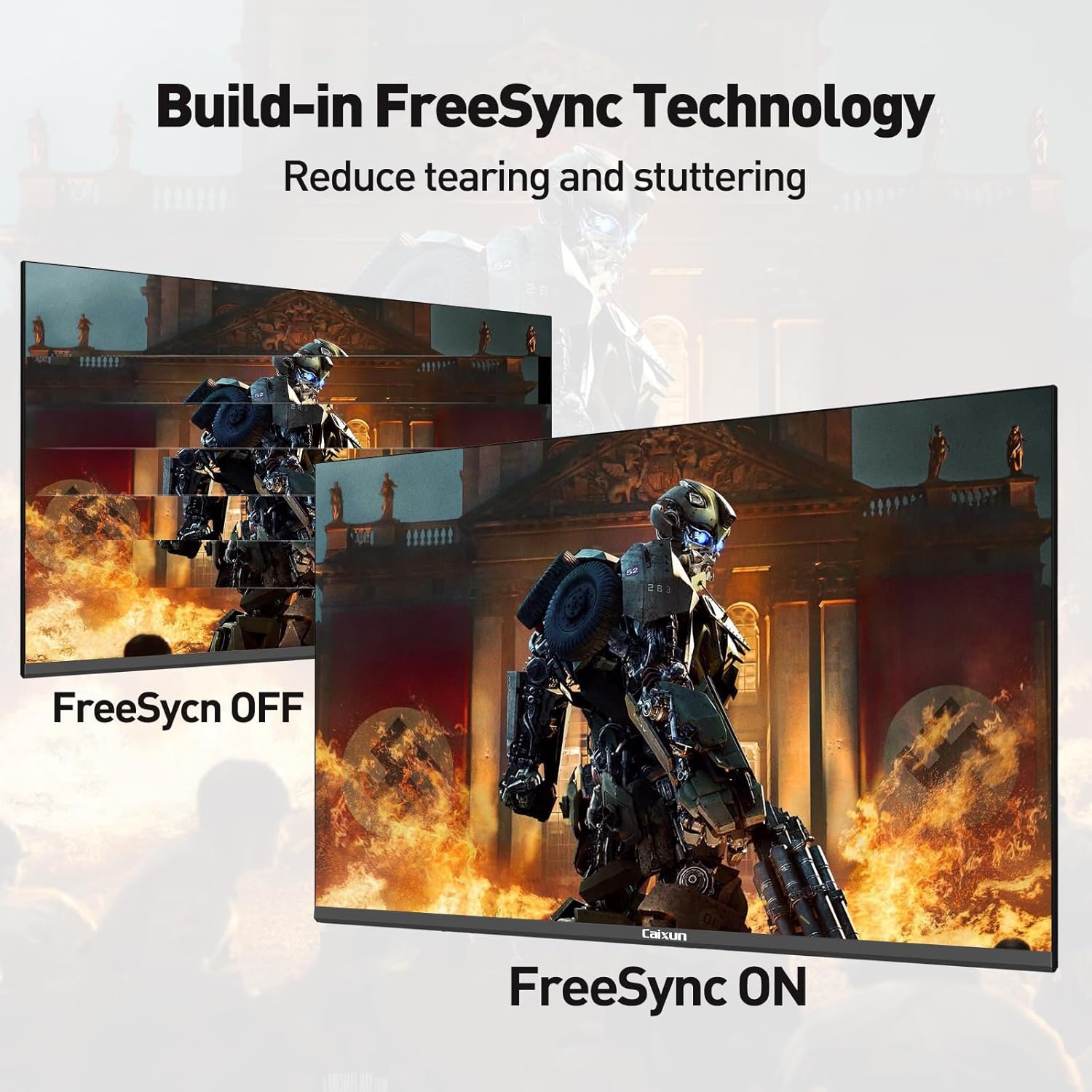
Figure 5.2: FreeSync technology reducing screen tearing.
- Brilliant Colors and High Contrast: The monitor offers 99.99% sRGB color gamut (72% NTSC) and 16.7 million display colors, combined with a 1000:1 contrast ratio and 250 cd/m² brightness, for vivid and accurate image reproduction.

Figure 5.3: Visual representation of brilliant colors and image quality.
- Eye Comfort Technology: Designed to reduce eye strain during prolonged use, this monitor incorporates Low Blue Light, Anti-Glare, and Anti-Flicker technologies.

Figure 5.4: Eye protection technologies for comfortable viewing.
- Ultra-thin Bezel Design & Wide Viewing Angle: The monitor features an ultra-thin bezel, ideal for multi-monitor setups, and a 178° wide viewing angle ensures consistent image quality from various positions.
- Tilt Adjustment: The monitor stand allows for a tilt adjustment range of -5° forward to 15° backward, enabling you to find your optimal viewing angle.

Figure 5.5: Ultra-thin bezel and tilt adjustment for flexible viewing.
6. Maintenance
Proper maintenance ensures the longevity and optimal performance of your monitor.
- Cleaning the Screen: Gently wipe the screen with a soft, lint-free cloth. For stubborn marks, dampen the cloth slightly with water or a specialized screen cleaner. Never spray cleaner directly onto the screen.
- Cleaning the Casing: Use a soft, dry cloth to wipe the monitor casing. Avoid using abrasive cleaners or solvents, as they may damage the surface.
- Ventilation: Ensure the ventilation openings on the monitor are clear of dust and debris to prevent overheating.
7. Troubleshooting
If you encounter issues with your monitor, refer to the following common problems and solutions:
| Problem | Possible Cause | Solution |
|---|---|---|
| No power | Power cable not connected; Power outlet faulty; Monitor off | Check power cable connection; Try a different outlet; Press the power button |
| No signal | Video cable not connected; Incorrect input source selected; Computer not outputting signal | Ensure HDMI/VGA cable is securely connected; Select correct input source via OSD; Restart computer |
| Image flickering or tearing | FreeSync not enabled; Graphics driver issues; Cable quality | Enable FreeSync in monitor OSD and graphics card settings; Update graphics drivers; Try a different HDMI cable |
| Image too dark/bright or colors incorrect | Display settings incorrect | Adjust brightness, contrast, and color settings via the OSD menu |
If the problem persists after trying these solutions, please contact Caixun customer support.
8. Specifications
Below are the technical specifications for the Caixun 22-inch IPS FHD 75Hz Monitor (Model: CM22X3).
| Feature | Specification |
|---|---|
| Model Number | CM22X3 |
| Screen Size | 22 Inches |
| Panel Type | IPS |
| Resolution | 1920 x 1080 (Full HD) |
| Aspect Ratio | 16:9 |
| Refresh Rate | 75 Hz |
| Response Time | 14 ms |
| Brightness | 250 cd/m² |
| Contrast Ratio | 1000:1 |
| Color Gamut | 99.99% sRGB (72% NTSC) |
| Display Colors | 16.7 Million |
| Viewing Angle | 178° (H/V) |
| Connectivity | 1x HDMI, 1x VGA |
| VESA Compatibility | 75 x 75 mm |
| Tilt Adjustment | -5° to 15° |
| Energy Efficiency Class | E |
| Energy Consumption | 15 kWh/1000h |

Figure 8.1: EU Energy Label for the Caixun CM22X3 monitor. For more details, visit the official EPREL database: https://eprel.ec.europa.eu/qr/1554329
9. Warranty and Support
Caixun monitors come with a standard manufacturer's warranty. Please refer to the warranty card included in your package for specific terms and conditions, including warranty period and coverage details.
For technical support, troubleshooting assistance beyond this manual, or warranty claims, please contact Caixun customer service through the contact information provided on your warranty card or the official Caixun website.