
ORICO USB 3.2 Gen 1 Type-C (DDL35C3)
ORICO 3.5 Hard Drive Enclosure User Manual
Model: USB 3.2 Gen 1 Type-C (DDL35C3)
Brand: ORICO
Product Overview
The ORICO 3.5 Hard Drive Enclosure provides a versatile solution for external storage, supporting both 3.5-inch and 2.5-inch SATA HDDs and SSDs up to 20TB. It features USB 3.2 Gen 1 Type-C connectivity with a 2-in-1 USB-C to USB-C/A cable, ensuring broad compatibility and high-speed data transfer. The enclosure is designed with an intelligent chip supporting UASP and TRIM protocols for optimized performance and data integrity, along with multiple protection mechanisms for secure operation.

Image: The ORICO 3.5 Hard Drive Enclosure, shown with its included power adapter and versatile USB-C to USB-C/A cable.
What's in the Box
Please verify that all components are present in the package:
- 1 x ORICO 3.5" Hard Drive Enclosure
- 1 x 2-in-1 USB-C & USB-A Data Cable
- 1 x 12V/2A Power Adapter
- 1 x User Manual
Key Features
- Dual USB-C and USB-A Device Support: Includes a durable USB 3.1 Type-C to Type-C data cable with a USB-A adapter, ensuring compatibility with a wide range of USB-C and USB-A devices.
- 5Gbps Transmission with UASP: Equipped with an intelligent chip that supports the UASP protocol, enabling data transfer speeds up to 70% faster than conventional USB 3.0 when connected to a UASP-compatible computer. This also helps reduce CPU utilization and data latency.
- 20TB Large Capacity Support: The enclosure supports hard drives up to 20TB, providing ample storage for various needs, from casual backups to professional data archiving.
- Enhanced Security and Stability: Supports the TRIM command for improved file privacy and uninterrupted data transmission. The included 12V/2A power adapter offers over-current, over-voltage, and overheating protection for safer operation.
- Universal Compatibility: Compatible with Windows, Mac, Linux, iPad OS (Thunderbolt), and Android systems. It can be connected to PCs, laptops, smart TVs, smart routers, and gaming consoles like PS4/PS5.
Setup Guide
Follow these steps to install your hard drive into the ORICO enclosure:
- Open the Enclosure: Gently slide open the enclosure cover. The tool-free design allows for easy access.
- Insert Hard Drive: Align your 3.5-inch or 2.5-inch SATA HDD/SSD with the SATA connector inside the enclosure and firmly push it into place until it is securely seated.
- Close the Enclosure: Slide the cover back onto the enclosure until it clicks securely into place.
- Connect Power Adapter: Plug the 12V/2A power adapter into the DC input port on the back of the enclosure, then connect it to a power outlet.
- Connect to Device: Use the provided 2-in-1 USB-C to USB-C/A cable to connect the enclosure to your computer or compatible device. Ensure the cable is firmly connected to both the enclosure's USB-C port and your device's USB port.

Image: A hard drive being inserted into the open ORICO enclosure, demonstrating the tool-free installation process.

Image: The ORICO enclosure connected to a laptop via USB, with the 12V power adapter plugged into a wall outlet, illustrating a stable connection setup.
Operating Instructions
Once set up, the ORICO Hard Drive Enclosure is ready for use.
Power On/Off
The enclosure features a power button on the back. Press the button to turn the device on or off. The LED indicator will illuminate when the device is powered on.
Connecting to Various Devices
The enclosure offers broad compatibility:
- Computers (PC/Laptop): Connect via the USB-C or USB-A port. The drive will appear as an external storage device.
- Smart TVs/Routers: Connect to a compatible USB port for media playback or network storage.
- Gaming Consoles (PS4/PS5): Use as extended storage for games and media.
- Smartphones/Tablets: Connect via USB-C (ensure your device supports OTG functionality).
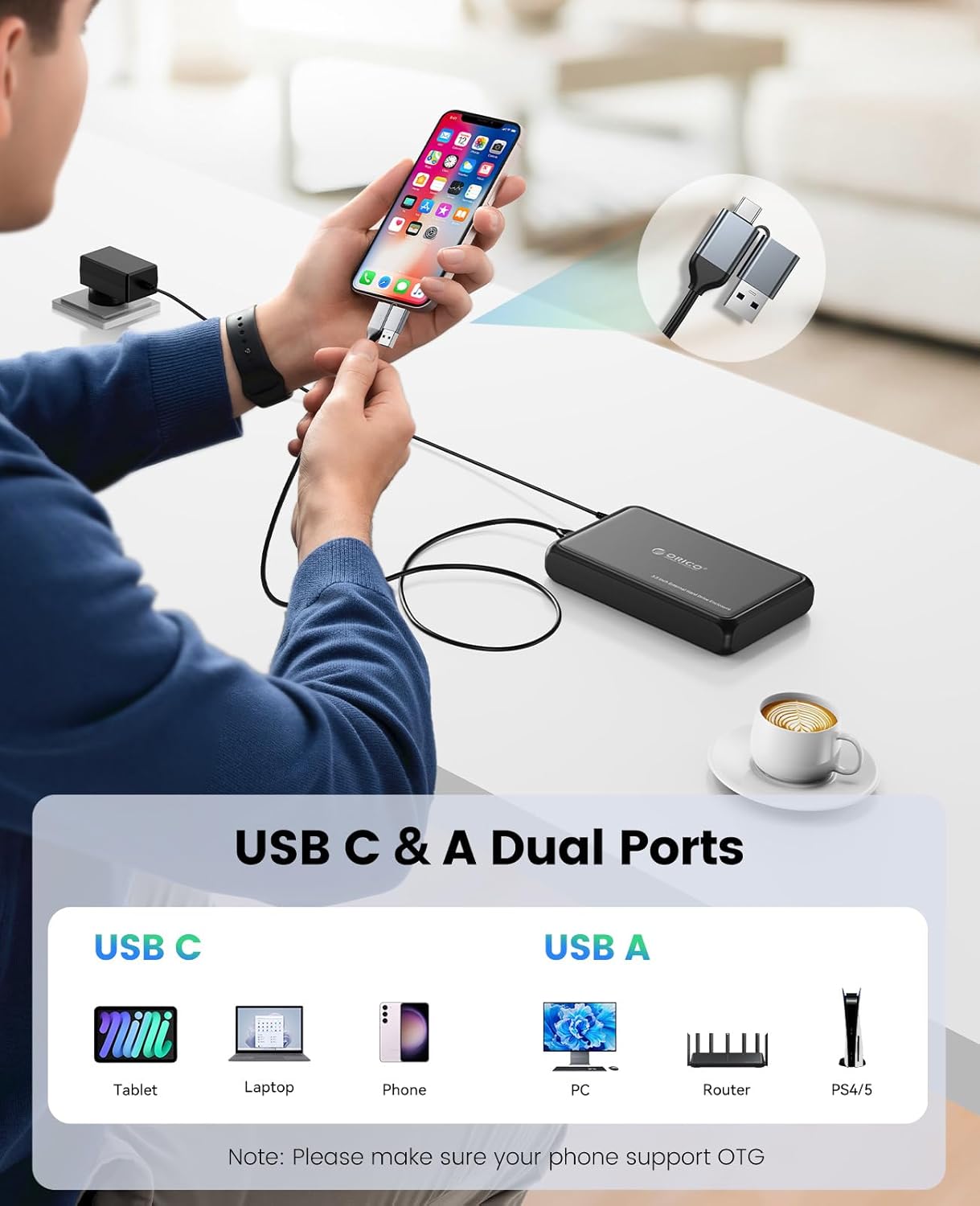
Image: A visual representation of the enclosure's dual USB-C and USB-A port compatibility, showing connections to tablets, laptops, phones, PCs, routers, and PS4/PS5 consoles.
Data Transfer
Once connected, you can drag and drop files to and from the external drive. For optimal performance, ensure your host device supports USB 3.2 Gen 1 (5Gbps) and UASP protocol.

Image: A user engaged in work on a computer, with the ORICO enclosure positioned on the desk, indicating its use in a professional or creative workflow.
Auto-Sleep Mode
The enclosure features an auto-sleep mode that activates after 10 minutes of inactivity. This function helps prolong the lifespan of your hard drives by reducing wear and tear and conserving energy.

Image: The ORICO enclosure with a graphic overlay showing '10 Min', illustrating its automatic sleep mode feature designed to extend hard drive lifespan.
Maintenance
To ensure the longevity and optimal performance of your ORICO Hard Drive Enclosure, consider the following maintenance tips:
- Keep Clean: Regularly wipe the exterior of the enclosure with a soft, dry cloth to remove dust and debris. Avoid using harsh chemicals or abrasive materials.
- Protect from Impact: Handle the enclosure with care to prevent drops or impacts, which could damage the internal hard drive or the enclosure itself.
- Proper Ventilation: Ensure the enclosure is placed in an area with adequate airflow to prevent overheating, especially during prolonged data transfers.
- Safe Disconnection: Always safely eject the hard drive from your operating system before physically disconnecting the enclosure or turning off its power.
Troubleshooting
If you encounter issues with your ORICO Hard Drive Enclosure, refer to the following common problems and solutions:
- Device Not Recognized:
- Ensure all cables (USB and power) are securely connected.
- Verify the enclosure is powered on (check the LED indicator).
- Try connecting to a different USB port on your computer.
- Test with a different USB cable if available.
- Check Disk Management (Windows) or Disk Utility (Mac) to see if the drive is detected but unformatted or uninitialized.
- Slow Data Transfer Speeds:
- Ensure your computer's USB port supports USB 3.2 Gen 1 (USB 3.0) or higher. Connecting to a USB 2.0 port will result in slower speeds.
- Verify that your operating system and hardware support UASP protocol for optimized performance.
- Check the health of the installed hard drive.
- Avoid transferring many small files simultaneously, as this can reduce overall transfer rates.
- Hard Drive Overheating:
- Ensure the enclosure is placed in a well-ventilated area.
- Avoid placing the enclosure on soft surfaces that might block airflow.
- Prolonged heavy use (e.g., continuous large file transfers) can generate heat. Allow the drive to cool down if it becomes excessively hot.
- Drive Does Not Power On After Power Outage:
- Some systems require the power button on the enclosure to be pressed manually after a power interruption to resume operation.
- Drive Goes to Sleep During Use:
- The enclosure has an auto-sleep feature after 10 minutes of inactivity. This is normal behavior to prolong drive lifespan. The drive will wake up when accessed.
Specifications
| Feature | Detail |
|---|---|
| Model Number | USB 3.2 Gen 1 Type-C (DDL35C3) |
| Material | Acrylonitrile Butadiene Styrene (ABS), Metal |
| Memory Storage Capacity | Up to 20 TB |
| Compatible Devices | Laptop, PC, PS4/5, Router, Smart Phone with OTG |
| Hard Disk Form Factor | 3.5 Inches (also supports 2.5 Inches) |
| Max Number of Supported Devices | 1 |
| Data Transfer Rate | 5 Gigabits Per Second (5Gbps) |
| Product Dimensions | 7.32 x 7.32 x 1.22 inches |
| Item Weight | 1.06 pounds |
| Hardware Interface | SATA 1.5 Gb/s, SATA 3.0 Gb/s, SATA 6.0 Gb/s, USB 3.0 Type C, USB 3.2 Gen 1, USB Type C |
| Color | Black |
| Hardware Platform | Windows, Mac, Linux, Android, iPad OS |
| Manufacturer | SHENZHEN ORICO TECHNOLOGIES CO.,LTD |
| First Available Date | April 12, 2023 |
Warranty and Support
ORICO products are designed for reliability and performance. For detailed warranty information, please refer to the official ORICO website or contact their customer support.
Manufacturer: SHENZHEN ORICO TECHNOLOGIES CO.,LTD
Additional Resources:
- For a downloadable PDF version of the user manual, please visit: User Manual (PDF)
- Explore more ORICO products and support on their official brand store: ORICO Brand Store
If you require further assistance or have questions not covered in this manual, please contact ORICO customer support through their official channels.
Ask a question about this manual
Ask about setup, troubleshooting, compatibility, parts, safety, or missing instructions. Manuals+ will review the question and use this page’s manual context to help answer it.