
GEODMAER Foldable Bluetooth Keyboard
GEODMAER Foldable Bluetooth Keyboard Instruction Manual
Model: Foldable Bluetooth Keyboard | Brand: GEODMAER
Introduction
This manual provides detailed instructions for setting up, operating, and maintaining your GEODMAER Foldable Bluetooth Keyboard. Please read this manual thoroughly before using the product to ensure optimal performance and longevity.
Product Features
- Full-size keyboard with numeric keypad and large touchpad for comprehensive input.
- Triple-folding design for maximum portability.
- Durable PU leather covering for protection against scratches and damage.
- Multi-device compatibility (iOS, Android, Windows, Mac) with up to 3 Bluetooth channels.
- Long-lasting battery: 50 hours of continuous use on a 2-hour charge.
- Quiet and low-profile keys for comfortable typing.
What's in the Box
- GEODMAER Foldable Bluetooth Keyboard
- USB Cable (for charging)
Setup
1. Charging the Keyboard
Before first use, fully charge the keyboard. Connect the provided USB cable to the Type-C charging port on the keyboard and to a USB power source. The charging indicator light will show the charging status.

Image: Close-up of the keyboard's Type-C charging port with a USB cable connected, illustrating the charging process.
A full charge takes approximately 2 hours and provides up to 50 hours of continuous use.
2. Power On/Off
To power on the keyboard, unfold it completely. The power switch is located near the touchpad. Slide the switch to the "ON" position. To power off, fold the keyboard back into its compact form.
Video: Demonstrates unfolding the keyboard to power it on and folding it to power it off. This video also shows the physical layout and folding mechanism.
3. Bluetooth Pairing
The keyboard supports up to three Bluetooth devices. Follow these steps to pair your device:
- Ensure the keyboard is powered on.
- On your device (smartphone, tablet, laptop), enable Bluetooth and search for new devices.
- To enter pairing mode for Bluetooth Channel 1, press and hold the FN + A button for 5 seconds. The Bluetooth indicator light will flash slowly.
- Select "Bluetooth Keyboard" from the list of available devices on your screen.
- Once connected, the Bluetooth indicator light will stop flashing.
- Repeat for Channel 2 (FN + S) and Channel 3 (FN + D) if you wish to pair additional devices.

Image: Visual guide showing the FN+A/S/D keys for multi-device pairing and the Bluetooth indicator lights.
4. Operating System Selection
To ensure proper key mapping and functionality, select the correct operating system for your connected device:
- For iOS devices: Press FN + Q
- For Android devices: Press FN + W
- For Windows devices: Press FN + E
- For Mac OS devices: Press FN + R
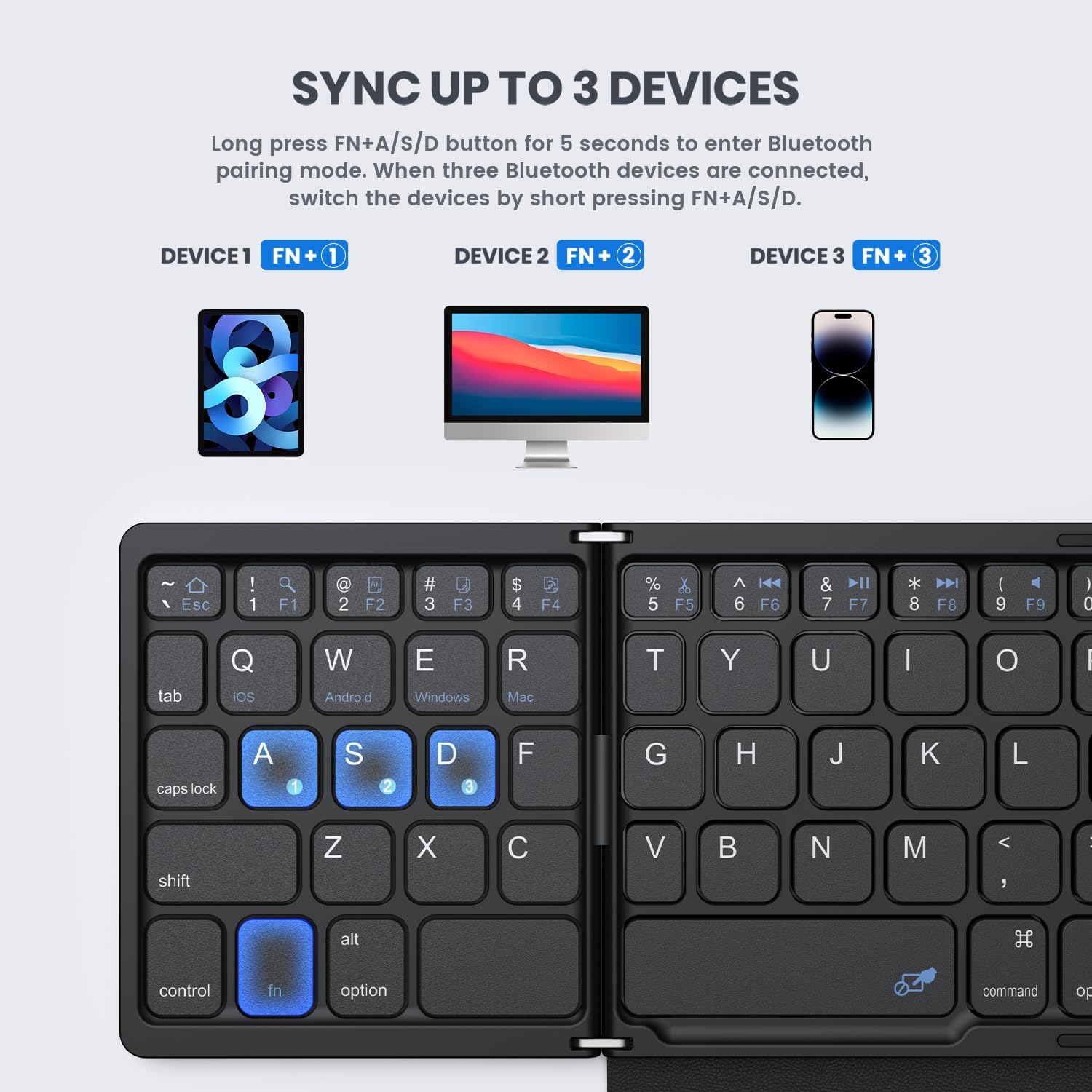
Image: Shows the FN key combinations for selecting iOS, Android, Windows, and Mac operating systems.
Operating the Keyboard
1. General Typing
The keyboard features a standard QWERTY layout with a numeric keypad for efficient data entry. The low-profile keys provide a comfortable and quiet typing experience.

Image: Close-up view of the keyboard keys, highlighting their low-profile design for comfortable typing.
2. Touchpad Usage
The integrated large touchpad allows for precise navigation without the need for an external mouse. It supports various multi-finger gestures for enhanced productivity.

Image: Illustration of the large touchpad with designated left and right click areas, emphasizing its sensitivity.
Note: The touchpad does NOT work with systems below iOS 13.
3. Multi-Device Switching
To switch between previously paired devices (Channel 1, 2, or 3), simply short press the corresponding FN + A, FN + S, or FN + D button. The keyboard will automatically connect to the selected device.

Image: Depicts the keyboard connecting to three different devices (tablet, PC, smartphone) using the FN+A/S/D keys.
4. Touchpad Lock/Unlock
To prevent accidental touches on the touchpad while typing, you can lock or unlock it by pressing FN + Spacebar.
Video: Shows how to lock and unlock the touchpad using the FN + Spacebar combination.
Maintenance
1. Cleaning
To clean the keyboard, gently wipe the surface with a soft, damp cloth. Avoid using harsh chemicals or abrasive materials that could damage the finish or keys. Ensure the keyboard is powered off before cleaning.
2. Storage
When not in use, fold the keyboard to protect it. The magnetic closure will keep it securely closed. Store it in a cool, dry place away from direct sunlight and extreme temperatures.

Image: Close-up of the keyboard's magnetic closure, demonstrating how it keeps the device securely folded.
Troubleshooting
- Keyboard not pairing/connecting:
- Ensure the keyboard is fully charged.
- Verify Bluetooth is enabled on your device.
- Make sure you are holding the FN + A/S/D button for the required 5 seconds to enter pairing mode.
- Try forgetting the device on your host system's Bluetooth settings and re-pairing.
- Ensure the keyboard is within the effective connection distance of 33 feet (10 meters).
- Touchpad not working:
- Ensure the touchpad is not locked (press FN + Spacebar to toggle).
- If using an iOS device, ensure your system is iOS 13 or higher, as the touchpad is not compatible with older versions.
- Check if the assistive touch feature is enabled on your iPhone settings for touchpad functionality.
- Keys not responding or typing incorrectly:
- Confirm the correct operating system is selected (FN + Q/W/E/R).
- Recharge the keyboard if the battery is low.
- Restart both the keyboard and the connected device.
Specifications
| Feature | Detail |
|---|---|
| Product Dimensions (Folded) | 5.98 x 3.94 x 0.79 inches |
| Item Weight | 11.7 ounces |
| Connectivity Technology | Bluetooth |
| Compatible Devices | Laptop, Tablet, Smartphone (iOS, Android, Windows, Mac) |
| Battery Type | 1 Lithium Ion battery (included) |
| Battery Life (Continuous Use) | Up to 50 hours |
| Charging Time | Approx. 2 hours |
| Number of Keys | 81 |
| Special Features | Portable, Ergonomic, Foldable, Rechargeable, Touchpad, Numeric Keypad |
Warranty and Support
GEODMAER offers superior after-sales support for its products. If you encounter any issues or have questions regarding your Foldable Bluetooth Keyboard, please contact our support team. Our team is available to provide prompt resolutions within 12 hours.
For further assistance, please visit the official GEODMAER store or contact customer service through your purchase platform.
Please retain your proof of purchase for warranty claims.