
1. Introduction
The Aiwa AWS600BT is a portable True Wireless Bluetooth Speaker designed for high-quality audio on the go. It features RGB lighting, water resistance, FM radio, and voice assistant compatibility, making it suitable for various environments from the beach to your home. This manual provides essential information for setting up, operating, and maintaining your speaker.
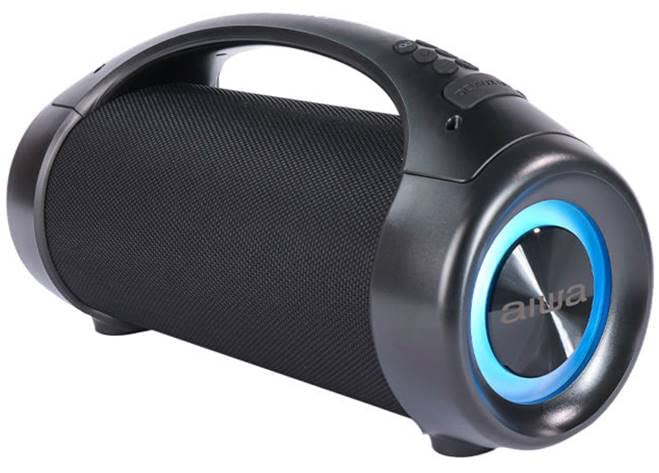
Image: Front view of the Aiwa AWS600BT speaker, showcasing its design and illuminated ring.
2. Product Features
- True Wireless Stereo (TWS): Connect two AWS600BT speakers for a stereo sound experience.
- Portable Design: Compact size (35.3 cm x 14.5 cm x 18.8 cm) with a convenient handle.
- Rechargeable Battery: Built-in 7.4V 3600mAh battery providing up to 2 hours of usage at maximum volume.
- Water Resistant: IPX5 rating for protection against splashing water.
- RGB Lighting: Dynamic LED lighting for an enhanced audio-visual experience.
- Bluetooth Connectivity: Seamless wireless audio streaming.
- Voice Control: Compatible with Google Assistant and other voice control features.
- FM Radio: Built-in FM tuner for radio broadcasts.
- Powerful Audio Output: Two 3-inch speakers with 25W x 2 output.

Image: Visual representation of the speaker's various connectivity and feature compatibilities.
3. Package Contents
Please check the package for the following items:
- Aiwa AWS600BT Bluetooth Speaker
- USB Charging Cable
- User Manual
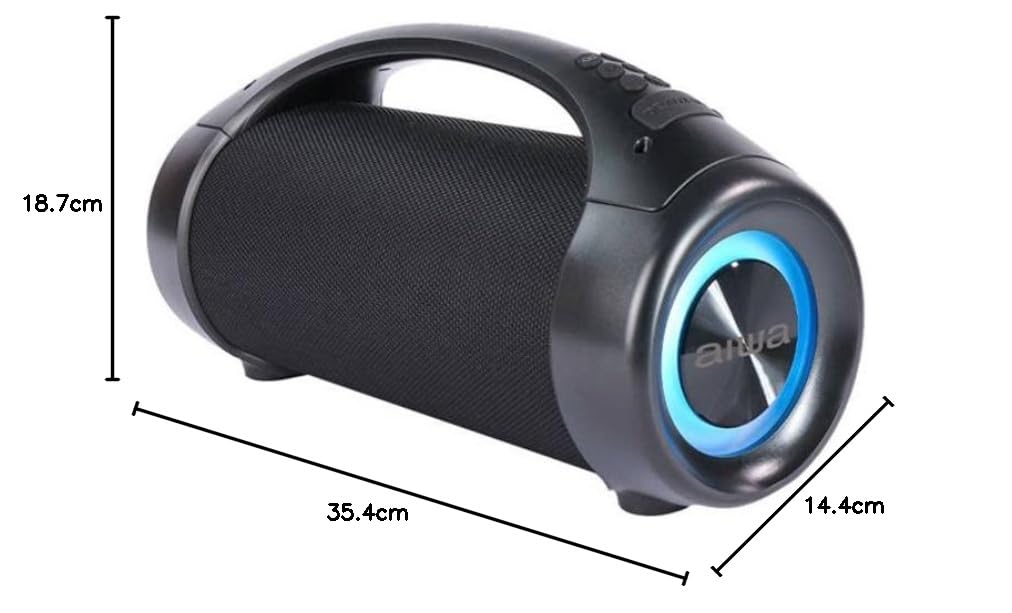
Image: Packaging of the Aiwa AWS600BT speaker, showing the product box.
4. Setup
4.1 Charging the Speaker
Before first use, fully charge the speaker. Connect the provided USB charging cable to the speaker's charging port and the other end to a USB power adapter (not included) or a computer's USB port. The charging indicator light will show the charging status.

Image: Close-up of the speaker's side, highlighting the charging port and control panel.
A full charge provides approximately 2 hours of playback at maximum volume. For optimal battery life, avoid completely draining the battery before recharging.
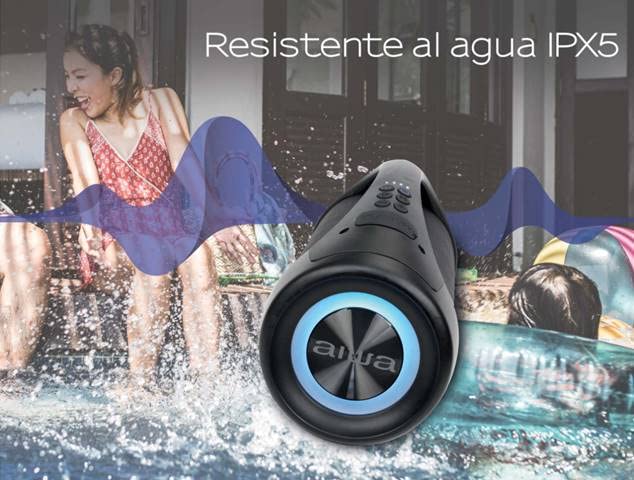
Image: Illustration emphasizing the 3600 mAh rechargeable battery capacity.
4.2 Powering On/Off
- To power on, press and hold the Power button until the speaker activates.
- To power off, press and hold the Power button again until the speaker shuts down.
4.3 Bluetooth Pairing
To connect your speaker to a Bluetooth device:
- Ensure the speaker is powered on and in Bluetooth pairing mode (indicated by a flashing blue light).
- On your device (smartphone, tablet, etc.), enable Bluetooth and search for available devices.
- Select "AWS600BT" from the list of found devices.
- Once connected, the speaker will emit a confirmation sound, and the blue light will become solid.
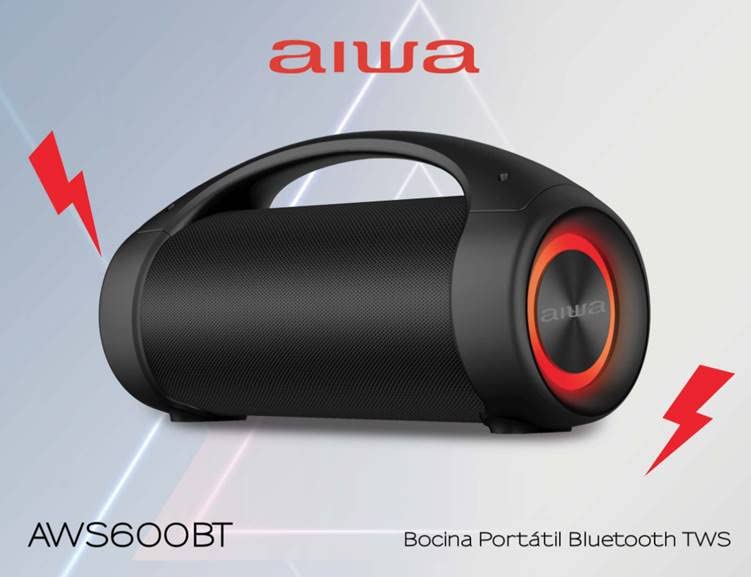
Image: The speaker displaying its blue light, signifying it is ready for Bluetooth pairing.
4.4 True Wireless Stereo (TWS) Pairing
For an immersive stereo experience, you can pair two AWS600BT speakers together:
- Ensure both AWS600BT speakers are powered on and not connected to any other Bluetooth device.
- On one speaker (this will be the primary speaker), press and hold the TWS button (refer to button layout in Operating section).
- The speakers will automatically search and pair with each other. A confirmation sound will indicate successful TWS pairing.
- Once paired, connect your device to the primary speaker via Bluetooth as described in section 4.3. Audio will now play through both speakers in stereo.
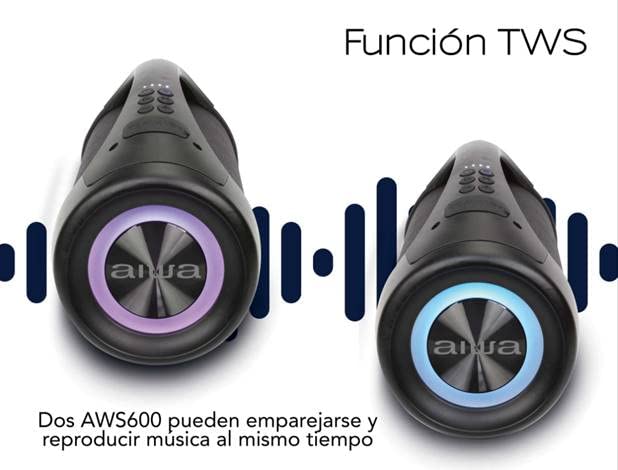
Image: Depiction of two AWS600BT speakers connected wirelessly for True Wireless Stereo (TWS) playback.
5. Operating Instructions
5.1 Control Buttons
The control buttons are located on the top panel of the speaker:
- Power Button: Press and hold to turn on/off.
- Mode Button (M): Short press to switch between Bluetooth, FM Radio, USB, and AUX modes.
- Play/Pause Button (►▮▮): Short press to play or pause music. In FM mode, short press to auto-scan stations.
- Volume Down / Previous Track (-): Short press for volume down. Long press for previous track.
- Volume Up / Next Track (+): Short press for volume up. Long press for next track.
- TWS Button: Press and hold to initiate TWS pairing (see section 4.4).
5.2 Bluetooth Playback
After successful Bluetooth pairing (Section 4.3), you can play audio from your connected device. Use the speaker's Play/Pause, Volume, and Track buttons, or control playback directly from your device.
5.3 FM Radio
To use the FM Radio function:
- Press the Mode (M) button to switch to FM Radio mode.
- Press the Play/Pause (►▮▮) button to auto-scan and save available FM stations.
- Use the Previous Track (-) and Next Track (+) buttons to navigate between saved stations.
5.4 Voice Assistant
The speaker supports voice control. Once connected via Bluetooth, you can activate your device's voice assistant (e.g., Google Assistant) by pressing a dedicated button (if available, or through a specific long-press on the Play/Pause button, refer to future detailed product documentation if needed). Speak your commands clearly.
5.5 RGB Lighting
The speaker features dynamic RGB lighting. The lighting effects typically synchronize with the music or can be set to a specific mode. Refer to the control buttons for a dedicated light mode button, if present, or a combination of button presses to change lighting.
5.6 Water Resistance (IPX5)
The AWS600BT speaker is IPX5 water resistant, meaning it can withstand splashing water from any direction. It is suitable for outdoor use and near water, but it should not be submerged in water.
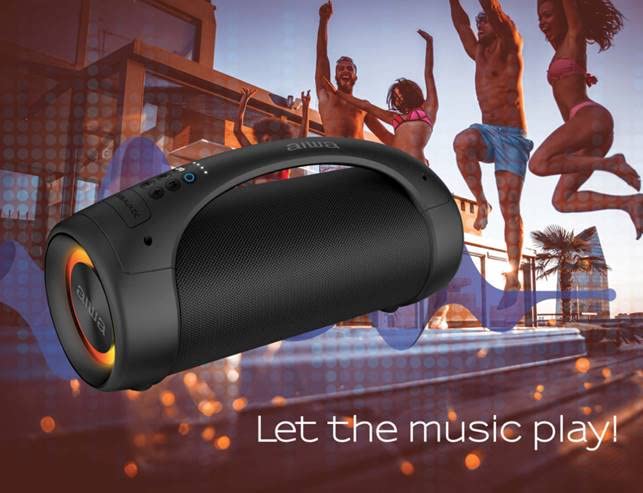
Image: The speaker demonstrating its IPX5 water resistance in a splash environment.
6. Maintenance
- Cleaning: Wipe the speaker with a soft, damp cloth. Do not use abrasive cleaners or solvents.
- Storage: Store the speaker in a cool, dry place away from direct sunlight and extreme temperatures.
- Battery Care: To prolong battery life, charge the speaker regularly, even if not in use for extended periods. Avoid fully discharging the battery frequently.
- Water Resistance: Ensure the charging port cover is securely closed when not charging to maintain water resistance.
7. Troubleshooting
| Problem | Possible Cause | Solution |
|---|---|---|
| Speaker does not turn on. | Battery is low or depleted. | Charge the speaker fully. |
| No sound from speaker. | Volume is too low; Device not connected; Incorrect mode. | Increase volume on speaker and device; Ensure Bluetooth is connected; Press Mode button to select correct input. |
| Cannot pair via Bluetooth. | Speaker not in pairing mode; Device too far; Interference. | Ensure speaker is in pairing mode (flashing blue light); Move device closer; Turn off other Bluetooth devices. |
| TWS pairing fails. | Speakers already connected to another device; Too far apart. | Disconnect speakers from any other Bluetooth devices; Place speakers close to each other during TWS pairing. |
| FM radio reception is poor. | Weak signal; Obstructions. | Relocate the speaker to an area with better signal; Extend any built-in antenna if available. |
8. Specifications
| Feature | Detail |
|---|---|
| Model Name | AWS600BT |
| Bluetooth Version | V5.0 + BR + EDR + BLE |
| Speaker Size | 3 inches x 2 |
| Speaker Output | 25W x 2, 4Ω |
| Frequency Response | 80Hz - 16KHz |
| Battery | 7.4V 3600mAh Rechargeable |
| Usage Time | Approx. 2 hours (at maximum volume) |
| Water Resistance | IPX5 |
| Product Dimensions (L x W x H) | 35.4 cm x 14.4 cm x 18.7 cm |
| Item Weight | 470 g |
| Connectivity | Bluetooth, USB, AUX, FM Radio |
| Special Features | True Wireless Stereo (TWS), RGB Lighting, Voice Control |
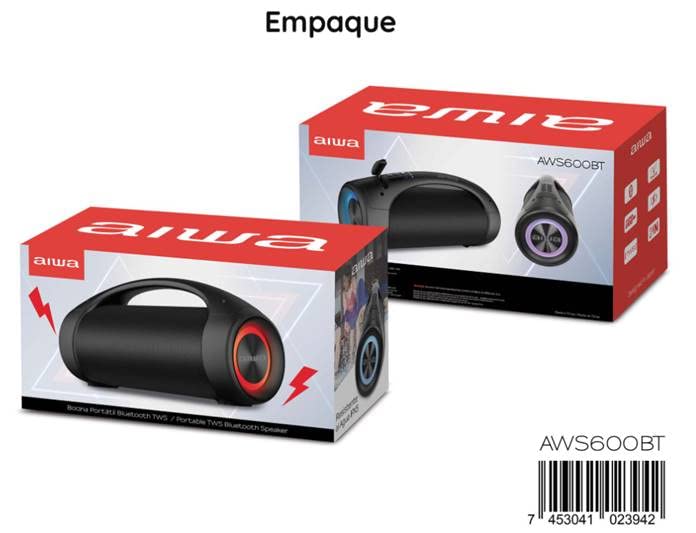
Image: Detailed technical specifications of the AWS600BT speaker.
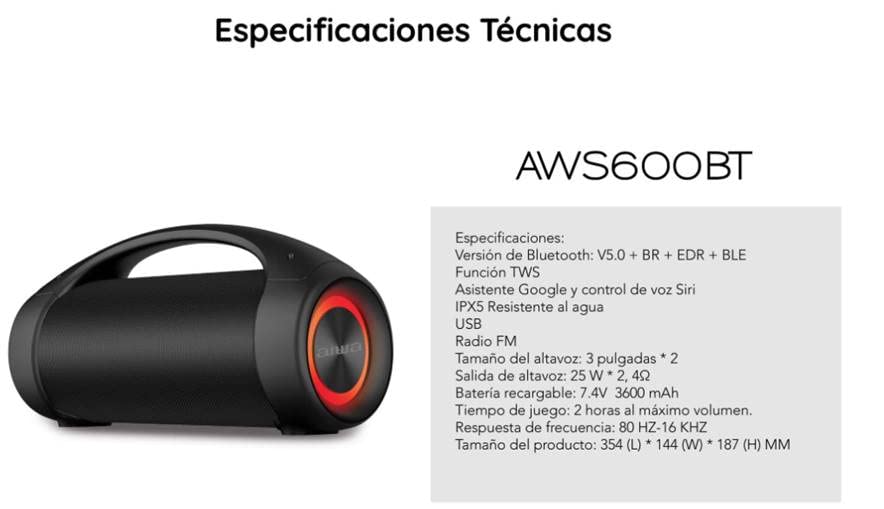
Image: Dimensional drawing of the Aiwa AWS600BT speaker.
9. Warranty and Support
The Aiwa AWS600BT speaker comes with a standard manufacturer's warranty. Please refer to the warranty card included in your package for specific terms and conditions, including warranty period and coverage details.
For technical support, troubleshooting assistance, or warranty claims, please contact Aiwa customer service through their official website or the contact information provided on your product packaging or warranty card. Please have your model number (AWS600BT) and proof of purchase ready when contacting support.