1. Introduction
The BRAIDOL Q3 Wireless HDMI Display Dongle Adapter provides a convenient solution for wirelessly extending or mirroring content from your laptop, PC, smartphone, or tablet to a larger display such as an HDTV, projector, or monitor. This device supports 4K decoding for high-definition output and utilizes 2.4/5GHz dual-frequency high-speed antennas for stable transmission and low latency. It is designed for ease of use with plug-and-play functionality, requiring no additional apps or complex setups.
2. Product Overview
The BRAIDOL Q3 is a compact and portable wireless display adapter designed to enhance your viewing experience in various settings, including conference rooms, home entertainment, and educational environments. It eliminates the need for cumbersome cables, offering a streamlined way to share your digital content.
Key Features
- 4K Decoding Support: Provides stunning 1080P high-definition output with 4K decoding capabilities.
- Wide Compatibility: Works with laptops, PCs, Blu-ray players, cameras, DVDs, tablets, and smartphones.
- Plug and Play: No apps, Bluetooth, or Wi-Fi setup required for initial connection.
- Stable Transmission: Features 2.4/5GHz dual-frequency high-speed antennas for reliable signal.
- Low Latency: Achieves an impressively low latency of 0.1 seconds for smooth streaming.
- Privacy Mode: Supports privacy mode and one-click disconnection.
- Orientation Switching: Easily switch between landscape and portrait orientations.

3. Specifications
| Feature | Detail |
|---|---|
| Model Name | Q3 |
| Product Dimensions | 7.01 x 5.55 x 1.65 inches |
| Item Weight | 6.7 ounces |
| Connectivity Technology | HDMI |
| Connector Type | HDMI |
| Resolution | 4K (decoding), 1080P (output) |
| Special Feature | Portable |
| Wireless Frequency | 2.4GHz/5GHz Dual-Band |
| Transmission Range | Up to 16 feet (5 meters) |
| Latency | 0.1 seconds |
4. Setup Guide
4.1 What's in the Box
- BRAIDOL Q3 Wireless HDMI Display Dongle Adapter
- USB Power Cable
4.2 Initial Connection
Follow these steps to set up your BRAIDOL Q3 Wireless HDMI Display Dongle Adapter:
- Connect the HDMI end of the dongle to an available HDMI input port on your display device (HDTV, monitor, or projector).
- Connect the USB power cable to the dongle and then to a 5V/2A power source. This can be a USB port on your display device (if it provides sufficient power) or a USB wall adapter (not included).
- Ensure your display device is powered on and set to the correct HDMI input source.
- The dongle will power on and display a setup screen on your display, indicating it is ready for connection.

5. Operating Instructions
The BRAIDOL Q3 supports wireless display from various operating systems. The device name will typically appear as "RENKCHIP-XXXX" with a default password of "12345678" on the initial setup screen.
5.1 Connecting from iOS Devices (iPhone, iPad)
To connect your iOS device:
- Ensure your iOS device is connected to the same Wi-Fi network as the dongle, or directly to the dongle's Wi-Fi if configured.
- Swipe down from the top-right corner (or up from the bottom for older models) to open the Control Center.
- Tap on 'Screen Mirroring' or 'AirPlay'.
- Select the device named "RENKCHIP-XXXX" from the list.
- Enter the password "12345678" if prompted. Your screen will now be mirrored.
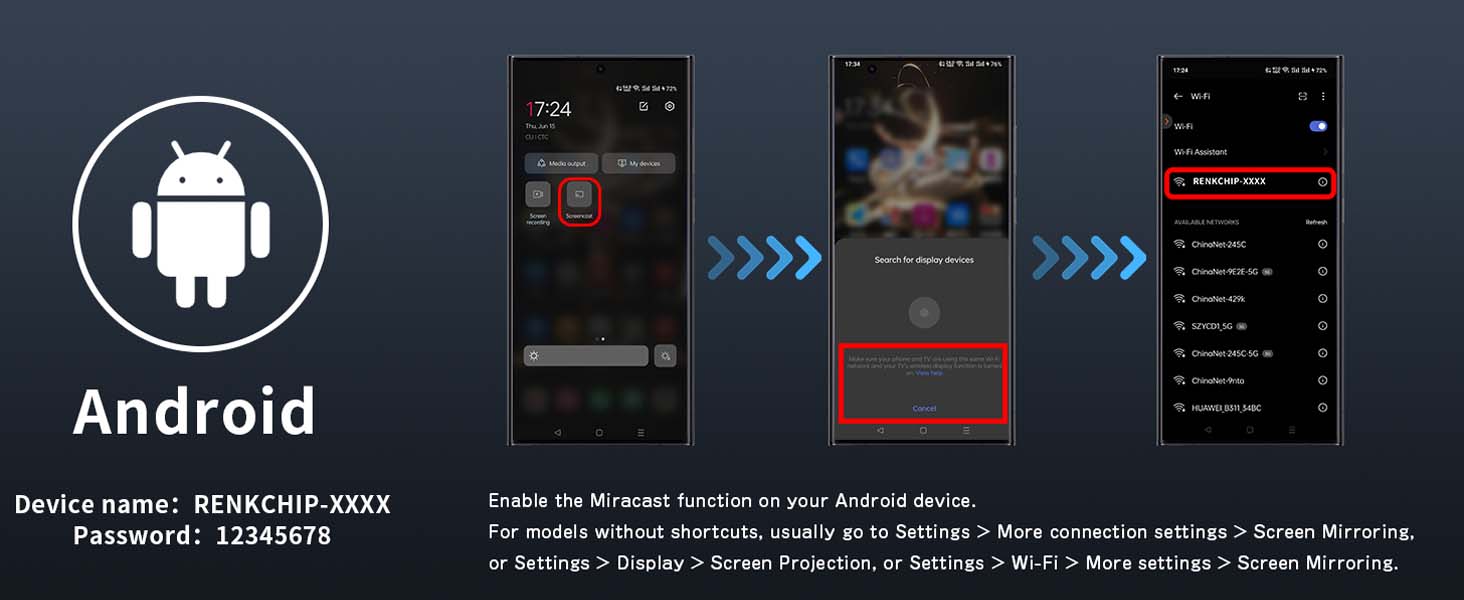
5.2 Connecting from Android Devices
To connect your Android device:
- Enable the Miracast function on your Android device. This is often found under 'Settings' > 'Connected devices' > 'Connection preferences' > 'Cast' or 'Smart View', 'Screen Mirroring', 'Wireless Display', 'Multi-screen', etc.
- Search for available display devices.
- Select the device named "RENKCHIP-XXXX" from the list.
- Enter the password "12345678" if prompted. Your screen will now be mirrored.
5.3 Connecting from Mac Devices
To connect your Mac device:
- Ensure your Mac is connected to the same Wi-Fi network as the dongle.
- Click the AirPlay icon (a rectangle with an upward-pointing arrow) in the menu bar at the top right of your screen.
- Select the device named "RENKCHIP-XXXX" from the dropdown menu.
- Enter the password "12345678" if prompted. Your Mac's display will be mirrored or extended.
5.4 Connecting from Windows Devices
To connect your Windows device:
- On your Windows 10/11 PC, press the Windows key + K shortcut to open the 'Connect' sidebar. Alternatively, go to 'Settings' > 'System' > 'Display' > 'Multiple Displays' > 'Connect to a wireless display'.
- Select the device named "RENKCHIP-XXXX" from the list of available devices.
- Enter the password "12345678" if prompted. Your screen will be displayed on the external monitor.

5.5 Dual Modes Streaming: Mirror and Extend
The dongle supports two primary display modes:
- Mirror Mode: Duplicates your device's screen onto the large display. Ideal for presentations or sharing content directly.
- Extend Mode: Extends your device's desktop, allowing you to have different content on your device and the large display simultaneously. This is useful for multitasking.
You can typically switch between these modes from your device's display settings (e.g., 'Project' menu on Windows, or display settings on Mac/Android).

6. Compatibility
6.1 Supported Applications and Platforms
The BRAIDOL Q3 is compatible with a wide range of applications and platforms for content sharing, including but not limited to:
- YouTube
- Twitch
- Safari
- Microsoft Office applications
- TikTok
- Meta platforms
- Dailymotion
6.2 Unsupported Applications (HDCP Protected Content)
Please note that the BRAIDOL Q3 Wireless HDMI Display Dongle Adapter is not compatible with certain paid applications that employ "HDCP" (High-bandwidth Digital Content Protection) video copyright protection. This is a standard industry restriction to prevent unauthorized copying of copyrighted material. Applications that typically use HDCP include:
- Netflix
- Amazon Prime Video
- Hulu
- Comcast TV
- Xfinity
- Vudu
- Sky Go
- BT Sport
- HBO GO
- DIRECTV
7. Troubleshooting
If you encounter issues with your BRAIDOL Q3, please refer to the following common problems and solutions:
- No Display on Screen:
- Ensure the dongle is properly connected to the HDMI port and receiving adequate power (5V/2A).
- Verify that your display device is set to the correct HDMI input source.
- Try connecting the dongle to a different HDMI port or display device to rule out port issues. - Unstable Connection or Lag:
- Ensure your transmitting device (laptop, phone) is within the recommended 16 feet (5 meters) range of the dongle.
- Minimize interference from other wireless devices (e.g., routers, cordless phones) by moving them further away.
- Check if your device's Wi-Fi signal is strong and stable. - Cannot Connect to the Dongle:
- Restart both your transmitting device and the dongle (by unplugging and replugging the power).
- Confirm you are selecting the correct device name ("RENKCHIP-XXXX") and entering the correct password ("12345678").
- For Android, ensure Miracast or equivalent function is enabled. For iOS/Mac, ensure AirPlay is active. - Black Screen or No Video/Audio from Certain Apps:
- This is typically due to HDCP (High-bandwidth Digital Content Protection) restrictions. As mentioned in Section 6.2, streaming services like Netflix, Amazon Prime Video, Hulu, etc., are not supported due to copyright protection. This is normal operation for the device and not a defect. - Screen Frozen or Disconnects Frequently (Windows 11):
- Some users have reported connectivity issues with newer Windows platforms. Ensure your Windows drivers are up to date. If issues persist, try restarting the dongle and your PC.
8. Maintenance
To ensure the longevity and optimal performance of your BRAIDOL Q3 Wireless HDMI Display Dongle Adapter:
- Keep the device in a dry environment and avoid exposure to moisture or extreme temperatures.
- Clean the device with a soft, dry cloth. Do not use liquid cleaners or aerosols.
- Avoid dropping or subjecting the device to strong impacts.
- Do not attempt to disassemble or repair the device yourself, as this will void the warranty.
9. Safety Information
Please read and follow these safety guidelines:
- Use only the provided USB power cable or a certified 5V/2A power adapter.
- Do not expose the device to water, fire, or high temperatures.
- Keep out of reach of children.
- Avoid placing the device near heat sources or in direct sunlight.
- If the device is damaged or malfunctions, discontinue use immediately and contact support.
10. Warranty and Support
BRAIDOL products are manufactured with a commitment to quality. This product comes with a standard manufacturer's warranty against defects in materials and workmanship under normal use. Specific warranty terms and duration may vary by region and retailer. Please retain your proof of purchase for warranty claims.
For technical support, troubleshooting assistance, or warranty inquiries, please refer to the contact information provided with your purchase or visit the official BRAIDOL website. Our support team is available to assist you with any questions or concerns regarding your Wireless HDMI Display Dongle Adapter.


