
1. Product Overview
This manual provides instructions for the SkyGive Wireless Keyboard and Mouse Combo, designed for compatibility with various operating systems including Windows and Mac. The combo features a full-size keyboard with retro round keycaps and an ergonomic mouse, connecting wirelessly via a 2.4GHz USB receiver.

Image 1.1: SkyGive Wireless Keyboard and Mouse Combo (Purple). This image displays the full-size keyboard and ergonomic mouse, along with the USB receiver, all in a purple color scheme.
2. Package Contents
- Wireless Keyboard
- Wireless Mouse
- USB Receiver (2.4GHz)
- Type-C Adapter (for use with USB Receiver)
- AA Batteries (2 included, pre-installed or separate)
- User Manual (this document)
3. Setup Instructions
3.1. Battery Installation
The keyboard and mouse require AA batteries for operation. Batteries are included with the product. If replacing, ensure correct polarity.
- Locate the battery compartment on the underside of the keyboard and mouse.
- Open the compartment cover.
- Insert the AA batteries, ensuring the positive (+) and negative (-) terminals align correctly.
- Close the battery compartment cover securely.
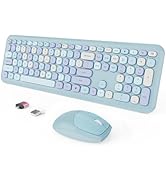
Image 3.1: Illustration of battery installation. This image shows the underside of the keyboard and mouse, highlighting the battery compartments and indicating that batteries are included.
3.2. Connecting to Your Device
The SkyGive Wireless Keyboard and Mouse Combo uses a 2.4GHz USB receiver for wireless connection. It supports both standard USB-A ports and Type-C ports via the included adapter.
- Locate the USB receiver, typically stored in the mouse's battery compartment or included separately.
- For a standard USB-A port: Plug the USB receiver directly into an available USB-A port on your computer.
- For a Type-C port: Attach the USB receiver to the included Type-C adapter, then plug the adapter into an available Type-C port on your computer.
- The keyboard and mouse are plug-and-play; no additional drivers are required. Your operating system should automatically detect and install the necessary components.
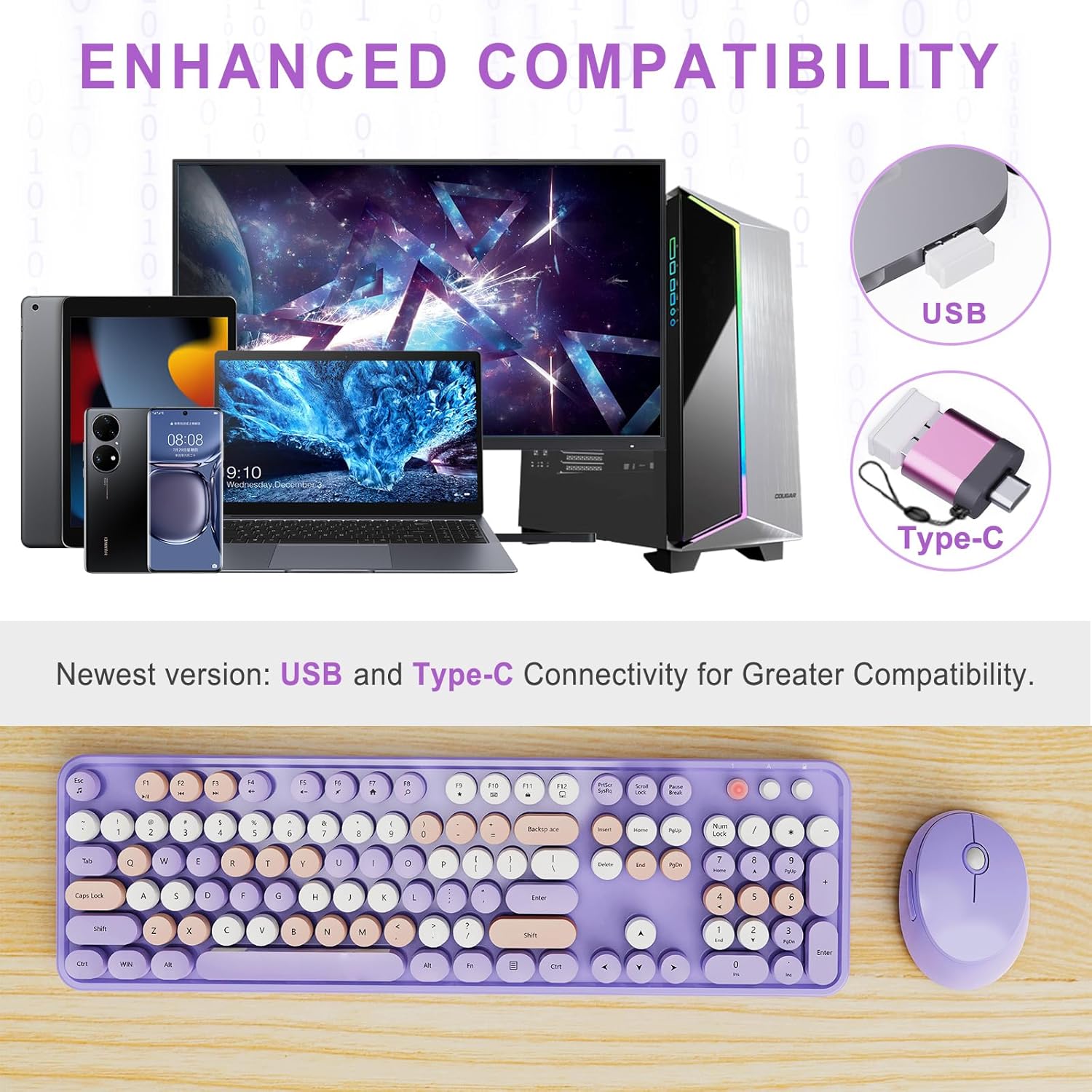
Image 3.2: Connectivity options. This image illustrates the USB receiver and the Type-C adapter, demonstrating how to connect the combo to devices with either USB-A or Type-C ports.
Image 3.3: Dual-mode connectivity. This diagram visually explains the dual-mode connectivity, showing how the USB receiver can be used directly or with a Type-C adapter for broader compatibility.
The wireless connection offers a reliable signal with a transmission distance of up to 10 meters (approximately 33 feet).
Image 3.4: Wireless range. This image illustrates the 10-meter extended range of the wireless connection, emphasizing stable signal and no lag or dropouts.
4. Operating Instructions
4.1. Keyboard Functions
The keyboard features a full-size layout with a number pad and 15 multi-functional hotkeys. These hotkeys provide quick access to common functions when used in combination with the Fn key.
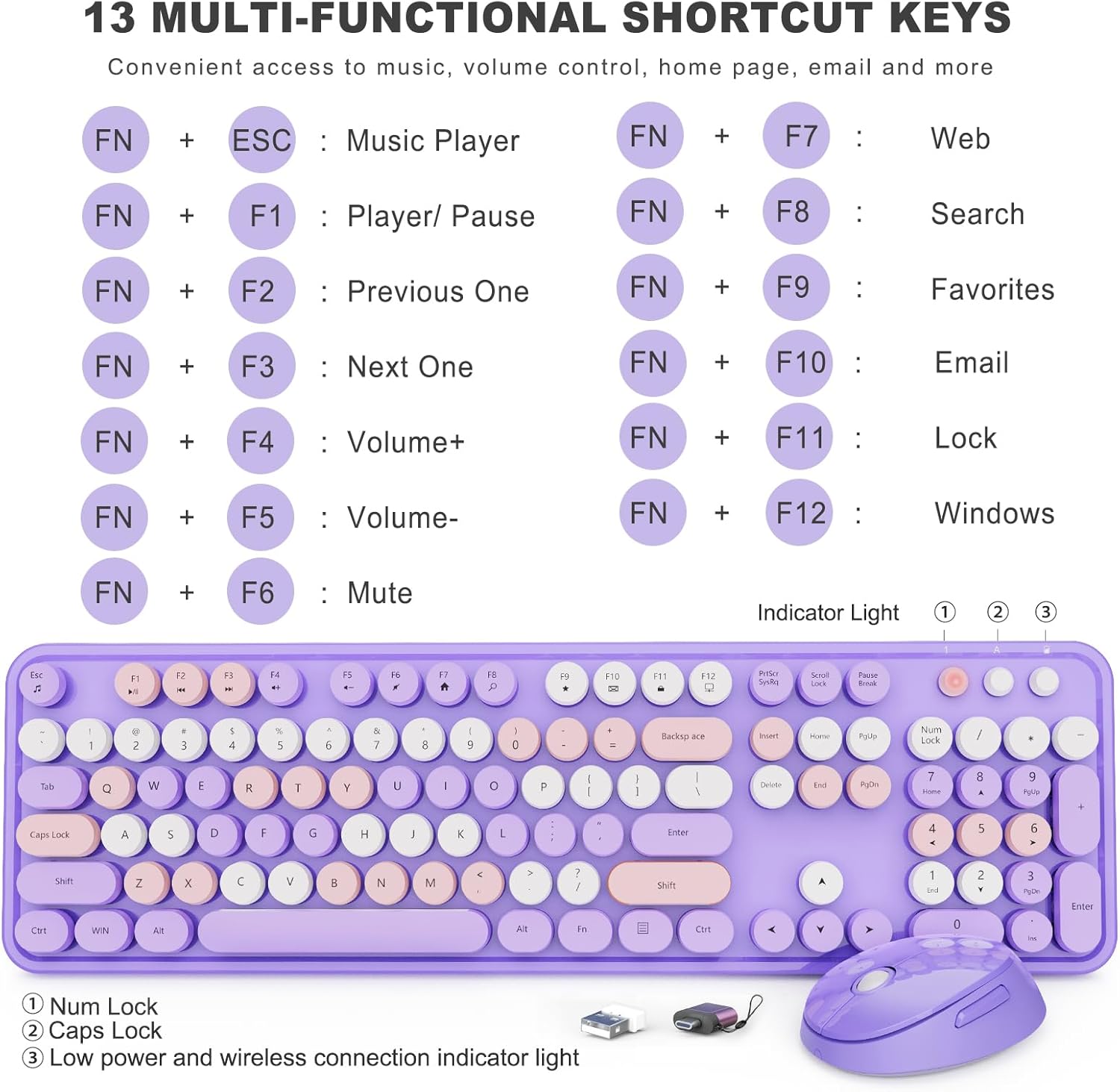
Image 4.1: Keyboard layout with hotkey functions. This diagram details the 13 multi-functional shortcut keys and their corresponding actions when pressed with the Fn key.
| Key Combination | Function |
|---|---|
| Fn + ESC | Music Player |
| Fn + F1 | Play/Pause |
| Fn + F2 | Previous Track |
| Fn + F3 | Next Track |
| Fn + F4 | Volume Up |
| Fn + F5 | Volume Down |
| Fn + F6 | Mute |
| Fn + F7 | Web Browser |
| Fn + F8 | Search |
| Fn + F9 | Favorites |
| Fn + F10 | |
| Fn + F11 | Lock Screen |
| Fn + F12 | Windows Key |
The keyboard also features indicator lights for Num Lock, Caps Lock, and low power/wireless connection status.
4.2. Mouse Functions
The ergonomic mouse provides precise tracking and comfortable use. It automatically enters a power-saving mode after 20 seconds of inactivity to conserve battery life. Move the mouse to reactivate it.
4.3. Ergonomic Design
The keyboard includes built-in foldable legs on the underside, allowing you to adjust the typing angle for improved comfort and reduced wrist strain during extended use.
Image 4.2: Keyboard with adjustable tilt. This image demonstrates the built-in foldable stands that provide an ergonomic tilt for comfortable typing.
5. Maintenance and Care
To ensure the longevity and optimal performance of your SkyGive Wireless Keyboard and Mouse Combo, follow these maintenance guidelines:
- Cleaning: Use a soft, dry cloth to wipe the surfaces of the keyboard and mouse. For deeper cleaning, the keycaps are removable.
- Keycap Removal: Gently pull the keycaps upwards to remove them for cleaning. Ensure they are re-installed correctly. The keycaps are designed to be fade-resistant.
- Battery Replacement: Replace batteries when the low power indicator light illuminates or when performance degrades. Use AA batteries.
- Storage: Store the combo in a dry environment, away from extreme temperatures and direct sunlight.

Image 5.1: Detachable keycaps. This image highlights the non-fading and easy-to-install detachable keycaps, facilitating cleaning and maintenance.
Image 5.2: Keycap cleaning. This image shows a keycap removed from the keyboard, illustrating the ease of cleaning and the fade-resistant design.
6. Troubleshooting
If you encounter issues with your SkyGive Wireless Keyboard and Mouse Combo, please refer to the following common solutions:
- No Connection:
- Ensure the USB receiver is securely plugged into a working USB port on your computer.
- Verify that the batteries in both the keyboard and mouse are correctly installed and have sufficient charge. Replace if necessary.
- Try plugging the USB receiver into a different USB port.
- Restart your computer.
- Lag or Intermittent Connection:
- Ensure the keyboard and mouse are within the 10-meter operating range of the USB receiver.
- Reduce interference by moving other wireless devices (e.g., Wi-Fi routers, cordless phones) away from the receiver.
- Replace batteries if they are low.
- Keys Not Responding:
- Check battery levels.
- Ensure the keyboard is connected (refer to 'No Connection' steps).
- Clean under the affected keycap if debris is suspected.
- Mouse Cursor Not Moving:
- Check battery levels.
- Ensure the mouse is connected (refer to 'No Connection' steps).
- Ensure the mouse is on a suitable surface; reflective or transparent surfaces may affect tracking.
7. Specifications
| Feature | Detail |
|---|---|
| Brand | SkyGive |
| Model | B0C1N645L3 |
| Color | Purple |
| Connectivity Technology | 2.4GHz Wireless (USB Receiver with Type-C Adapter) |
| Special Feature | Ergonomic Design, Retro Round Keycaps, Multi-functional Hotkeys |
| Compatible Devices | Laptop, Personal Computer (Windows XP/Vista/7/8/10/X, Mac, etc.) |
| Keyboard Dimensions | Approx. 17.68 x 8.86 x 1.85 inches (Package Dimensions) |
| Item Weight | 0.634 ounces (for the combo) |
| Batteries | 2 AA batteries required (included) |
| Wireless Range | Up to 10 meters (33 feet) |
| Power Saving | Automatic sleep mode for mouse after 20 seconds of inactivity |
Image 7.1: Keyboard and mouse dimensions. This image provides a visual representation of the keyboard and mouse dimensions, including the 17-inch keyboard length and 4.1-inch mouse length.
8. Warranty and Support
SkyGive offers the following warranty and support for this product:
- Return Policy: 30-day hassle-free return policy.
- Warranty: One-year warranty from the date of purchase.
- Customer Service: 24/7 prompt and friendly customer service.
- USB Connector Replacement: If the USB connector is broken, a new USB connector can be re-sent for free.
For support inquiries, please contact SkyGive customer service through the retailer where the product was purchased or visit the official SkyGive website.

Image 8.1: SkyGive customer support. This image depicts a customer service team, representing the 24/7 quick response and comprehensive support available.
9. Important Safety Information
- Do not expose the product to liquids or extreme temperatures.
- Avoid dropping or subjecting the product to strong impacts.
- Do not attempt to disassemble or repair the product yourself. Contact support for assistance.
- Dispose of batteries according to local regulations.
10. Video Resources
No official product videos from the seller were found that meet the criteria for inclusion in this manual.