
1. Introduction
The Zyxel SCR 50AXE is a secure cloud-managed router designed to provide robust and reliable network connectivity with integrated security features. This device offers AXE5400 Tri-Band WiFi, ensuring high-speed wireless performance across multiple bands. It is ideal for small office and small branch environments requiring advanced network management and protection without subscription fees.
This manual provides essential information for setting up, operating, maintaining, and troubleshooting your Zyxel SCR 50AXE router.
2. What's in the Box
Verify that all items are present in the package:
- SCR 50AXE Wireless Router
- 1 x Power Adapter
- 1 x RJ-45 Ethernet Cable
- 1 x Standing Kit
- DoC and Safety Warning

Figure 1: Front view of the Zyxel SCR 50AXE router on its stand.
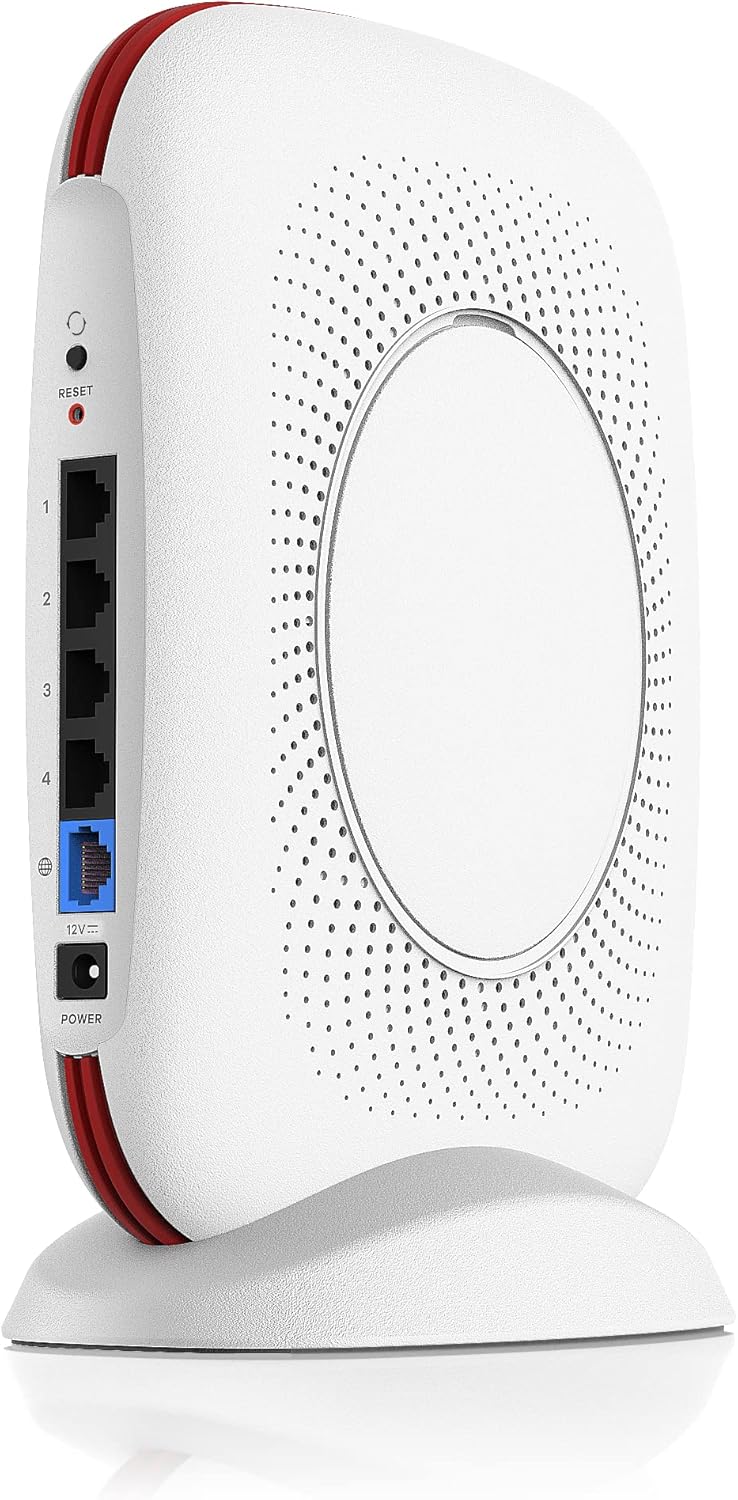
Figure 2: Rear view of the Zyxel SCR 50AXE router, highlighting the various ports and the reset button.
3. Setup Instructions
Follow these steps to set up your Zyxel SCR 50AXE router:
- Connect the Modem: Connect your internet modem to the WAN port (blue) on the back of the Zyxel SCR 50AXE router using the provided RJ-45 Ethernet cable.
- Power On: Connect the power adapter to the router's 12V DC input and plug it into a power outlet. Press the On/Off button to power on the router.
- Initial Configuration (Nebula App): Download the Zyxel Nebula app on your smartphone or tablet. The app provides an intuitive interface for easy onboarding and initial configuration of your router. Follow the on-screen instructions within the app to set up your Wi-Fi network name (SSID) and password.
- Connect Devices: Once configured, connect your wireless devices (laptops, smartphones, etc.) to the newly created Wi-Fi network. For wired devices, use the available Gigabit LAN ports (yellow) on the router.

Figure 3: Detailed view of the Zyxel SCR 50AXE router's rear panel, showing the WAN and LAN ports for network connections.

Figure 4: A mobile phone screen displaying the Zyxel Nebula app, guiding a user through the initial setup of the SCR 50AXE router.
Video 1: An official Zyxel video explaining the functionality and setup of the SCR 50AXE router.
4. Operating Instructions
4.1. Tri-Band WiFi 6E Connectivity
The SCR 50AXE supports AXE5400 Tri-Band WiFi 6E, utilizing 2.4 GHz, 5 GHz, and 6 GHz frequency bands. This allows for faster speeds, lower latency, and increased capacity for multiple devices. The router can set a unified Wi-Fi name for the entire network, simplifying connection management.
4.2. Subscription-Free Network Security
The router includes built-in, subscription-free network security features. You can access security status and analytics through an informative dashboard via the Nebula app, ensuring your network and connected devices are protected.
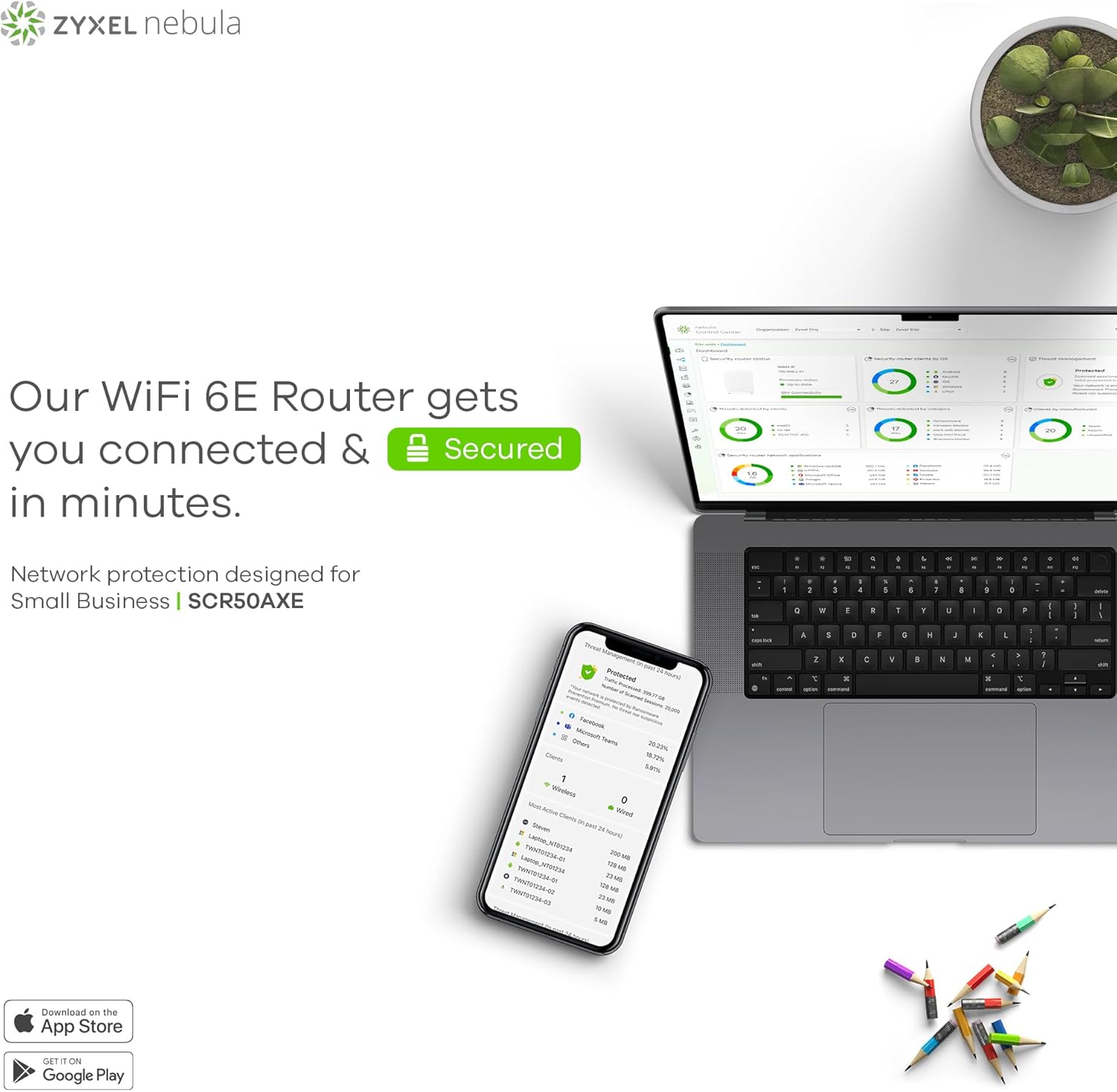
Figure 5: The Zyxel Nebula app interface on a smartphone, showing network security status and analytics provided by the SCR 50AXE router.
4.3. Wired Connectivity
The SCR 50AXE is equipped with four Gigabit Ethernet (GbE) ports, allowing for high-speed wired connections to devices such as desktop computers, network-attached storage (NAS), or other network infrastructure.
4.4. Cloud Management via Nebula App
Manage and monitor your network from anywhere using the Zyxel Nebula app. This cloud-based management system provides real-time insights into network performance, security events, and connected devices.

Figure 6: The Zyxel SCR 50AXE router positioned in an office environment, demonstrating its capability for secure site-to-site network connectivity.

Figure 7: The Zyxel SCR 50AXE router in an office setting, symbolizing its provision of superfast WiFi connectivity for multiple users.
5. Maintenance
To ensure optimal performance and longevity of your Zyxel SCR 50AXE router, consider the following maintenance tips:
- Firmware Updates: Regularly check for and install firmware updates through the Nebula app or Zyxel's official website. Updates often include performance improvements, security patches, and new features.
- Proper Placement: Place the router in a central location, away from obstructions and sources of interference (e.g., microwaves, cordless phones) to maximize Wi-Fi coverage and signal strength.
- Ventilation: Ensure the router has adequate ventilation to prevent overheating. Do not cover the ventilation holes.
- Regular Reboot: Periodically reboot the router (e.g., once a month) to clear its memory and refresh network connections, which can resolve minor performance issues.
- Cleanliness: Keep the router free from dust and debris. Use a soft, dry cloth for cleaning.
6. Troubleshooting
If you encounter issues with your Zyxel SCR 50AXE router, try the following steps:
- No Internet Connection:
- Check if your modem is working correctly.
- Ensure the Ethernet cable between the modem and the router's WAN port is securely connected.
- Reboot both your modem and the router.
- Slow Wi-Fi Speed:
- Relocate the router to a more central position, away from obstacles and interference.
- Ensure your devices are connected to the appropriate Wi-Fi band (5 GHz or 6 GHz for faster speeds, 2.4 GHz for better range).
- Check for firmware updates.
- Cannot Access Router Settings:
- Ensure your device is connected to the router's Wi-Fi or via an Ethernet cable.
- Try accessing the router via the Zyxel Nebula app.
- If necessary, perform a factory reset (refer to the 'Reset' button on the rear of the device, usually requiring a paperclip press for 10 seconds).
7. Specifications
| Feature | Detail |
|---|---|
| Brand | ZYXEL |
| Model Name | SCR 50AXE Wireless Router |
| Wireless Type | 802.11ax (WiFi 6E) |
| Frequency Band Class | Tri-Band |
| Connectivity Technology | Ethernet, Wi-Fi |
| Ports | 4 x GbE ports |
| Antenna Type | Internal |
| Operating System | ZyNOS |
| Item Weight | 2.4 pounds |
| Product Dimensions | 7 x 2.1 x 9.5 inches |
8. Warranty and Support
For warranty information, please refer to the documentation included in your product package or visit the official Zyxel website. For technical support, troubleshooting assistance, or to register your product, please visit the Zyxel support portal or contact their customer service.
You can find more information and resources on the official Zyxel website: www.zyxel.com