
Introduction
This manual provides essential information for setting up, operating, and maintaining your GEEKOM Mini PC AS5. Please read these instructions carefully before using the device to ensure optimal performance and longevity. The GEEKOM Mini PC AS5 is a compact and powerful computing solution designed for various applications, from home entertainment to professional tasks.
Package Contents
Before proceeding with the setup, please verify that all items listed below are included in your package:
- GEEKOM Mini PC AS5
- Power Adapter
- VESA Mount (with screws)
- SSD Mounting Screws
- HDD Mounting Screws
- Quick Guide
- User Manual (this document)
- USB-C to USB-C Cable

Figure 1: Contents of the GEEKOM Mini PC AS5 package.
Setup Guide
1. Connecting Peripherals
Connect your monitor, keyboard, and mouse to the GEEKOM Mini PC AS5. Refer to the port diagram below for correct connections.
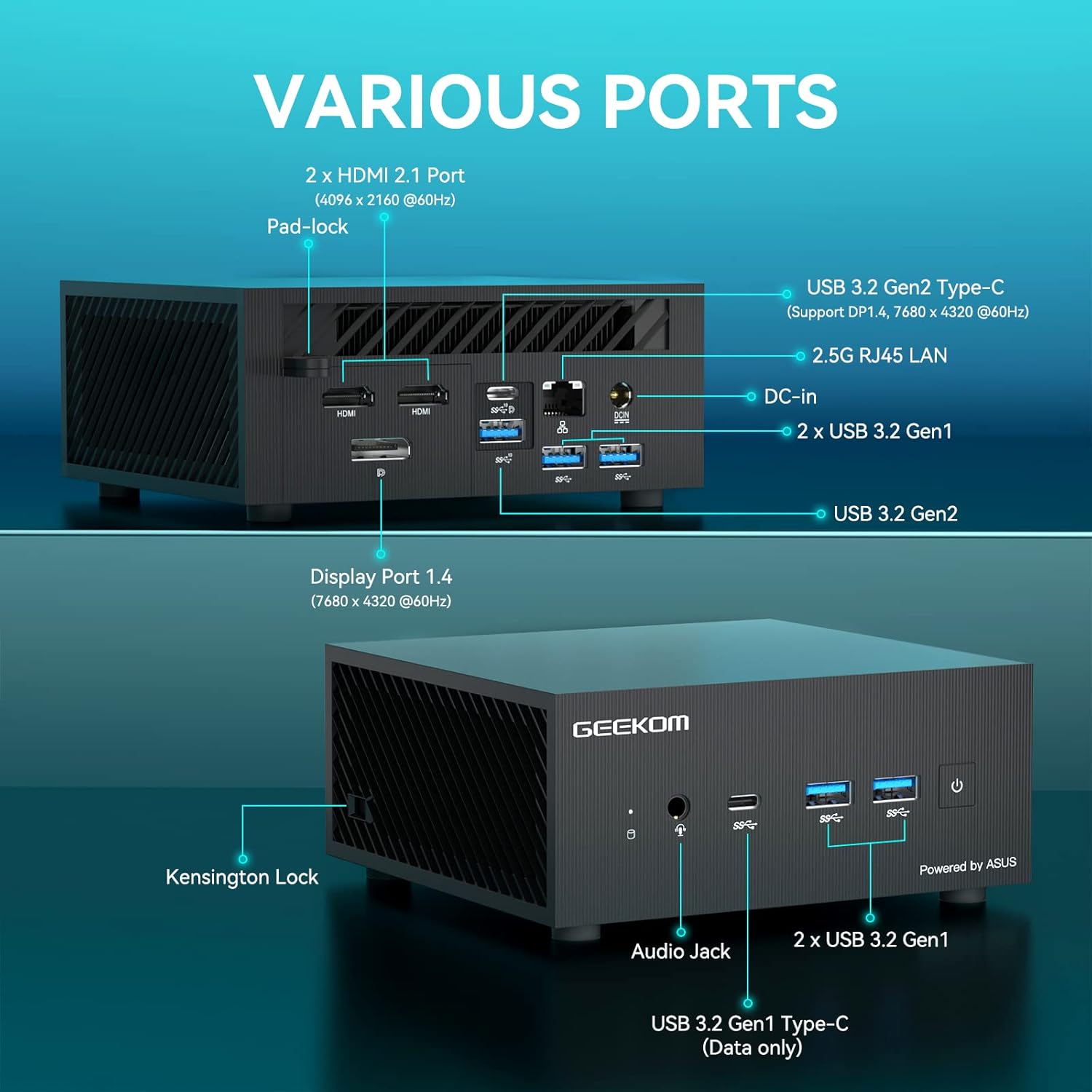
Figure 2: Overview of available ports on the GEEKOM Mini PC AS5.
- Display Connection: Use an HDMI cable to connect your monitor to one of the two HDMI 2.1 ports, or a DisplayPort cable to the Display Port 1.4. The USB 3.2 Gen2 Type-C port also supports DisplayPort 1.4 for video output.
- USB Devices: Connect your keyboard, mouse, and other USB devices to the available USB 3.2 Gen1 and Gen2 ports.
- Network Connection: For a wired network connection, connect an Ethernet cable to the 2.5G RJ45 LAN port. For wireless, ensure your Wi-Fi network is available.
- Audio: Connect headphones or speakers to the Audio Jack.
2. Power Connection
Connect the power adapter to the DC-In port on the Mini PC, then plug the power adapter into a wall outlet.
3. Initial Power On
Press the power button located on the front of the Mini PC. The system will boot up, and you will see the operating system loading on your connected display.
4. Operating System Setup
Follow the on-screen instructions to complete the initial setup of Windows 10 Pro, including language selection, network configuration, and user account creation.
Operating Instructions
Basic Operation
- Power On/Off: Press the power button to turn the device on. To turn off, use the Windows shutdown option or press and hold the power button for 5 seconds.
- Restart: Use the restart option within the Windows operating system.
- Sleep Mode: The system will enter sleep mode after a period of inactivity. Press any key or move the mouse to wake it up.
Display Configuration
The GEEKOM Mini PC AS5 supports multiple displays, including up to four 4K displays or ultra-realistic 8K visuals.

Figure 3: The GEEKOM Mini PC AS5 supports ultra-realistic 8K visuals.

Figure 4: Multitasking across four 4K displays with the GEEKOM Mini PC AS5.
To configure multiple displays, right-click on the desktop, select "Display settings," and arrange your monitors as desired.
Network Connectivity (Wi-Fi 6E)
The Mini PC supports Wi-Fi 6E, offering enhanced wireless performance. To connect to a Wi-Fi network:

Figure 5: GEEKOM Mini PC AS5 featuring Wi-Fi 6E support for faster, lower-latency wireless connectivity.
- Click the Wi-Fi icon in the system tray.
- Select your desired network from the list.
- Enter the network password if prompted.
- Click "Connect."
Maintenance
Cleaning
- Ensure the device is powered off and unplugged before cleaning.
- Use a soft, dry cloth to wipe the exterior of the Mini PC.
- For stubborn marks, lightly dampen the cloth with water. Avoid harsh chemicals or abrasive cleaners.
- Keep ventilation openings clear of dust and debris using compressed air.
Software Updates
Regularly update your Windows operating system and drivers to ensure optimal performance and security. You can check for updates via Windows Update settings.
Storage Management
Periodically check your storage usage and remove unnecessary files to maintain system speed. The Mini PC supports additional storage expansion (SSD/HDD) if needed.
Troubleshooting
- No Power:
- Ensure the power adapter is securely connected to both the Mini PC and a working power outlet.
- Verify the power outlet is functional by plugging in another device.
- No Display:
- Check that the monitor is powered on and the correct input source is selected.
- Ensure the HDMI or DisplayPort cable is securely connected to both the Mini PC and the monitor.
- Try a different cable or monitor if possible.
- No Internet Connection:
- For wired connections, check the Ethernet cable and router status.
- For Wi-Fi, ensure Wi-Fi is enabled in Windows settings and you are connected to the correct network with the correct password.
- Restart your router and the Mini PC.
- System Slowdown:
- Close unnecessary applications running in the background.
- Check for and install any pending Windows updates.
- Run a disk cleanup and defragmentation (for HDDs) or TRIM (for SSDs).
- Scan for malware or viruses.
Specifications
| Model Name | AS5 |
| Processor | AMD Ryzen™ 9 5900HX (8 Cores, 16 Threads, Max Turbo Frequency 4.60 GHz, 16MB Cache, cTDP 35W) |
| Operating System | Windows 10 Pro |
| RAM | 32 GB DDR4 SDRAM |
| Storage | 1 TB (PCIE x 2 interface) |
| Graphics | AMD Radeon™ Vega 8 Graphics (supports 8K visuals) |
| Wireless Connectivity | Wi-Fi 6E |
| Ports |
|
| Dimensions | 13 x 12 x 5.8 cm |

Figure 6: AMD Ryzen™ 9 5900HX Processor details.
Warranty & Support
Warranty Information
GEEKOM products typically come with a standard manufacturer's warranty. Please refer to the warranty card included in your package or visit the official GEEKOM website for detailed warranty terms and conditions specific to your region and purchase date. Keep your proof of purchase for warranty claims.
Customer Support
For technical assistance, troubleshooting beyond this manual, or warranty inquiries, please contact GEEKOM customer support. You can usually find contact information on the official GEEKOM website or in the quick guide provided with your product.
GEEKOM Official Website: www.geekompc.com


