
KEDIERS C770
KEDIERS C770 Micro-ATX PC Case User Manual
Model: C770 | Brand: KEDIERS
1. Introduction
Thank you for choosing the KEDIERS C770 PC Case. This manual provides essential information for setting up, operating, and maintaining your new PC case. The C770 is a Micro-ATX mid-tower case designed for optimal airflow and aesthetic appeal, featuring pre-installed ARGB fans and durable tempered glass panels.

Figure 1: KEDIERS C770 PC Case, showcasing its internal layout and pre-installed ARGB fans.
Key Features:
- Pre-installed PWM ARGB Fans: Comes with four pre-installed PWM ARGB fans for efficient cooling and customizable lighting.
- Tempered Glass Panels: Features two 4mm thick tempered glass panels for a clear view of internal components and RGB lighting effects.
- Optimized Airflow: Designed for high-airflow with strategic fan placement and mesh panels.
- Versatile I/O Panel: Includes 2x USB 2.0, 1x USB 3.0, 1x HD Audio port, reset button, and power button.
- Storage Support: Accommodates 1x 3.5'' HDD and 1x 2.5'' SSD.
- Motherboard Compatibility: Supports Micro-ATX and Mini-ITX motherboards.
2. Setup Guide
Follow these steps to set up your KEDIERS C770 PC case and install your components.
2.1 Unpacking and Inspection
- Carefully remove the PC case from its packaging.
- Inspect the case for any signs of damage during transit.
- Verify all accessories are present (screws, cable ties, etc.).
2.2 Component Installation
The KEDIERS C770 features a dual-chamber design for easy building and component display.

Figure 2: Panoramic view of the KEDIERS C770 PC case, highlighting its dual-chamber design.
2.2.1 Motherboard Installation
- Remove the side tempered glass panel by unscrewing the thumb screws.
- Install the I/O shield into the motherboard cutout at the rear of the case.
- Align your Micro-ATX or Mini-ITX motherboard with the standoffs inside the case.
- Secure the motherboard with the provided screws.
- Note: For some ATX motherboards, you may need to remove the two side fans to fit the board.
2.2.2 Drive Installation (SSD/HDD)
The case supports one 3.5-inch HDD and one 2.5-inch SSD.

Figure 3: Internal layout showing maximum component dimensions and drive bay locations.
- Locate the drive mounting brackets/trays in the rear chamber of the case.
- Secure your 2.5-inch SSD or 3.5-inch HDD to the appropriate tray using screws.
- Slide the tray back into its designated slot until it clicks into place.
2.2.3 Power Supply Unit (PSU) Installation
The C770 supports standard ATX power supplies, mounted at the bottom.

Figure 4: Rear view illustrating the optimized power supply ventilation design.
- Slide your ATX PSU into the dedicated compartment at the bottom rear of the case.
- Secure the PSU with screws from the rear of the case.
2.2.4 Graphics Card and Other Component Installation
The case offers ample room for graphics cards up to 320mm long.

Figure 5: Fan and radiator support configurations for the KEDIERS C770 PC case.
- Install your graphics card into the appropriate PCIe slot on the motherboard and secure it.
- Install any additional components such as CPU coolers (max height 150mm) or expansion cards.
2.2.5 Front I/O Panel Connections
Connect the front panel cables to your motherboard.

Figure 6: Detailed view of the multi-function I/O panel and USB port usage instructions.
- Connect the USB 3.0, USB 2.0, HD Audio, Power SW, Reset SW, Power LED, and HDD LED cables from the case to the corresponding headers on your motherboard.
- Important: USB ports are primarily for data transfer and are not recommended for power charging, as most motherboard USB ports support a maximum voltage of 5V.
2.2.6 Cable Management
Utilize the cable routing cutouts and tie-down points in the rear chamber to manage cables neatly. This improves airflow and aesthetics.

Figure 7: Illustration of ARGB lighting synchronization and the daisy chain design for easy installation.
- The PWM ARGB interface is connected by a daisy chain to reduce cable management difficulty.
- Please confirm your computer motherboard has a 5V-3pin RGB interface for ARGB sync.
3. Operating Instructions
3.1 Powering On/Off
- Press the Power Button on the front I/O panel to turn on your PC.
- To turn off, use the operating system's shutdown function or press and hold the Power Button for a few seconds.
- The Reset Button can be used to restart the system.
3.2 ARGB Fan Control
The pre-installed PWM ARGB fans can be controlled via your PC's software if connected to a compatible +5V ARGB motherboard header.
- Connect the ARGB fan cables to the +5V ARGB header on your motherboard.
- Use your motherboard's RGB control software (e.g., ASUS Aura Sync, MSI Mystic Light Sync, Gigabyte RGB Fusion) to customize lighting effects and fan speeds.
- If a controller is included (check your specific package contents), you may use it to cycle through lighting modes and adjust fan speeds without software.
4. Maintenance
Regular maintenance helps ensure optimal performance and longevity of your PC components.
4.1 Dust Filter Cleaning
The KEDIERS C770 features magnetic dust filters for superior dust protection.
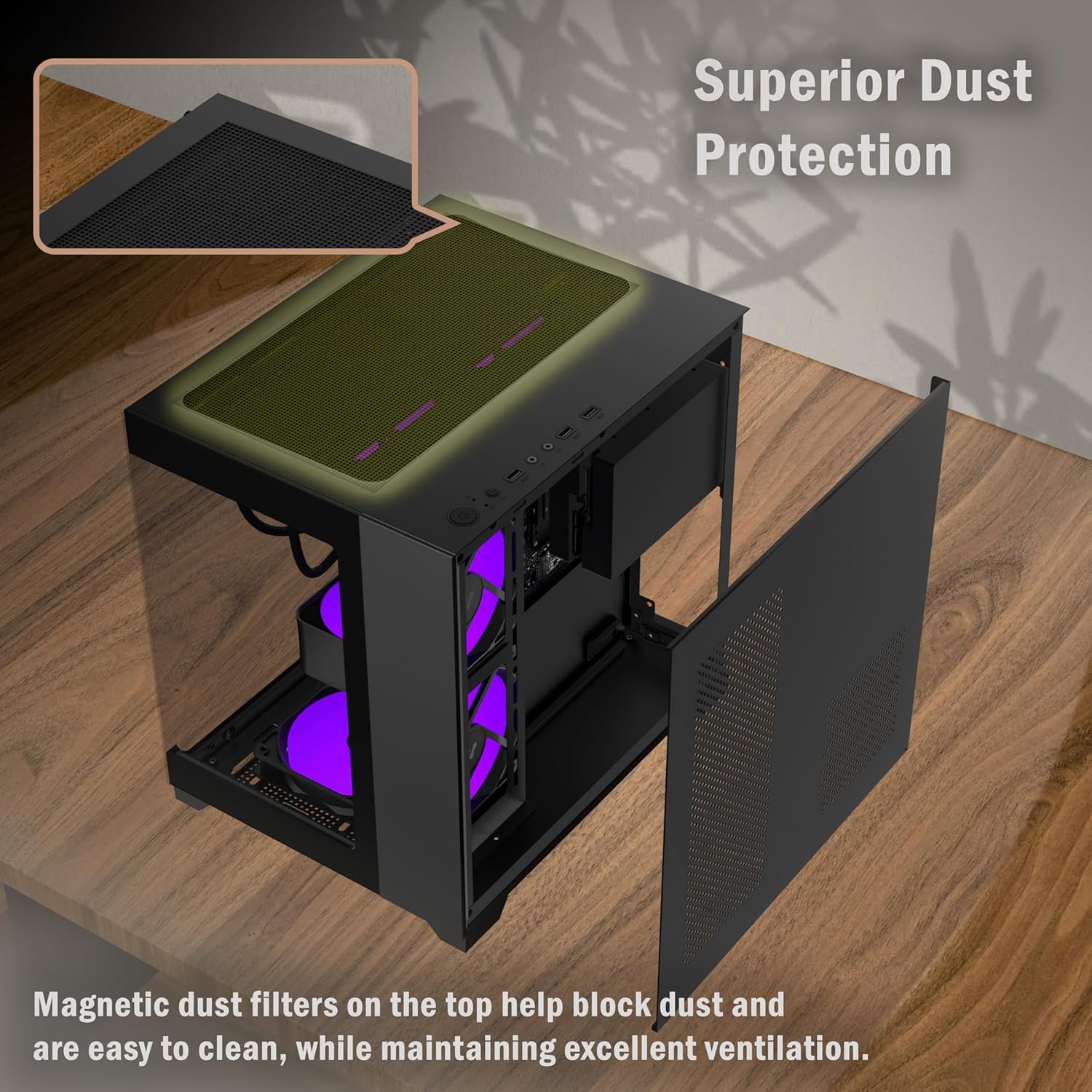
Figure 8: Top magnetic dust filter, easily removable for cleaning.
- Periodically check the magnetic dust filters located on the top and potentially other intake areas.
- Gently remove the filters and clean them using a soft brush or by rinsing with water (ensure they are completely dry before reattaching).
- This prevents dust buildup inside the case, maintaining excellent ventilation and cooling performance.
4.2 General Cleaning
- Use a soft, damp cloth to wipe down the exterior surfaces of the case. Avoid abrasive cleaners.
- For internal cleaning, use compressed air to remove dust from fans, heatsinks, and other components. Ensure the PC is powered off and unplugged before cleaning.
5. Troubleshooting
This section addresses common issues you might encounter. For more complex problems, consult your component manuals or a qualified technician.
| Problem | Possible Cause | Solution |
|---|---|---|
| PC does not power on. | Power cables not connected, PSU switch off, front panel power button not connected correctly. |
|
| ARGB fans not lighting up or spinning. | ARGB cable not connected, fan power cable not connected, incompatible motherboard header. |
|
| Poor airflow or high temperatures. | Dust buildup, incorrect fan orientation, insufficient fans. |
|
6. Specifications
Detailed specifications for the KEDIERS C770 PC Case.

Figure 9: Airflow diagram illustrating the cooling design of the C770 case.
| Feature | Detail |
|---|---|
| Model Name | C770 |
| Brand | KEDIERS |
| Case Type | Mini Tower (Mid-Tower) |
| Motherboard Compatibility | Micro-ATX, Mini-ITX |
| Material | Tempered Glass, Alloy Steel |
| Color | Black (770 Black) |
| Product Dimensions (L x W x H) | 36 x 28 x 36 cm (14.17" x 11.02" x 14.37") |
| Item Weight | 5.82 kg |
| Pre-installed Fans | 4 x PWM ARGB Fans |
| I/O Ports | 2x USB 2.0, 1x USB 3.0, 1x HD Audio, Reset Button, Power Button |
| Drive Bays | 1x 3.5'' HDD, 1x 2.5'' SSD |
| Max GPU Length | 320 mm |
| Max CPU Cooler Height | 150 mm |
| Max PSU Length | 220 mm |
| Cooling Method | Air Cooling |
| Special Features | RGB Lighting, Tempered Glass Side Panels, Magnetic Dust Filters |
7. Warranty and Support
KEDIERS is committed to providing high-quality products and customer satisfaction.
7.1 Warranty Information
Please refer to the warranty card included with your product for specific warranty terms and conditions. Typically, KEDIERS products come with a limited warranty covering manufacturing defects from the date of purchase.
7.2 Customer Support
If you encounter any issues or have questions regarding your KEDIERS C770 PC case that are not covered in this manual, please contact KEDIERS customer support through the following channels:
- Website: Visit the official KEDIERS website for support resources, FAQs, and contact forms.
- Email: Refer to your product packaging or the official website for customer service email addresses.
- Online Retailer: For purchase-related inquiries, you may also contact the retailer where you purchased the product.
When contacting support, please have your product model (C770) and purchase information ready.
Ask a question about this manual
Ask about setup, troubleshooting, compatibility, parts, safety, or missing instructions. Manuals+ will review the question and use this page’s manual context to help answer it.