
Introduction
This manual provides essential information for setting up, operating, and maintaining your Beelink EQR6 Mini PC. Please read thoroughly before use to ensure proper functionality and longevity of your device.
Key Features
- AMD Ryzen 7 6800H Processor: Equipped with 8 cores and 16 threads, operating at 2.7GHz with a boost up to 4.7GHz, providing powerful performance for various tasks.
- Integrated AMD Radeon 680M Graphics: Features 12 cores running at 2200 MHz, supporting dual 4K display output via HDMI.
- High-Speed Memory: Comes with 32GB LPDDR5 RAM (2 x 16GB, 4800MHz) for efficient multitasking.
- Ample Storage: Includes a 1TB M.2 PCIe4.0 2280 SSD, with two slots available for expansion up to 4TB each.
- Advanced Connectivity: Features 1000Mbps Ethernet LAN, WiFi 6 (802.11ax), and Bluetooth 5.2 for fast and stable network and peripheral connections.
- Built-in 85W PSU: Simplifies setup by reducing cable clutter.
Package Contents
Verify that all items are present in the package:
- Beelink Mini PC ×1
- HDMI Cable ×1
- AC Cable ×1
- User Manual ×1

Image: A visual representation of the accessories included with the Beelink EQR6 Mini PC, showing the Mini PC unit, user manual, HDMI cable, and AC power cable.
Physical Overview and Ports
Familiarize yourself with the ports and components of your Beelink EQR6 Mini PC.
Front Panel
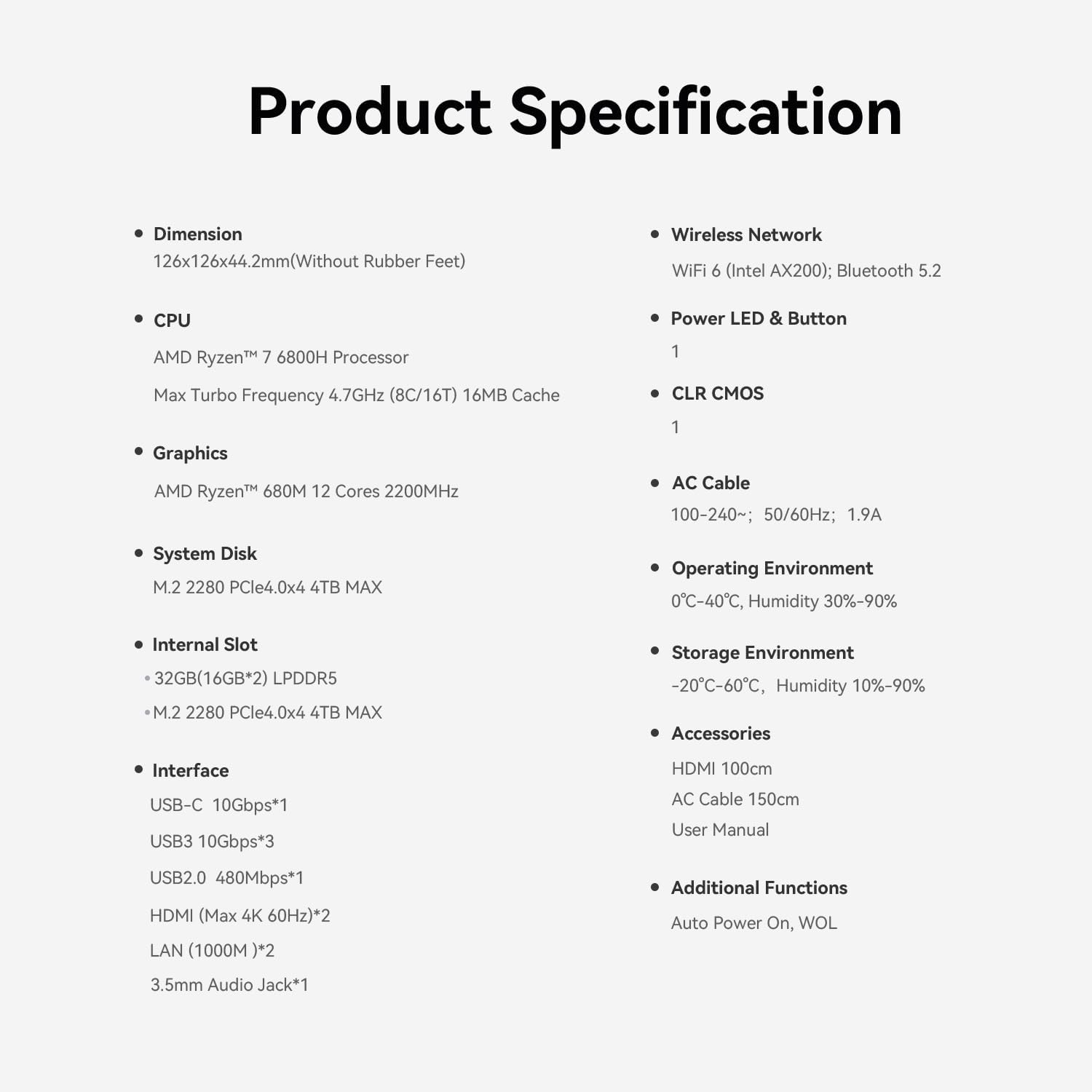
Image: Front view of the Beelink EQR6 Mini PC, highlighting the USB ports, a USB-C port, a 3.5mm audio jack, and the power button with its indicator light.
- USB 3.2 (10Gbps): One port for high-speed data transfer.
- USB-C (10Gbps): One versatile port for data and display output.
- 3.5mm Audio Jack: For connecting headphones or external speakers.
- Power Button: To turn the device on or off.
- Power Indicator Light: Indicates the power status of the device.
Rear Panel

Image: Rear view of the Beelink EQR6 Mini PC, showing two additional USB 3.2 ports, one USB 2.0 port, two HDMI ports for display output, two LAN ports for wired network, and the AC power input.
- USB 3.2 (10Gbps): Two additional ports for high-speed peripherals.
- USB 2.0 (480Mbps): One port for standard USB devices.
- HDMI (Max 4K 60Hz): Two ports for connecting displays, supporting dual 4K output.
- LAN (1000M): Two Ethernet ports for high-speed wired network connections.
- AC Power Input: For connecting the power adapter.
Setup Instructions
Initial Connection
- Connect your monitor(s) to the HDMI ports on the rear panel of the Mini PC.
- Connect a keyboard and mouse to the available USB ports on either the front or rear panel.
- (Optional) For a wired network connection, connect an Ethernet cable from your router to one of the LAN ports on the rear panel.
- Connect the AC power cable to the Mini PC's power input, then plug the adapter into a power outlet.
- Press the red power button on the front panel to turn on the device.
Installing or Upgrading Storage (SSD/HDD)
The Beelink EQR6 Mini PC supports additional storage. Follow these steps to install or upgrade an SSD or HDD:
Video: This video demonstrates the process of replacing or installing an SSD in a Beelink Mini PC. It shows how to open the device, secure the SSD, and reassemble the unit.
- Power off the Mini PC and disconnect all cables.
- Carefully remove the bottom cover by unscrewing the four screws located on the underside.
- Locate the M.2 PCIe4.0 2280 SSD slot(s) or the 2.5-inch drive bay.
- Insert the new SSD/HDD into the appropriate slot/bay and secure it with the provided screws.
- Reattach the bottom cover and secure the screws.
- Reconnect all cables and power on the device.
Operating Instructions
Power On/Off
- To Power On: Press the red power button on the front panel.
- To Power Off: In Windows, click the Start menu, select the Power icon, and then choose "Shut down". Alternatively, you can press and hold the power button for approximately 5 seconds for a forced shutdown.
Connecting to Wi-Fi
- In the Windows taskbar, click the Wi-Fi icon.
- Select your desired network from the list of available networks and click "Connect".
- Enter the network security key (password) if prompted.
Dual Display Setup
The Mini PC supports dual 4K displays via its two HDMI ports.
- Connect your primary monitor to one HDMI port on the rear panel.
- Connect your secondary monitor to the other HDMI port on the rear panel.
- In Windows, right-click on the desktop and select "Display settings" to configure display modes (e.g., Extend, Duplicate).
Maintenance
Cleaning
- Regularly clean the exterior of the Mini PC with a soft, dry, lint-free cloth.
- Ensure that all ventilation holes are free from dust and obstructions to maintain optimal cooling performance.
Software Updates
- Keep your Windows operating system updated by regularly checking for updates in "Settings > Windows Update".
- Periodically visit the official Beelink website for the latest driver updates to ensure optimal performance and compatibility.
Troubleshooting
No Power
- Ensure the AC power adapter is securely connected to both the Mini PC and a working power outlet.
- Verify the power outlet is functional by plugging in another device.
No Display
- Check that the HDMI cables are securely connected to both the Mini PC and the monitor(s).
- Ensure the monitor is powered on and set to the correct input source (e.g., HDMI 1, HDMI 2).
- Try connecting to a different monitor or using a different HDMI cable to rule out faulty components.
Wi-Fi/Bluetooth Connectivity Issues
- Restart the Mini PC and your router/modem.
- Ensure Wi-Fi and Bluetooth are enabled in Windows settings.
- Update wireless drivers from the Beelink official website.
Technical Specifications
| Feature | Specification |
|---|---|
| Processor | AMD Ryzen 7 6800H (8 Cores/16 Threads, 2.7GHz up to 4.7GHz) |
| Graphics | AMD Radeon 680M (12 Cores, 2200 MHz) |
| RAM | 32GB LPDDR5 (4800 MHz) |
| Storage | 1TB NVME SSD (M.2 PCIe4.0 2280, expandable up to 4TB per slot) |
| Operating System | Windows 11 Pro |
| Wireless Connectivity | WiFi 6 (802.11ax), Bluetooth 5.2 |
| Wired Connectivity | 2x 1000Mbps Ethernet LAN |
| Video Output | 2x HDMI (4K@60Hz) |
| USB Ports | 1x USB-C (10Gbps), 3x USB 3.2 (10Gbps), 1x USB 2.0 (480Mbps) |
| Audio | 3.5mm Audio Jack |
| Dimensions | 126mm x 126mm x 44.2mm (without rubber feet) |
| Weight | 2.61 pounds |
Warranty and Support
Beelink provides lifetime technical support, 30 days free return, and 7 days/24 hours service. All our products have obtained FCC, CE, and RoHS certifications, ensuring quality and compliance.
For any questions, technical assistance, or warranty claims, please feel free to send us a message or visit our official store.
Official Beelink Store: https://www.amazon.com/stores/Beelink/page/E76F7A4A-070E-428C-9129-832B18C1493F


