
1. Introduction
This manual provides comprehensive instructions for the setup, operation, maintenance, and troubleshooting of your Generic iMice X7 LED Optical USB Wired Gaming Mouse. Please read this manual thoroughly before using the product to ensure optimal performance and longevity.
2. Package Contents
- Generic iMice X7 LED Optical USB Wired Gaming Mouse
- User Manual (this document)
3. Product Overview
The iMice X7 is a high-performance optical gaming mouse designed for precision and comfort. It features adjustable DPI, multi-color LED lighting, and additional programmable buttons to enhance your gaming experience.

Figure 1: Top-down view of the iMice X7 gaming mouse, showcasing its ergonomic design, scroll wheel, DPI button, and LED accents.
3.1 Key Features
- High-precision Optical Sensor
- Up to 5500 DPI Sensitivity
- Multi-color LED Backlighting
- Ergonomic Design for Comfortable Grip
- Durable USB Wired Connection
- Additional Programmable Buttons
3.2 Button Layout
The iMice X7 mouse features several buttons for enhanced functionality:
- Left Click Button: Standard primary click function.
- Right Click Button: Standard secondary click function.
- Scroll Wheel: For scrolling and middle-click function.
- DPI Button: Adjusts the mouse sensitivity (DPI).
- Forward Button: Navigates forward in web browsers or applications.
- Back Button: Navigates backward in web browsers or applications.
- Double Click Button: Performs a double-click action with a single press.

Figure 2: Side view of the iMice X7 gaming mouse, highlighting the 'DOUBLE CLICK' and 'FORWARD BACK' buttons on the left side.
4. Setup
Follow these steps to connect your iMice X7 gaming mouse to your computer:
- Unpack the Mouse: Carefully remove the mouse from its packaging.
- Locate a USB Port: Identify an available USB port on your computer (desktop or laptop).
- Connect the USB Cable: Insert the USB connector of the mouse cable into the USB port on your computer. Ensure it is fully inserted.
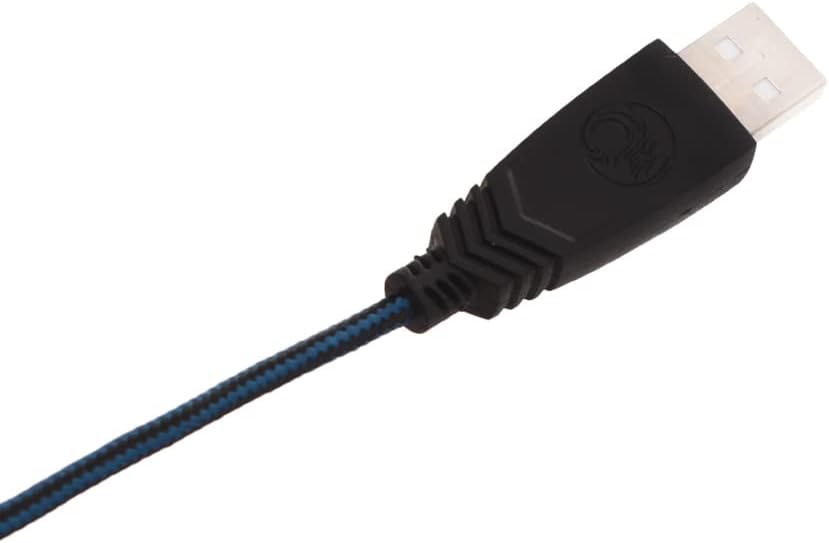
Figure 3: Close-up of the USB connector, which connects the mouse to your computer.
Your operating system (Windows, Linux) should automatically detect and install the necessary drivers. The mouse will be ready for use once the installation is complete, indicated by the LED lights illuminating.
5. Operating Instructions
5.1 DPI Adjustment
The DPI (Dots Per Inch) button allows you to change the mouse's sensitivity on the fly. Press the DPI button (located behind the scroll wheel) to cycle through different DPI settings. Each press will change the sensitivity, allowing you to find the optimal speed for various tasks or games. The maximum DPI is 5500.
5.2 LED Lighting
The iMice X7 features multi-color LED lighting that illuminates the mouse. The lighting typically cycles through various colors automatically, providing an aesthetic enhancement to your setup. There are no user-configurable settings for the LED patterns directly on the mouse.
5.3 Using Additional Buttons
- Forward/Back Buttons: These buttons, located on the left side of the mouse, are commonly used for navigation in web browsers (e.g., going back to the previous page or forward to the next). In some applications or games, they may have custom functions.
- Double Click Button: This button, also on the left side, performs a double-click action with a single press, which can be useful for opening files or executing commands quickly.
6. Maintenance
Proper maintenance ensures the longevity and performance of your gaming mouse:
- Cleaning: Use a soft, dry cloth to wipe the surface of the mouse. For stubborn dirt, slightly dampen the cloth with water or a mild cleaning solution. Avoid using harsh chemicals or abrasive materials.
- Sensor Cleaning: Occasionally, dust or debris may accumulate around the optical sensor on the underside of the mouse. Use a cotton swab or compressed air to gently clean the sensor area.
- Cable Care: Avoid sharply bending or pulling the USB cable. Store the mouse in a way that prevents the cable from being tangled or stressed.
- Storage: When not in use for extended periods, store the mouse in a clean, dry environment away from direct sunlight and extreme temperatures.
7. Troubleshooting
If you encounter issues with your iMice X7 gaming mouse, refer to the following common solutions:
- Mouse Not Responding:
- Ensure the USB cable is securely connected to a working USB port.
- Try connecting the mouse to a different USB port on your computer.
- Restart your computer.
- Test the mouse on another computer to determine if the issue is with the mouse or your system.
- Erratic Cursor Movement:
- Clean the optical sensor on the underside of the mouse.
- Ensure you are using the mouse on a clean, non-reflective, and uniform surface (e.g., a mouse pad).
- Check for any software conflicts or outdated drivers on your computer.
- LED Lights Not Working:
- Verify the mouse is properly connected and receiving power.
- If the mouse functions otherwise, the LED issue might be a minor fault that does not affect core functionality.
8. Specifications
| Feature | Description |
|---|---|
| Brand | Generic |
| Model | X7 |
| Connectivity Technology | USB Wired |
| Movement Detection | Optical |
| DPI Sensitivity | Up to 5500 DPI |
| Hand Orientation | Ambidextrous |
| Recommended Uses | Gaming |
| Compatible Devices | Laptop, Personal Computer |
| Operating System Support | Linux, Windows 7, Windows XP |
| Item Weight | 190 g |
| Package Dimensions | 31.5 x 16.7 x 6.3 cm |
9. Warranty and Support
For information regarding warranty coverage and technical support, please refer to the retailer or the point of purchase. Keep your proof of purchase for any warranty claims.