Introduction
This document provides essential instructions for the safe and effective use of your new R15B01W replacement battery, compatible with various Xiaomi Gamebook Pro series models. Please read this manual thoroughly before installation and initial use.
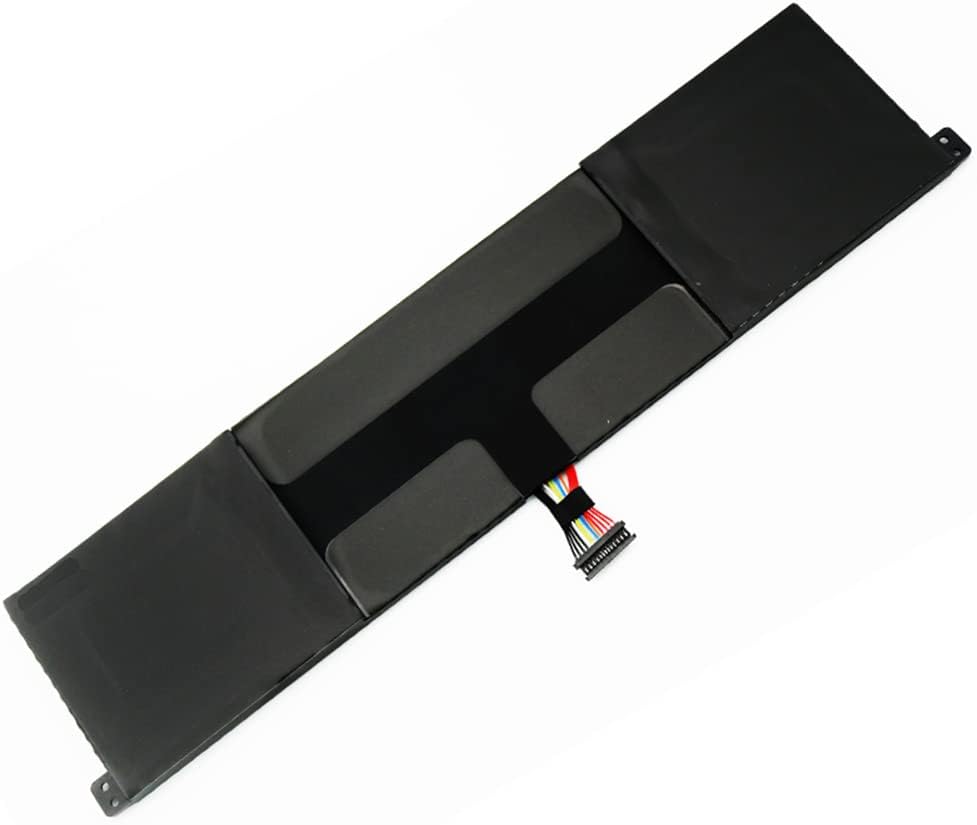
Description: A complete top-down view of the R15B01W replacement battery, showcasing its rectangular form factor and the integrated connector cable. This image provides an overall perspective of the battery's physical design.
Compatibility
This battery (Model: R15B01W) is compatible with the following Xiaomi Gamebook Pro series models:
- Xiaomi Gamebook Pro 15.6 inch
- TM1701
- 171501-AL
- 171501-AF
- 171501-AQ
- 171501-AD
- 181501-AB
- 181501-AE
- 181501-FA

Description: This image presents a textual list of compatible computer models for the R15B01W battery. It explicitly mentions 'Xiaomi Gamebook Pro 15.6 inch' and several specific model numbers such as TM1701, 171501-AL, 171501-AF, 171501-AQ, 171501-AD, 181501-AB, 181501-AE, and 181501-FA.
Safety Warnings
Failure to follow these safety instructions may result in fire, explosion, or other hazards.
- Disposal: Dispose of used batteries according to local laws and regulations.
- Temperature: Do not expose the battery to high temperatures, fire, or direct sunlight.
- Charging: Use only compatible chargers and power adapters. Do not attempt to charge a damaged battery.
- Impact: Avoid dropping, puncturing, or disassembling the battery.
- Replacement: Battery replacement should be performed by a qualified technician or by carefully following specific device instructions. Refer to your device's service manual or local ordinances for proper replacement procedures.

Description: This image displays the top surface of the R15B01W battery, featuring its product label. The label includes important safety warnings regarding disposal, avoiding high temperatures, and proper handling to prevent fire or explosion. The multi-colored connector cable is visible at one end.
Setup and Installation
Replacing a laptop battery requires careful handling. If you are unsure, please consult a professional technician.
- Power Off: Ensure your laptop is completely powered off and disconnected from the AC adapter.
- Discharge: If possible, discharge the old battery to a low level (e.g., below 10%) before removal.
- Access Battery Compartment: Depending on your laptop model, you may need to remove the back cover. Refer to your laptop's specific service manual for instructions on accessing the battery.
- Disconnect Old Battery: Carefully disconnect the old battery's cable from the motherboard.
- Remove Old Battery: Unscrew any retaining screws and gently lift out the old battery.
- Install New Battery: Place the new R15B01W battery into the compartment. Ensure it fits correctly.
- Connect New Battery: Carefully connect the new battery's cable to the motherboard connector. Ensure a secure connection.
- Secure Battery: Re-install any retaining screws.
- Reassemble Laptop: Replace the back cover and any other components removed during the process.

Description: This image focuses on the multi-pin connector of the R15B01W battery. The connector features several colored wires, indicating its role in power delivery and communication with the laptop's motherboard. Proper connection of this component is crucial for battery function.
First Use and Charging
For optimal performance and longevity, follow these initial charging instructions:
- Initial Test: After installing the new battery, connect your laptop to the AC adapter and power it on. Verify that the system recognizes the battery and that charging/discharging functions appear normal.
- Partial Discharge: Allow the battery to discharge naturally to approximately 3-5% of its capacity.
- Full Charge Cycle: Charge the battery completely for 5-8 hours without interruption.
- Repeat Cycle: Repeat the partial discharge (to 3-5%) and full charge (5-8 hours) cycle 2-3 times. This helps calibrate the battery and optimize its performance.
During normal use, you can charge the battery at any time. It is not necessary to fully discharge the battery before recharging.
Maintenance
- Storage: If the laptop will not be used for an extended period, it is recommended to remove the battery and store it in a cool, dry place with approximately 50% charge. This can help prolong battery lifespan.
- Heat Management: Poor heat dissipation can negatively impact battery life. Regularly clean your laptop's cooling fans and vents to ensure proper airflow. Accumulated dust can obstruct ventilation, leading to increased internal temperatures, higher fan workload, and reduced battery runtime.
- Avoid Extreme Temperatures: Do not expose the battery or laptop to extreme hot or cold environments.
Troubleshooting
Battery Not Charging
If your battery is not charging, consider the following:
- Check Power Adapter: Ensure your AC power adapter is functioning correctly and is compatible with your laptop. An incompatible or aging power adapter may not provide sufficient output (voltage/current) to charge the battery effectively.
- Verify Connection: Confirm that the power adapter is securely plugged into both the wall outlet and your laptop's charging port.
- Software/Driver Issues: Sometimes, battery charging issues can be related to software or outdated drivers. Check your laptop manufacturer's support website for updated power management drivers or BIOS updates.
- Battery Re-seating: If safe to do so, try removing and re-installing the battery to ensure a proper connection.
If the issue persists after these steps, the battery or the laptop's charging circuit may require professional inspection.
Specifications
| Feature | Detail |
|---|---|
| Battery Model | R15B01W |
| Voltage | 7.6V |
| Capacity | 7900mAh (60.4Wh) |
| Battery Type | Rechargeable Li-ion Battery Pack |
| Compatible Devices | Xiaomi Gamebook Pro series (e.g., 181501-AB, 181501-AE, 181501-FA, TM1701, 171501-AL, 171501-AF) |
| Manufacturer | JUN SZ |
| Brand | Generic |

Description: A detailed view of the battery's label, clearly showing the model name 'R15B01W', rating of 7.60V and 7900mAh (60.4Wh), and 'Made in China' origin. This label provides key technical specifications of the battery.
Warranty and Support
Information regarding warranty and customer support for this product was not provided in the available data. Please refer to your purchase documentation or contact the seller directly for details.