
Setty 87092300
Setty Wireless Keyboard User Manual
Model: 87092300
Introduction
This manual provides instructions for the Setty Wireless Keyboard, Model 87092300. This compact, QWERTY layout keyboard offers a convenient wireless connection for daily use. Please read this manual carefully before using the product to ensure proper operation and longevity.
Package Contents
Please check the package for the following items:
- Setty Wireless Keyboard (Rose Gold)
- USB Wireless Receiver (Dongle)
- USB Charging Cable
- User Manual (this document)
Setup
1. Charging the Keyboard
Before first use, fully charge the keyboard. Locate the charging port, typically on the side or top edge of the keyboard.
- Connect the small end of the provided USB charging cable to the keyboard's charging port.
- Connect the larger end of the USB charging cable to a USB power source (e.g., computer USB port, USB wall adapter).
- An indicator light on the keyboard will typically illuminate during charging and turn off or change color when fully charged. Charging time may vary.
Note: Do not use damaged charging cables or adapters.
2. Connecting the Wireless Receiver
The keyboard connects to your computer via a 2.4 GHz USB wireless receiver (dongle).
- Locate the USB wireless receiver. It may be stored in a compartment on the keyboard itself, often near the battery compartment or on the side.
- Insert the USB wireless receiver into an available USB port on your computer.
- Your computer should automatically detect and install the necessary drivers. This may take a few moments.
3. Powering On the Keyboard
Once the receiver is connected to your computer, power on the keyboard.
- Locate the power switch on the keyboard, usually on the top or side edge.
- Slide the switch to the "ON" position.
- An indicator light (e.g., power or connection indicator) may briefly illuminate to confirm the keyboard is powered on and attempting to connect.
The keyboard should now be ready for use. If it does not connect, refer to the Troubleshooting section.
Operating Instructions
Basic Keyboard Functions
The Setty Wireless Keyboard features a standard QWERTY layout with 104 keys, providing all essential typing functions. Simply type as you would on any standard keyboard.
Function Keys (F1-F12)
The top row of keys includes standard function keys (F1-F12) and integrated media control functions. To use the secondary media functions (e.g., volume, media playback), you may need to press the Fn key simultaneously with the desired function key.
- Fn + F1: Media Player
- Fn + F2: Volume Down
- Fn + F3: Volume Up
- Fn + F4: Mute
- Fn + F5: Previous Track
- Fn + F6: Next Track
- Fn + F7: Play/Pause
- Fn + F8: Stop
- Fn + F9: Home Page
- Fn + F10: Email
- Fn + F11: My Computer
- Fn + F12: Favorites
Keyboard Layout Overview
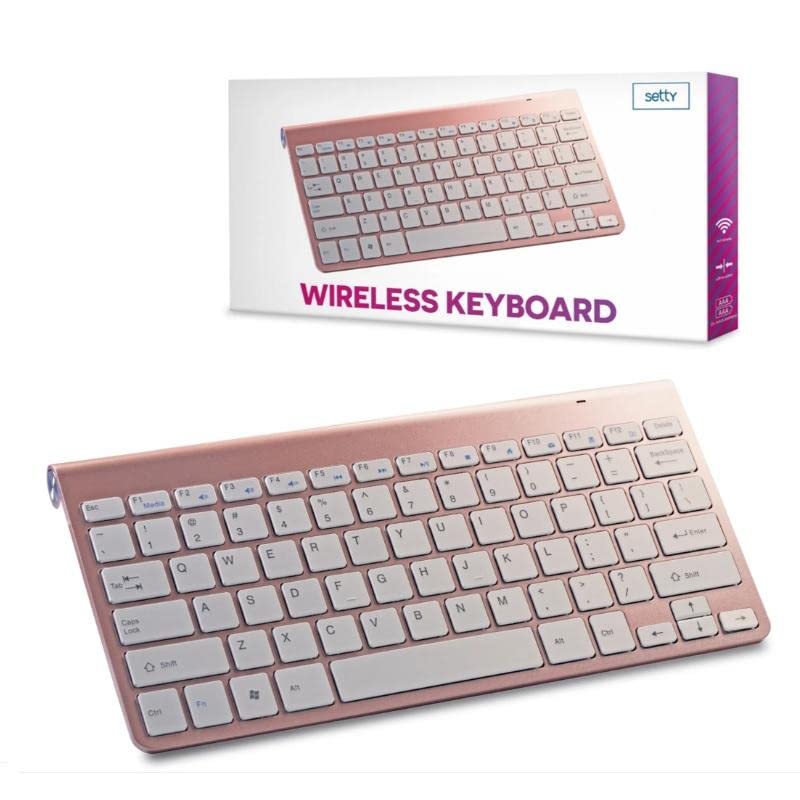
Image: Overview of the Setty Wireless Keyboard in Rose Gold, showing the full QWERTY layout, function keys, and arrow keys.
The image above illustrates the compact layout of the Setty Wireless Keyboard. It features a full QWERTY key set, including a row of function keys (F1-F12) at the top, standard alphanumeric keys, modifier keys (Ctrl, Alt, Shift, Fn), and dedicated arrow keys. The absence of a numeric keypad contributes to its compact design.
Maintenance
Cleaning the Keyboard
- Ensure the keyboard is powered off before cleaning.
- Use a soft, lint-free cloth slightly dampened with water or a mild cleaning solution.
- Avoid spraying liquids directly onto the keyboard.
- For dust and debris between keys, use compressed air.
- Do not use harsh chemicals, abrasives, or solvents.
Storage
- Store the keyboard in a cool, dry place away from direct sunlight and extreme temperatures.
- If storing for an extended period, ensure the keyboard is fully charged and powered off.
Troubleshooting
Keyboard Not Connecting or Responding
- Check Power: Ensure the keyboard is powered on and has sufficient charge. Recharge if necessary.
- Receiver Connection: Verify that the USB wireless receiver is securely plugged into a working USB port on your computer. Try a different USB port.
- Proximity: Ensure the keyboard is within the effective range of the wireless receiver (typically up to 10 meters, unobstructed).
- Interference: Move the keyboard and receiver away from other wireless devices or large metal objects that might cause interference.
- Re-pairing (if applicable): Some wireless keyboards have a re-pairing button on the keyboard and/or receiver. Consult the product packaging or manufacturer's website if this is an option.
- Computer Restart: Restart your computer to refresh USB drivers and connections.
Keys Not Responding Correctly
- Clean Keys: Check for any debris or obstructions under the keys. Clean the keyboard as described in the Maintenance section.
- Software Issues: Ensure your operating system and any keyboard-related software are up to date.
Charging Issues
- Cable Check: Ensure the USB charging cable is not damaged and is securely connected to both the keyboard and the power source.
- Power Source: Try a different USB power source (e.g., a different USB port on your computer or a different wall adapter).
Specifications
| Model Number | 87092300 |
| Brand | Setty |
| Connectivity | 2.4 GHz Wireless (via USB Dongle) |
| Key Layout | QWERTY |
| Number of Keys | 104 |
| Special Feature | Rechargeable |
| Color | Rose Gold |
| Item Weight | 450 Grams |
| Recommended Use | Daily Use |
Warranty and Support
For warranty information or technical support, please refer to the documentation included with your purchase or contact the retailer/manufacturer directly. Keep your proof of purchase for warranty claims.
Ask a question about this manual
Ask about setup, troubleshooting, compatibility, parts, safety, or missing instructions. Manuals+ will review the question and use this page’s manual context to help answer it.