
1. Introduction
This manual provides essential information for the safe and efficient use of your AOC CU34P3CV 34-inch Ultrawide Quad HD LED Monitor. Please read this manual thoroughly before operating the device and retain it for future reference.
The AOC CU34P3CV is a 34-inch ultrawide curved monitor designed for productivity and immersive viewing, featuring a 3440 x 1440 Quad HD resolution, a VA panel, and a versatile USB-C docking solution.
2. Safety Information
- Power Source: Use only the power cord and adapter supplied with the monitor. Ensure the power outlet is properly grounded.
- Ventilation: Do not block ventilation openings. Allow adequate space around the monitor for proper airflow.
- Liquid Exposure: Keep the monitor away from water or other liquids. Do not operate in high humidity environments.
- Cleaning: Disconnect the power cord before cleaning. Use a soft, dry cloth. Avoid liquid or aerosol cleaners.
- Placement: Place the monitor on a stable, level surface. Avoid direct sunlight, heat sources, or excessive dust.
- Servicing: Do not attempt to service the monitor yourself. Refer all servicing to qualified service personnel.
3. Package Contents
Please check the package contents upon unpacking. If any items are missing or damaged, contact your retailer.
- AOC CU34P3CV Monitor
- Monitor Stand (Base and Neck)
- Power Cable
- HDMI Cable
- DisplayPort Cable
- USB-C Cable
- User Manual (this document)
4. Setup
4.1. Assembling the Stand
- Carefully place the monitor face down on a soft, clean surface to prevent scratches.
- Attach the stand neck to the back of the monitor. Secure with screws if provided.
- Attach the stand base to the stand neck. Secure with the thumb screw or screws provided.
Image: AOC CU34P3CV Monitor Front View
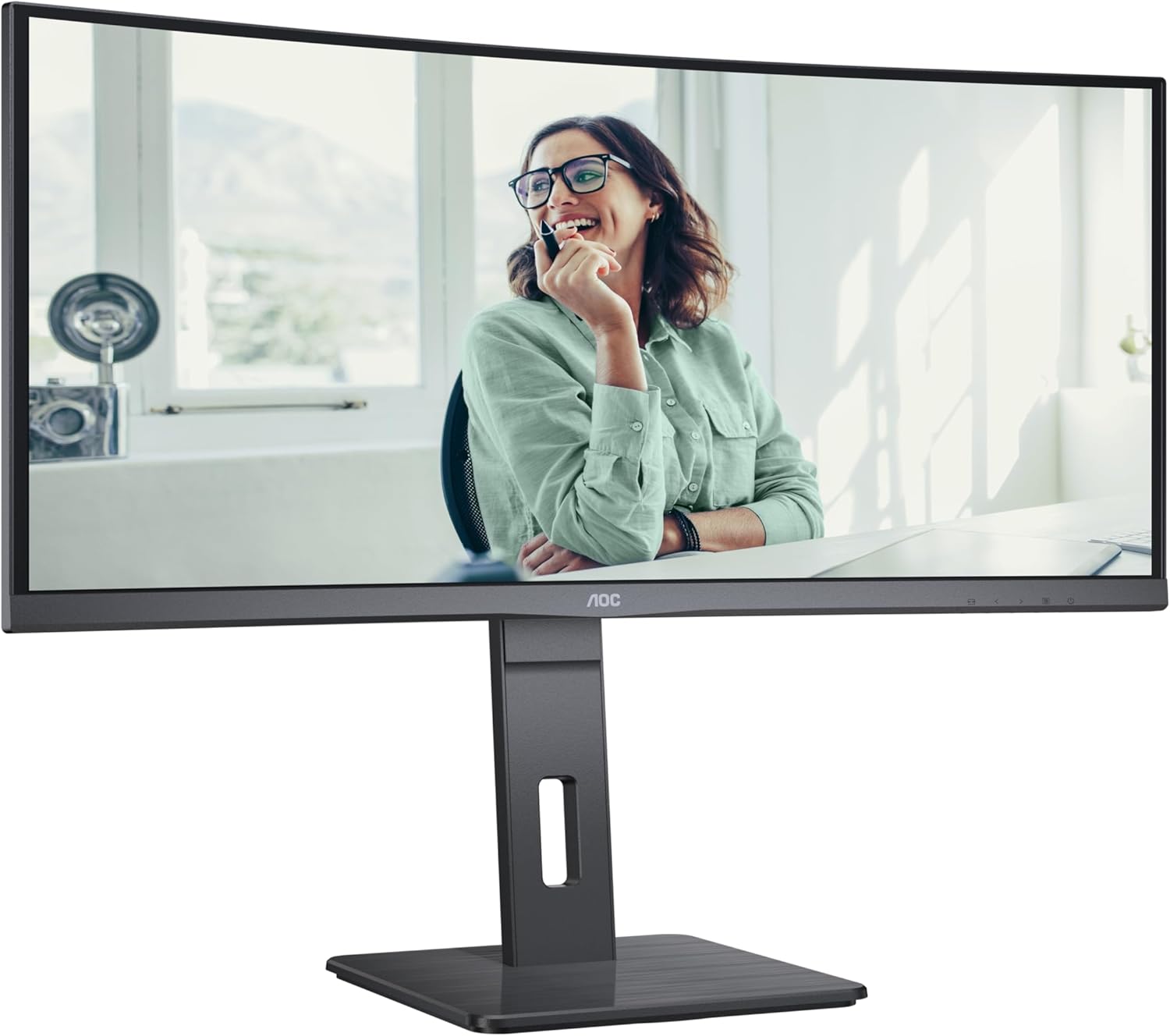
This image shows the AOC CU34P3CV monitor from the front, with its stand, displaying a vibrant image on its curved screen.
Image: AOC CU34P3CV Monitor Features Overview

This image provides a front view of the AOC CU34P3CV monitor, with graphical overlays indicating its key features such as 34-inch size, WQHD resolution, VA panel, 3-sided frameless design, adjustable stand, and curved display.
4.2. Connecting the Monitor
Refer to the rear view image for port locations.

This image displays the rear of the AOC CU34P3CV monitor, detailing the arrangement of its power input, video input ports (HDMI, DisplayPort, USB-C), and USB hub ports.
- Power Connection: Connect the power cable to the monitor's power input and then to a grounded electrical outlet.
- Video Connection:
- USB-C: For a single-cable solution providing video, data, and power delivery (up to 65W), connect the USB-C cable from your computer to the monitor's USB-C port.
- HDMI/DisplayPort: Connect an HDMI or DisplayPort cable from your computer's video output to the corresponding port on the monitor.
- USB Hub: Connect the upstream USB-C cable (if using USB-C for video) or a separate USB upstream cable (if using HDMI/DP) from your computer to the monitor to enable the integrated USB hub ports.
- Network (RJ45): If your monitor supports an integrated Ethernet port via USB-C docking, connect an Ethernet cable from your network router/modem to the RJ45 port on the monitor.
4.3. Initial Power On
- Ensure all cables are securely connected.
- Press the power button on the monitor.
- Turn on your computer. The monitor should automatically detect the input signal. If not, you may need to manually select the input source using the On-Screen Display (OSD) menu.
5. Operating Instructions
5.1. Power On/Off
Press the power button, usually located on the bottom right or rear of the monitor, to turn the monitor on or off.
5.2. On-Screen Display (OSD) Menu
The OSD menu allows you to adjust various monitor settings. Use the control buttons (joystick or individual buttons) typically located on the bottom or rear of the monitor to navigate the menu.
- Input Select: Choose between USB-C, HDMI, or DisplayPort inputs.
- Picture Settings: Adjust Brightness, Contrast, Gamma, Color Temperature, and various picture modes.
- Color Setup: Fine-tune color settings.
- OSD Setup: Adjust OSD language, transparency, and timeout.
- Extra: Access information about the current resolution and refresh rate.
5.3. Adjusting the Monitor Position
The monitor stand allows for ergonomic adjustments.
- Height Adjustment: Gently push or pull the monitor up or down to adjust its height.
- Tilt Adjustment: Tilt the monitor screen forward or backward to find your preferred viewing angle.
- Swivel Adjustment: Rotate the monitor left or right on its base.
Image: AOC CU34P3CV Monitor Side View with USB Ports

This image shows a side profile of the AOC CU34P3CV monitor, highlighting two easily accessible USB ports on the side of the display.
Image: AOC CU34P3CV Monitor Side View with Stand Adjustment

This image illustrates the side view of the AOC CU34P3CV monitor, showcasing the flexibility of its stand for height and tilt adjustments.
Image: AOC CU34P3CV Monitor Top View
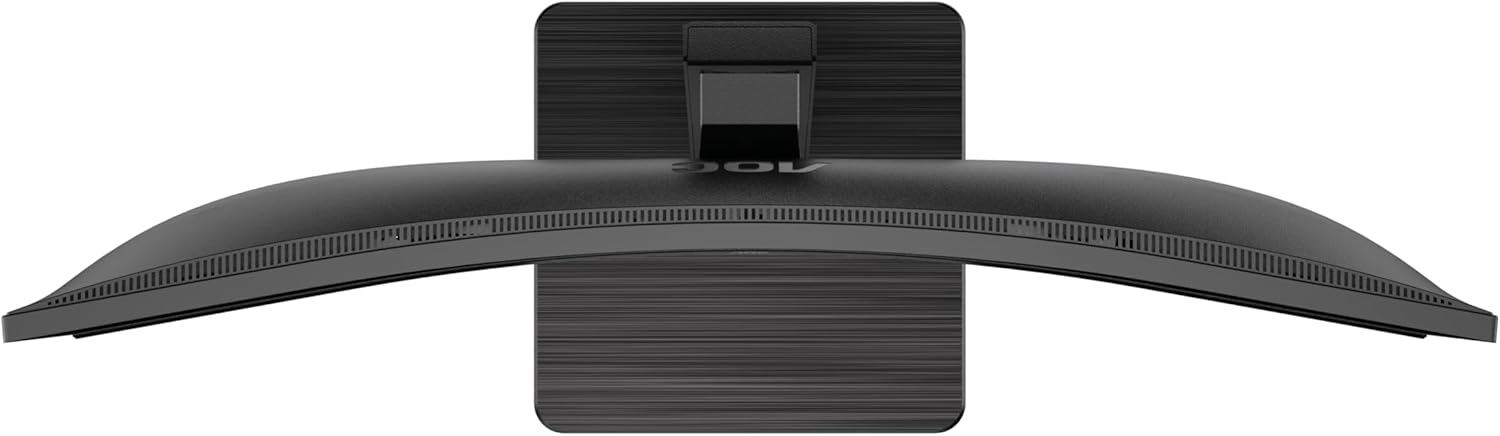
This image provides a top-down perspective of the AOC CU34P3CV monitor, clearly showing the curvature of its ultrawide screen.
6. Maintenance
6.1. Cleaning the Monitor
- Always unplug the monitor from the power outlet before cleaning.
- Use a soft, lint-free cloth to gently wipe the screen and exterior surfaces.
- For stubborn marks, lightly dampen the cloth with water or a mild, non-abrasive screen cleaner. Do not spray cleaner directly onto the screen.
- Avoid using benzene, thinner, ammonia-based cleaners, or abrasive cleaning agents.
7. Troubleshooting
If you encounter issues with your monitor, refer to the following common problems and solutions:
| Problem | Possible Cause | Solution |
|---|---|---|
| No power/No image | Power cable not connected; Monitor off | Ensure power cable is securely connected; Press the power button to turn on the monitor. |
| No signal/"No Input" message | Video cable not connected; Incorrect input source selected | Check video cable connections (HDMI, DisplayPort, USB-C); Use OSD menu to select the correct input source. |
| Image too dark/bright | Brightness/Contrast settings incorrect | Adjust Brightness and Contrast settings via the OSD menu. |
| Flickering image | Incorrect refresh rate; Loose cable | Ensure refresh rate is set to 60Hz in your computer's display settings; Check video cable connections. |
| USB ports not working | USB upstream cable not connected; Driver issue | Ensure the USB-C cable (for video and data) or a separate USB upstream cable is connected to your computer; Check computer's device manager for USB driver issues. |
8. Specifications
Model: AOC CU34P3CV
| Feature | Specification |
|---|---|
| Screen Size | 34 Inches (86.4 cm) |
| Resolution | 3440 x 1440 Quad HD |
| Aspect Ratio | 21:9 |
| Panel Type | VA Panel |
| Refresh Rate | 60 Hz |
| Image Contrast Ratio | 1000:1 |
| Connectivity | USB-C (with Power Delivery), HDMI, DisplayPort, USB Hub, Ethernet (RJ45) |
| Power Consumption (SDR) | 32.0 W |
| Power Consumption (HDR) | 35.0 W |
| Power Consumption (Off Mode) | 0.3 W |
| Power Consumption (Standby) | 0.5 W |
| Product Dimensions (approx.) | 11.81 x 11.81 x 11.81 inches (with stand) |
| Item Weight (approx.) | 2.2 pounds (without stand) |
| Guaranteed Software/Firmware Updates | 8 Years |
| Guaranteed Spare Parts | 7 Years |
| Guaranteed Product Support | 8 Years |
Image: Product Information Sheet
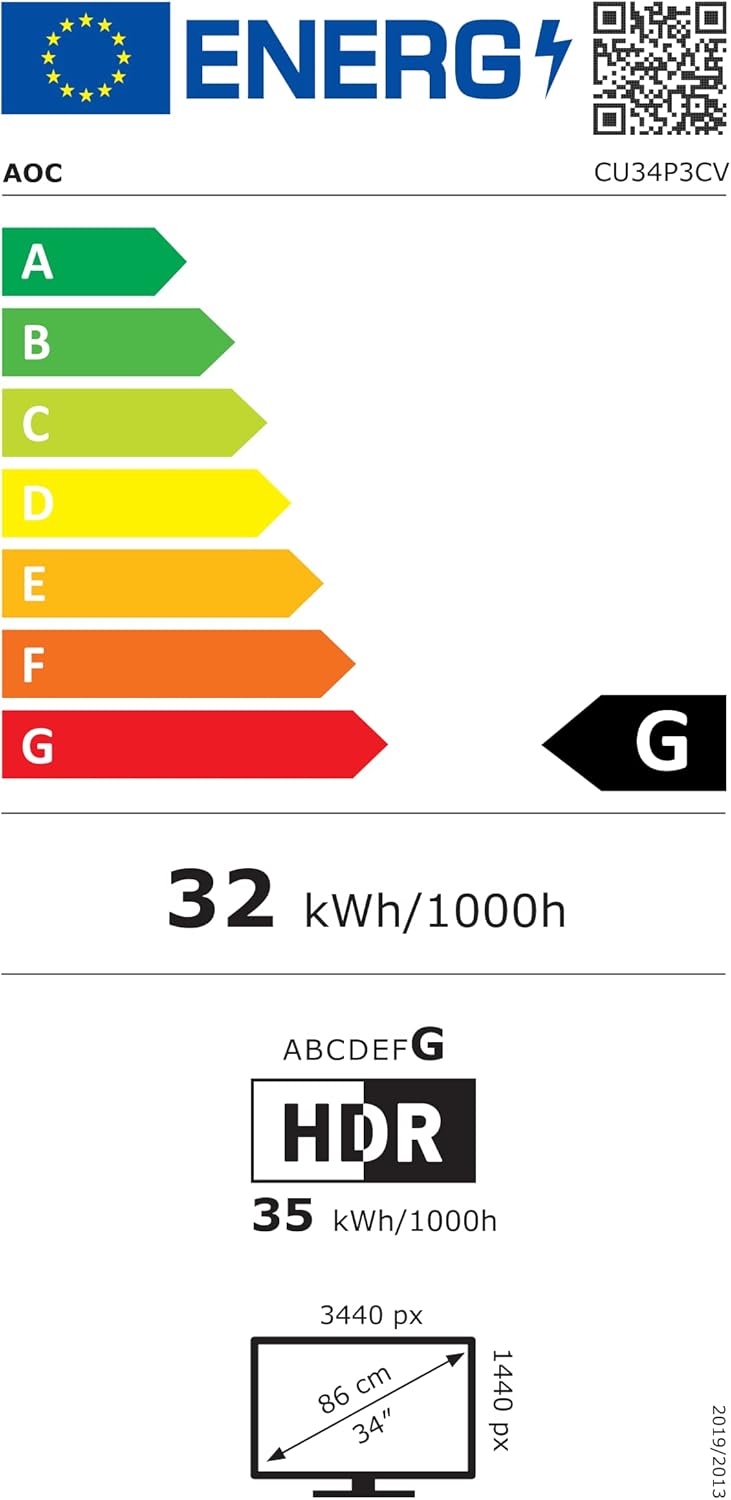
This image displays the official Product Information Sheet for the AOC CU34P3CV monitor, providing detailed technical specifications and compliance information.
Image: Energy Label
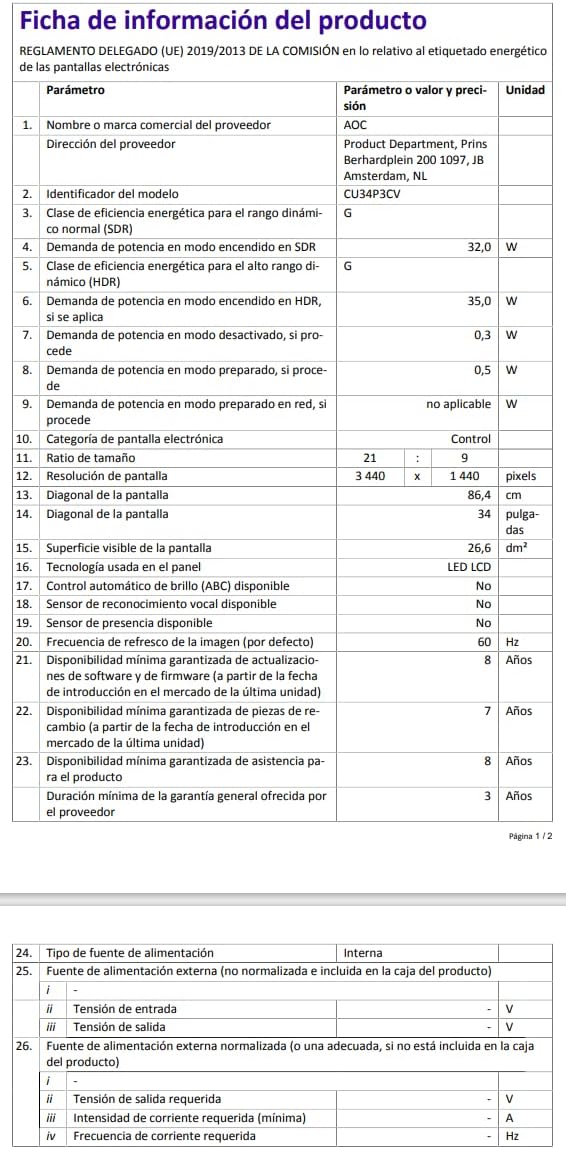
This image presents the EU Energy Label for the AOC CU34P3CV monitor, indicating its energy efficiency class and annual power consumption.
For more detailed energy information, please visit the EPREL database: https://eprel.ec.europa.eu/qr/1362085
9. Warranty and Support
Your AOC CU34P3CV monitor comes with a minimum general guarantee of 3 years provided by the supplier. Additionally, AOC guarantees minimum availability of software and firmware updates for 8 years, spare parts for 7 years, and product support for 8 years from the date of end of placement on the market.
For technical support, warranty claims, or further assistance, please visit the official AOC website or contact your local AOC customer service center. Keep your purchase receipt as proof of purchase for warranty purposes.


