
1. Introduction
This manual provides detailed instructions for the installation, operation, and maintenance of your SAFEZONE S914 Biometrics Smart Digital Door Lock. Please read this manual thoroughly before installation and use to ensure proper function and security.
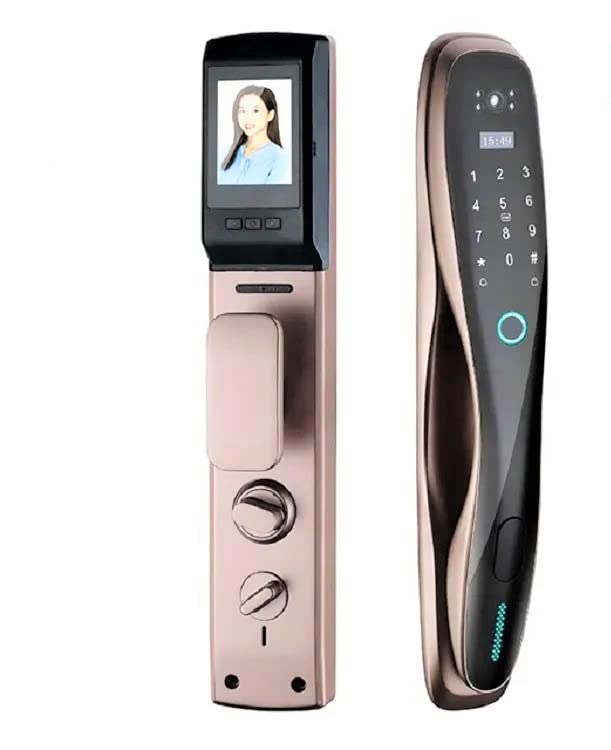
Figure 1.1: SAFEZONE S914 Smart Digital Door Lock. This image displays the sleek design of the lock's exterior and interior units, highlighting the keypad, camera, and handle components.
2. Product Overview
2.1 Key Features
- Multiple Unlocking Methods: Fingerprint, WiFi (via app), RFID Card, Mechanical Keys, Password, and One-Time Password (OTP).
- Integrated Camera: For enhanced security and monitoring.
- WiFi Connectivity: Connects to the U Smart Go / TUYA Mobile App for remote management, activity logs, and notifications.
- Voice Guidance: Provides audio prompts for convenient operation.
- Emergency Power: USB Type-C port for emergency charging in case of battery depletion.
- Security Features: Anti-peep password, combination unlocking, automatic locking, and secure encryption chip.
- Low Battery Alerts: Notifications via app and voice prompts from the lock.
2.2 Components
Familiarize yourself with the main components of the SAFEZONE S914 lock:
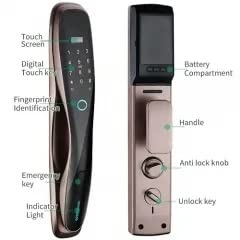
Figure 2.1: Key components of the SAFEZONE S914 lock. This diagram labels the touch screen, digital touch key, fingerprint identification area, emergency key slot, indicator light, battery compartment, handle, anti-lock knob, and unlock key.
- Front Panel: Contains the keypad, fingerprint sensor, camera, and handle.
- Back Panel: Houses the battery compartment, anti-lock knob, and internal handle.
- Mechanical Keys: For emergency manual unlocking.
- RFID Cards: For contactless access.
- Screw Pack: For secure installation.
- Cutting Diagram: Template for door preparation.
3. Installation
The SAFEZONE S914 lock is designed for wooden doors with a thickness of 3.2 CM and above. Professional installation is recommended.
3.1 Door Preparation
- Ensure your door meets the thickness requirement (3.2 CM or more).
- Use the provided cutting diagram to accurately mark and drill holes on your door.
- Determine your door's swing direction (outswing or inswing, left or right) as this affects the lock motor direction.
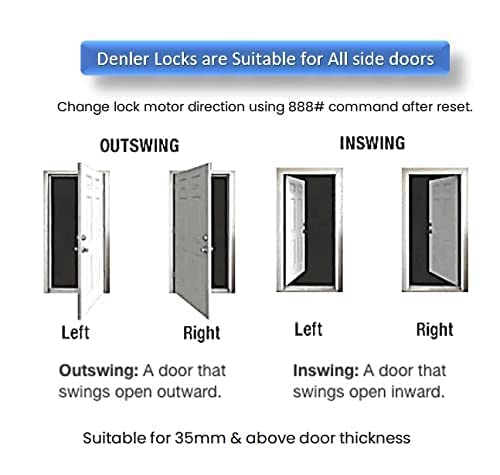
Figure 3.1: Door swing configurations. This image illustrates the four common door swing types: left outswing, right outswing, left inswing, and right inswing, which are crucial for correct lock installation.
3.2 Lock Motor Direction Adjustment
After resetting the lock, you may need to change the lock motor direction to match your door's swing. This is typically done using a specific command, such as 888#, as detailed in the full installation guide.
3.3 Physical Installation
Follow the step-by-step instructions provided in the included manual for mounting the front panel, back panel, and connecting the internal wiring. Ensure all screws are tightened securely.
4. Operating Instructions
The SAFEZONE S914 offers multiple convenient ways to unlock your door.
4.1 Unlocking Methods

Figure 4.1: Five primary unlocking methods. This visual guide illustrates fingerprint, password, app, emergency key, and IC card unlocking options for the smart lock.
- Fingerprint Unlock: Place your registered finger on the fingerprint identification area. The lock will verify and unlock.
- Password Unlock: Enter your registered PIN code on the digital touch keypad.
- RFID Card Unlock: Present a registered RFID card to the designated sensor area.
- App Unlock (WiFi): Use the U Smart Go / TUYA Mobile App to remotely unlock the door via WiFi.
- Mechanical Key Unlocking: Insert and turn one of the provided mechanical keys in the emergency key slot.
- OTP Access: Generate and share a one-time password remotely via the mobile app for temporary access.

Figure 4.2: Fingerprint unlocking in action. A user's finger is shown engaging with the fingerprint sensor on the lock's keypad, demonstrating the biometric access method.
4.2 Advanced Security Features
- Combination Unlocking: For enhanced security, configure the lock to require two unlocking methods (e.g., RFID card + password) to open the door.
- Anti-Peep Password: When entering your password, you can input random digits before and after your actual PIN to prevent others from guessing your code. The lock will still recognize the correct sequence within the longer input.
- Automatic Lock: The lock features an automatic retraction and ejection of the latch, ensuring the door is securely locked after closing.
- Secure Encryption Chip: The lock incorporates a secure encryption chip to protect biometric data and prevent jamming or cracking attempts.

Figure 4.3: Automatic lock mechanism. This diagram shows the internal gears and components responsible for the automatic retraction and ejection of the latch, ensuring the door locks automatically.
4.3 App Integration (U Smart Go / TUYA)
Download and connect the SAFEZONE S914 to the U Smart Go or TUYA Mobile App for comprehensive control and monitoring:
- Activity Logs: View a history of door access events.
- Remote OTP Generation: Create and share temporary access codes.
- Low Battery Alerts: Receive notifications when the lock's battery is low.
- Doorbell Function: The integrated camera and app connectivity allow you to receive notifications when the doorbell is pressed.
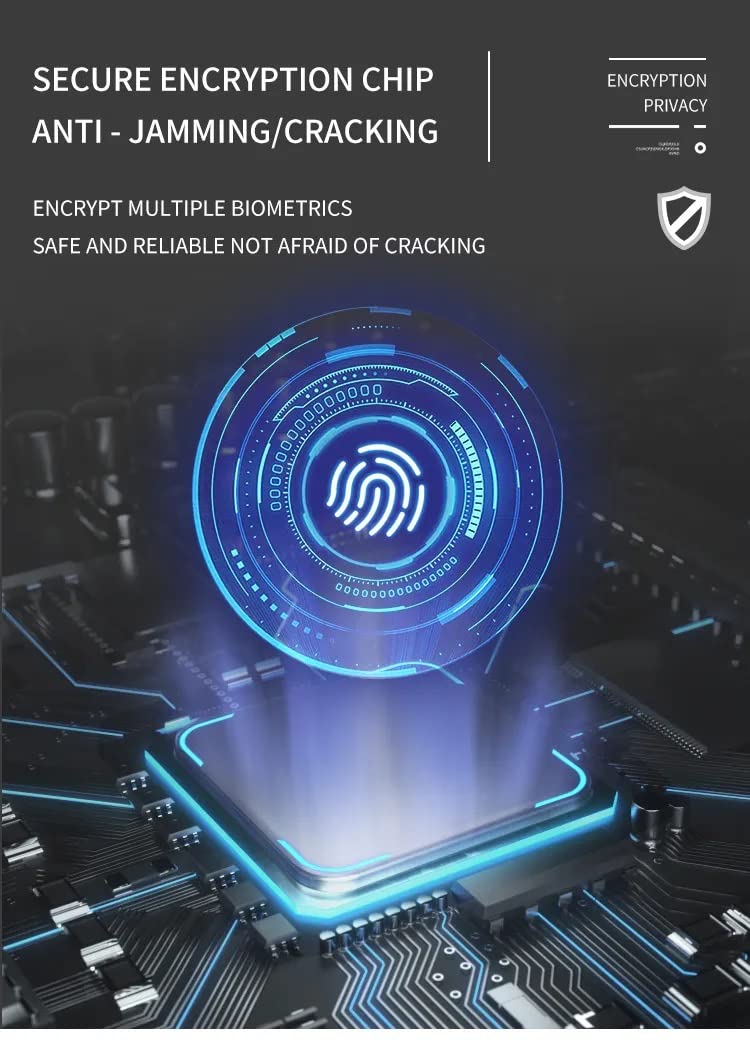
Figure 4.4: Additional lock features. This image highlights the one-click lock button, doorbell function, ergonomic handle, status light, and emergency fast open/anti-lock functions.
5. Maintenance
5.1 Battery Management
- The lock uses a removable and rechargeable battery.
- Monitor low battery alerts via the mobile app or voice prompts from the lock.
- In case of complete battery depletion, use the USB Type-C port for emergency power to temporarily operate the lock and gain access.
5.2 Cleaning
Wipe the lock's exterior with a soft, dry cloth. Avoid using abrasive cleaners or solvents that could damage the finish or electronic components.
6. Troubleshooting
| Problem | Possible Cause | Solution |
|---|---|---|
| Lock does not respond. | Battery is depleted. | Connect a power bank to the USB Type-C emergency charging port or use the mechanical key. |
| Lock emits a warning sound after multiple attempts. | Incorrect password/fingerprint entered 5 times. | Wait for the lockout period to end, then try again with the correct credentials or use a mechanical key. |
| Cannot unlock with fingerprint/RFID card. | Fingerprint/card not registered or sensor is dirty. | Ensure fingerprint/card is registered. Clean the sensor with a soft cloth. Try re-registering if issues persist. |
| App connectivity issues. | Poor WiFi signal or incorrect app settings. | Check WiFi connection. Ensure the lock is within WiFi range. Verify app settings and re-pair if necessary. |
7. Specifications
| Brand | SAFEZONE |
| Model Name | S914 Biometrics Smart Digital Door Locks |
| Lock Type | Biometric |
| Special Feature | Biometric, With Camera |
| Material | Aluminium |
| Product Dimensions (L x W x H) | 7 x 5 x 18 Centimeters |
| Item Weight | 1.2 kg |
| Recommended Door Thickness | 3.2 CM and above |
| Recommended Uses | Wooden doors Only |
| Connectivity Protocol | Wi-Fi |
| Control Method | Touch |
| Controller Type | Finger Print Control |
8. Warranty and Support
The SAFEZONE S914 Biometrics Smart Digital Door Lock comes with a 1 Year Warranty from the date of purchase. Please retain your proof of purchase for warranty claims.
For technical support or warranty inquiries, please contact SAFEZONE customer service through the contact information provided with your product packaging or on the official SAFEZONE website.
9. Package Contents
The following items are included in your SAFEZONE S914 package:
- Front panel
- Back panel
- 2 Manual Keys
- Screw pack
- Side plate
- User manual (this document)
- Cutting Diagram
- RFID Card


