
Introduction
The ONINCE Z6 CarPlay Box 2.0 Pro is a versatile streaming device that transforms your vehicle's wired CarPlay system into a wireless multimedia hub. It offers wireless Apple CarPlay and Android Auto functionality, along with the ability to stream popular video services directly on your car's screen. This manual provides detailed instructions for setup, operation, and maintenance to ensure optimal performance.
What's in the Box
- Multimedia Android Box
- USB Type A to Type C Data Cable
- USB Type C to Type C Data Cable
- User Manual
Compatibility
The ONINCE Z6 is compatible only with vehicles manufactured in 2016 or later that come with factory-installed wired Apple CarPlay. Please review the following compatibility guidelines:
- No pre-2016 vehicles: Vehicles manufactured before 2016 are not supported.
- No Tesla or BMW: These brands are not compatible.
- No aftermarket CarPlay systems: Only factory-installed wired CarPlay is supported.
- No wireless-only CarPlay vehicles: If your vehicle only has wireless CarPlay, it is not compatible.
If your vehicle has wireless CarPlay, please confirm that it also supports wired CarPlay for compatibility. For aftermarket stereo vehicles, please contact the manufacturer to confirm compatibility.

Image: Compatibility chart illustrating supported car brands and important exclusions for vehicle models and CarPlay types.

Image: Detailed notes on required wired CarPlay, unrestricted WiFi hotspot, and air mouse for non-touchscreens.
Setup
The ONINCE Z6 is designed for easy plug-and-play installation. Follow these steps to set up your device:
- Step 1: Plug in the Box. Connect the Multimedia Android Box to your vehicle's wired CarPlay USB port using the provided USB Type A to Type C or USB Type C to Type C data cable. Wait for the red light on the box to flash from slow to fast, indicating it is booting up.
- Step 2: Connect to a WiFi Hotspot. Once the box has booted, connect it to a WiFi hotspot. This can be your phone's personal hotspot, your vehicle's built-in WiFi, or a portable WiFi hotspot. An unrestricted data plan is recommended for optimal performance.
- Step 3: Enter Car Auto and Connect. On your car's screen, enter the Car Auto interface. Pair the device with your phone's Bluetooth and connect. Wireless CarPlay or Android Auto will then be ready for use. After the first successful connection, the device will automatically connect the next time you start your vehicle.

Image: Visual guide for the three-step plug-and-play setup process.
Video: An instructional video demonstrating the setup process of the ONINCE Z6 Multimedia Android Box, showing how to plug it into the car's USB port and the initial boot-up sequence on the car's display. The video highlights the seamless transition to the device's interface.
Operating Instructions
Wireless CarPlay and Android Auto
The ONINCE Z6 acts as a 3-in-1 device, providing wireless Apple CarPlay and Android Auto. Once connected via Bluetooth and WiFi, your phone's interface will appear on your car's screen, allowing access to navigation, music, calls, and messages without a wired connection.

Image: Illustration of the 3-in-1 functionality, displaying Wireless CarPlay and Wireless Android Auto interfaces.
Streaming Applications
Enjoy a variety of pre-installed streaming applications directly on your car's display. The device comes with Netflix, YouTube, Hulu, Disney+, PrimeVideo, YouTubeTV, ESPN, Spotify, VLC, and the APP tool 'APKPure lite'. Use APKPure lite to install and manage other applications.

Image: Car screen showing pre-installed streaming applications.
Video: A short preview demonstrating video playback on the car's screen while driving, showcasing the device's ability to stream content.
HDMI Output
The ONINCE Z6 features an HDMI output, allowing you to extend your car's screen content to external displays such as headrest monitors for rear passengers, or even to a TV or projector at home. A remote control with a USB receiver is required for home use.

Image: Demonstration of HDMI output to a headrest screen.
USB Flash Drive Playback
Play local videos and music stored on a USB flash drive directly through the device. The USB input supports NTFS format.
Split Screen Functionality
Utilize the split-screen feature to display two applications simultaneously on your car's screen. For example, you can view navigation maps on one side while streaming video on the other.
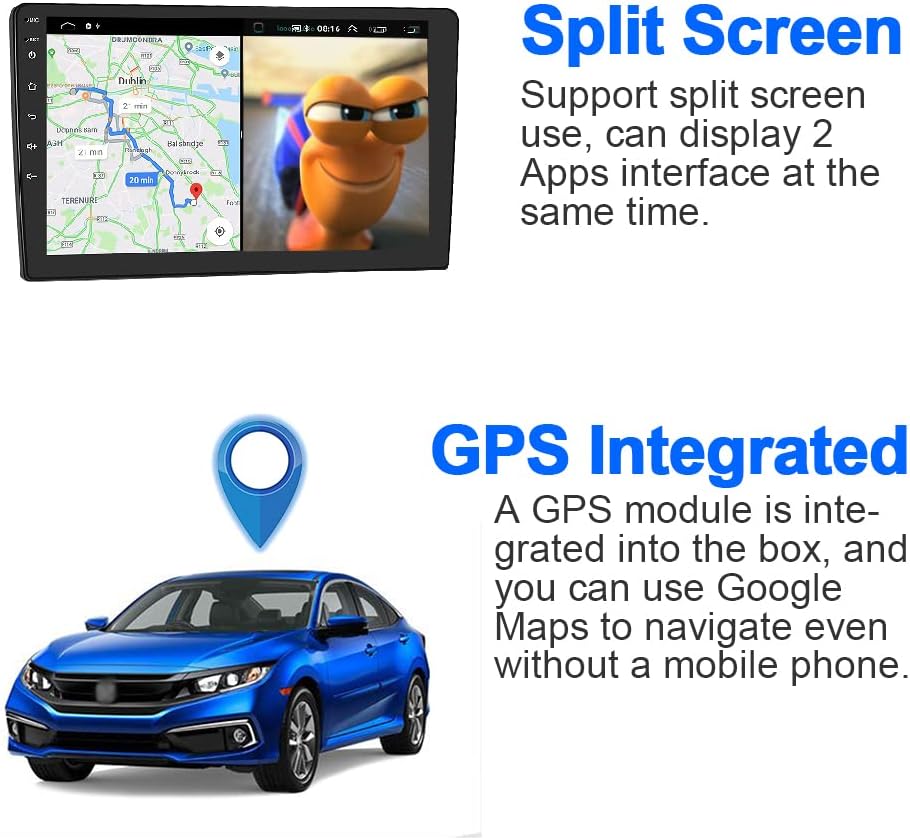
Image: Split-screen display with navigation and integrated GPS module.
Google Voice Assistant
The device supports Google Voice Assistant, allowing for hands-free control of navigation, music playback, and other functions through voice commands.
Video: A short preview demonstrating the use of an air mouse for remote control of the ONINCE Z6 CarPlay Ai Box, highlighting an alternative input method for non-touchscreen displays.
Features
- Enhanced Performance: Equipped with 4GB RAM and 64GB ROM, the Z6 Pro offers smoother operation and more storage for applications compared to standard models.
- Integrated GPS Module: Navigate using Google Maps directly through the Android system, even without your mobile phone.
- USB Plug & Play: Simple connection to your car's wired CarPlay USB port for immediate use.
- HDMI Output: Connect to external displays for expanded entertainment options.
- Pre-installed Applications: Access popular streaming services and utility apps right out of the box.
Specifications
| Feature | Detail |
|---|---|
| Brand | ONINCE |
| Model Number | Z6 |
| RAM | 4GB |
| ROM | 64GB |
| Operating System | Android (version not specified, but implies Android 10 from product title) |
| Connectivity | USB, Bluetooth, Wi-Fi |
| Output | HDMI |
| Supported Internet Services | Netflix, YouTube, Hulu, Disney+, PrimeVideo, YouTubeTV, ESPN, Spotify, VLC, Screen Mirroring |
| Resolution | 1080p |
| Dimensions | 4.1 x 2.4 x 0.6 inches |
| Item Weight | 2.8 ounces |
Troubleshooting
- Device Not Powering On: Ensure the USB cable is securely connected to both the device and a functional USB port in your car. Check if your car's USB port provides sufficient power.
- No CarPlay/Android Auto Connection:
- Verify your vehicle has factory-installed wired CarPlay (not wireless-only or aftermarket).
- Ensure Bluetooth is enabled on your phone and paired with the device.
- Confirm the device is connected to a stable WiFi hotspot.
- Restart both your phone and the car's infotainment system.
- Streaming Apps Not Working:
- Check your WiFi hotspot connection and ensure it has an active internet connection with an unrestricted data plan.
- Verify that the streaming apps are updated to their latest versions via APKPure lite.
- Ensure you are logged into your streaming service accounts.
- Overheating Issues: If the device becomes excessively hot, ensure it has adequate ventilation and is not placed in direct sunlight or confined spaces. Disconnect and allow it to cool down before re-connecting.
- Non-Touchscreen Control: If your vehicle's screen is not a touchscreen, an Air Mouse (not included) is required for input controls. Knob control is not supported when using the Android system.
Warranty and Support
The ONINCE Z6 Multimedia Android Box comes with a one-year warranty. For technical support, troubleshooting assistance, or warranty claims, please contact ONINCE customer service. Keep your purchase receipt for warranty validation.