
1. Introduction
Thank you for choosing the aMZCaSE Bluetooth Keyboard. This manual provides essential information for setting up, operating, and maintaining your new wireless keyboard. Designed for broad compatibility, this keyboard connects seamlessly with Windows, iOS, and Android devices, offering a comfortable and efficient typing experience.
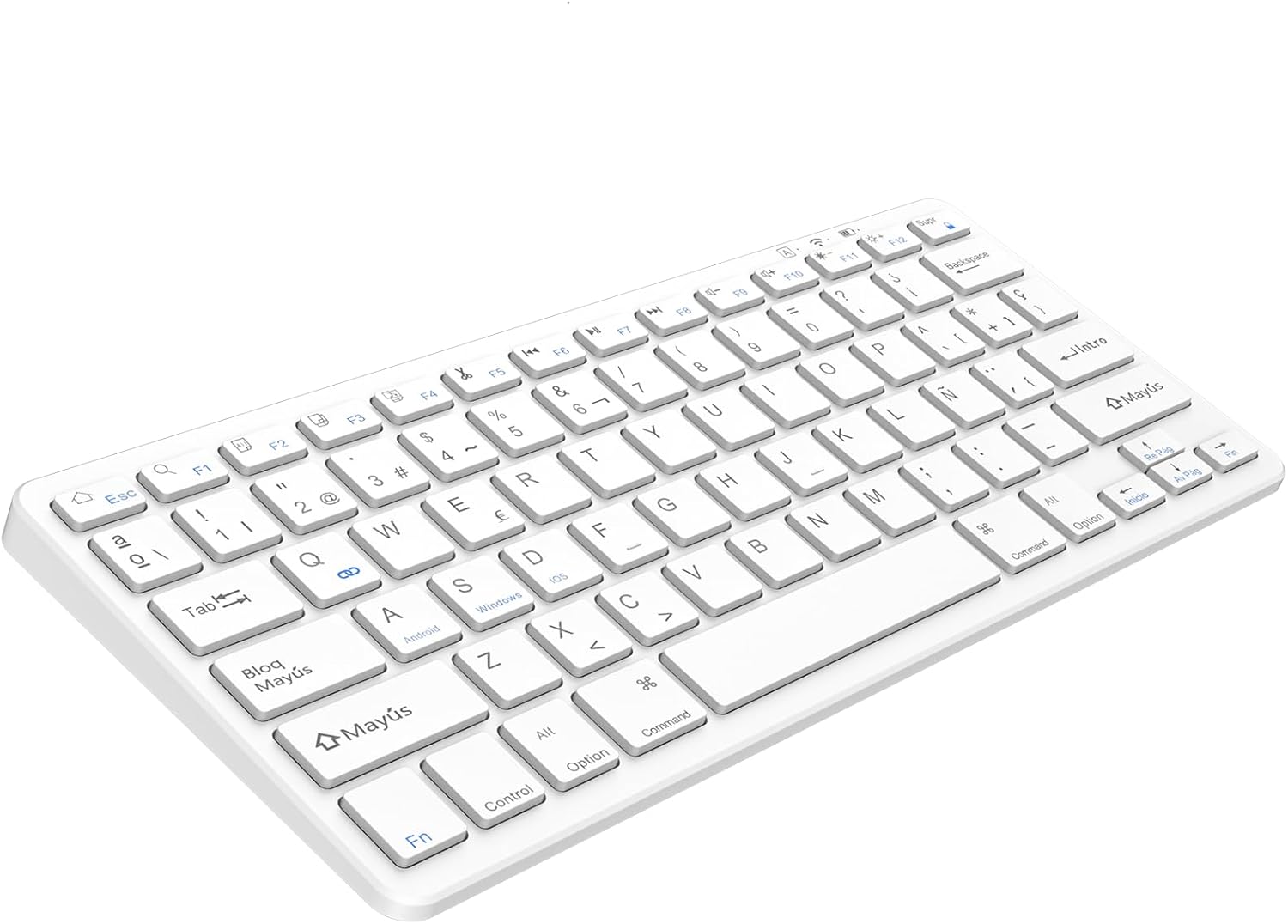
Image 1.1: The aMZCaSE Bluetooth Keyboard in white, showcasing its compact and sleek design.
2. Safety Information
Please read and follow these safety guidelines to ensure safe operation and prolong the life of your keyboard:
- Keep the keyboard away from water, moisture, and extreme temperatures.
- Avoid dropping or subjecting the keyboard to strong impacts.
- Do not attempt to disassemble or repair the keyboard yourself. Contact qualified service personnel for assistance.
- Use only the provided charging cable or a certified Type-C cable for charging.
- Dispose of the battery according to local regulations. Do not expose to fire or high heat.
3. Package Contents
Verify that all items are present in your package:
- aMZCaSE Bluetooth Wireless Keyboard
- User Manual (this document)
- Warranty Card
- USB Type-C Charging Cable
4. Setup
4.1. Charging the Keyboard
Before first use, fully charge the keyboard. Connect the provided USB Type-C charging cable to the keyboard's charging port and the other end to a USB power source (e.g., computer, wall adapter). The charging indicator light will illuminate during charging and turn off when fully charged.
- Charging Time: Approximately 3 hours
- Working Time: Up to 50 hours
- Standby Time: Up to 130 days
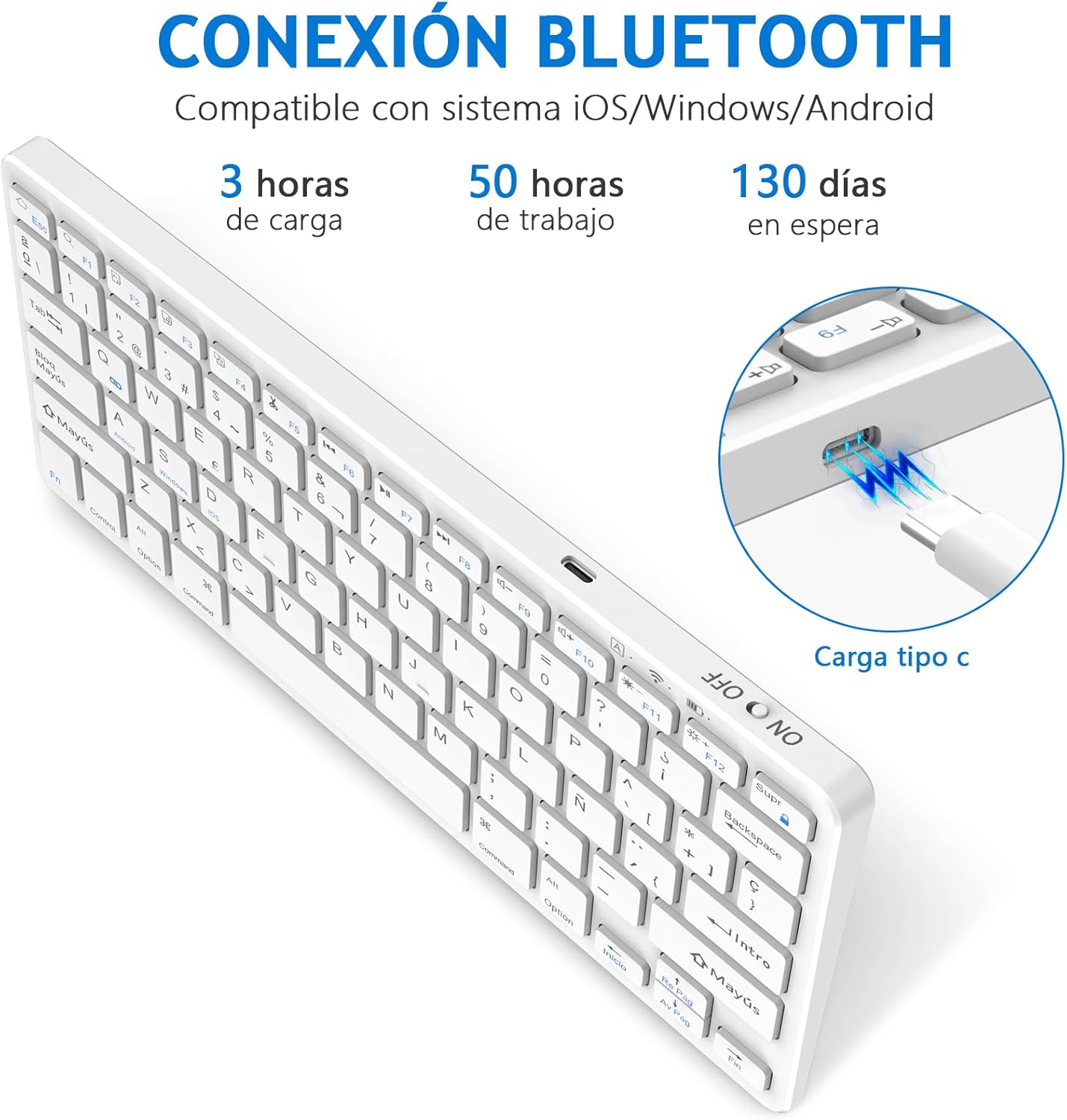
Image 4.1: The aMZCaSE Bluetooth Keyboard connected to a power source via its USB Type-C charging port.
4.2. Bluetooth Pairing
Follow these steps to pair your keyboard with your device:
- Turn On the Keyboard: Locate the power switch on the side or back of the keyboard and slide it to the 'ON' position. The Bluetooth indicator light will flash.
- Activate Bluetooth on Your Device: Go to your device's settings and ensure Bluetooth is enabled.
- Enter Pairing Mode: Press the Fn + C keys simultaneously on the keyboard. The Bluetooth indicator light will start blinking rapidly, indicating it is in pairing mode.
- Select the Keyboard: On your device, search for available Bluetooth devices. You should see 'Bluetooth Keyboard' or a similar name. Select it to connect.
- Confirm Connection: Once connected, the Bluetooth indicator light on the keyboard will stop blinking and remain solid for a few seconds before turning off, indicating a successful connection.

Image 4.2: The aMZCaSE Bluetooth Keyboard demonstrating universal compatibility with Android, Windows, and iOS devices.
4.3. Switching Operating Systems
The keyboard supports Windows, iOS, and Android systems. To optimize key functions for your specific operating system, press the following key combinations:
- For Android devices: Press Fn + Q
- For Windows devices: Press Fn + W
- For iOS devices (iPad/iPhone): Press Fn + E
5. Operating Instructions
5.1. Basic Functions
The keyboard functions like a standard QWERTY keyboard. Keys are responsive due to the scissor-switch mechanism, designed for comfortable and quiet typing.
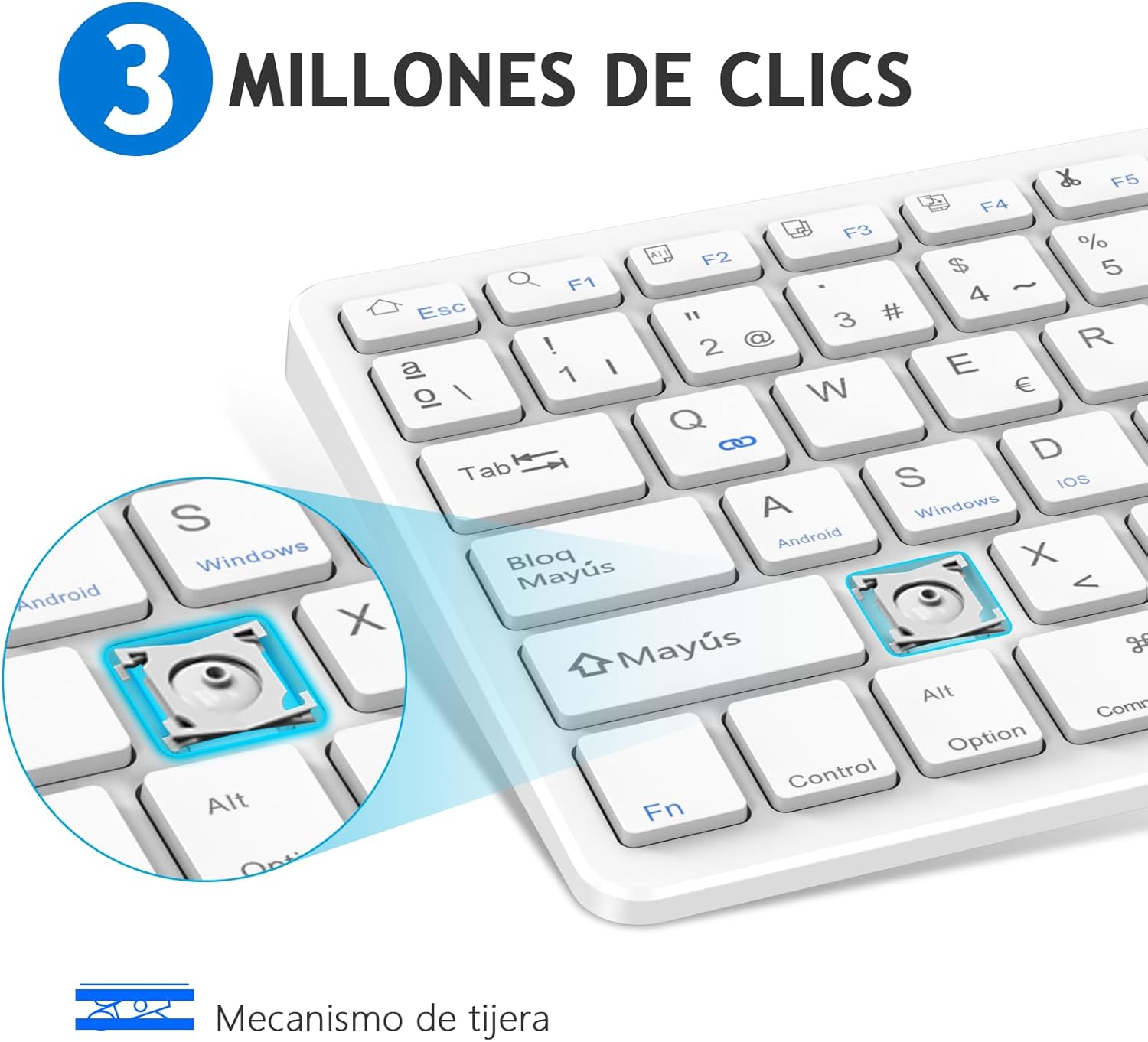
Image 5.1: Close-up view illustrating the scissor-switch mechanism beneath a keycap, designed for durability and tactile feedback.
5.2. Multimedia and Function Keys
The top row of keys (F1-F12) also serves as multimedia and special function keys when used in combination with the Fn key. The specific functions may vary slightly depending on your operating system.
| Key Combination | Function |
|---|---|
| Fn + Esc (Home icon) | Return to Home Page |
| Fn + F1 (Search icon) | Search |
| Fn + F2 (Select All icon) | Select All |
| Fn + F3 (Copy icon) | Copy |
| Fn + F4 (Paste icon) | Paste |
| Fn + F5 (Cut icon) | Cut |
| Fn + F6 (Previous Track icon) | Previous Track |
| Fn + F7 (Play/Pause icon) | Play/Pause |
| Fn + F8 (Next Track icon) | Next Track |
| Fn + F9 (Volume Down icon) | Volume Down |
| Fn + F10 (Volume Up icon) | Volume Up |
| Fn + F11 (Brightness Down icon) | Brightness Down |
| Fn + F12 (Brightness Up icon) | Brightness Up |
| Fn + Del (Lock Screen icon) | Lock Screen |
Note: Some functions may require specific operating system support or configuration.

Image 5.2: Visual representation of the keyboard's multimedia function keys and their corresponding actions.
6. Maintenance
Proper care ensures the longevity and performance of your keyboard:
- Cleaning: Use a soft, dry, lint-free cloth to wipe the keyboard surface. For stubborn dirt, slightly dampen the cloth with water or a mild electronic cleaner. Avoid excessive moisture.
- Storage: When not in use for extended periods, turn off the keyboard to conserve battery. Store it in a cool, dry place, away from direct sunlight and extreme temperatures.
- Portability: The keyboard's slim design makes it highly portable. When transporting, consider placing it in a protective sleeve or bag to prevent scratches or damage.

Image 6.1: The aMZCaSE Bluetooth Keyboard easily fits into a backpack, highlighting its portability.
7. Troubleshooting
If you encounter issues with your aMZCaSE Bluetooth Keyboard, refer to the following common problems and solutions:
- Keyboard does not turn on:
- Ensure the power switch is in the 'ON' position.
- Charge the keyboard fully using the provided Type-C cable. The battery might be depleted. - Keyboard does not connect via Bluetooth:
- Make sure Bluetooth is enabled on your device.
- Ensure the keyboard is in pairing mode (Fn + C, indicator light blinking rapidly).
- Delete any previous pairings of the keyboard from your device's Bluetooth list and try pairing again.
- Move the keyboard closer to your device (within 10 meters / 30 feet).
- Restart both the keyboard and your device. - Keys are not responding or typing incorrectly:
- Check if the keyboard is connected to the correct operating system mode (Fn + Q for Android, Fn + W for Windows, Fn + E for iOS).
- Ensure the keyboard is fully charged.
- Re-pair the keyboard with your device.
- Clean any debris from around the keys. - Frequent disconnections:
- Ensure the keyboard is within the 10-meter (30-foot) operating range of your device.
- Minimize interference from other wireless devices.
- Ensure the keyboard battery is sufficiently charged.
- Try re-pairing the keyboard.

Image 7.1: Illustration of the keyboard's effective Bluetooth operating range, extending up to 30 feet or 10 meters.
8. Specifications
| Feature | Description |
|---|---|
| Brand | aMZCaSE |
| Model Name | Teclado Bluetooth |
| Dimensions | 28 x 11.8 x 1 cm (11.02 x 4.65 x 0.39 inches) |
| Weight | 350 g (0.77 lbs) |
| Connectivity Technology | Bluetooth |
| Compatible Devices | Personal Computer, Laptop, Smartphone, Tablet (Windows, iOS, Android) |
| Power Source | Battery (Lithium Ion) |
| Charging Port | USB Type-C |
| Key Mechanism | Scissor-switch |
| Operating Range | Up to 10 meters (30 feet) |
| Color | Blanca (White) |

Image 8.1: Detailed dimensions of the aMZCaSE Bluetooth Keyboard, showing its length, width, and thickness.
9. Warranty and Support
Your aMZCaSE Bluetooth Keyboard comes with a 12-month warranty from the date of purchase. This warranty covers manufacturing defects and ensures reliable performance under normal use.
For warranty claims, technical support, or any questions regarding your product, please refer to the contact information provided on your warranty card or reach out to your retailer.


