
B0BZ7MH4HF
Replacement Remote Control User Manual
Model: B0BZ7MH4HF
1. Introduction
This manual provides instructions for the Replacement Remote Control, designed to work with various TV, Audio, and Projector systems, including the Sumvision V-Cube 5.1 Home Cinema Surround Sound system. This is an aftermarket replacement remote and may not offer all functions of the original remote control. Its primary purpose is to provide essential control for your entertainment devices.
Key features include:
- No programming or setup required; simply install batteries.
- Made from durable ABS material for comfortable handling.
- Offers stable performance and a far transmitting distance.
- Low power consumption for extended battery life.
Note: As a replacement remote, some specific functions of your original device's remote may not be supported. This is not indicative of a defective product.
2. Setup and Battery Installation
2.1 Battery Installation
Your remote control requires two (2) AAA batteries (not included) for operation. Follow these steps to install them:
- Locate the battery compartment on the back of the remote control.
- Press down on the latch and slide the battery cover downwards to open it.
- Insert two AAA batteries, ensuring the positive (+) and negative (-) terminals align correctly with the markings inside the compartment.
- Slide the battery cover back into place until it clicks securely.
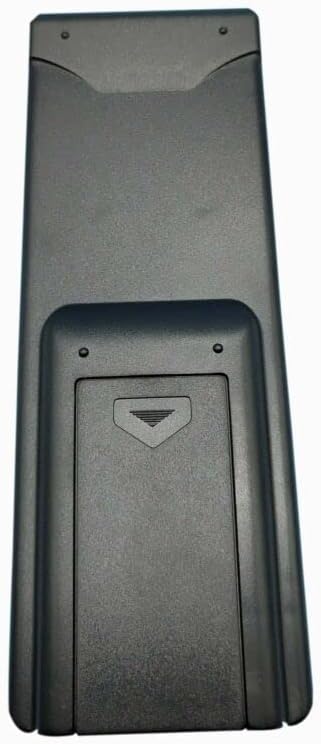
Figure 1: Rear view of the remote control with the battery compartment visible.
Important: Do not mix old and new batteries, or different types of batteries. Remove batteries if the remote will not be used for an extended period to prevent leakage.
3. Operating Instructions
This remote control is designed for intuitive use. Point the remote directly at the infrared receiver of your device (TV, audio system, projector) for optimal performance. Below is a general guide to the buttons and their functions.

Figure 2: Front view of the remote control, displaying all control buttons.
3.1 Button Functions
- Mute Button (Red, Top Left): Mutes or unmutes the audio output.
- Reset Button (Blue, Top Right): Resets the device settings.
- 2.1 Button: Activates 2.1 channel audio mode.
- 5.1 Button: Activates 5.1 channel surround sound mode.
- Bluetooth Button: Toggles Bluetooth connectivity or pairing mode.
- Previous Track Button (Left Arrow): Skips to the previous track or chapter.
- Next Track Button (Right Arrow): Skips to the next track or chapter.
- 2.1/VSS Button: Toggles between 2.1 channel and Virtual Surround Sound (VSS) modes.
- Navigation Arrows (Up, Down, Left, Right): Used for menu navigation.
- Play/Pause Button (Center): Plays or pauses media playback.
- VOL+ / VOL- Buttons: Increases or decreases the main volume.
- FRONT+ / FRONT- Buttons: Adjusts the volume of the front speakers.
- SUB+ / SUB- Buttons: Adjusts the volume of the subwoofer.
- CEN+ / CEN- Buttons: Adjusts the volume of the center speaker.
4. Maintenance
To ensure the longevity and optimal performance of your remote control, follow these simple maintenance guidelines:
- Cleaning: Wipe the remote control regularly with a soft, dry cloth. For stubborn dirt, slightly dampen the cloth with water or a mild, non-abrasive cleaner. Avoid using harsh chemicals or abrasive materials.
- Battery Care: As mentioned, remove batteries if the remote is not in use for a long period (e.g., several months) to prevent battery leakage, which can damage the remote's internal components.
- Storage: Store the remote in a cool, dry place away from direct sunlight, extreme temperatures, and high humidity.
- Avoid Drops: While durable, repeated drops can damage the internal circuitry. Handle with care.
5. Troubleshooting
If you experience issues with your remote control, please refer to the following common problems and solutions:
| Problem | Possible Cause | Solution |
|---|---|---|
| Remote not responding. | Dead or incorrectly inserted batteries. | Replace batteries with new AAA batteries, ensuring correct polarity (+/-). |
| Remote has short range or intermittent response. | Weak batteries; Obstruction between remote and device; Remote not pointed correctly. | Replace batteries. Ensure a clear line of sight to the device's IR receiver. Point the remote directly at the device. |
| Some functions do not work. | This is a replacement remote; some original functions may not be supported. | This is expected behavior for a universal/replacement remote. Refer to your device's original manual for specific functions. |
| Buttons are sticky or unresponsive. | Dirt or debris under the buttons. | Clean the remote surface. Avoid spilling liquids on the remote. |
6. Specifications
| Feature | Detail |
|---|---|
| Model Number (ASIN) | B0BZ7MH4HF |
| Brand | Generic |
| Manufacturer | e-remotecontrol |
| Connectivity Technology | Infrared (IR) |
| Compatible Devices | DVD/Blu-ray Player, Home Theater, Set Top Box, Stereo System, Television |
| Max Number of Supported Devices | 1 (dedicated replacement) |
| Power Source | 2 x AAA Batteries (not included) |
| Color | Black or white (sent randomly) |
| Material | ABS/Plastic |
| First Available Date | March 23, 2023 |
7. Warranty and Support
This product is an aftermarket replacement remote control. Specific warranty details are typically provided by the seller at the time of purchase. Please refer to your purchase receipt or the product listing on the retailer's website for information regarding returns, refunds, or any applicable warranty.
For technical support or inquiries regarding compatibility, it is recommended to contact the seller directly through the platform where the purchase was made. Providing your original remote's part number or your unit's model number can assist in resolving compatibility questions.
For general inquiries, you may also visit the product page on Amazon.com.
Ask a question about this manual
Ask about setup, troubleshooting, compatibility, parts, safety, or missing instructions. Manuals+ will review the question and use this page’s manual context to help answer it.