1. Introduction
This manual provides essential instructions for setting up, operating, and maintaining your GREVA Android 13.0 8K Ultra HD TV Box. Please read this guide thoroughly before using the device to ensure optimal performance and safety.

Image 1.1: The GREVA Android 13.0 8K Ultra HD TV Box.
2. Product Overview
2.1 Package Contents
Verify that all items are present in the package:
- GREVA Android TV Box
- Remote Control
- Power Adapter
- HDMI 2.0b Cable
- User Manual (this document)

Image 2.1: All components included in the GREVA Android TV Box package.
2.2 Device Features
The GREVA Android TV Box offers a range of features for an enhanced media experience:
- Operating System: Latest Android 13.0 for stable operation and high software compatibility.
- Processor: Powerful Rockchip RK3528 Quad-Core Cortex-A53 CPU for fast performance.
- Memory & Storage: 2GB DDR3 RAM and 16GB eMMC ROM for smooth multitasking and ample app storage.
- Video Output: Supports 8K Ultra HD video decoding and playback, including 3D content.
- Connectivity: Dual-band 2.4G/5.8G WiFi 6, 10/100M LAN Ethernet, and Bluetooth 5.0.
- Ports: USB 3.0, USB 2.0, HDMI 2.0, SPDIF, AV, DC power input, and TF card slot.
2.3 Ports and Connections
Familiarize yourself with the available ports on your TV Box:
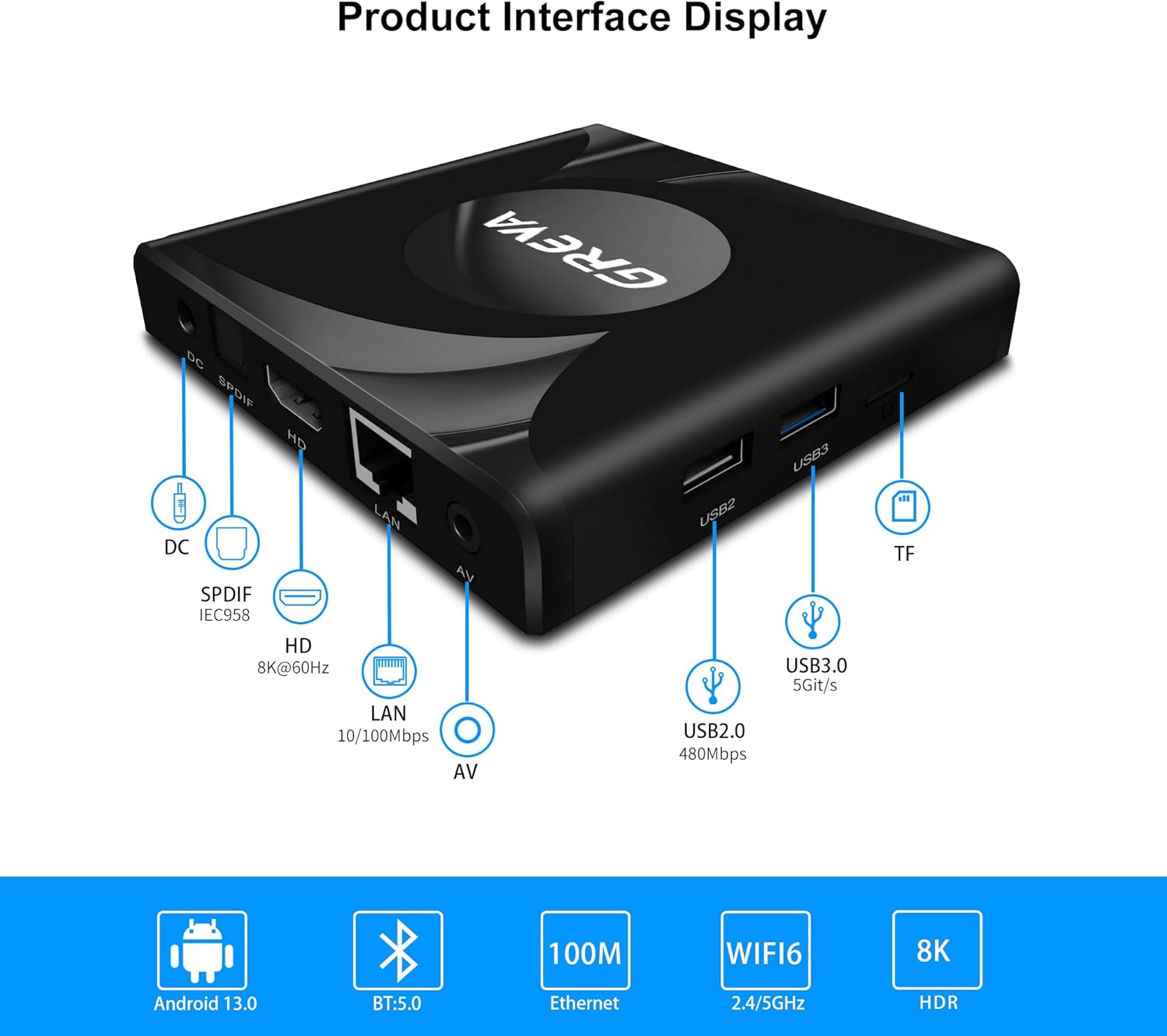
Image 2.2: Rear and side view of the TV Box showing all input/output ports.
- DC: Power input port.
- SPDIF: Digital audio output.
- HD (HDMI): Connects to your TV or display for video and audio output. Supports 8K@60Hz.
- LAN: Ethernet port for wired network connection (10/100Mbps).
- AV: Analog video/audio output.
- USB2: USB 2.0 port (480Mbps).
- USB3: USB 3.0 port (5Git/s).
- TF: MicroSD card slot for expandable storage.
3. Setup Guide
Follow these steps to set up your GREVA Android TV Box:
- Connect to TV: Connect one end of the provided HDMI cable to the "HD" port on the TV Box and the other end to an available HDMI input on your television.
- Connect Power: Plug the power adapter into the "DC" port on the TV Box, then plug the adapter into a wall outlet. The device should power on automatically or can be turned on using the remote control.
- Connect to Network:
- Wired Connection (Ethernet): Connect an Ethernet cable from your router to the "LAN" port on the TV Box.
- Wireless Connection (Wi-Fi): After powering on, navigate to the settings menu on your TV Box, select "Network & Internet," choose your Wi-Fi network, and enter the password.
- Select Input: On your television, use the TV remote to select the correct HDMI input source that corresponds to where you connected the TV Box.
- Initial Setup: Follow the on-screen prompts to complete the initial Android setup, including language selection and Google account login.
4. Operating Instructions
4.1 Remote Control
The included remote control allows you to navigate the TV Box interface. It features an ergonomic design for comfortable use.

Image 4.1: The ergonomic remote control with directional pad and numeric keypad.
4.2 Navigating the Android 13.0 Interface
Your TV Box runs on the Android 13.0 operating system, providing a user-friendly interface and access to a wide range of applications via Google Play.

Image 4.2: The Android 13.0 home screen displaying various streaming applications available through Google Play.
- Use the directional buttons on your remote to move between icons and menus.
- Press the "OK" button to select an item.
- Press the "Back" button to return to the previous screen.
- Press the "Home" button to return to the main home screen.
4.3 Installing Applications
Access the Google Play Store from the home screen to download and install your favorite streaming services, games, and other applications.
4.4 8K Video and 3D Content Playback
The TV Box supports 8K Ultra HD video output and 3D content. Ensure your television or display is 8K or 4K compatible to fully experience these features.

Image 4.3: The TV Box connected to a display showing 8K video output.
4.5 Wireless Connectivity (Wi-Fi 6 & Bluetooth 5.0)
The device features Wi-Fi 6 for faster and more stable wireless internet and Bluetooth 5.0 for connecting peripherals.

Image 4.4: The TV Box highlighting Wi-Fi 6 and Bluetooth 5.0 capabilities, with examples of connectable devices.
- Wi-Fi: Go to Settings > Network & Internet > Wi-Fi to connect to your wireless network.
- Bluetooth: Go to Settings > Connected devices > Pair new device to connect Bluetooth accessories like keyboards, mice, gamepads, or headphones.
4.6 Screen Mirroring
The TV Box supports screen mirroring, allowing you to cast content from your smartphone or tablet to your television.

Image 4.5: A smartphone screen being mirrored onto a larger television display.
5. Maintenance
To ensure the longevity and optimal performance of your GREVA Android TV Box, follow these maintenance guidelines:
- Cleaning: Use a soft, dry cloth to clean the device. Do not use liquid cleaners or abrasive materials.
- Ventilation: Ensure the device is placed in a well-ventilated area to prevent overheating. Do not block ventilation openings.
- Environment: Keep the device away from direct sunlight, heat sources, moisture, and dust.
- Power Off: When not in use for extended periods, disconnect the power adapter.
6. Troubleshooting
If you encounter issues with your GREVA Android TV Box, refer to the following common problems and solutions:
- Device not powering on:
- Check if the power adapter is securely connected to the device and the wall outlet.
- Ensure the wall outlet is functioning correctly.
- No picture on TV:
- Verify the HDMI cable is securely connected to both the TV Box and the TV.
- Ensure your TV is set to the correct HDMI input source.
- Try a different HDMI cable or HDMI port on your TV.
- Device keeps restarting:
- Check the power adapter for any damage or loose connections. Try using a different power outlet.
- Ensure the device has adequate ventilation and is not overheating.
- No Wi-Fi connection:
- Ensure your router is on and functioning.
- Check Wi-Fi settings on the TV Box to ensure the correct network is selected and the password is entered correctly.
- Restart your router and the TV Box.
- Remote control not working:
- Ensure the batteries are correctly inserted and not depleted. Replace batteries if necessary.
- Point the remote directly at the TV Box.
If the problem persists after trying these solutions, please contact GREVA customer support for further assistance.
7. Specifications
Detailed technical specifications for the GREVA Android 13.0 8K Ultra HD TV Box:

Image 7.1: Visual representation of key technical specifications.
| Feature | Specification |
|---|---|
| Brand | GREVA |
| Model Name | GREVA TV Box |
| Product Dimensions | 8 x 6 x 3 cm |
| Product Weight | 340 g |
| Operating System | Android 13.0 |
| Processor | Rockchip RK3528 |
| RAM | 2 GB DDR3 |
| Internal Storage | 16 GB eMMC |
| Max Resolution | 7680 x 4320 (8K) |
| Special Features | 8K Video Playback, 3D Content Compatibility |
| Connectivity Technology | Bluetooth 5.0, Wi-Fi 6 (2.4G/5.8G), Ethernet (10/100M) |
| Connector Type | HDMI |
| Compatible Devices | Television |
| Internet Services Supported | Netflix, Hulu, Amazon Prime Video (and others via Google Play) |
| Controller Type | Remote Control |
| Batteries Included | No |
| Remote Included | Yes |
8. Warranty and Support
For warranty information or technical support, please refer to the documentation provided with your purchase or contact GREVA customer service. Keep your purchase receipt as proof of purchase.