
1. Introduction
Thank you for purchasing the WIKICO 4K Digital Camera W02. This camera is designed for both photography and video recording, offering 4K video capabilities and 56MP photos. It features a 3-inch 180° flip screen, 16X digital zoom, and built-in Wi-Fi. This manual provides essential information for setting up, operating, and maintaining your camera to ensure optimal performance.
2. Safety Information
- Do not expose the camera to water or moisture.
- Avoid dropping the camera or subjecting it to strong impacts.
- Keep the camera away from strong magnetic fields.
- Use only WIKICO-approved accessories and batteries.
- Do not attempt to disassemble or modify the camera.
- Store the camera in a cool, dry place when not in use.
3. Package Contents
Verify that all items listed below are included in your package:
- WIKICO 4K Digital Camera W02
- 52mm Wide Angle Lens
- Macro Lens
- 32GB TF Card
- 2 x 1500mAh Rechargeable Batteries
- Battery Charger
- USB 2.0 Data Cable
- Lens Cap
- User Manual

Figure 3.1: Included accessories with the WIKICO 4K Digital Camera W02.
4. Camera Overview
Familiarize yourself with the main components and controls of your camera.

Figure 4.1: Front view of the WIKICO 4K Digital Camera W02 with wide-angle lens attached.

Figure 4.2: Rear view of the WIKICO 4K Digital Camera W02 showing the 180° flip screen.
4.1. Controls and Ports
- Power Button: Turns the camera on/off.
- Shutter Button: Press halfway to focus, fully to capture photo/start video.
- Mode Dial: Selects between photo, video, time-lapse, continuous shooting, and other modes.
- Zoom Buttons (T/W): Controls digital zoom.
- OK Button: Confirms selections in menus.
- Menu Button: Accesses camera settings.
- Playback Button: Enters playback mode to view captured media.
- LED Fill Light: Provides illumination in low-light conditions.
- Hot Shoe: For external accessories like microphones.
- USB Port: For data transfer and charging.
- Microphone Input: 3.5mm jack for external microphone.
- Tripod Thread: Standard ¼ inch thread for tripod mounting.
5. Setup
5.1. Battery Installation and Charging
- Open the battery compartment cover located at the bottom of the camera.
- Insert a fully charged 1500mAh battery, ensuring correct polarity.
- Close the battery compartment cover securely.
- To charge the battery, insert it into the provided battery charger. Connect the charger to a power source using the USB cable and wall adapter. The indicator light will show charging status.
- The camera supports recording while charging via AC power or a power bank.
5.2. Memory Card Installation
- Locate the TF card slot on the side of the camera.
- Insert the 32GB TF card (or another compatible Micro SD card, up to 128GB, Class 10 recommended) into the slot until it clicks into place.
- To remove, gently press the card inward until it pops out.
5.3. Lens Attachment
- The camera comes with a standard mount lens. For wide-angle or macro photography, attach the included 52mm wide angle and macro lenses.
- Align the threads of the accessory lens with the camera's main lens.
- Gently screw the lens clockwise until it is securely attached.
- Ensure the lens cap is removed before use.

Figure 5.1: WIKICO 4K Digital Camera W02 with detachable wide angle and macro lenses.
6. Operating the Camera
6.1. Power On/Off
Press and hold the Power Button to turn the camera on or off.
6.2. Mode Selection
Rotate the Mode Dial on the top of the camera to select your desired shooting mode (e.g., Photo, Video, Time-lapse, Continuous Shooting, Silent Mode, Self-timer).

Figure 6.1: The mode dial on the WIKICO 4K Digital Camera W02 for selecting various functions.
6.3. Taking Photos
- Select Photo mode using the Mode Dial.
- Frame your shot using the 3-inch flip screen.
- Press the Shutter Button halfway to focus, then fully press to capture the 56MP photo.
6.4. Recording Videos
- Select Video mode using the Mode Dial.
- Press the Shutter Button to start recording 4K (2160p) video at 30 frames per second.
- Press the Shutter Button again to stop recording.
- The camera supports a pause function during video recording.
6.5. Zoom Function
Use the T (telephoto) and W (wide) buttons to adjust the 16X digital zoom. Note that digital zoom may affect image quality.

Figure 6.2: Illustration of the 16X digital zoom capability.
6.6. Flash/Fill Light
The camera features a built-in LED fill light for improved illumination in dark environments. Activate it as needed through the camera settings or dedicated button.

Figure 6.3: The camera's LED fill light providing illumination in a low-light setting.
6.7. Webcam Mode
Connect the camera to your computer via the USB cable and select 'Webcam Mode' from the camera's menu. This allows you to use the camera for live streaming, video calls, or online meetings.
Figure 6.4: The WIKICO 4K Digital Camera W02 being used as a webcam for online communication.
6.8. WiFi Function
Activate the built-in Wi-Fi function in the camera's settings to connect to your mobile phone. This enables instant sharing of photos and videos online.
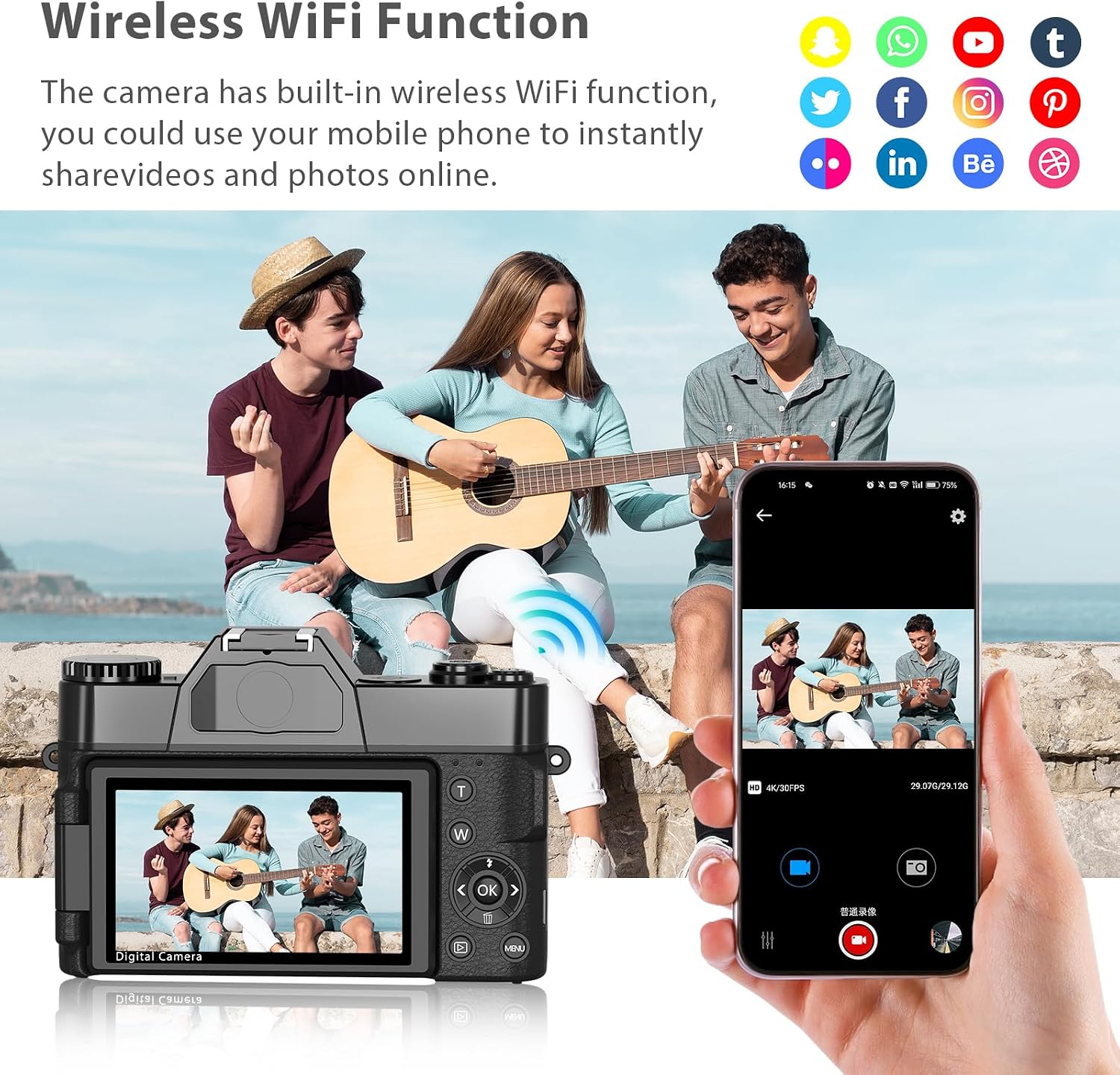
Figure 6.5: Demonstrating the wireless Wi-Fi function for sharing content to a mobile device.
6.9. Built-in Filters
Explore the variety of fun and artistic filters available in the camera's settings to add style and personality to your photos and videos.

Figure 6.6: Examples of various photography styles and filter effects available on the camera.
6.10. Playback
Press the Playback button to review your captured photos and videos on the camera's screen. Use the directional buttons to navigate through your media.
7. Maintenance
7.1. Cleaning
- Use a soft, dry cloth to clean the camera body.
- For the lens, use a specialized lens cleaning cloth and solution. Avoid touching the lens surface with your fingers.
- Do not use harsh chemicals or abrasive materials.
7.2. Battery Care
- Charge batteries fully before first use.
- Remove batteries if the camera will not be used for an extended period.
- Store batteries in a cool, dry place.
7.3. Storage
When storing the camera, ensure it is powered off, batteries are removed, and the lens cap is on. Store in a protective case to prevent dust and scratches.
8. Troubleshooting
| Problem | Possible Cause | Solution |
|---|---|---|
| Camera does not power on | Low or depleted battery | Charge the battery or replace with a fully charged one. |
| Cannot take photos/videos | Memory card full or not inserted correctly | Insert a new/empty memory card or reinsert the existing one. Format the card if necessary (this will erase all data). |
| Poor image/video quality | Low light, digital zoom, dirty lens | Use the LED fill light, avoid excessive digital zoom, clean the lens. |
| Wi-Fi connection issues | Incorrect settings, interference | Ensure Wi-Fi is enabled on both camera and mobile device. Check for interference. |
9. Specifications
| Feature | Detail |
|---|---|
| Brand | WIKICO |
| Model Name | W02 |
| Effective Still Resolution | 56 MP |
| Video Resolution | 4K (2160p) |
| Frame Rate | 30fps |
| Digital Zoom | 16 x |
| Screen Size | 3 Inches (180° Flip Screen) |
| Lens Type | Macro, Wide Angle (52mm) |
| Connectivity Technology | USB, Wi-Fi, HDMI |
| Flash Memory Type | Micro SD (up to 128 GB, Class 10) |
| Batteries | 2 x 1500mAh Lithium Ion |
| Item Weight | 230 Grams |
| Special Features | Time-lapse, Continuous Shooting, Video Pause, Loop Recording, Silent Mode, Self-timer, Webcam Function, Built-in Filters |
10. Warranty and Support
WIKICO is committed to providing high-quality products and customer satisfaction. For any inquiries or support needs, please contact our customer service team. We offer:
- Lifetime 24-hour Responsive Customer Support.
- Free accessory replacement within one year of purchase.
- Online consultation and support for any issues you may encounter.
Please retain your proof of purchase for warranty claims.
Video 10.1: Official WIKICO video demonstrating the 4K Vlogging Camera features and capabilities.