1. Introduction
This manual provides instructions for the installation, operation, and maintenance of your Generic WiFi Smart Life Tuya 2-Gang Light Switch. This smart switch allows you to control your lighting wirelessly via Wi-Fi, touch, or voice commands through compatible smart home platforms like Amazon Alexa and the Tuya Smart Life application.
2. Safety Information
- WARNING: Always cut off power at the circuit breaker before installing, removing, or servicing the switch. Failure to do so may result in serious injury or death.
- Installation should be performed by a qualified electrician or a person with a thorough understanding of electrical wiring.
- Ensure the operating voltage of your electrical system matches the switch's specifications (95-250V AC, 50-60Hz).
- This device requires a neutral wire for proper operation.
- Do not exceed the maximum load capacity of 10A per gang or 300W total for dimmable loads.
3. Specifications
- Brand: Generic
- Model: B0BYW4W3VP
- Operating Voltage: 95-250V AC, 50-60Hz
- Current: 10A
- Max. Load: 300W (for dimmable loads, if applicable)
- Connectivity Protocol: Wi-Fi (IEEE802.11 b/g/n, 2.4GHz only)
- Control Method: App, Remote, Touch, Voice
- Controller Type: Amazon Alexa, IFTTT, Tuya Smart Life App
- Switch Type: Touch On/Off Switch (also supports Dimmer and Pressure Switch functionality if applicable to specific models)
- Circuit Type: 2-way compatible
- Mounting Type: Wall Mount
- Material: Plastic, Toughened Glass Panel
- Color: White

Figure 3.1: Front dimensions of the smart switch.
4. Setup
4.1 Physical Installation
- Power Off: Before starting, ensure the power to the circuit is completely off at the main circuit breaker.
- Remove Old Switch: Carefully remove your existing wall switch from the wall box.
- Identify Wires: Identify the Live (Load), Neutral, and Ground wires. This smart switch requires a neutral wire.
- Wire the Smart Switch: Connect the wires to the corresponding terminals on the smart switch. Refer to the wiring diagram below.
- Mount the Switch: Secure the smart switch into the wall box using the provided screws. Ensure it fits flush with the wall.
- Attach Glass Panel: Snap the glass touch panel onto the switch module.
- Restore Power: Turn the power back on at the circuit breaker.
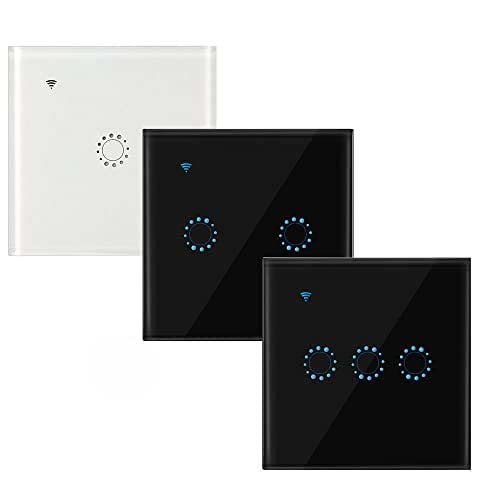
Figure 4.1: Back view and installation dimensions of the smart switch. Note: This diagram illustrates a 3-gang switch; the principles apply to your 2-gang model.
4.2 Wiring Diagram (2-Way Control Example)
The following diagram illustrates a common wiring configuration for a multi-gang smart switch, including a 2-way control setup. Ensure you connect the Neutral (N), Live (L), and Load (L1, L2 for 2-gang) wires correctly. Always consult a professional if unsure.

Figure 4.2: Example wiring diagram for a two-way control setup. Note: This diagram illustrates a 3-gang switch; the principles apply to your 2-gang model.
4.3 App Pairing (Tuya Smart Life)
- Download App: Download the "Tuya Smart" or "Smart Life" app from your smartphone's app store (iOS or Android).
- Register/Login: Open the app and register for an account or log in if you already have one.
- Enter Pairing Mode: With the switch powered on, press and hold one of the touch buttons for approximately 5-10 seconds until the indicator light starts blinking rapidly. This indicates pairing mode.
- Add Device: In the app, tap the "+" icon (usually top right) to add a device. Select "Electrical Switch" or "Light Switch (Wi-Fi)".
- Connect to Wi-Fi: Confirm the indicator light is blinking rapidly. Enter your 2.4GHz Wi-Fi network name and password. (5GHz Wi-Fi is not supported).
- Complete Pairing: The app will search for and connect to the switch. Once connected, you can rename the switch and assign it to a room.
5. Operating Instructions
5.1 Manual Touch Control
Simply touch the corresponding glass panel area to turn the connected light(s) on or off. Each touch area controls one gang.
5.2 App Remote Control
Once paired with the Tuya Smart Life app, you can control your lights from anywhere with an internet connection.
- Open the Tuya Smart Life app.
- Select your light switch from the device list.
- Tap the on/off icons to control each gang individually.
- The app also allows for scheduling, timers, and scene creation.

Figure 5.1: Remote control via the Smart Life app.
5.3 Voice Control (Alexa/Google Assistant)
To enable voice control, link your Tuya Smart Life account with Amazon Alexa or Google Assistant through their respective apps.
- For Alexa: Open the Alexa app, go to "Skills & Games", search for "Smart Life", enable the skill, and link your account. Discover devices.
- For Google Assistant: Open the Google Home app, tap "+", select "Set up device" > "Works with Google", search for "Smart Life", and link your account.
Example Voice Commands:
- "Alexa, turn on [Switch Name]"
- "Hey Google, turn off [Switch Name]"
5.4 2-Way Control Functionality
This switch supports 2-way control, allowing you to control a single light fixture from two different switch locations (e.g., at the top and bottom of a staircase). This requires specific wiring as shown in the setup section.
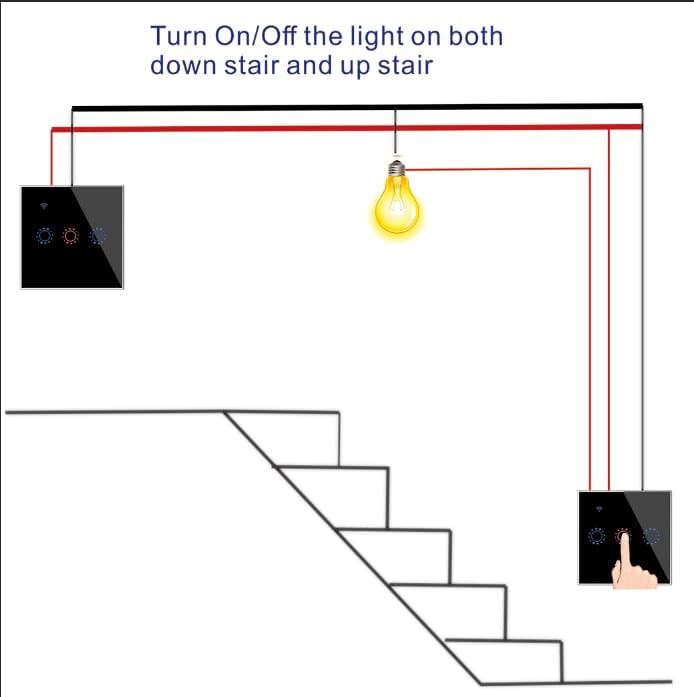
Figure 5.2: Simplified 2-way control diagram for a staircase.
6. Maintenance
- To clean the glass panel, gently wipe it with a soft, damp cloth. Do not use abrasive cleaners or solvents.
- Ensure the switch is free from dust and debris to maintain optimal touch responsiveness.
- Periodically check wiring connections for tightness, especially if any issues arise. Always cut power before inspecting wiring.
7. Troubleshooting
- Switch Not Responding:
- Check if the circuit breaker is on.
- Ensure all wiring connections are secure.
- Verify that a neutral wire is connected.
- If the switch is warm, allow it to cool down.
- Cannot Connect to Wi-Fi:
- Ensure your Wi-Fi network is 2.4GHz. 5GHz networks are not supported.
- Check your Wi-Fi password for accuracy.
- Move the switch closer to your Wi-Fi router or consider a Wi-Fi extender.
- Ensure the switch is in pairing mode (indicator light blinking rapidly).
- Restart your router and try pairing again.
- Voice Control Not Working:
- Verify that your Tuya Smart Life account is correctly linked to Alexa or Google Assistant.
- Ensure the device name in the Smart Life app matches what you are saying.
- Check your internet connection.
- Lights Flicker or Don't Turn Off Completely:
- This can occur with certain LED bulbs. Ensure your bulbs are dimmable if using a dimmer switch model, or compatible with smart switches.
- Check if the total load exceeds the switch's maximum capacity.
8. Warranty Information
This Generic WiFi Smart Life Tuya Light Switch comes with a 1-year warranty from the date of purchase, covering manufacturing defects. This warranty does not cover damage caused by improper installation, misuse, accidents, or unauthorized modifications.
9. Customer Support
If you encounter any problems or have questions regarding the installation or operation of your smart switch, please do not hesitate to contact the seller or manufacturer for assistance. Provide your model number (B0BYW4W3VP) and a detailed description of the issue for quicker support.