
1. Introduction
This manual provides essential information for the safe installation, setup, operation, and maintenance of your Generic WiFi Smart Tuya Light Switch with US Plug Outlet. Please read this manual thoroughly before installation and use, and retain it for future reference.
Safety Precautions
- Installation must be performed by a qualified electrician or in accordance with local electrical codes.
- Always disconnect power at the circuit breaker before installing or servicing the device.
- Do not install with wet hands or when standing on wet surfaces.
- Ensure the operating voltage (90-250V) is compatible with your electrical system.
- This device is designed for indoor use only.
2. Package Contents
Verify that all items are present in the package:
- Generic WiFi Smart Tuya Light Switch with US Plug Outlet (2-Gang)
- Mounting Screws
- User Manual
3. Specifications
| Feature | Specification |
|---|---|
| Operating Voltage | 90-250V AC, 50-60Hz |
| Max. Current | 13A (Socket), 10A (Switch) |
| Max. Power | 1680W (Socket), 2200W (Switch) |
| Circuit Type | 2-way |
| Control Method | Remote, Touch, Voice |
| Controller Type | Amazon Alexa, Google Assistant, IFTTT |
| App Support | Smart Life, Tuya Smart |
| Dimensions | Approx. 115.74mm x 69.14mm x 43mm (L x W x D) |
| Weight | Approx. 200g |
| Material | Plastic, Glass Panel |
 Image: Product dimensions and technical parameters, including input voltage, output, color, and app support.
4. Installation
Before proceeding, ensure the power is OFF at the circuit breaker. This device requires a neutral wire for proper operation.
Wiring Diagram
Refer to the following diagrams for correct wiring. The switch includes connections for Live (Fire Wire), Neutral Wire, Ground Wire, and Load (L1/L2 for light bulbs).
 Image: Back view of the smart switch showing terminals for Socket Switch, Light Switch, US Socket, Fire Wire, Ground Wire, Neutral Wire, and L1/L2 for light bulbs. Includes a basic wiring diagram.
 Image: Detailed wiring diagram illustrating connections for Neutro (Neutral), Terra (Ground), Fase (Live), and Retorno (Load L1/L2) for light bulbs.
Installation Steps
- Turn off Power: Locate the circuit breaker controlling the switch you are replacing and turn it OFF. Verify power is off using a voltage tester.
- Remove Old Switch: Carefully remove the existing wall plate and unscrew the old switch from the wall box. Disconnect the wires.
- Identify Wires: Identify the Live (Line), Neutral, Ground, and Load wires. If you are unsure, consult a qualified electrician.
- Connect Wires: Connect the wires to the smart switch terminals as follows:
- Live (Line) wire to the 'L' terminal.
- Neutral wire to the 'N' terminal.
- Ground wire to the 'G' (Ground) terminal.
- Load wires (to lights) to the 'L1' and 'L2' terminals.
- Mount Switch: Carefully push the wired switch into the wall box and secure it with the provided screws.
- Attach Faceplate: Snap the glass faceplate onto the switch.
- Restore Power: Turn the power back ON at the circuit breaker.
5. Setup
This section guides you through connecting your smart switch to your home Wi-Fi network and pairing it with the Smart Life or Tuya Smart app.
App Installation
- Download the "Smart Life" or "Tuya Smart" app from the Apple App Store or Google Play Store.
- Register a new account or log in with an existing one.
Device Pairing
 Image: The smart switch alongside logos for Tuya Smart and Smart Life apps, with a smartphone displaying the app's device list.
- Ensure your smartphone is connected to a 2.4GHz Wi-Fi network. (5GHz networks are not supported).
- Open the Smart Life/Tuya Smart app.
- Tap the "+" icon in the top right corner to add a device.
- Select "Electrical Switch" or "Socket (Wi-Fi)" from the device list.
- Follow the in-app instructions to put the device into pairing mode. This usually involves pressing and holding one of the switch buttons until the Wi-Fi indicator light blinks rapidly.
- Confirm the indicator light is blinking rapidly in the app.
- Enter your Wi-Fi network password.
- Wait for the device to connect. Once connected, you can rename the switch and socket within the app.
6. Operating Instructions
Your smart switch offers multiple ways to control your connected devices.
Manual Control
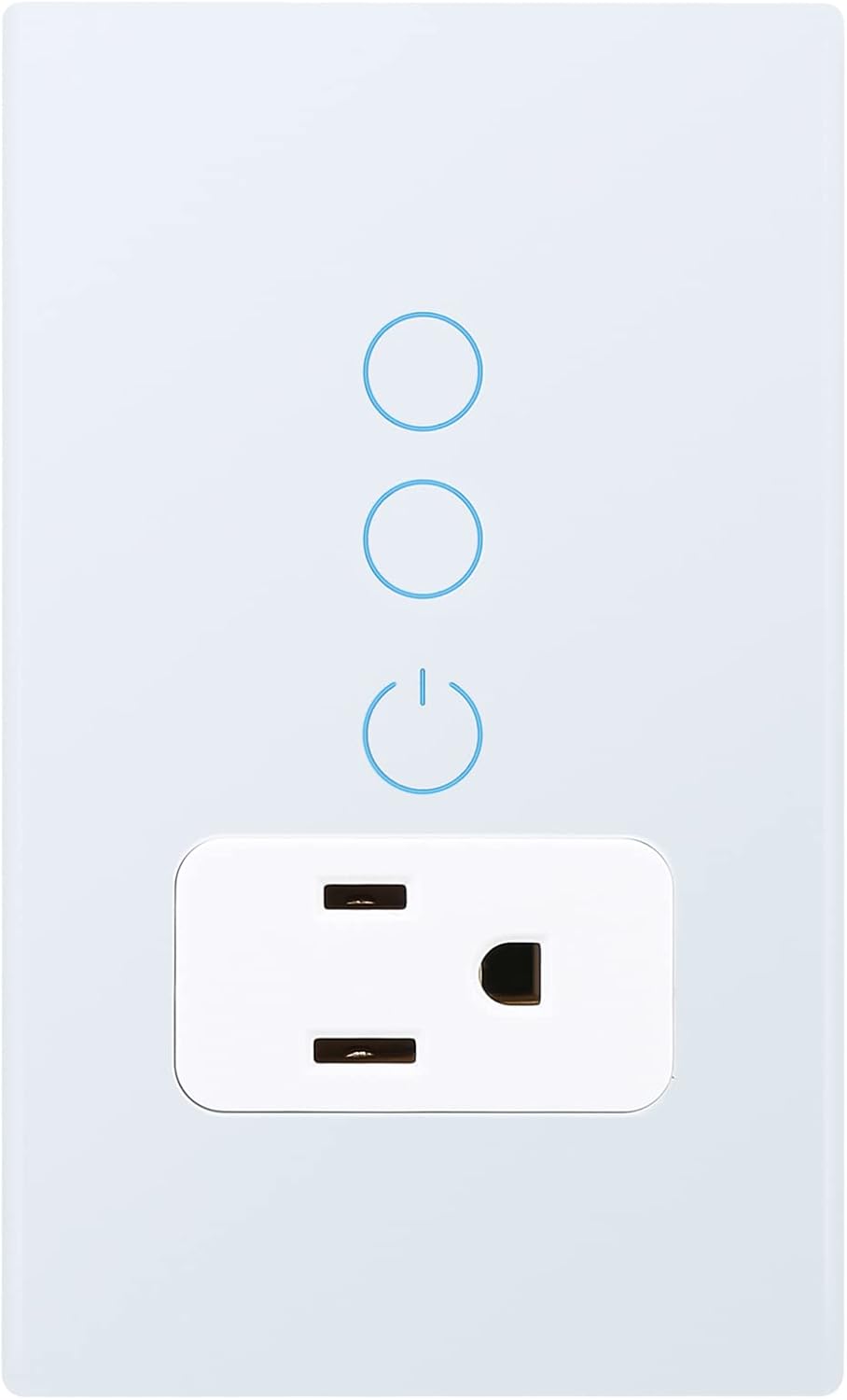 Image: Front view of the smart switch, showing the touch-sensitive light switch buttons and the integrated US plug outlet.
- Light Switch: Touch the circular icons on the glass panel to turn the connected lights ON or OFF.
- US Plug Outlet: The integrated US plug outlet can be controlled independently via the app or voice commands.
App Control
Using the Smart Life or Tuya Smart app, you can:
- Remotely turn the light switch and socket ON/OFF from anywhere.
- Set schedules and timers for automatic operation.
- Create scenes to control multiple devices simultaneously.
- Monitor power consumption (if supported by the specific model).
- Define the restart status (ON, OFF, or Keep as last status) after a power outage.
 Image: A smartphone displaying the app interface for defining the restart status of the smart switch, allowing users to choose between ON, OFF, or 'Keep as last status' after a power interruption.
Voice Control (Alexa / Google Home)
To enable voice control:
- Link your Smart Life/Tuya Smart account to Amazon Alexa or Google Home through their respective apps.
- Discover devices. Your smart switch and socket will appear as controllable devices.
- Use voice commands such as:
- "Alexa, turn on the living room light."
- "Hey Google, turn off the socket."
- "Alexa, set the kitchen light to 50%." (If dimmer functionality is present and enabled)
7. Maintenance
To ensure the longevity and proper functioning of your smart switch:
- Cleaning: Gently wipe the glass panel with a soft, dry cloth. Do not use abrasive cleaners or solvents.
- Power Cycle: If the switch becomes unresponsive, try turning off the power at the circuit breaker for 10 seconds, then turning it back on.
- Firmware Updates: Periodically check the Smart Life/Tuya Smart app for available firmware updates to ensure optimal performance and security.
8. Troubleshooting
If you encounter issues with your smart switch, refer to the following table:
| Problem | Possible Cause | Solution |
|---|---|---|
| Switch not responding to touch. | No power; loose wiring; internal fault. | Check circuit breaker. Verify wiring connections. Power cycle the switch. If issue persists, contact support. |
| Cannot connect to Wi-Fi. | Incorrect Wi-Fi password; 5GHz network used; device not in pairing mode; weak Wi-Fi signal. | Ensure correct 2.4GHz Wi-Fi password. Confirm device is blinking rapidly. Move router closer or use a Wi-Fi extender. |
| Voice control not working. | App account not linked; device not discovered; incorrect voice command. | Ensure Smart Life/Tuya Smart account is linked to Alexa/Google Home. Ask the voice assistant to "discover devices." Use correct commands. |
| Lights flicker or do not turn on/off correctly. | Incompatible bulb type; wiring issue. | Ensure bulbs are compatible with smart switches (e.g., not all LED bulbs are). Recheck wiring connections. |
9. Warranty and Support
This product comes with a standard manufacturer's warranty. For specific warranty terms and conditions, please refer to the documentation provided at the time of purchase or contact your retailer.
For technical support or assistance with installation and troubleshooting, please contact the manufacturer or your local distributor. Contact information can typically be found on the product packaging or the retailer's website.


