
Breville BES881SST2IAN2
Breville the Barista Touch Impress Coffee Machine User Manual
Model: BES881SST2IAN2
1. Important Safeguards
Always read all instructions before using the Breville Barista Touch Impress Coffee Machine. Failure to follow these instructions may result in injury or damage to the appliance.
- Ensure the appliance is properly grounded.
- Do not immerse the power cord, power plug, or appliance in water or any other liquid.
- Unplug the appliance from the power outlet before cleaning or when not in use.
- Keep hands and cords away from hot surfaces.
- This appliance is for household use only.
2. Components and Features
Familiarize yourself with the various parts of your Breville Barista Touch Impress Coffee Machine.

Image: Front view of the Breville Barista Touch Impress Coffee Machine in Sea Salt color, showing the integrated grinder, touchscreen display, portafilter, steam wand, and milk jug, alongside glasses of espresso and iced coffee.
- Integrated Conical Burr Grinder: Delivers fresh, consistent coffee grounds.
- Touchscreen Display: Intuitive interface for selecting drinks and adjusting settings.
- Impress Puck System: Provides assisted tamping and auto-correction for precise dosing.
- ThermoJet Heating System: Achieves optimal extraction temperature in 3 seconds.
- Auto MilQ Steam Wand: Automatically textures milk to desired temperature and consistency, with settings for alternative milks.
- Water Tank: Removable for easy refilling.
- Drip Tray: Collects excess liquid and is removable for cleaning.
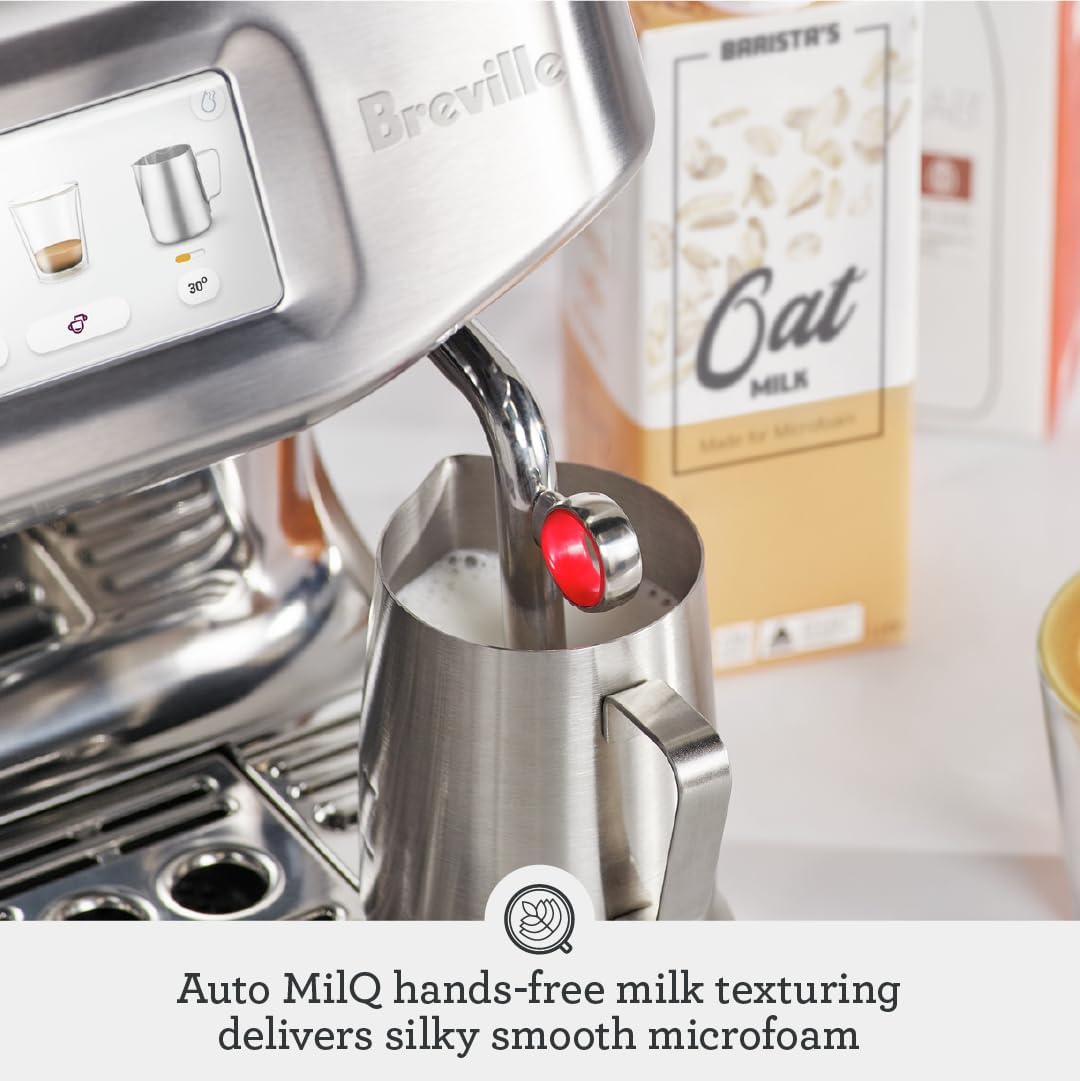
Image: Diagram showing the product dimensions of the Breville Barista Touch Impress Coffee Machine: 41cm High x 33cm Wide x 38cm Deep.
3. Setup
- Unpacking: Carefully remove all packaging materials and place the machine on a flat, stable surface. Retain packaging for future transport or storage.
- Water Tank Installation: Fill the water tank with fresh, cold filtered water. Ensure the water filter is properly installed in the tank. Insert the tank securely into the back of the machine.

Image: Side view of the Breville Barista Touch Impress Coffee Machine, showing the water tank on the left side.
- Bean Hopper Installation: Fill the bean hopper with fresh whole coffee beans. Securely attach the hopper to the top of the machine.
- Power Connection: Plug the power cord into a grounded power outlet.
- First Use Cycle: Follow the on-screen prompts for the initial setup and rinse cycle. This primes the machine and ensures optimal performance.
4. Operating Instructions
4.1 Making Espresso
- Select Drink: On the touchscreen, swipe and select your desired coffee drink, such as Espresso or Latte.
- Grind and Dose: Insert the portafilter into the grinding cradle. The machine will automatically grind and dose the correct amount of coffee. The Impress Puck System provides feedback for optimal dosing.
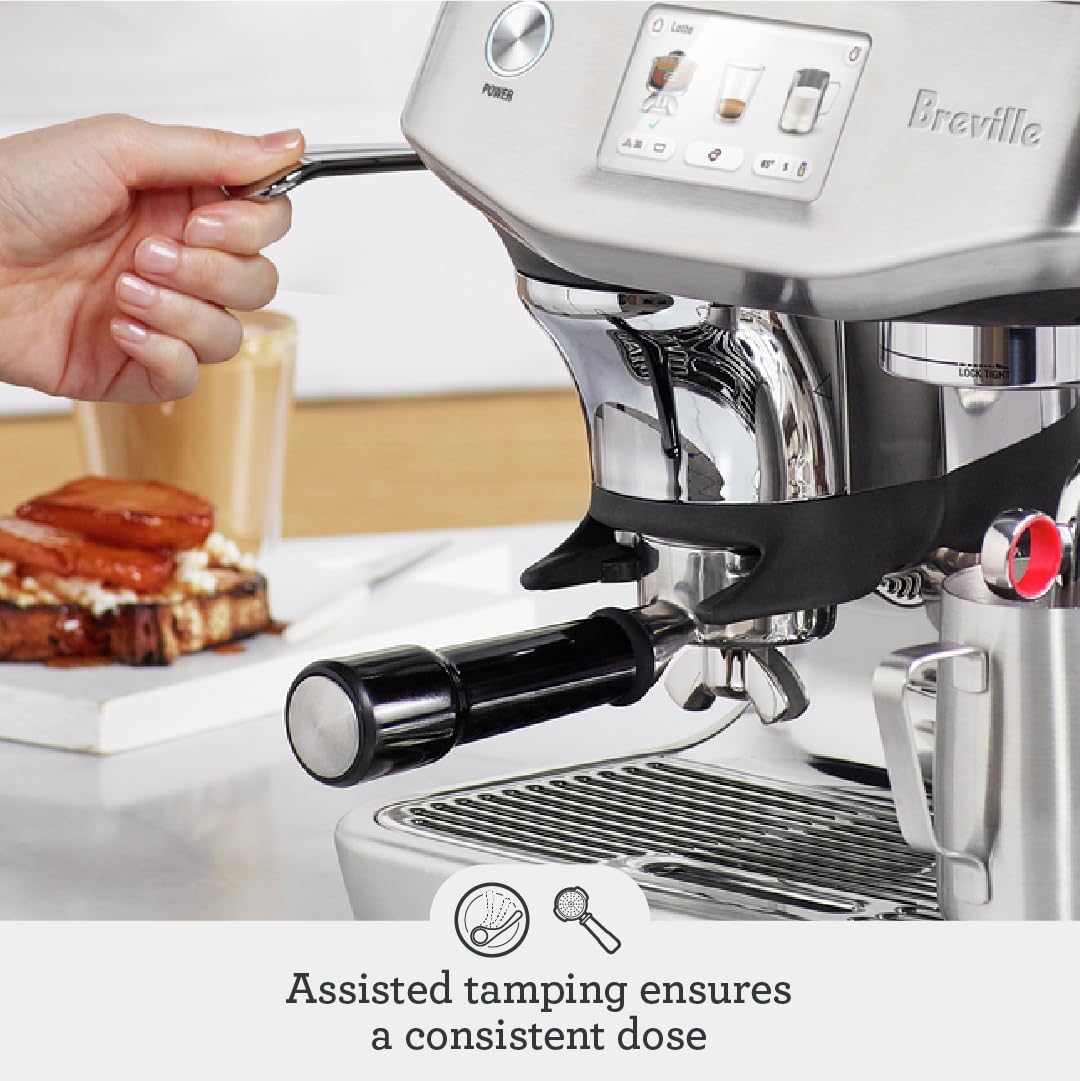
Image: A hand operating the assisted tamping lever on the Breville Barista Touch Impress, ensuring a consistent dose of coffee grounds in the portafilter.
- Tamp: The assisted tamping mechanism will automatically tamp the coffee grounds with 10kg of pressure and a 7-degree barista twist.
- Extract Espresso: Lock the portafilter into the group head. Place your cup(s) under the spouts. Press the 'Brew' button on the touchscreen to begin extraction.

Image: Close-up of espresso being extracted from the Breville Barista Touch Impress into a glass cup, showcasing the rich crema.
4.2 Milk Texturing with Auto MilQ
- Fill Milk Jug: Fill the stainless steel milk jug with cold milk to the indicated level.
- Position Steam Wand: Place the milk jug on the drip tray with the steam wand inserted into the milk.
- Select Milk Type: On the touchscreen, select your milk type (dairy, oat, almond, soy) and desired temperature/texture.
- Start Texturing: The Auto MilQ system will automatically texture the milk to create silky smooth microfoam.

Image: The Auto MilQ steam wand automatically frothing milk in a stainless steel jug, producing microfoam for lattes and cappuccinos.
- Clean Steam Wand: After texturing, wipe the steam wand with a damp cloth and purge it to clear any milk residue.
4.3 Cold Brew & Cold Espresso
The Barista Touch Impress offers quick cold coffee options:
- Cold Brew: Extracted in under 3 minutes.
- Cold Espresso: Crema-topped, extracted in under 2 minutes.
Select these options directly from the touchscreen menu.

Image: Close-up of the Breville Barista Touch Impress touchscreen displaying options for Espresso Martini, Espresso Shakerato, and Latte Shakerato, highlighting the cold beverage capabilities.
5. Maintenance and Cleaning
Regular cleaning and maintenance ensure the longevity and optimal performance of your coffee machine.
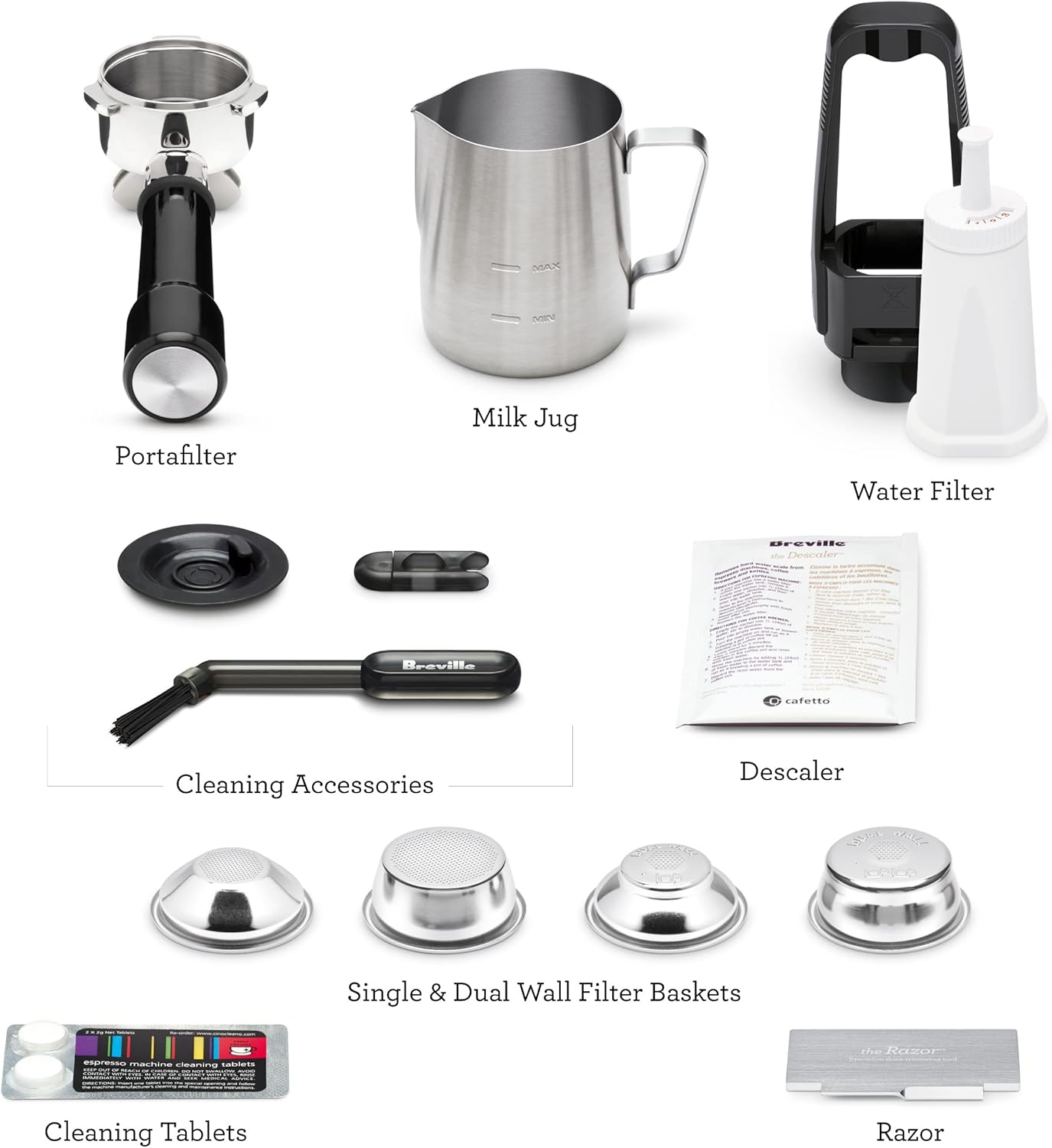
Image: A collection of accessories for the Breville Barista Touch Impress, including a portafilter, milk jug, water filter, various cleaning tools, descaler, filter baskets, cleaning tablets, and The Razor dose trimming tool.
5.1 Daily Cleaning
- Drip Tray: Empty and clean the drip tray daily.
- Steam Wand: Wipe and purge the steam wand immediately after each use.
- Portafilter and Filter Baskets: Rinse with hot water after each use.
- Group Head: Use the cleaning brush to remove any coffee grounds from the group head.
5.2 Weekly Cleaning
- Grinder Burrs: Clean the grinder burrs using the provided brush to remove coffee oil and residue.
- Water Tank: Clean the water tank with mild detergent and rinse thoroughly.
5.3 Descaling
The machine will prompt you when descaling is required. Follow the on-screen instructions and use the provided descaling solution or a Breville-approved descaler.
Note: Regular descaling prevents mineral buildup and maintains machine performance.
6. Troubleshooting
| Problem | Possible Cause | Solution |
|---|---|---|
| No coffee flow or slow flow | Fine grind, too much coffee, clogged filter basket, or machine needs descaling. | Adjust grind coarser, reduce coffee dose, clean filter basket, or perform descaling cycle. |
| Espresso extracts too quickly | Coarse grind, too little coffee, or uneven tamp. | Adjust grind finer, increase coffee dose, ensure even tamp with Impress Puck System. |
| Milk not frothing properly | Steam wand clogged, insufficient milk, or incorrect milk type setting. | Clean steam wand, ensure adequate milk volume, select correct milk type on touchscreen. |
| "Fill Hopper" message despite full hopper | Sensor issue or coffee beans not feeding correctly. | Ensure hopper is seated correctly. Try gently shaking the machine to settle beans. If issue persists, contact customer support. |
7. Specifications
| Feature | Detail |
|---|---|
| Model Number | BES881SST2IAN2 |
| Dimensions (L x W x H) | 33.1 x 33 x 41.7 cm |
| Weight | 10.3 kg |
| Water Tank Capacity | 2 Litres |
| Power/Wattage | 1100 watts |
| Material | Stainless Steel |
| Grind Settings | 30 precision grind settings |
| Heating System | ThermoJet (3-second heat-up) |
8. Warranty and Support
Breville provides a 2-year warranty for this product. For warranty claims or technical support, please refer to the following:
- Warranty Period: 2 years from the date of purchase.
- Contact Breville: Visit the official Breville website for support contact information, FAQs, and service centers. You can find more information at www.breville.com.
- Online Resources: Explore Breville's online resources for additional tips, recipes, and masterclasses to enhance your coffee-making experience.
Ask a question about this manual
Ask about setup, troubleshooting, compatibility, parts, safety, or missing instructions. Manuals+ will review the question and use this page’s manual context to help answer it.